Are you working on a group presentation where different team members send their slides as separate files? This is a common scenario where knowing how to merge PowerPoint files into one clean presentation comes in handy.
Each of the files you receive may have different styles, fonts, and layouts, which can result in broken formatting and mismatched fonts when they are being combined.
This guide walks you through the best methods to merge PPT files, shows you how to keep formatting under control, and how to fix any issues that may come up later.
Things to Check Before Merging PPT Files
Most formatting issues that occur when combining PowerPoint slides happen when you skip the preparation step. Before you begin merging, it is important that you look out for these things:
- Slide dimensions: Confirm that all slides use the same dimensions. If one file uses widescreen (16:9) and another uses standard (4:3), your slides may look stretched or misaligned after merging.
- Font and theme usage: Next, check whether each slide uses the same fonts, color schemes, layouts, and slide masters. The design will break if there are differences in any of these elements.
- Backup: Another important habit to develop is saving a copy of every original file before merging. This way, you can easily start over if something goes wrong.
Method 1: Use Reuse Slides (Recommended Method)
The “Reuse Slides” feature in PowerPoint offers the best approach when it comes to merging PPTs. This method not only lets you import slides from another file, but also allows you to choose how you want the slides to appear.
You can either preserve the original formatting or adapt the slides to match your current presentation.
Step 1: Select where you want the new slides to appear in the slide panel.
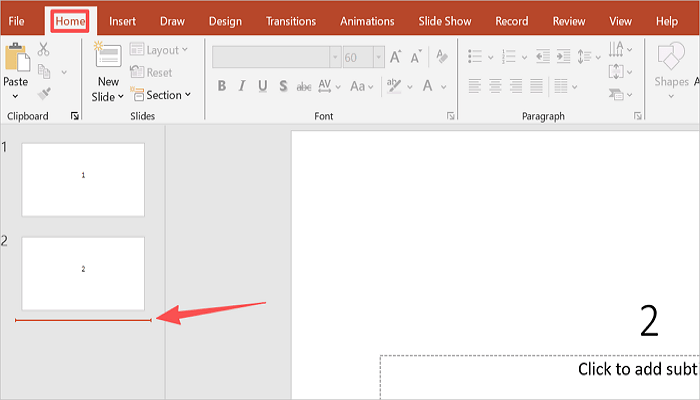
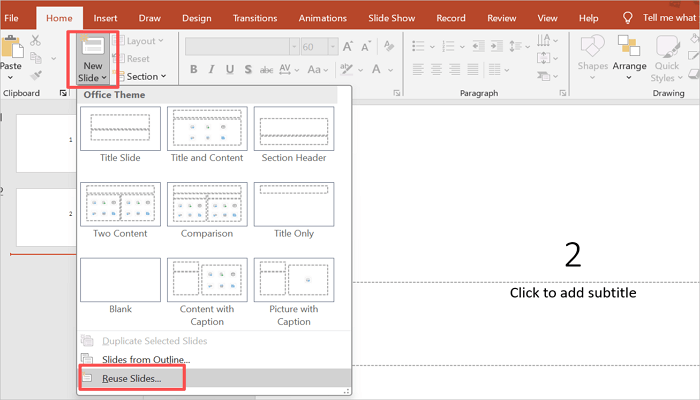
Step 2: Click the dropdown arrow under New Slide and select Reuse Slides.
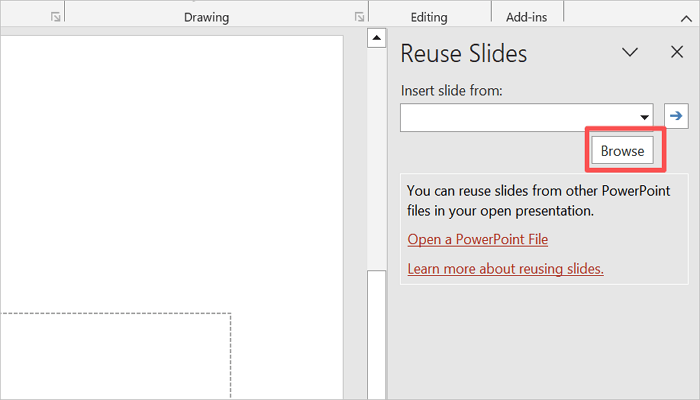
Step 3: Click Browse to select the second PowerPoint file.
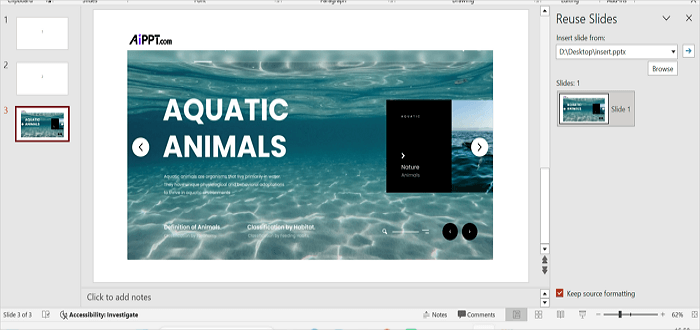
Step 4: Click each slide in the thumbnail to import it. Optionally, tick the Keep Source Formatting box to maintain the original layout and design.
Method 2: Copy and Paste Slides Between Files
While this method doesn’t give you as much control over how your slides appear, it is a more straightforward option to combine PowerPoints. This method is quicker, but it can easily create inconsistencies in your formatting. Fonts, layouts, and colors may not align properly. Use it only when you want speed over design accuracy.
This copy-paste approach lets you open presentations, copy slides from one, and paste them into another.
However, formatting depends on the paste option you choose: Keep Source Formatting or Use Destination Theme.
Step 1: While keeping both presentations open, right-click the slide you want from the slide panel.

Step 2: Select Copy or simply press Ctrl + C (Windows) or Cmd + C (Mac).
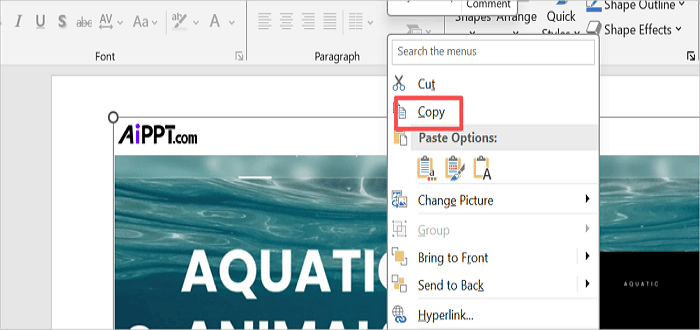
Step 3: Go to your destination file and right-click where you want to insert the copied slide in the slide panel.
- The first option(with a) is Use Destination Theme.
- The second option(with the paintbrush icon) is Keep Source Formatting.

Step 4: Click Keep Source Formatting.

Method 3: Drag and Drop Files Between Presentations
If you prefer a more visual and intuitive method, drag and drop is another way to merge PPT online. This method works by opening both presentations side by side and moving slides between them directly.
The drag-and-drop approach is also quick, but it can also cause theme or layout inconsistencies depending on how slides are dragged and where they are dropped.
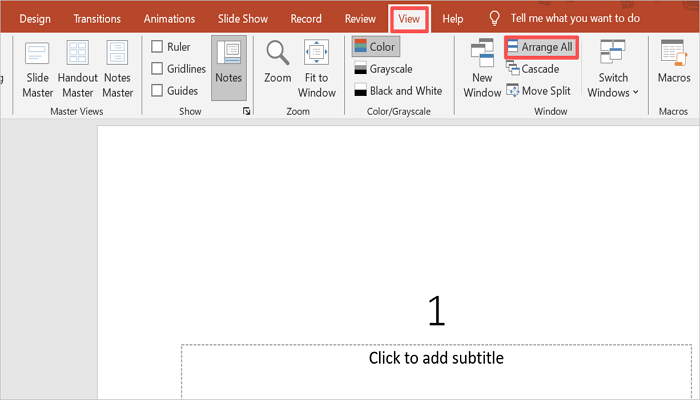
Step 1: Keep the PPT files open and arrange them side-by-side via View > Arrange All.
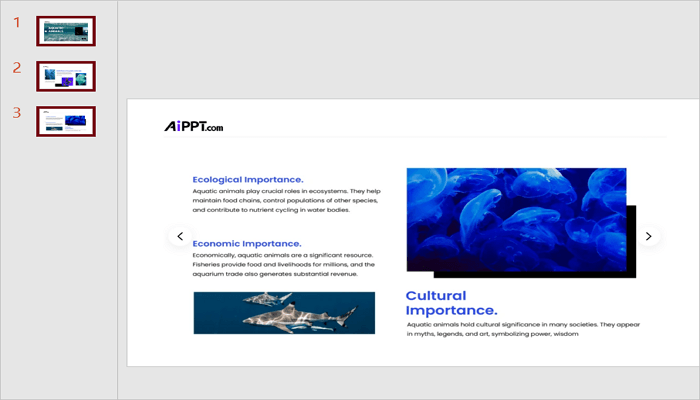
Step 2: From the source presentation, select the slides you want to move. Hold Ctrl (Windows) or Cmd (Mac) to select multiple slides.
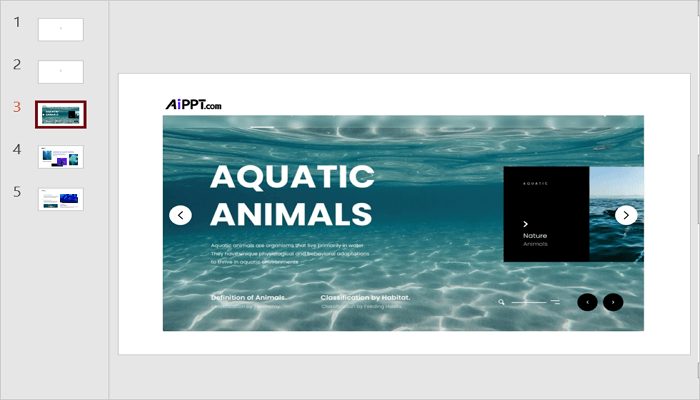
Step 3: Drag the selected slides across to the slide panel of the destination presentation and drop them in place.
How to Fix Formatting Issues After Merging PPT Files
Knowing how to merge in PowerPoint presentations may not be enough if you can’t fix formatting issues that arise during the process.
Explore some of the most common issues with merging and how to resolve them.
1. Font mismatches
This happens when there are missing fonts in the destination file, or the theme is overriding font settings. To fix it, go to Home > Font to find and standardize font usage across the whole deck.
2. Shifted slide layouts
Right-click the affected slide thumbnail and select Layout. Then, reapply the correct layout from the current theme.
3. Misaligned images or text boxes
The source file uses a different dimension from the destination file. Set a consistent slide size before merging or use the Align tools under the Home tab to manually reposition objects.
4. Theme conflicts
The two presentations use different master slides. Go to View > Slide Master to apply a single unified master to the whole presentation.
Bonus Tips: Combine Two PPT Files Using AiPPT.com
Tools like AiPPT.com offer an easier way to merge PPT online, so you don’t stress with formatting issues. AiPPT.com helps you avoid layout conflicts, reduce duplicated content, and produce a cleaner structure automatically.
Instead of combining your slides directly, you upload both PPT files as source materials into AiPPT.com. The tool then restructures the content and generates a new presentation.
In addition, AiPPT.com gives you access to AI-generated visuals and flexible export options such as PPT, PDF, and DOCX.
Here’s how to merge two PPT files using AiPPT.com:
Step 1: Click Get Started on AiPPT.com and proceed to sign in or sign up on the platform.

Step 2: Select Import Document and upload your files in any of the supported formats.
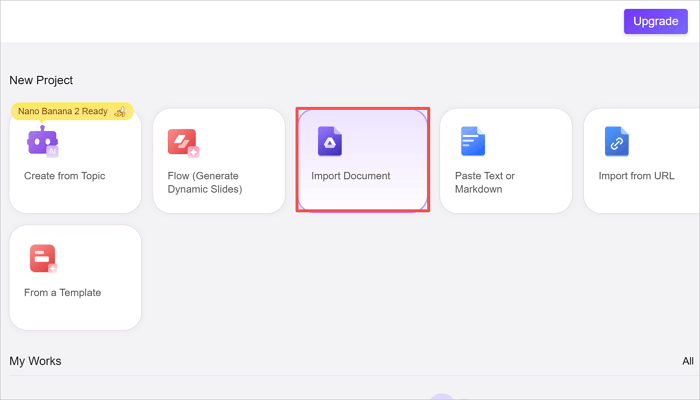
Step 3: Review and refine the outline AiPPT.com generates for you.

Step 4: Click Select template to choose a template from the recommended options.

Step 5: Click Generate PPT to generate the combined presentation.
Conclusion
You can easily merge PowerPoint files into one clean presentation when you’re able to control formatting choices early, and the Reuse Slides method gives you this privilege.
One thing to always remember is that most merging issues that occur are not caused by PowerPoint, but by inconsistent design setups across the files that are being merged.
When planning to merge files for your next PowerPoint project, ensure that you prepare your files before the process. This includes standardizing fonts, themes, and layouts to avoid fixing issues afterward.
More About Combining PowerPoint Slides
Before you start experimenting, check out these answers to common questions about combining PowerPoint slides.
1. How to merge two PPTs in PowerPoint on a phone?
The Copy-Paste method allows you to quickly merge two or more PowerPoint files on mobile.
- Open the source file in the PowerPoint mobile.
- Press and hold a slide.
- Then, tap to select multiple slides.
- Select Copy in the pop-up options.
- Go to the second (destination) presentation.
- Press and hold and select Paste.
2. How to merge two PowerPoint slides into one slide?
Here’s how to merge two PowerPoint slides into the same slide:
- Open both slides in PowerPoint, either in the same file or in two separate windows.
- Select the source slide and copy it using Ctrl/Cmd + C to Copy.
- Switch to the destination slide.
- Press Ctrl/Cmd + V to paste.
3. Can we merge two PPTs in Canva?
You can’t merge PPTs directly in Canva. However, there’s a workaround to achieve a similar result.
First, upload both presentations into Canva, then copy slides from one project into another.
You can reorder and edit slides easily, but formatting may still need adjustment after importing slides.