Have you ever sat through a presentation so boring that you kept checking the time, hoping it would end sooner? That is exactly what happens when speakers lack or don’t use interactive presentation ideas.
Instead of one-way communication, presentations today should feel like a conversation, not a lecture. Whether you’re presenting in a classroom, a meeting, or a virtual session, engaging your audience is what holds their attention.
In this article, we’ll cover 20 interactive ideas for presentations, grouped by type, to help you use them for different scenarios and audiences.
What Makes a Presentation Truly Interactive?
Basically, you make a presentation interactive by involving the audience. They need to actively participate in the session, not just listen to it or sit through it.
Why Interactivity Matters
When people are required to think and respond, they become more attentive, instead of just sitting back. This is why interactivity matters because it turns passive listeners into active participants. Also, retention improves because people remember not just what they heard, but also what they participated in.
And from your perspective as a presenter, live feedback tells you whether you’re getting your message across effectively, in real time.
Key Interactive Presentation Elements
Most successful interactive presentations combine at least two of these elements:
| Element | Examples |
|---|---|
| 1. Audience Input | Polls, Q&A, voting, word clouds |
| 2. Participation & Activities | Quizzes, games, discussions, challenges |
| 3. Navigation & Control | Clickable slides, non-linear flow, audience choice |
| 4. Multimedia & Visual Engagement | Videos, animations, live demos |
| 5. Feedback & Response | Real-time reactions, comments, results |
Think of these elements as ingredients. A quiz alone may be fine, but following it up with a discussion and a live word cloud would make it even more memorable.
20 Interactive Ideas for Presentation
Not every interactive idea may work for every audience. That’s why we’ve grouped them so you can quickly find what fits your goal and situation.
Real-Time Engagement Techniques
These techniques focus on getting instant input and feedback from your audience. They keep people involved as your presentation unfolds.
1. Start with a thought-provoking question
Before presenting your slides, open with a question that requires your audience to think deeply, not just a yes/no answer. An open-ended question like “What’s the biggest mistake you’ve made in a team project?” is great!
Give the room some time to think, then take 2—3 questions before moving on with your presentation.
2. Live polls
Collect instant responses from the audience using built-in features or live polling tools such as Mentimeter or Slido. In a virtual setting, they allow you to display real-time results on the screen as your audience votes through their devices.
This sparks immediate conversation and makes people feel their input actually shapes the session.
3. Live Q&A sessions
Instead of waiting until the end, allow questions during your presentation. Aside from helping the audience not to forget, live Q&A sessions also keep the flow dynamic and ensure clarity in real-time.
You can ask them to submit questions via a shared Google Doc and address the most upvoted ones at natural pause points.
4. Word clouds
You’d be surprised how a simple technique like a word cloud can make the most visually satisfying interactive element in your presentation. Ask a question, collect one-word or short-phrase answers into a visual cloud, with the most common ones appearing larger.
Word clouds work brilliantly as icebreakers or to surface collective concerns before diving into a topic.
5. Emoji/reaction feedback
Emojis have become an important engagement tool, especially in online presentations. Ask your audience to respond to a statement using a specific reaction, such as thumbs up for “agree”, question mark for “confused”, fire for “excited”, and let your audience provide instant feedback without disrupting the flow.

Gamification & Fun Interaction
These methods introduce a playful element into your presentation. They keep your audience interested while encouraging active participation.
1. Interactive quizzes
Quizzes remain one of the most reliable interactive activities for presentations, because they tap into our curiosity to know if we’re correct. They can be in different styles, including Q&A, puzzle, image, or fill-in-the-gap challenges to make things more engaging.
These variations add a fun, problem-solving element that helps your audience actively process and apply what they’ve learned, which makes the session more memorable and enjoyable.
2. Points and leaderboards
Another way to engage your audience is by introducing a competitive layer to your presentation. You can do this by organizing quizzes and tracking scores using points and a live leaderboard that everyone can see.
3. Presentation games
Games like “Two truths and a lie” or content-based trivia can come in handy when you need to introduce your topic or make the room more lively in the middle of your presentation.
For example, after covering a dense topic, run a quick “myth or fact” game where participants vote on statements related to what you just covered.
4. Challenge-based tasks
Add a time-based challenge linked to your content. For example: “You have 60 seconds to list three reasons this strategy could fail.”
An activity like this forces active thinking and often draws insights you wouldn’t get from a standard Q&A. Spice it up by adding a visible PowerPoint countdown timer to your slides.
5. Prediction or “guess the answer” slides
Before revealing data, a case study outcome, or a key finding, ask your audience to predict the answer. This technique builds anticipation, keeps attention high, and makes the actual reveal more memorable.

Collaborative Activities
These activities encourage your audience to work together and share ideas. They create a more engaging and participatory environment.
1. Group discussions
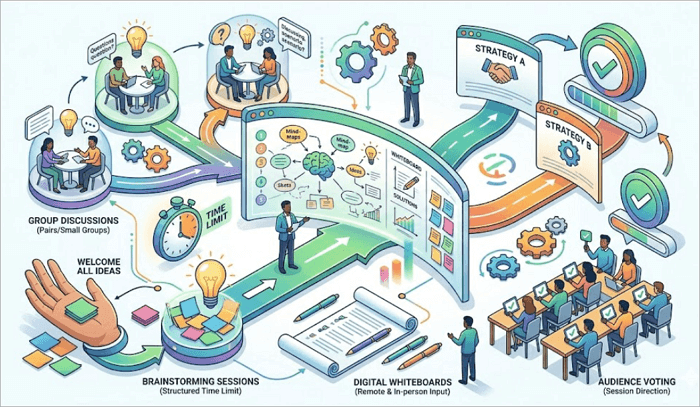
Structured group discussions also make great interactive presentation ideas for any setting. To start a group discussion, break your audience into pairs or small groups, give them a specific question or scenario to discuss for a few minutes, then bring the room back together to share.
2. Brainstorming sessions
Set aside a structured brainstorming segment mid-presentation, especially after introducing a problem or challenge. Use a shared document or a physical board to collect responses in real time.
However, you should always remember to define the problem, set a time limit, and remind the audience that all ideas are welcome.
3. Digital whiteboards
Tools such as Miro, FigJam, and Microsoft Whiteboard all offer digital whiteboards for remote and in-person audiences to contribute ideas visually at the same time.
They are used for mind-mapping, sticky note activities, or collaborative sketching, to help you efficiently present, discuss, solve problems, and make content easier to understand. It also helps encourage people who might not speak up verbally to share points differently.
4. Audience voting or decision-making
Want your audience to feel they’re really part of your presentation? Give them some influence by letting them vote on the direction of the session or a proposed solution.
For example, after presenting two strategic options, let the group vote on which one they’d pursue and why.
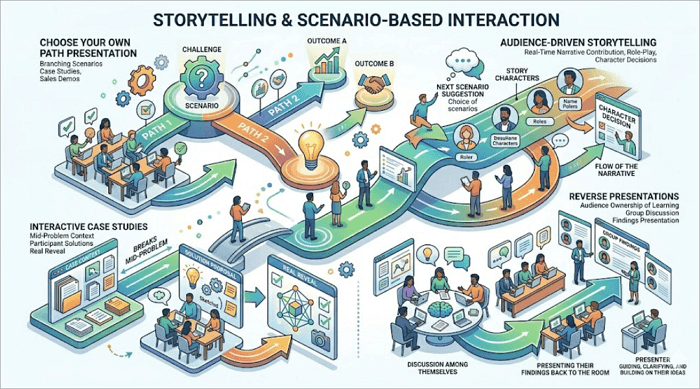
Storytelling & Scenario-Based Interaction
Story-driven interactions help your audience connect with your message. They improve understanding by placing ideas in a real-world context.
1. Choose your own path presentation
This is a bit similar to audience voting because they also get to decide where the session goes next. You present a scenario, offer two or three paths forward, and navigate to whichever slide the audience chooses.
This works well for online video presentations, as viewers can follow different paths depending on their interests. It’s perfect for case studies, training sessions, and sales demos where different audience segments care about different outcomes.
2. Interactive case studies
Giving your audience a case midway through a problem, asking them to work, can also come in handy if you’re wondering how to make a presentation interactive differently.
Present the context, share the key variables, and let participants propose solutions before you reveal what actually happened.
3. Audience-driven storytelling
Invite your audience to contribute to the narrative in real time. This could be as simple as asking participants to suggest the next scenario in a role-play exercise, or choosing which character in a business scenario made the right call.
When people feel they’ve shaped the 、story, they pay closer attention to how it ends.
4. Reverse presentations
Flip the script by assigning the audience a topic or problem and allowing them to discuss among themselves. Then, have them present their findings back to the room.
This approach works because it shifts ownership of the learning from the presenter to the audience, allowing participants to think more deeply about the topic, engage more actively, and produce more meaningful insights.
Your job is to guide, clarify, and build on what they share instead of doing all the presenting yourself.
Interactive Slide Design Techniques
These techniques focus on how your slides are structured and presented. They make it easier for your audience to interact with your content.
1. Clickable/non-linear navigation
Another effective method for engaging your audience is by building clickable menus directly into your slides using hyperlinks in PowerPoint or Google Slides.
These slides allow you or the audience to choose or move between sections. This is perfect for workshops or online training decks where participants may need different content.
2. Multimedia (videos, demos, animations)
Introduce multimedia such as a short video clip, live product demo, or a smooth animation to break up text-heavy slides and keep the audience focused on your content.
How to Make a Presentation Interactive Step-by-Step
Here’s a clear process to build interactive elements into your presentation, regardless of the tool you’re using.
Step 1: Define your audience and goal.
Know who you’re presenting to and what you want them to learn or do after. For example, a student class needs quick quizzes, questions, and relatable examples from school life.
Step 2: Choose 2–3 interaction types.
Instead of using every interaction at your disposal, combine a maximum of three types. For example, an opening poll, a mid-session quiz, and a closing Q&A work well. Map out where each element will appear in your presentation.
Step 3: Build the interaction into your slides.
Next, add your poll links, quiz slides, or clickable navigation. Build your presentation with interactivity in mind.
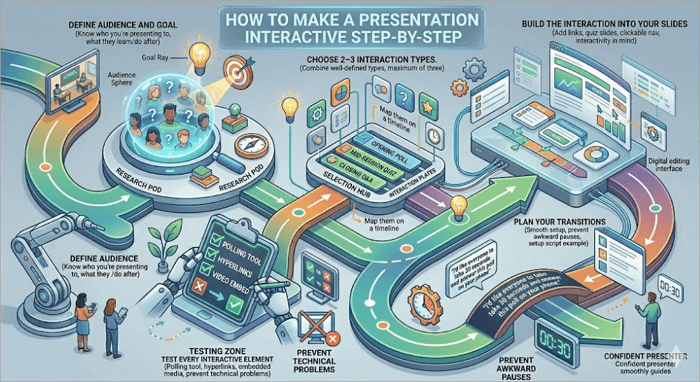
Step 4: Test every interactive element.
Before going into the presentation, test your polling tool, your hyperlinks, and any embedded media. There’s no quicker way to lose your audience than with technical problems.
Step 5: Plan your transitions.
Know exactly what you’ll say when moving into and out of each interactive moment. A clear setup like “I’d like everyone to take 30 seconds and answer this poll on your phone” keeps things smooth and prevents awkward pauses.
Mistakes to Avoid When Making a Presentation Interactive
Here are a few mistakes you shouldn’t make when creating interactive presentations.
1️⃣ Adding too many interactions
One mistake you should avoid is using too many interactive elements in your presentation, as this can overwhelm your audience. Instead, go for 2 to 3 interactions.
2️⃣ Poor timing
Dropping an interactive activity right after a complex explanation, before the audience has had time to process it, is usually not effective. Time your interactions at natural pause points, not mid-concept.
3️⃣ Choosing the wrong activity for the audience
Not every technique works for every audience. For example, games may not suit formal business presentations. Always consider what your audience expects and what will feel natural to them.
Conclusion
The difference between a forgettable presentation and a memorable one often comes down to interaction. When people participate, they pay attention, think more deeply, and remember more.
With the right interactive presentation ideas, even a single well-timed interaction, such as a quick poll or question, can completely change the momentum of your presentation if used correctly.
You don’t need to use all the ideas we’ve explored — just start with one or two that suit your presentation goal and setting, then build from there.
More About Interactive Ideas for Presentation
Let’s explore additional themes about using interactive ideas in presentations.
1. What are the best interactive presentation ideas for students?
For students, the best interactive presentation ideas include live polls, collaborative brainstorming on digital whiteboards, reverse presentations where they present back to the class, and interactive quizzes.
These formats shift ownership of the session to students rather than placing it entirely with the presenter, which naturally improves participation.
2. How to make an interactive presentation in PowerPoint?
Here’s a step-by-step guide to creating interactive presentations in PowerPoint:
- Open PowerPoint and design your base slides.
- Proceed to Insert > Hyperlink to add clickable navigation between slides.
- Create a menu slide with buttons linked to specific sections for non-linear navigation.
- Use Insert > Media to embed pictures, videos, or audio clips directly into slides.
3. How to make a presentation engaging in Google Slides?
Like PowerPoint, you can make a presentation engaging in Google Slides by embedding videos, adding interactive links, and collaborative comments. Also, remember to add questions throughout your slides and encourage audience input.