Picture yourself in a meeting with the analytics team, watching slides of heavy text analyzing consumer data. No matter how much the presenter tries, even simple concepts will be hard to grasp for anyone.
Whether you’re presenting in a class, meeting, or pitch, your best option to communicate effectively might be using multimedia in your slides.
In this article, we’ll explore what a multimedia presentation is, its types, and how to create one in minutes with AiPPT.com.
Related Post: >> What Are the 11 Different Types of Presentation (Free Templates)
What is a Multimedia Presentation?
A multimedia presentation is one that combines various forms of media to communicate ideas more effectively.
Instead of relying solely on written content like in traditional presentations, multimedia presentations integrate elements that work together to improve understanding and maintain audience attention.
They include:
✅ Interactive components: These can be of many types, like clickable elements, hyperlinks, or embedded polls that encourage participation from the audience.
✅ Video: Recorded clips, animations, or demonstrations that show processes in action.
✅ Audio: Examples are voiceovers, sound effects, or background music that add another dimension to your slides.
✅ Images: Photographs, illustrations, icons, or graphics that visualize simple and complex concepts.
✅ Text: This could be in any textual form, such as written content, headings, or key points that provide structure and clarity in presentations.
Why Use Multimedia in Presentations?
In case you haven’t noticed, everyone has gotten tired of seeing letters and numbers all the time. And besides, we tend to process other media elements, such as visuals, audio, etc., much faster than text.
Essentially, adding these elements to presentations helps your audience stay engaged and understand complex ideas easily.
Some other benefits of using multimedia in presentations include:
- Improves attention and focus
- Makes information easier to remember
- Explains concepts visually
- Supports different learning styles
- Builds credibility and professionalism
- Interactive Presentation keeps audiences involved
Common Types of Multimedia Presentations (With Examples)
There are several kinds of multimedia presentations, each requiring a different approach. Here, we’ll check out five common types and multimedia presentation examples to show how to adapt them for your presentation.
1. Business Presentations
💡 Presentation Example: A quarterly review serving stakeholders like executives, investors, and clients.
The goal of this kind of presentation is to present business results credibly and help stakeholders make informed decisions quickly. And that’s where multimedia comes in handy. Start the presentation with a customer video, use bar charts to display regional revenue, and icons to show key metrics.

A multimedia business presentation should include:
- A structured slide flow to maintain clarity
- Data visualizations, such as charts, tables, and graphs, to compare business data
- Minimal text to improve focus on visuals
- Selective use of videos to build business credibility
2. Educational and Training Presentations
💡 Presentation Example: A biology class explaining cellular respiration.
To introduce multimedia into an educational presentation like this, begin with a narrated animation showing the cell structure. As you proceed to explain each stage of respiration, use diagrams to highlight the relevant organelles of the cell.
A final video demonstration can also be used to show the process in real time under a microscope with an interactive quiz at the end for students to test their understanding.
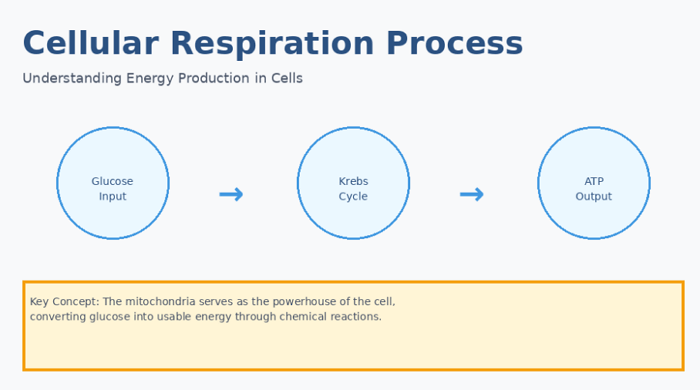
In education, multimedia presentations prioritize learning outcomes over basic aesthetics. They should include:
- Visual explanations of concepts
- Audio narration to guide learners through the learning material
- Demonstrations to show how processes happen
- Repetition-friendly structure allowing students to review sections multiple times
3. Marketing and Sales Presentations
💡 Presentation Example: A product demo for a new project management software.
The presentation can open with a short animated story showing the challenges project management teams face. Live screen recordings can walk through the product’s key features, while highlighting benefits along the way.
Showcase customer success metrics using animated statistics and a short testimonial video from an existing client.

The perfect marketing and sales presentation should use multimedia to build interest and drive a desired action. It should also feature:
- Strong visuals with brand-consistent design
- Emotional appeal through storytelling, customer videos, etc.
- A clear call-to-action using links or forms
4. Academic and Research Presentations
💡 Presentation Example: A conference presentation on climate change modeling.
Begin by sharing your findings with satellite imagery showing glacial retreat over decades and clear visualizations to compare multiple climate scenarios.
Present your research methodology through flowcharts rather than those long paragraphs that are hard to grasp quickly. Use animated graphs in the findings section to illustrate statistical significance and conclude the presentation with a video simulation of projected environmental changes.

Academic presentations adapt multimedia presentation techniques with core elements such as:
- Clear data visualization that reveals accurate patterns in research findings
- Minimal distractions to keep it professional
- Logical slide structure
- Multimedia is used to clarify findings rather than entertain
5. Online and Self-paced Presentations
💡 Presentation Example: Online & self-paced employee onboarding course.
For this type of presentation, new hires in a company are able to click through modules at their own pace. Each section of the course begins with a welcome video from the relevant department head.
The course can also include interactive diagrams to let the new employees explore the organizational structure. You should also consider short animated sequences to explain company policies and knowledge checks at the end of each section.

Self-paced multimedia presentations prioritize accessibility and user control. Key features include:
- Modular structure allowing learners to jump between topics
- Voiceover or video guidance without requiring a live instructor
- Interactive elements like tabs and activities
- Clear navigation for easy review
Common Mistakes to Avoid in Multimedia Presentations
Even the best of multimedia presentations may fail when you make simple errors while creating them. While they aren’t intended, these errors weaken the clarity of your message and may distract your audience.
To make the most out of your presentation with multimedia elements, here are common mistakes you want to avoid:
- Overloading your slides with too many elements. Focus on one idea per slide with carefully chosen media.
- Lacking a clear purpose. Ensure that every text, audio, or video adds value to your audience or supports your message.
- Inconsistent visual styles across slides. Stick to a color palette, font system, and image treatment to maintain consistency.
- Unnecessarily large file sizes. Because multimedia presentations can be bulky, you might need to compress the files so they can be shared easily.
- Poor audio quality or distracting background music. Record clear voice-overs and keep background music subtle to match the presentation tone.
Conclusion
Multimedia presentations have become particularly important in today’s communication, as modern audiences expect more than text-heavy slides from you.
Whether pitching to investors, sharing business insights, teaching students, collaborating with teams, or training employees, the right combination of text, visuals, audio, and interactive elements makes communication more effective.
The great part is that you don’t have to be a designer or video editor to create a multimedia presentation. Tools like AiPPT.com provide the structure and templates needed to generate professional results efficiently.
FAQs on Creating a Multimedia Presentation
Here, we address questions users frequently ask about creating or using multimedia for presentation with direct and actionable answers.
1. Is PPT a multimedia presentation?
Yes, PowerPoint can also be a multimedia presentation when it includes various elements such as images, charts, audio, video, or animations.
If your PPT is text-only, then it is not truly multimedia. But once you add visuals and media, it becomes a full multimedia presentation experience.
2. What are the 5 steps in making a multimedia presentation?
To create a multimedia presentation for any audience or setting:
- Define your presentation objectives and audience
- Outline the structure of your content (AiPPT.com can do this for you)
- Select a desired template, visuals, charts, and media for your slide
- Build the presentation with AiPPT.com, PowerPoint, or Google Slides
- Reviewed the presentation and made sure it’s clear before presenting
3. What tools are needed to create a multimedia presentation?
Creating a multimedia presentation is not limited to Google Slides and PowerPoint alone. AiPPT.com is even a much better option as it generates structured slides automatically, and allows visual elements such as charts, images, etc.
Overall, AiPPT.com reduces design time while helping you create professional multimedia content faster.