Timing is a crucial part of many presentations. Yet many presenters struggle to keep track of time while presenting. Without a visible timer, you can easily spend too long on one slide or rush through important points.
During time-sensitive sessions such as classroom activities, workshops, quizzes, or training sessions, a countdown timer can help you stay organized and keep the audience engaged.
Although PowerPoint doesn’t offer a built-in countdown timer, there are several workarounds presenters use to achieve the same result.
This guide shows how to insert a timer in PPT using various methods so you can choose one that’s suitable for your presentation style.
Popular Types of Timers for PowerPoint Presentations
A timer for your PowerPoint presentation can be created using several approaches, and it’s important to understand the range of options available.
The right PowerPoint timer for you will depend on the purpose of the presentation — and how comfortable you are with technical tools.
The common categories of PPT timers include:
- Animation-based timers
- Shape-sequence timers
- Video countdown timers
- Add-in timers
- VBA-based timers
Some of these approaches are quick and simple, while others allow advanced customization.
| Timer | Setup Difficulty | Customization Level | Best Use Cases | External Tools |
|---|---|---|---|---|
| 1. Add-in | Easy | Medium | Quick presentations | Yes |
| 2. Animated progress bar | Medium | High | Workshops | No |
| 3. Sequential numbers | Easy | Low | Short countdowns (10-30 secs) | No |
| 4. Animated shapes | Medium | High | Visual presentations | No |
| 5. Video | Easy | Low | 5-10 minute countdowns | Yes |
| 6. VBA | Advanced | Very high | Automated slides | Yes/No |
1. Add a Timer to PowerPoint Using Add-ins
The fastest approach to insert a timer in PPT is through add-ins. This is because they provide ready-made countdown tools. Once installed, add-ins integrate directly into PowerPoint and allow you to place timers on slides without building animations manually.
Here’s how to add a timer using an add-in:
Step 1: Open PowerPoint and go to the Add-ins section
Click Home > Add-ins.
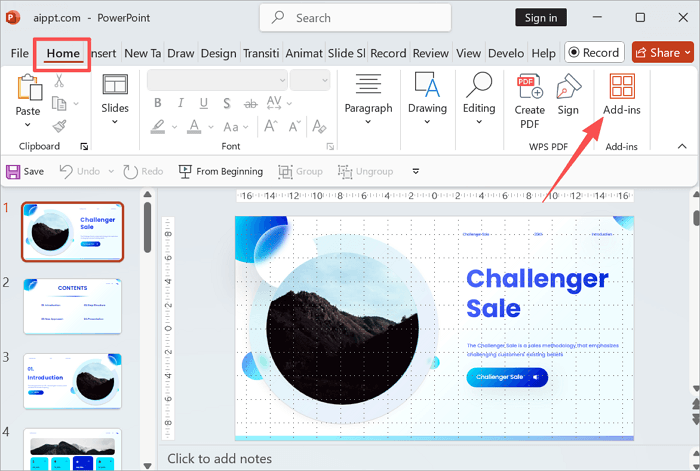
You may find the Get Add-ins option under the Insert tab in older PowerPoint versions.
Step 2: Search for a timer add-in and install it
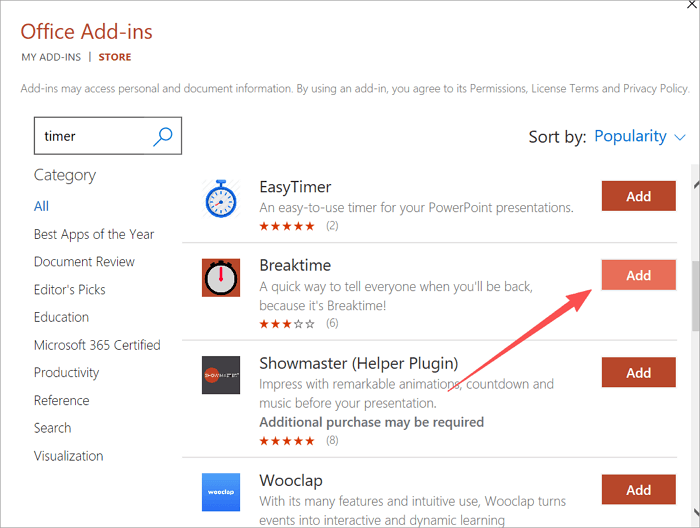
Type “timer” into the search bar and click Add to install it into PowerPoint. We are installing the Breaktime add-in.
Step 3: Insert the timer on your slide
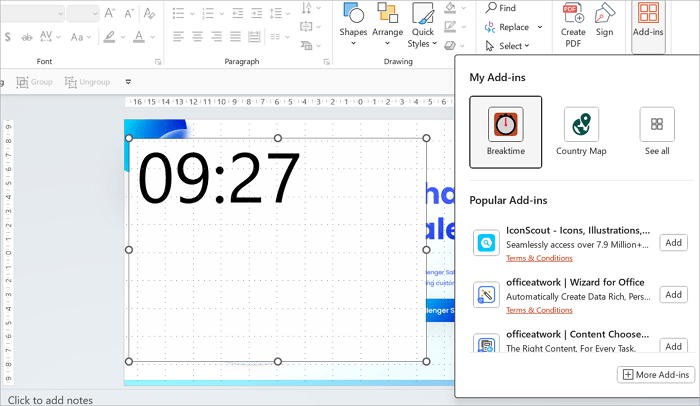
After installation, the timer should immediately show on your slide. If not, go to Add-ins and select Breaktime from there.
Step 4: Customize duration
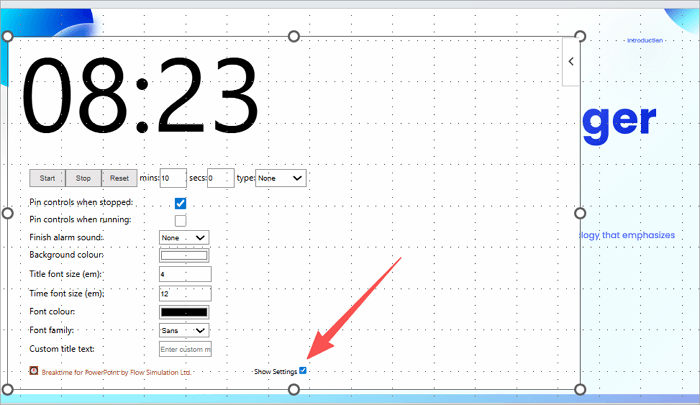
Click Show Settings to adjust the timer length and appearance before starting the slideshow.
2. Create a PowerPoint Timer Using an Animated Progress Bar
A progress bar timer is a visual countdown timer built with shapes and animations within PowerPoint. This progress bar timer works particularly well for workshops, timed discussions, classroom activities, and other settings where the audience needs to keep track of the remaining time.
Here’s how to put a timer in PPT using an animated progress bar:
Step 1: Add the timer shape base
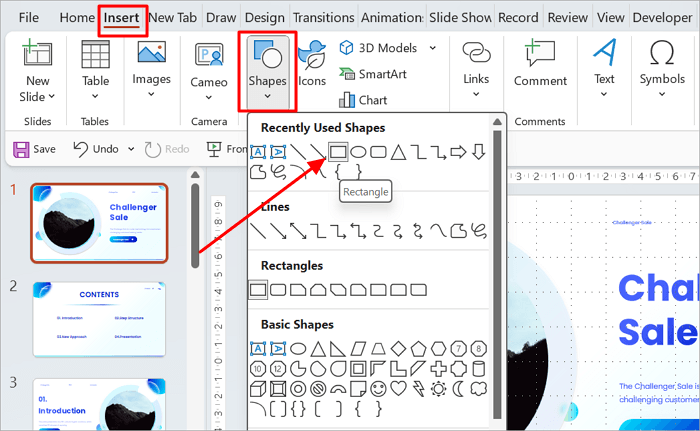
Go to Insert > Shapes and select a Rectangle.
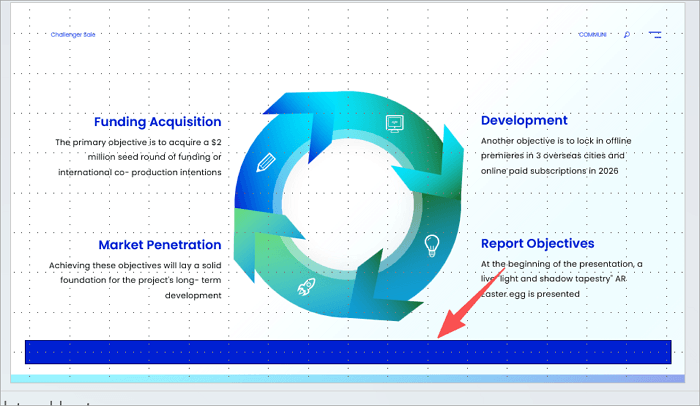
Step 2: Draw the shape at the bottom of the slide
Resize the rectangle to imitate a progress bar.
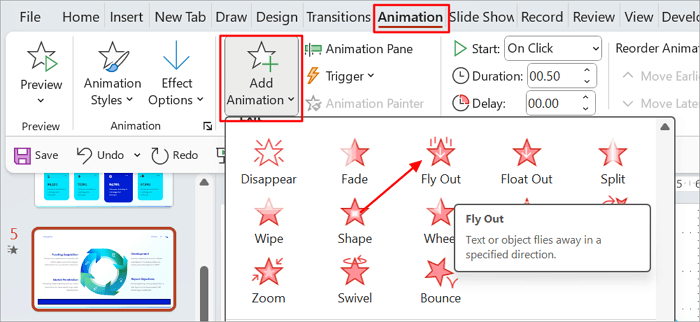
Step 3: Add an animation
Proceed to Animations > Add Animation. Then, select Fly Out from the Exit group.
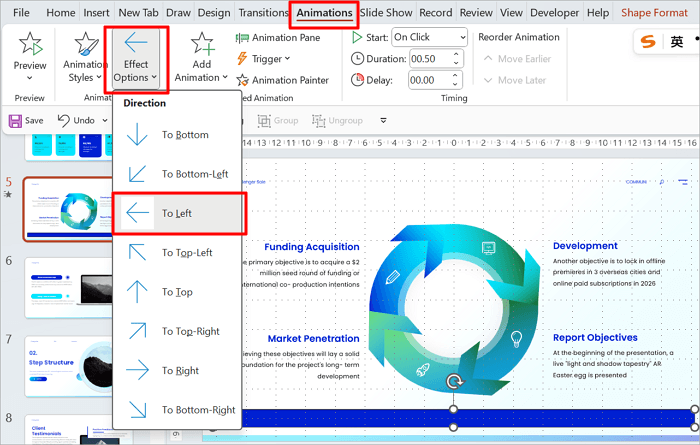
Step 4: Make it look like a timer
Next, click Effect Options in the Animation group, and choose a direction that you want your timer to disappear. We are using To Left.
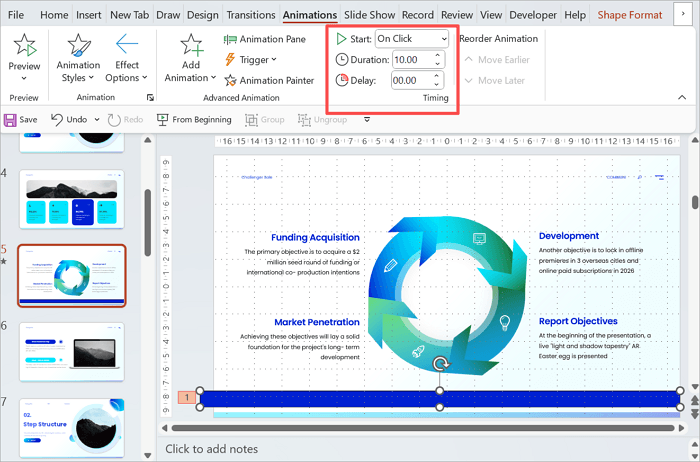
Step 5: Adjust animation timing
Go to Animations > Timing and type your countdown time in Duration.
3. Insert a Countdown Timer in PPT Using Sequential Numbers
This PowerPoint timer approach uses a simple numeric countdown by stacking numbered text boxes or shapes that appear in a sequence. It is perfect for short timers, such as 10-second or 30-second countdowns, before starting a quiz or an activity.
Here’s how to use this approach to create timers in PowerPoint:
Step 1: Add shapes to your PowerPoint slides
Go to Insert > Shapes and select a desired shape.
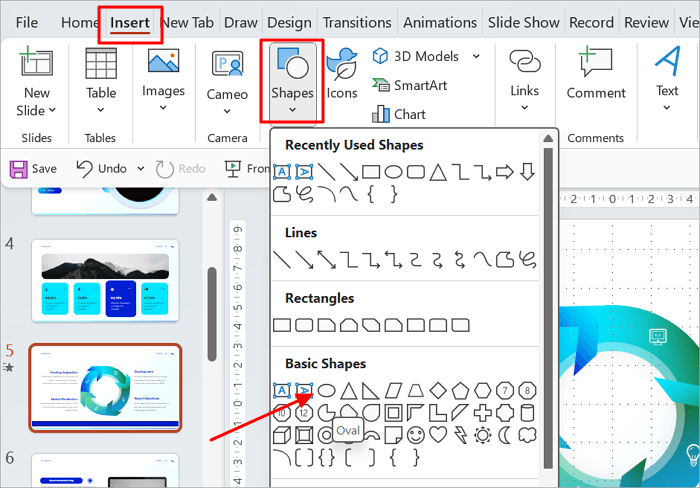
Step 2: Add more shapes and design your timer depending on your time duration.
Click on each shape to add a number or word as a label.
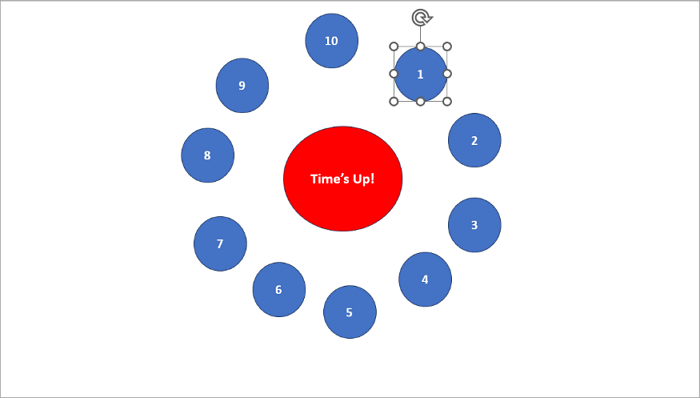
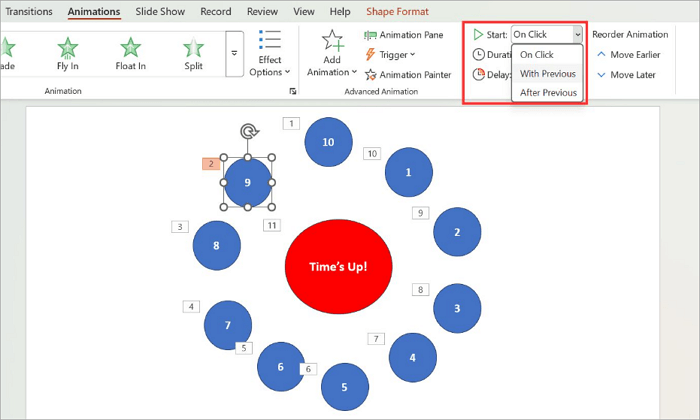
Here, we use 10 oval shapes, counting from 10 to 1, with another one at the center to announce the end.
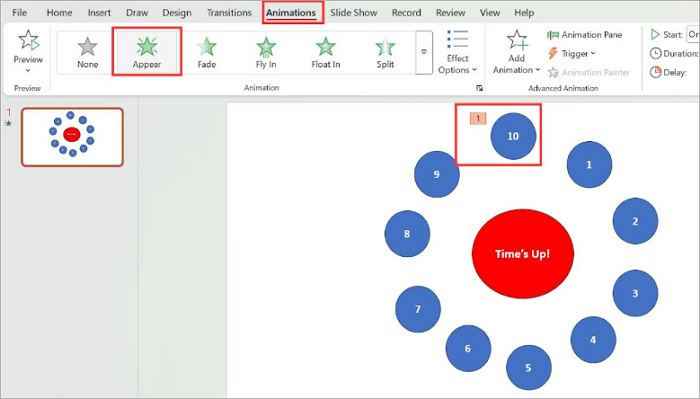
Step 3: Animate timer shapes
Select each shape, starting from the one that should appear first (10), then go to Animations and click Appear.
Step 4: Set timing
Finally, change the Start option in the Timing group to After Previous.
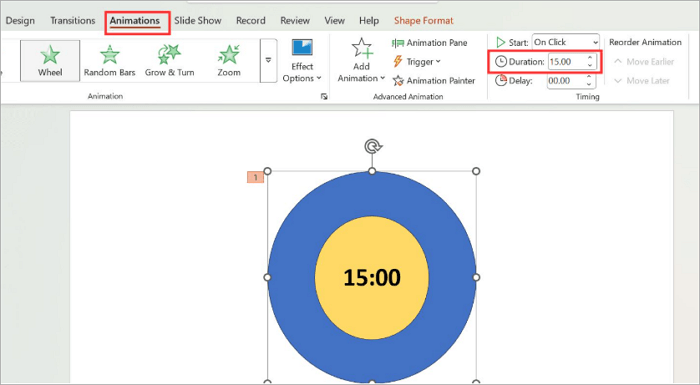
4. Create a PowerPoint Timer Countdown Clock with Animated Shapes
With animated shapes, you can create a more visually engaging timer that simulates the movement of a clock or a rotating progress indicator. This approach produces a more polished timer effect than basic numeric countdowns.
Here’s how to add a timer to PowerPoint with animated shapes:
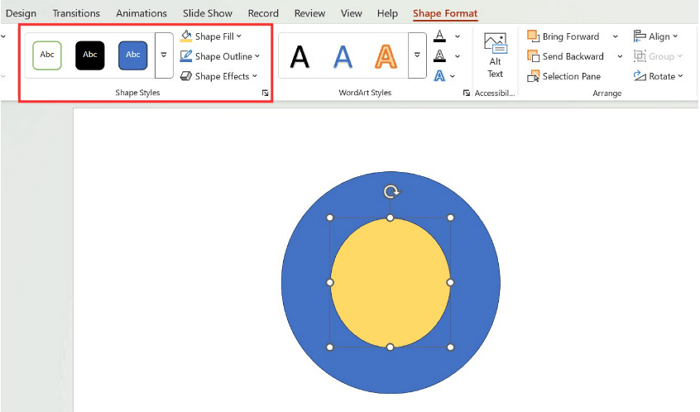
Step 1: Insert a circle shape
Proceed to Insert > Shapes, then select an Oval shape. Draw the circle on your slide.
Step 2: Add a second shape for the timer fill
Repeat the previous step to draw a smaller circle inside the first one, using a different color for contrast.
Step 3: Insert the timer text
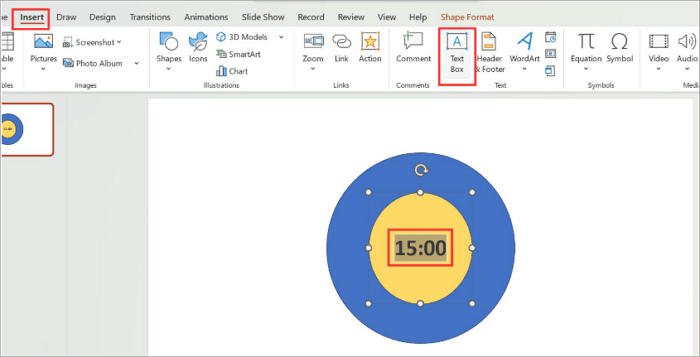
Go to Insert > Text Box. Place the text box at the center of the inner circle (yellow) and enter your countdown time.
Step 4: Animate the outer shape
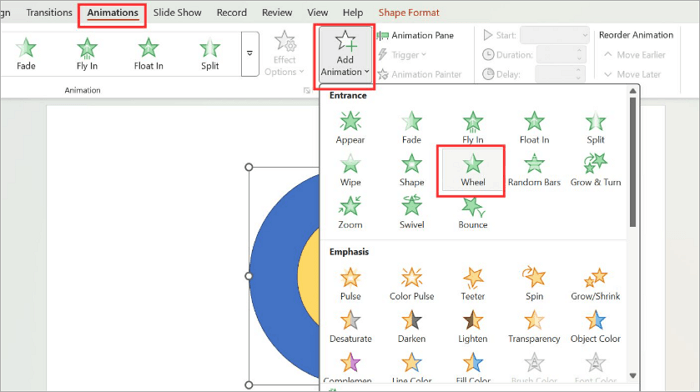
With the outer circle (blue) selected, go to Animations > Add Animation and choose Wheel from the Entrance group.
Step 5: Adjust the animation duration
Go to Animations and enter your countdown time in the Duration box.
5. Add a Timer on PowerPoint Slides Using a Video
Video countdown timers come in handy when you need a ready-made timer without having to build the animations manually. It simply involves downloading or embedding the YouTube video into your slide. This method is particularly useful for longer timers, such as 5-minute or 10-minute countdowns.
Here’s how to include a timer in PPT using countdown videos:
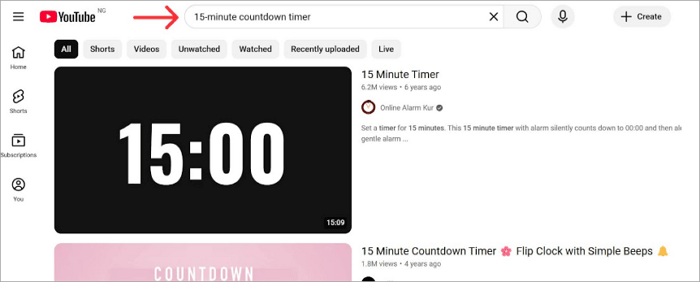
Step 1: Find a countdown timer video on YouTube
Go to YouTube and type “15-minute countdown timer” in the search bar.
Step 2: Copy the video URL
Click the video link in the address bar and press Ctrl + C to copy it.
Step 3: Insert the video into PowerPoint
Open PowerPoint and go to Insert > Videos > Online Videos…
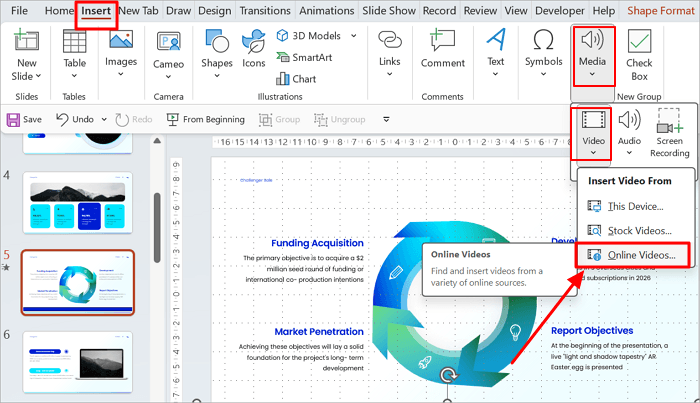
Then, paste the video link you copied and click Insert. If the video is already downloaded, go to Insert > Video > This Device…
Step 4: Resize the video
Reposition the timer video on the slide as needed.
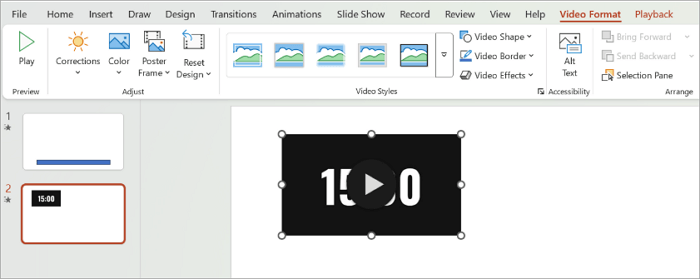
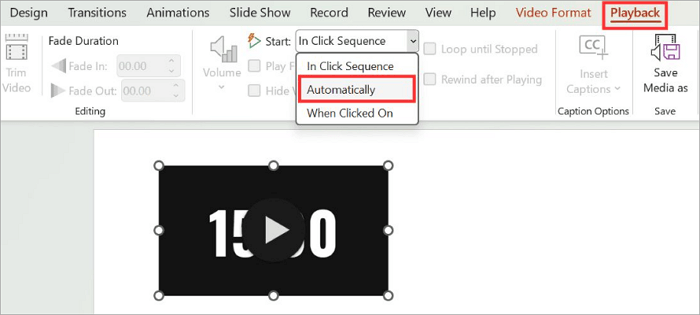
Step 5: Set automatic playback
Go to Playback, expand Start options, and select Automatically.
6. Build a PowerPoint Timer Countdown Clock with VBA
If you want automated or highly customizable timers, this advanced VBA method may be suitable.
VBA, short for Visual Basic for Applications, runs actual code inside PowerPoint to display a live, updating countdown during your presentation.
Here’s how to create a PowerPoint timer countdown clock with VBA:
Step 1: Open the VBA editor
In your PowerPoint file, press Alt + F11 to open the VBA editor.
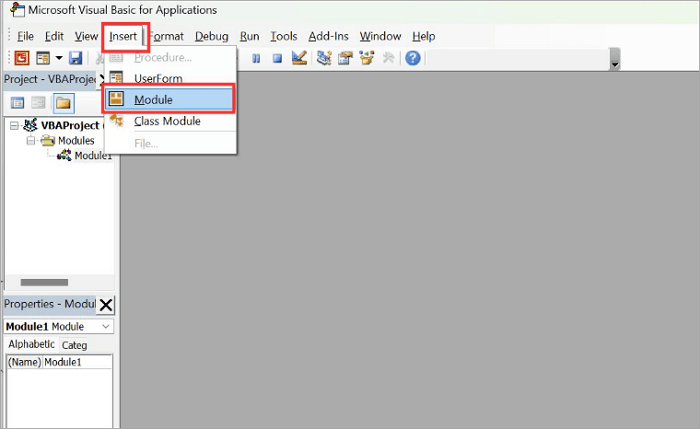
Step 2: Add a new code module
In the editor, click Insert > Module.
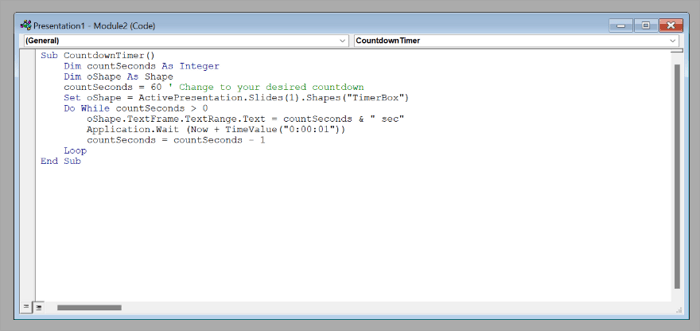
Step 3: Paste the macro
Copy and paste this code into the module.
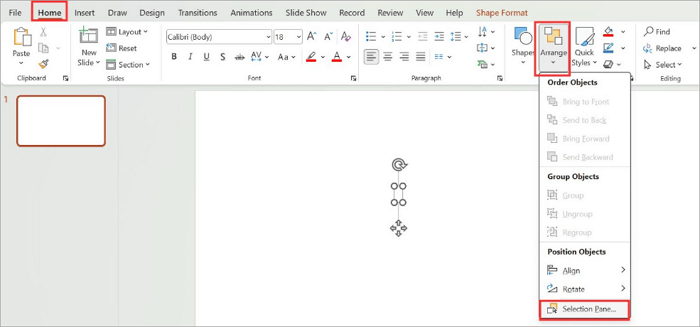
Step 4: Return to your slide and insert a new text box
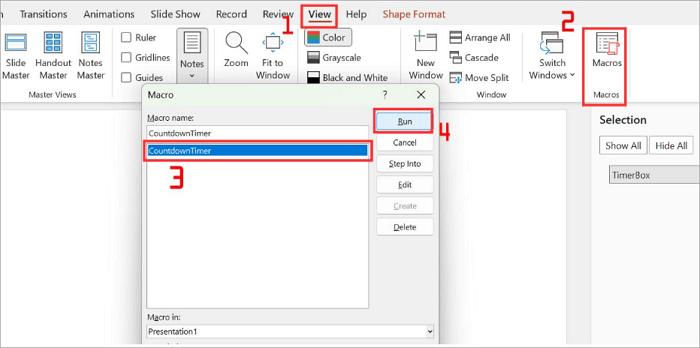
Close the VBA editor. On your slide, add a text box and name it TimerBox via the Selection Pane.
Step 5: Trigger the macro
To trigger the macro, go to View > Macros, select CountdownTimer, and click Run.
Common Problems When Inserting a Timer in PowerPoint
No matter how reliable they are, countdowns in PowerPoint don’t always behave as expected during presentations. This table covers common issues presenters face and their solutions.
| Problem | Solution |
|---|---|
| 1️⃣ Animations don’t trigger during the slideshow | Open Animation pane and change trigger settings to After Previous |
| 2️⃣ Timer resets when slides change | Confirm that the timer shape and animation are placed on the same slide |
| 3️⃣ Video does not autoplay | Select the video, go to the Playback tab, and edit Start options to Automatically |
| 4️⃣ The VBA macro is blocked | On PowerPoint, go to File > Options > Trust Center > Macro Settings and enable macros |
Conclusion
Knowing how to insert a timer in PPT can be extremely helpful for any presenter. A timer helps you stay on schedule, keep the audience engaged, and structure interactive activities such as quizzes or group discussions.
When choosing a timer style, it’s important to go for one that aligns with the tone of your presentation. For example, a progress bar works well for workshops, while VBA suits advanced users who want precision control.
You can also explore AiPPT, our AI-powered presentation tool, which helps you generate professional slides quickly while focusing on content instead of design.
FAQs on the Countdown Timer in PowerPoint Presentation
Here are answers to common questions users ask about creating a countdown timer in a PowerPoint presentation:
1. How do I add a timer to PowerPoint without an add-in?
A simple timer can be created inside PowerPoint without installing extra tools. Built in shapes and animation controls allow a visual countdown timer in a PowerPoint presentation that works well for practice sessions or timed slides:
- Open PowerPoint and insert a rectangle shape.
- Place the shape where you want the timer bar to appear.
- Apply a Fly Out animation from the Animations tab.
- Set the animation duration to match the desired countdown time.
- Start the slideshow.
2. How to include a timer in PPT for a quiz?
The quiz slide often requires clear time limits so participants know how long they have to answer. PowerPoint provides simple animation tools that help create a countdown timer in PPT without complex setup:
- Insert a shape, preferably a circle.
- Label it as 10.
- Duplicate the shape and change the numbers to 1 or 0.
- Apply Appear or Fade animation to each number.
- Set the animations to run after the previous.
- Start the slideshow.
3. How to put a timer in PPT for free?
Several free options allow users to insert a timer in PPT without advanced design skills. PowerPoint add ins offer ready made countdown tools that can be placed directly on slides and adjusted for different presentation needs:
- Open your PowerPoint presentation.
- Go to Home > Add-ins.
- Search for Breaktime or any other timer and add it to PowerPoint.
- Insert the timer on your slide.
- Customize the duration of your timer.