All slides have a purpose, and using the wrong one in your presentation can easily confuse your audience. You’ve probably come across a business report filled with charts and paragraphs on the same slide or a presentation in school where every slide looked identical.
These issues usually come down to not using the right types of slides. Whether you’re reporting data, pitching an idea, or teaching a concept, there is a different slide structure for each goal.
Each of these slide types helps organize your message, guide your audience, and improve clarity when presenting.
Overview of the 10 Types of Slides
Before going into specific detail, it helps to see the full picture. The 10 types of PPT slides in this guide can be grouped into four main categories:
- Opening slides
- Content slides
- Visual/data slides
- Closing slides
Here is a quick classification:
| Category | Features | Types of Slides |
|---|---|---|
| Opening slides | Set context, establish structure | Title slide, Agenda slide |
| Content slides | Deliver information and guide flow | Content slide, Section divider slide |
| Visual/data slides | Communicate through visuals and numbers | Image slide, Comparison slide, Data/Chart slide, Infographic slide |
| Closing slides | Reinforce key messages and wrap up | Summary slide, Thank You slide |
1. Title Slide
The title slide gives the first impression of your presentation. It is the first thing your audience sees, so it sets expectations for everything that follows. Your title slide can quickly signal how organized you are, without saying a single word.
When designing a first slide, keep the content minimal. Include only details such as:
- Your presentation title
- A brief subtitle
- Your name or organization
This is not where you explain your content—it is simply where you earn your audience’s attention. So you must avoid cluttering it with unnecessary information.

2. Agenda Slide
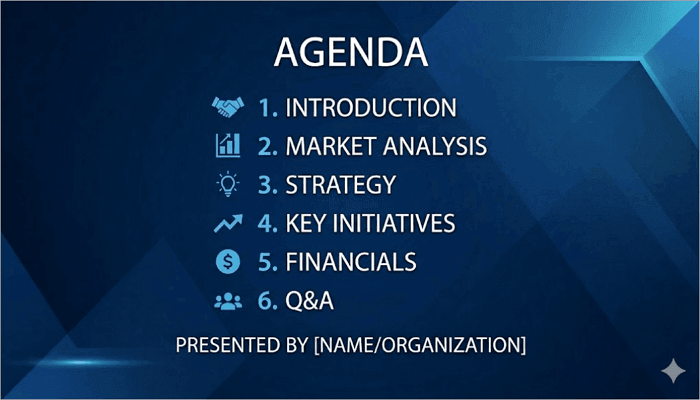
Do you want to give your presentation structure? The agenda slide acts as a roadmap. It basically tells the audience what to expect and in what order to expect them. Without this slide, your presentation lacks structure.
While you can design your agenda slide as you want, it is not for decoration. It actively improves audience comprehension by helping them follow the flow more easily and retain more at the end.
A numbered or bulleted list of 4-6 main sections is ideal for an agenda slide. Avoid adding every sub-point onto this slide, so that it remains easily scannable.
3. Content Slide
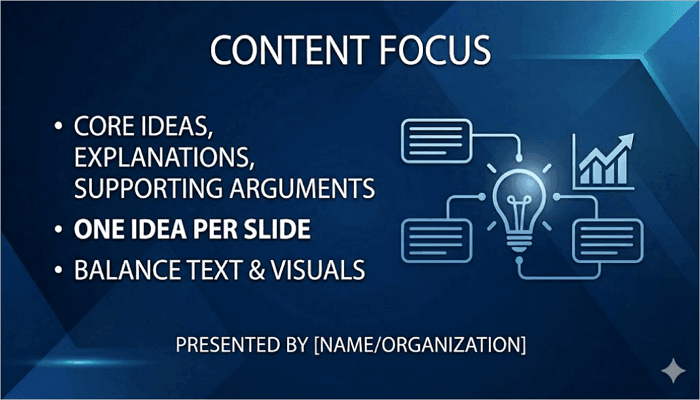
The content slide is the most frequently used among all the types of slides in PowerPoint presentations. It is where you present your main ideas, explanations, and supporting arguments.
However, one mistake you should avoid when creating content slides is overloading them with too much information. Stick to one idea per slide, so your audience can easily understand you.
Also, balance is important here. Text and visuals should work together to support understanding, not compete for attention.
4. Section Divider Slide
A section divider slide helps signal a transition in your presentation. When moving from one topic, idea, theme, or chapter to another, this slide tells the audience to get ready.
Its purpose is not to carry information, but to reset attention. Therefore, it should be visually distinct from your content slides, featuring a section title, a number, or a short phrase.
The section divider comes in handy, especially in longer presentations such as project reports, educational modules, or conference talks. Not using them here means you are leaving the audience to piece the structure together on their own.

5. Image/Visual Slide
Another important element in every presentation is the image or visual slide. This slide communicates through visuals instead of heavy text. This makes it suitable for storytelling, making an emotional point, or simplifying a concept that words alone cannot express.
Whether it’s a photograph, a well-chosen illustration, or a bold graphic, it will do more to help your audience understand than plain text.
However, every visual you place on a slide should support a specific message, not just fill space or decorate your deck.

6. Comparison Slide
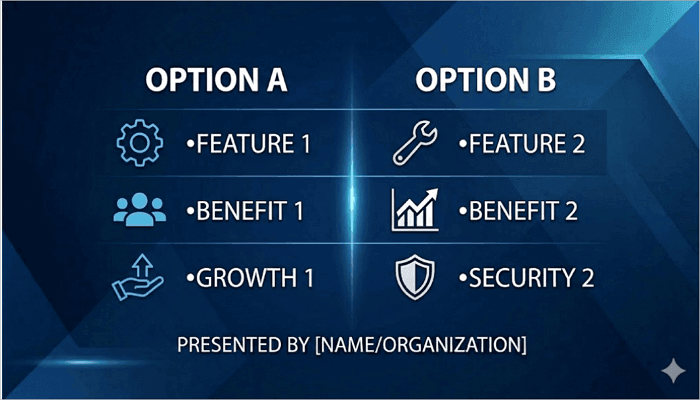
Do you need your audience to evaluate two or more options side by side? Then you need to use the comparison slide in your presentation. This slide helps you compare product features, strategic directions, or pros and cons.
Without a dedicated slide for comparison, your audience has to differentiate items themselves. This can take the form of two clearly labeled columns, consistent row categories, or visual contrast between sides.
This type of PPT slide is commonly used in sales pitches, competitive analyses, and product presentations.
7. Data/Chart Slide
A data or chart slide transforms raw numbers into visual insight. For example, most audiences might struggle to understand spreadsheet data, but when presented as charts and graphs, they can easily spot patterns, trends, and relationships in the data.
Like other slides, you should avoid overcrowding your data slide. Stick to one key insight per slide so it is easier to follow for the audience.
When creating a data slide, always choose your chart type carefully:
- Bar charts for comparisons
- Line charts for trends over time
- Pie charts for proportions
Also, remember to label your axes, include a brief takeaway headline, and highlight the data point that matters most on the chart.

8. Infographic Slide
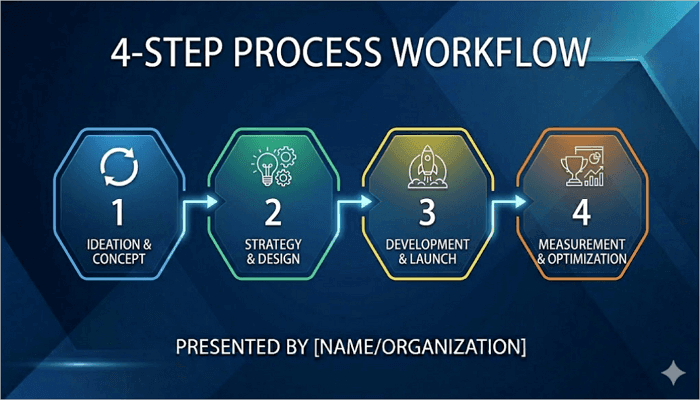
An infographic slide is a hybrid slide that combines visuals with structured information to make complex ideas easier to process and remember. This kind of slide works well for processes, step-by-step workflows, timelines, and hierarchies.
However, keep infographic slides focused on one process or concept per slide. Use icons, numbered steps, and color coding to guide the reader’s eye through the information in the correct order.
9. Summary Slide
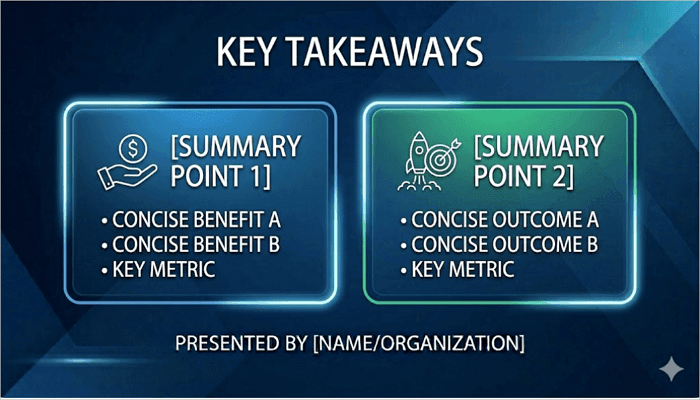
While it stands alone, the summary slide does not add new content to your presentation. Instead, it compressed everything your audience has just heard into 2-3 clear takeaways.
At the end of a long presentation, it can be hard for the audience to remember every detail. They remember how it made them feel and the last few things they saw. A summary slide allows you to determine what those final impressions are.
Think of it as the compression slide where you can make sure the message lands before you move to closing.
10. Thank You Slide
The thank you slide is also one of the most important types of PowerPoint slides to include in your deck. It acts as the closing moment of your presentation.
This slide usually includes a short expression of appreciation, your contact details, and sometimes, an invitation for questions.
It should leave a clean, final impression, since it is the last image your audience will see. There is no point in adding extra information here.

Mistakes in Using Different Types of PowerPoint Slides
Are you having issues building PowerPoint slides? Let’s explore the most common mistakes presenters make so you can avoid them.
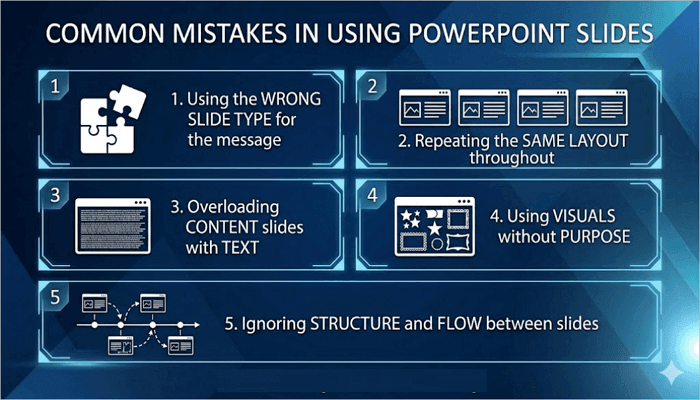
1. Using the wrong slide type for the message:
Placing comparison data on a standard content slide means the audience has to mentally organize what you should have structured for them.
2. Repeating the same layout throughout:
Using only content slides from start to finish makes every section feel the same, even when the topics are different.
3. Overloading content slides with text:
Slides should support your message, not overwhelm the audience. Try to present only key points in the PPT, and deliver the rest of the details verbally. This keeps the slides clear and helps the audience stay focused on what you’re saying.
4. Using visuals without purpose:
Decorative images that are unrelated to the slide’s message will only clutter your slide and make it confusing.
5. Ignoring structure and flow between slides:
A presentation without section dividers or logical progression between slide types is hard for the audience to follow.
Conclusion
How clearly is your audience understanding your message? That should tell a lot about your slide structure. Whether it is opening, orienting, delivering content, visualizing data, or closing, defining a role for each slide makes the presentation more memorable and easier to follow.
So before you start creating, always define your types of slides by outlining which slide type belongs at each stage of your presentation, and building the visuals around that structure.
FAQs on Different Types of PPT Slides
Slide structure remains a frequently misunderstood part of presentation design. Here are answers to some of the most common questions about types of PPT slides and how they work.
1. How many types of slides are in PowerPoint?
There is no fixed number of slide types in Microsoft PowerPoint. However, from a practical presentation design standpoint, there are 10 commonly recognized types of slides, including:
- Title
- Agenda
- Content
- Section divider
- Image
- Comparison
- Data/chart
- Infographic
- Summary
- Thank You
2. What are the four types of slide layouts?
PowerPoint’s built-in layouts are generally organized into four functional categories:
- Title layouts (for opening slides)
- Content layouts (for text and bullet points)
- Two-content or comparison layouts (for side-by-side information)
- Blank or minimal layouts (for image-heavy or visual slides).
These layout categories in PowerPoint correspond closely to the four slide groups: opening, content, visual/data, and closing.
3. What are the four main types of presentations?
The four main types of presentations are:
- Informative (sharing knowledge or data)
- Persuasive (convincing the audience to take an action or adopt a view)
- Demonstrative (showing how something works step by step)
- Inspirational (motivating or emotionally engaging the audience).
Each type of presentation benefits from a different combination of the slide types we’ve covered in this guide.