PowerPoint templates are a total lifesaver! Those pre-designed slides save you hours of work and also provide a professional baseline.
But here is the secret – the real magic happens only when you make it your own. By customising fonts, injecting your branding, and changing layouts, you transform a standard deck into an unforgettable presentation. We will show you how to edit PowerPoint templates step by step, so your presentation truly reflects your style.
Ready to ditch generic slides? Let’s dive in.
The Difference Between PowerPoint Templates and Themes
Before we edit a PowerPoint template, let’s check out the difference between templates and themes. A template is a pre-designed presentation file, ready with colors, layouts, and even placeholder content. It’s basically a ready-to-use package.
A theme, on the other hand, is a set of design elements like colors, fonts, and effects.
While themes are easy to switch, building a templates for slides from scratch is much harder. You have to build every layout and style manually, which takes time and also requires a good designer’s eye.
Check out the templates below, which will save you all that work!
Quick Method: Using an Existing PowerPoint Template
Are you short on time but need your presentation to look professional? Just head to AiPPT, an AI-powered online presentation maker, to download 2 ready-made presentations for free every day!
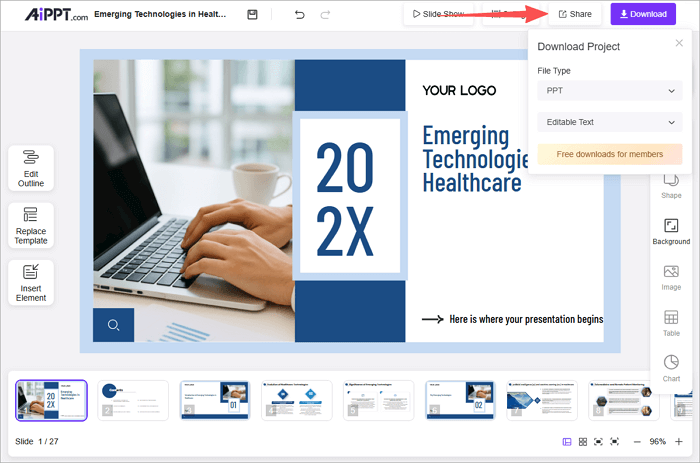
AiPPT lets you create an entire presentation from a simple topic or a template. You can work on the AI-generated presentation online or download it to edit with PowerPoint.
Step 1: Go to AiPPT.com website. Click Create from Topic or upload a document.

Step 2: Enter your keywords. AiPPT will generate an outline, which you can edit. Once satisfied, click Select Template.

Step 3: Select a template from the gallery. Click Generate PPT.

Step 4: AI will generate your presentation. Click the Edit button to make changes, if any. Once satisfied, click ‘Download’ to save the presentation to your computer.
How to Create and Edit a PowerPoint Template from Scratch
Tired of playing “ fix the font “ on every slide? Building your own template from scratch with your branding is a game-changer. You will learn how to customize theme elements, design custom layouts, as well as how to edit PPT templates in this section.
Step 1. Start with a Blank Presentation
The first step is to start with a clean slate. We are going to make this template truly your own, removing all generic aspects from the slide.
➤ Open PowerPoint. Go to Home, then click Blank Presentation to create a new presentation.

Step 2. Open Slide Master View
The Slide Master view is like the secret sauce of Grandma’s pasta! If you tweak the color there, it will appear in all slides.
➤ To open the Slide master View, go to View > Slide Master.
➤ A new view with a thumbnail panel will open. The top left slide is your slide master. It’s slightly larger than other thumbnails.

Step 3. Customize Theme Elements
Now that you have the Slide master view open, it’s time to customize colors, backgrounds, and fonts.
➤ Theme Colors: Click colors in the Background group. Choose from the list.

➤ Theme Fonts: Click Fonts > Customize Fonts in the background group. Select from the pop-up menu and save your choice.

➤ Background styles: Click background styles > Format Background and select your choice.

If you need to change the PowerPoint slide size, click on this link to get the tutorial: >> What Size is a PowerPoint Slide & How to Change it?
Step 4. Design Custom Slide Layouts
The Next step is customizing the slide layout to match the presentation to your brand style. Here you will learn to build the exact layout your presentation needs.
➤ Select the master slide, then click Insert Layout to insert a new layout.
➤ To add placeholders, go to Insert Placeholder and choose from picture, text, media, and then drag and drop on the layout.

Step 5. Add Branding and Visuals
Want to ditch the generic look? Branding makes your slides unmistakably you! Let’s see how to add visuals and branding.
➤ Go to Insert > Pictures and browse for your file. Resize/reposition the logo as required.

Step 6. Save and Reuse the Template
Your presentation is ready! Now it’s time to save it as a template. If needed, you can modify PowerPoint templates afterwards.
➤ To save the template, click File > Save As, then select the location.
➤ From the Pop-up menu, select PowerPoint Template or .potx as the file type and click Save.

Key Principles of Good PowerPoint Design
Want your presentation to shine? These key points will make your PPT professional, clear, and engaging.
🎯 Consistency: Stick to the same fonts, colors, and layouts throughout the slideshow for a cohesive, clean look.
🅰️ Use readable fonts: Use one or two legible fonts that the audience can see from a distance ( eg, Arial or Calibri)
✅ Balance text and Visuals: Mix words with visuals. Don’t let either dominate.
🎨 Color contrast: make it easy for the eye – dark text on light background or vice versa.
✨ Simplicity: Keep it simple. Avoid cluttering slides and focus on one main message throughout the presentation.
Best 5 Versatile PowerPoint Slide Design Templates for Free
You have learned to build and edit a template in PowerPoint. But if you don’t have time to build from scratch, just head to the AiPPT website to find a ready-made PowerPoint theme for any occasion. And it’s totally free!
1. It’s Christmas Time
Planning an event for Christmas? This is the perfect template to present your plan for Secret Santa to your team! This slide deck features a winter blue-themed color palette with playful illustrations. You can even save this attractive layout in the cloud, so you can access it on the go!

Try This Template for Free: >> Free Christmas Present Shopping List PowerPoint Template
2. Get Your Marketing Plan Off the Ground
This template offers a structured plan to manage conversions, retain clients, and create a polished project roadmap. Template includes ready-made slides for market analysis, campaign timelines, and KPI tracking, and its blue color schemes help to improve clarity. AiPPT helps you easily modify PPT templates to change the color theme to match your brand.

Try This Template for Free: >> Blue Business Marketing Plan PowerPoint Template
3. Sales Report
Simply modify this ready-made template to present your integrated sales and marketing report to the board! All the essential slides to outline the market, tactics, sales funnel, and KPI’s are already included. You can use this template to present a clear, actionable business plan.

Try This Template for Free: >> Integrated Sales and Marketing Plan PowerPoint Template
4. Research Proposal
Present your research findings in this template designed to meet the highest academic standards. It includes dedicated slides for literature reviews, research methodology, and data analysis. Whether you are applying for a grant or defending a thesis, this is the right template!

Try This Template for Free: >> Blue Research Project Proposal PowerPoint Template
5. Present Your Company with Confidence
This dynamic template provides a complete framework of the company’s mission, team, and services with stunning visuals. You can use this free resource with timelines and charts to make a memorable impact on the audience. Just edit the color palette to match your company branding, and replace placeholders with high-resolution photos of your team.

Try This Template for Free: >> Modern Business Profile Free PowerPoint Template
Conclusion
Wrapping things up: Now you’ve got your own template with company branding, so no need to edit a PowerPoint template every time you have a presentation! If you are pressed for time, just head over to the AiPPT website and use the ready-made templates.
We have studied how to edit PowerPoint templates in detail, and if the company has a specific requirement, you are a master designer now!
FAQs on How to Edit PowerPoint Templates
Here are some of the PowerPoint edit layout concerns the readers had.
1. Can you edit PPT templates online?
Yes, it’s possible, but PowerPoint for Web cannot directly edit a .potx file. You can opt for an online tool like AiPPT.
- Go to the AiPPT site, generate the PPT, and apply the template when prompted.
- Use the AIPPT drag and drop tools to edit the PPT as needed.
- When you are happy with the outcome, export the presentation.
2. How to modify PowerPoint template background/header/footer?
Here is an easy way to change the header/Footer.
- Go to View> Slide Master.
- Now you can insert or edit headers/footers via Insert > Header Footer. You can include date and time, slide number, or a footer note.
- Close master view. Your edits will be applied to all slides.
3. How to edit a PowerPoint template for an existing presentation?
Let’s see how to change a template in a presentation you have already created.
- Go to View > Slide master.
- To change the Theme, go to Edit theme and select from the drop-down list.
- To change colors, fonts, select from the background tab.
- Close master view.