Your audience can immediately tell from the first slide if your presentation will offer value. If you start with a great slide, you’ll be able to draw more attention, communicate the topic, and provide context for the rest of the presentation.
A well-designed PowerPoint first slide sparks curiosity among your audience and makes a professional, long-lasting impression.
In this guide, we’ll cover the key elements of an effective first slide, how to build a PowerPoint title page manually and with AI using AiPPT, and editable PPT presentation templates you can use when creating.
🔗 Related Post: >> How to Introduce Yourself in a Presentation as a Student
Key Elements & Design Tips for PowerPoint First Slide
When creating a first slide for your presentation, there are components that must be present to make it effective. They include:
➤ Clear title: Your title is the most important message on your first slide, so you should make it large and readable.
➤ Tagline (optional): A subtitle that clarifies your title at a glance.
➤ Relevant visuals: Add a photo or icon to support your message without clutter.
➤ Presenter information: Include your name, role, and organization if applicable. You can also add contextual details like event, date, or time.
Now that you know what elements should be in your first slide, here are some practical design tips to guide you:
- Use readable fonts such as Calibri, Open Sans, Arial, etc.
- Align elements using grids to maintain balance.
- Stick to one color palette throughout the slide.
- Use a simple layout or template to avoid cluttering your space.

How to Create a PowerPoint Title Page Manually
Creating a PowerPoint title page from scratch is straightforward using the “Layout” method. However, you must take note of alignment, spacing, and balance to get the best out of this method.
You also want to keep your design simple so that your audience can grasp the message instantly. Another thing to look out for is visual hierarchy: the title should be the largest element, followed by the taglines and presenter details.
Here’s a step-by-step method to create a title page for your PowerPoint presentation:
Step 1: Open a blank PowerPoint presentation and select the first slide or any slide you wish to convert to a title page.
Step 2: Go to “Home > Layout” and select a “Title Slide” for a standalone title page, “Title and Content”, or “Title Only”.

Step 3: Place your cursor in “Click to add title” to insert text for your title. Do the same for the subtitle textbox if you wish to add a tagline.

Step 4: You can go to “View > Show” to enable Ruler, Gridlines, or Guides for alignment.

How to Create a PowerPoint Presentation Title Page Using AI-Powered PPT Maker
AiPPT.com is an AI presentation maker for creating slides instantly from text, URLs, or documents. Beyond generating slides with AI, AiPPT also provides access to a library of more than 200,000 well-designed PowerPoint themes that you can preview, customize and edit online to suit your design theme.
To generate a PowerPoint presentation on AiPPT:
Step 1: Go to AiPPT.com and click on “Sign In” or “Sign Up” to continue.

Step 2: After signing in, select “+ New Project” at the top left corner.
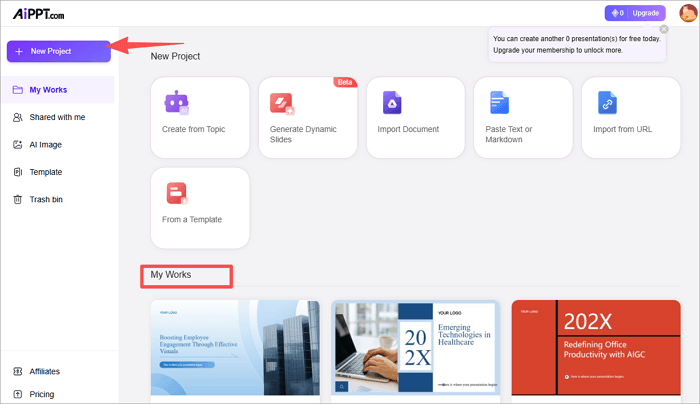
Step 3: Choose an option to create your PPT. If you want to create from topic, enter your title and hit the “Send” icon.

Step 4: Review the content outline generated and click on “Select template”.

Step 5: Then, click on “Generate PPT” to proceed. (This should only take a little while.)

As soon as your presentation is ready, you can edit on AiPPT, share with others, or download to your local device.
More Templates for Your Presentation Title Slides
Aside from generating slides with AI and using a PPT background template online, AiPPT also offers thousands of downloadable templates that you can apply and edit directly in Microsoft PowerPoint.
Let’s check out some of these title slide examples.
1. The “Creative Business Model Canvas” PowerPoint Template
💡 Ideal For: Startup pitches, business-planning sessions, strategy workshops, etc.

📝 Why we recommend this template:
It offers a clean, modern, and visually engaging layout that is well-suited as a title slide for your presentation. The bold color theme and balanced layout help you make a strong first impression while keeping the design professional and easy to read.
Try this Template for Free: Creative Business Model Canvas PowerPoint Template
2. The “Jack O’Lantern Themed” PowerPoint Template
💡 Ideal For: Festive business updates, Halloween presentations, etc.

📝 Why we recommend this template:
This template is centred around iconic Halloween slide designs, with an orange and black color scheme, adding a fun, seasonal touch that will entertain your audience from the first slide. Its modern, clean layout also ensures that the message is clear and compelling for your audience.
Try this Template for Free: Jack O’Lantern Themed PowerPoint Template
3. The “Data-Driven Digital Marketing” PowerPoint Template
💡 Ideal For: Campaign results, KPI reports, etc.

📝 Why we recommend this template:
This template features a sleek purple design and powerful data visuals, making it suitable for your first slide. Its modern, clean look immediately signals a professional, analytics-focused marketing deck. It also has a well-balanced layout that lets your title and subtitle stand out without distraction.
Try this Template for Free: Data-Driven Digital Marketing PowerPoint Template
4. The “Free Startup Pitch Deck PPT” Template for PowerPoint
💡 Ideal For: Business pitches, sponsorship proposals, etc.

📝 Why we recommend this template:
Get potential investors hooked right from the presentation title slide with this free downloadable template specifically curated for ambitious startups.
It features a clean, blue minimalist design that ensures that viewers remain focused on your data. This template also offers a comprehensive structure for your startup funding presentation slides.
Try this Template for Free: Free Startup Pitch Deck PPT Template for PowerPoint
5. The “Free Professional Marketing” PowerPoint Template
💡 Ideal For: Marketing reports, business reviews, etc.

📝 Why we recommend this template:
The Free Professional Marketing PowerPoint Template features a clean and corporate blue color scheme that immediately conveys professionalism and trust.
As a title slide, this template provides clarity and a business-oriented tone without unnecessary distractions for your audience.
Try this Template for Free: Free Professional Marketing PowerPoint Template
6. The “Challenger Sale Methodology” Presentation Template
💡 Ideal For: B2 client pitches, training sessions, sales proposals, etc.

📝 Why we recommend this template:
This template allows you to shift from the regular pitch to one that’s powerful and backed by insights. It is tailored for the “teach, tailor, take control” sales approach.
Its blue, professional design helps create a credible atmosphere, even right from the first slide in the presentation.
Try this Template for Free: Challenger Sale Methodology Presentation Template
7. The “Free Black Cat Halloween Illustration” PowerPoint Template
💡 Ideal For: School assignments, creative storytelling, etc.

📝 Why we recommend this template:
Seasonal presentations should introduce that modern vibe, even from the first slides, and that’s why this template is a great pick. It features a charming, spooky black cat and moonlit design that’s both playful and seasonal.
Using this as the page your audience sees first creates a memorable opening with a Halloween flair without being overly dark or cheesy.
Try this Template for Free: Free Black Cat Halloween Illustration PowerPoint Template
8. The “Market Research Presentation” PowerPoint Template
💡 Ideal For: Consumer analysis, market size research, etc.

📝 Why we recommend this template:
This template works best when you need to create a professional, data-driven title slide for a presentation. Its layout combines crisp typography with data-friendly design to make your presentations very compelling. It features a well-structured format to ensure that your title, subtitle, and presenter info are clearly visible.
Try this Template for Free: Market Research Presentation PowerPoint Template
9. The “Gradient Business Model Canvas” PowerPoint Template
💡 Ideal For: Startup pitches, business model workshops, strategy meetings, etc.

📝 Why we recommend this template:
The Gradient Business Model Canvas PowerPoint Template features a smooth, modern cyan gradient background that gives your presentation title slide an energetic feel. It offers a fresh alternative to business documents.
It’s ideal for business strategy and planning decks because the gradient adds visual flair while maintaining a professional look.
Try this Template for Free: Gradient Business Model Canvas PowerPoint Template
10. The “Vibrant Gradient Business Plan” Presentation Template
💡 Ideal For: Business plans, strategy decks, etc.

📝 Why we recommend this template:
Its bold pink-purple Gradient brings that modern, energetic feel to your pitch, right from the first screen, making it a great choice for creating title slides.
The aesthetic business plan layout of this template is designed to be both beautiful and functional, helping you present your ideas in a compelling narrative.
Try this Template for Free: Vibrant Gradient Business Plan Presentation Template
Conclusion
Your PowerPoint first slide helps set the tone of your presentation and capture the audience’s attention. To ensure that it is effective, you should include vital elements such as a clear title, subtitle, relevant visuals, and presenter information.
You can create a PowerPoint title page from scratch using the “Layout” method, or access a more extensive library of presentation slide templates on AiPPT and download them for use and editing within PowerPoint.
Find the perfect title slide from the samples above and customize it to fit your design theme and goals.
Learn More About the Title Slide of Presentations
Want some extra tips on creating a perfect PowerPoint first slide for your presentation? Let’s run through frequent questions and quick answers.
1. How to make a good title slide for PowerPoint?
To create an effective title slide for your PowerPoint presentation:
- Open your slide and choose a simple layout.
- Add a title to give context to your presentation.
- Add an optional subtitle or tagline to briefly describe your title.
- Insert an optional visual or brand logo.
- Add the presenter’s name, date, and event.
- Preview in full screen and save on your device.
2. What are title slide examples?
These examples will come in handy when you need title slide ideas for your PowerPoint presentation. They are grouped into minimalist title, visual cover, collage, brand intro, and many more.
Check out AiPPT’s template gallery to make a pick for your next slide.
3. How do I rename the title slide layout in PowerPoint?
Follow these steps to rename a title slide layout in your PowerPoint presentation:
- Go to the “View” tab and click “Slide Master”.
- Go through the layout thumbnails in the left pane, and right-click the one you want to rename.
- Then, select “Rename Layout”.
- Enter a new name in the dialog box that appears and click “Rename”.
- Proceed to the “Close” group and click “Close Master View”.