Equations may not be that common in day-to-day presentations, but there are situations where you can’t do without them, such as when you’re teaching math concepts, presenting scientific research, explaining formulas in business reports, or creating technical presentations.
Whichever the case, it helps to know how to insert equation in Google Slides, since normal text formatting may look messy when writing fractions, symbols, and complex formulas.
The best method for adding equations in Google Slides depends on the type of equation you want to create. And in this article, we’ll show you how to choose the best approach quickly.
Key Takeaways
- The complexity of your formula determines the best approach to add equations in Google Slides.
- You can create simple equations with text boxes and special characters.
- Google Docs offers a built-in equation editor that works well with Google Slides.
- LaTeX is used for writing scientific formulas.
- External tools can help create formulas quickly while maintaining consistent formatting.
Can You Add Equations Directly in Google Slides
Yes, you can add equations in Google Slides. But not in the way you might expect.
There is no built-in equation editor in Google Slides, like in Google Docs, which allows you to simply click Insert > Symbols > Equation to use mathematical formulas in your documents. However, there are reliable workarounds to get it done in Google Slides, depending on how complex the equations are.
For simple expressions, you can use special characters, text boxes, and formatting tools to create basic equations. But for more advanced formulas involving fractions, matrices, summations, or calculus, it’s usually easier to create the equation elsewhere before inserting it into your presentation.
How to Insert Simple Equations in Google Slides
You can easily create basic mathematical expressions with arithmetic, percentages, and variables in Google Slides, without using extra tools. Let’s explore different approaches you may use as a beginner.
Method 1. Use Special Characters to Add Mathematical Symbols
One of the easiest ways to create equations on Google Slides is by inserting Greek letters, operators, and mathematical signs from the Special Characters library.
This approach comes in handy for adding individual symbols, but may not be the best choice for more complex formulas such as exponents, stacked fractions, and matrices.
Step 1: Go to the slide where you want to add the equation and click inside a text box.
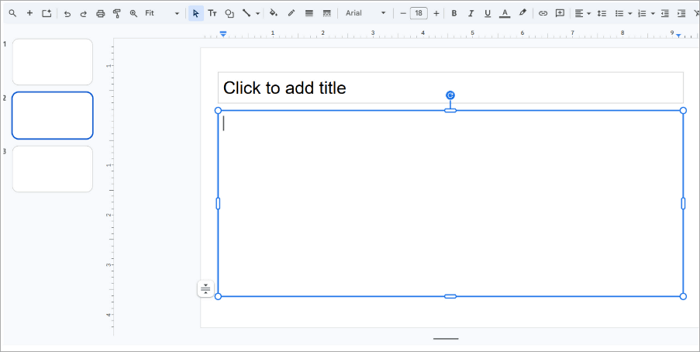
Step 2: Open the Insert tab and select Special Characters.
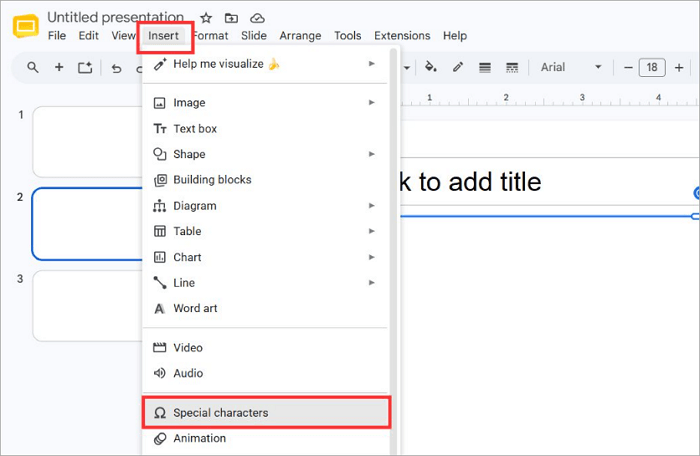
Step 3: Select or search for the symbol you need using keywords such as alpha, beta, pi, integral, etc. You can also sketch it if you don’t remember the name.
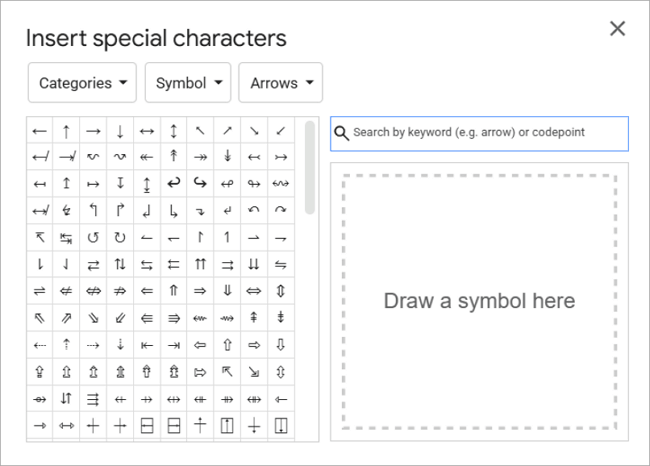
Step 4: Insert the symbol into your text box.
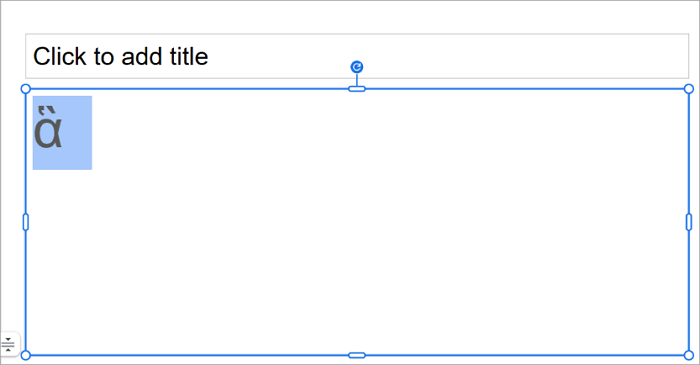
Method 2. Build Simple Formulas with Text and Symbols
Special characters don’t do much when you can’t use them in your own formulas. You can combine text boxes, numbers, symbols, and formatting options to create simple equations in Google Slides.
Step 1: Go to Insert > Text box and create a new text box on your slide.
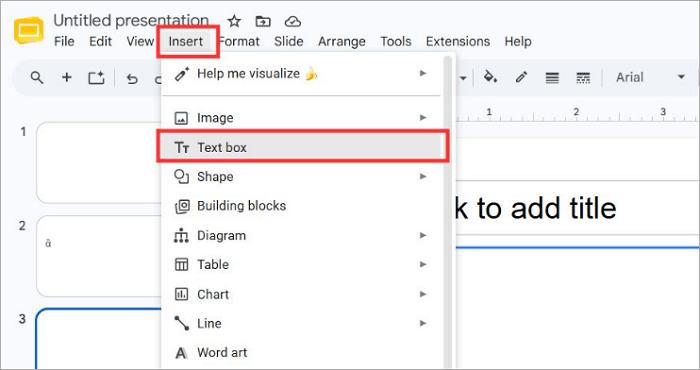
Step 2: Type your equation into the text box and insert special characters where necessary.
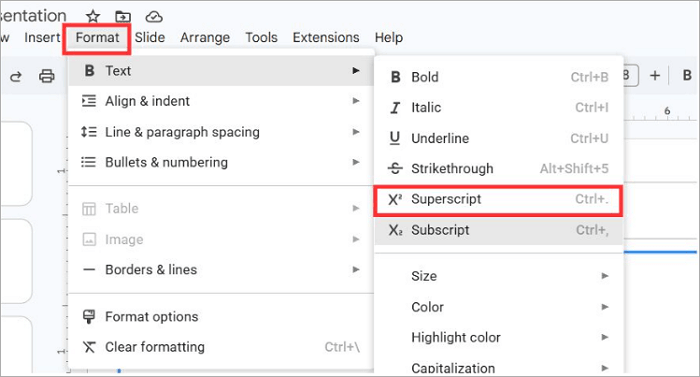
Step 3: You may also need extra formatting like a Superscript in this case. Go to Format > Text > Superscript.
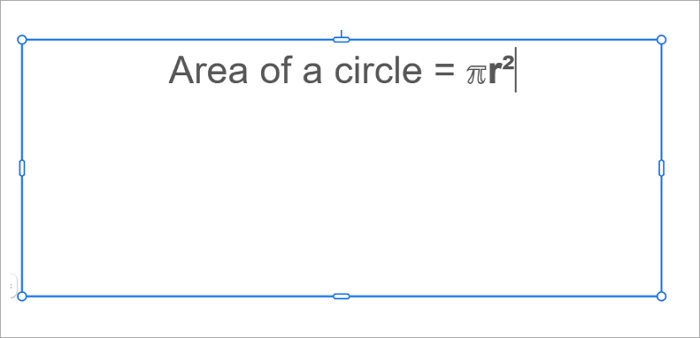
Step 4: Adjust the spacing and alignment of your mathematical or scientific formula so that the final result looks clean.
How to Add Complex Equations to Google Slides
For advanced formulas such as calculus, matrices, multiple fractions, chemical equations, and scientific formulas, Google Slides’ built-in options may not be enough. In cases like this, you’ll need dedicated tools depending on your content’s complexity and how often you’ll edit the equations.
Method 1. Create Equations in Google Docs and Copy Them to Slides
Since Google Docs lets you create and perfectly format mathematical equations in its editor, it may be a great option when paired with Google Slides.
This way, there’s no need to explore other methods. Sounds like something you want to try? Let’s see how.
Step 1: Open an existing file or a new blank document in Google Docs.
Step 2: Go to the Insert tab and click Symbols > Equation.
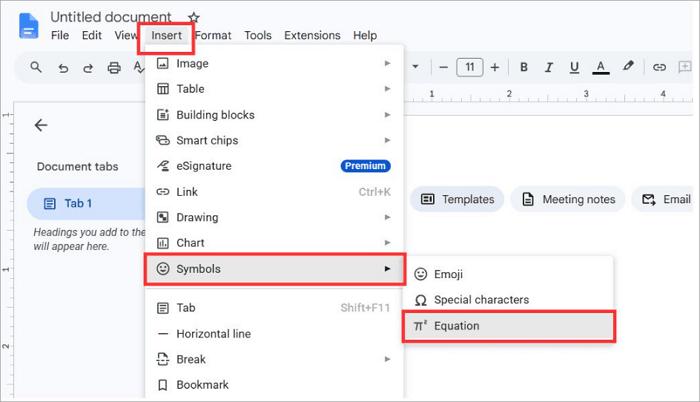
Step 3: Use the equation toolbar to insert fractions, exponents, square roots, Greek letters, and other mathematical operators to build your equation.
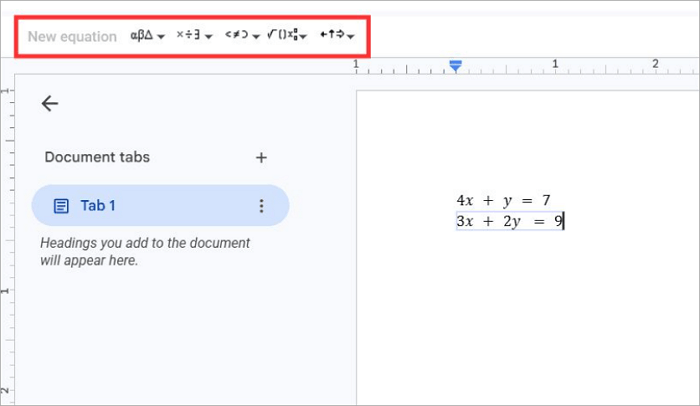
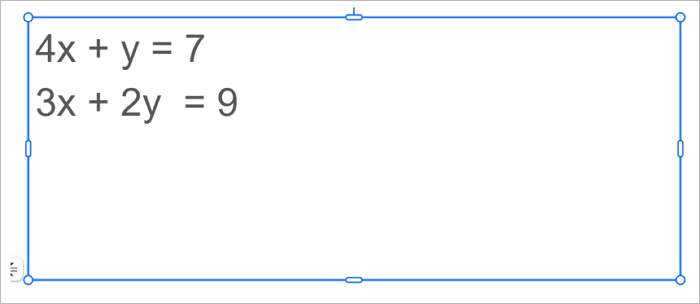
Step 4: Copy the complete equation and paste it into your desired slide in Google Slides.
Method 2. Use LaTeX to Generate Mathematical Formulas
If you regularly work with advanced mathematics, LaTeX is one of the most powerful ways to insert equations into Google Slides.
LaTeX is a document preparation system widely used in universities, research institutions, engineering, and scientific publishing because it produces highly accurate mathematical notation, such as integrals, matrices, summations, limits, and differential equations. Rather than building equations visually, you write them using LaTeX syntax.
The typical workflow when working with LaTeX looks like this:
- Write the equation using LaTeX syntax.
- Generate the formatted equation using a LaTeX editor or online renderer.
- Export the equation as a high-quality SVG or PNG.
- Insert into Google Slides using Insert > Image.
Method 3. Use Equation Generator Tools or Add-ons
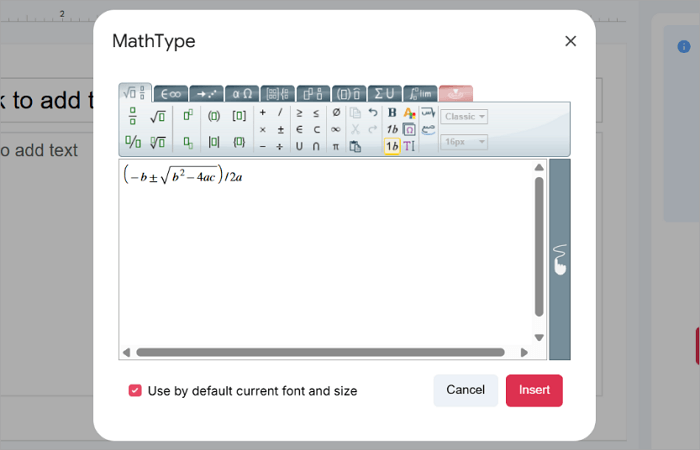
Another option you can explore, particularly when you create formulas regularly, is equation generators and dedicated add-ons like MathType or Hypatia Create that help you generate equations faster.
This approach is useful when you need multiple formulas across a presentation. Instead of rebuilding each equation manually, you can generate them quickly while maintaining consistent formatting throughout your slides.
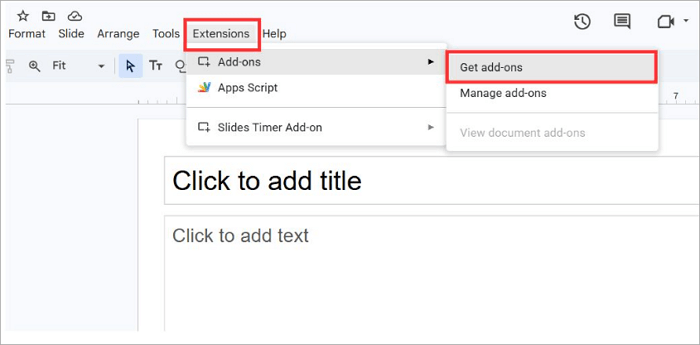
Step 1: Open your presentation in Google Slides and go to Extensions > Add-ons > Get add-ons.
Step 2: Search and install MathType.

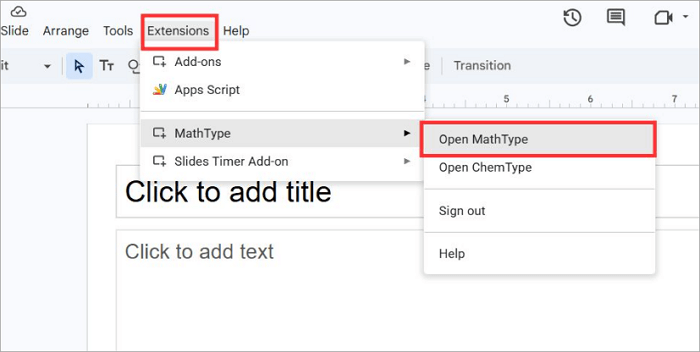
Step 3: Return to the Extensions menu and open MathType.
Step 4: Type your formula and click Insert.
Common Problems When Adding Equations in Google Slides
Even after choosing the right method for adding an equation in Google Slides, you may still encounter some issues. Check out the most common ones and how you can fix them quickly.
1. Mathematical Symbols Are Missing
If a symbol doesn’t show up in search, try an alternative name or use the sketch box to draw it. Google Slides will recommend options based on your drawing.
2. Copying Equations Changes the Formatting
Equations copied to Google Slides from Docs or other tools may lose their formatting due to different rendering systems. You can reduce formatting issues by copying the equation again or inserting it as a high-quality image.
3. Equations Look Blurry After Inserting as Images
Your images may appear blurry when exported at low resolutions. To keep your formulas sharp, always export them in SVG or PNG formats.
Conclusion
Knowing how to insert equations in Google Slides isn’t just about displaying numbers and symbols—it helps your audience understand complex ideas more quickly, especially in educational, scientific, and professional settings.
As mentioned earlier, simple expressions can be created directly in Google Slides, while advanced equations are better handled through Google Docs, LaTeX, or dedicated equation generators like MathType.
However, before designing your slides, decide which approach best suits the complexity of your formula.
Learn More About Equations on Google Slides
Got more questions about working with formulas in Google Slides or PowerPoint? Here’s something you should also check out.
1. How to Insert an Equation in PowerPoint?
PowerPoint has a native equation editor, and here’s how to use it:
- Open your presentation and go to Insert > Equation.
- Choose a built-in equation or use Ink Equation to create yours.
- Add fractions, radicals, matrices, integrals, and other mathematical symbols.
- Resize and position the equation to fit your slide layout.
2. How to insert formulas in Google Slides?
To insert Google Slides formulas in your presentation:
- Go to the slide where you want the formula.
- For simple formulas, insert a text box and add mathematical symbols using Insert > Special characters.
- For advanced equations, create the formula in Google Docs using its Equation Editor.
- Copy the complete equation into Google Slides.
- Adjust the size and alignment.
3. What’s the best way to insert equation in google slides?
The best method depends on how complex your equation is.
- Use Insert > Special characters for individual symbols and simple expressions.
- Build basic equations with text boxes when only minor formatting is required.
- Use Google Docs’ Equation Editor for fractions, exponents, and more advanced notation.
- Choose LaTeX if you’re working with scientific or academic formulas.
- Use equation generators or add-ons if you create formulas frequently and want a faster workflow.