Imagine you’re working on a science presentation in Google Slides and you need to write a formula like H₂O(subscript) or x²(superscript). If it’s your first time, you may not get the formatting right.
While they may not be easy to find or use, there are features that allow you to create superscript and subscript in Google Slides. Once you know where to look, applying them takes only a few seconds.
Before going into how to add subscripts and superscripts in Google Slides, here is a quick comparison of the different methods you can use.
| Method | Best for | Speed | When to use it |
|---|---|---|---|
| 1. Format menu | Accuracy | Moderate | Occasional formatting |
| 2. Keyboard shortcuts | Frequent use | Fast | Regular editing workflow |
| 3. Special characters | Unique symbols | Slow | Precision or advanced symbols |
Method 1: Use the Format Menu (Most Reliable)
The Format menu offers the safest approach when it comes to inserting subscripts or superscripts on Google Slides. It is built directly into Google Slides and works consistently, regardless of your browser, operating system, or keyboard layout.
This way, you don’t have to worry about running into compatibility issues.
The process is simple. You select text and apply superscript or subscript to it. Once applied, the formatting stays consistent across devices and edits.
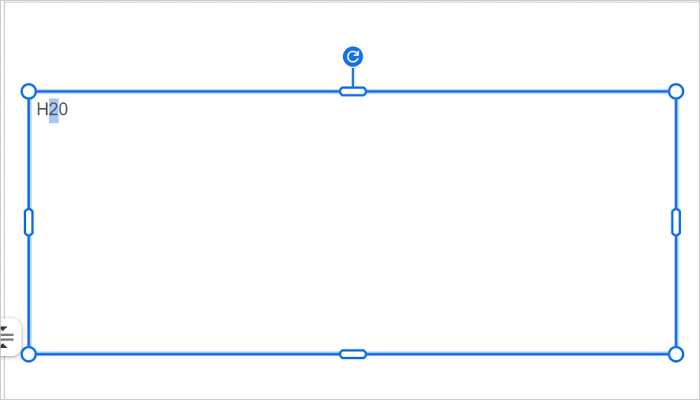
Step 1: Open Google Slides and select the text you want to format. For example, select the 2 in H2O.
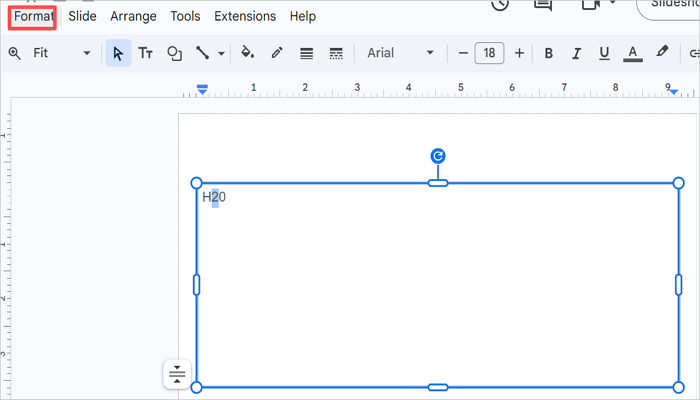
Step 2: Click Format in the top menu bar.
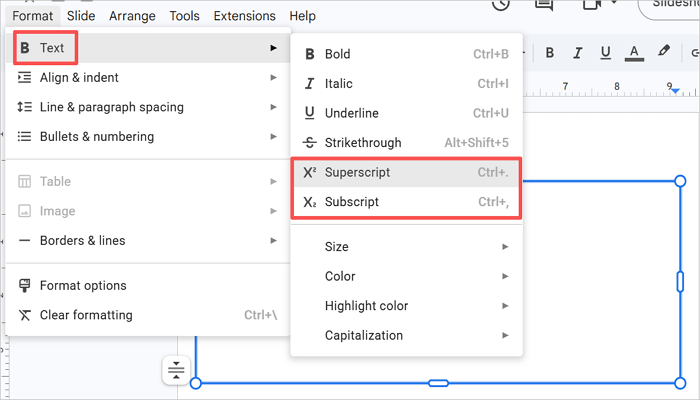
Step 3: From the dropdown menu, hover over Text and select either Superscript or Subscript.
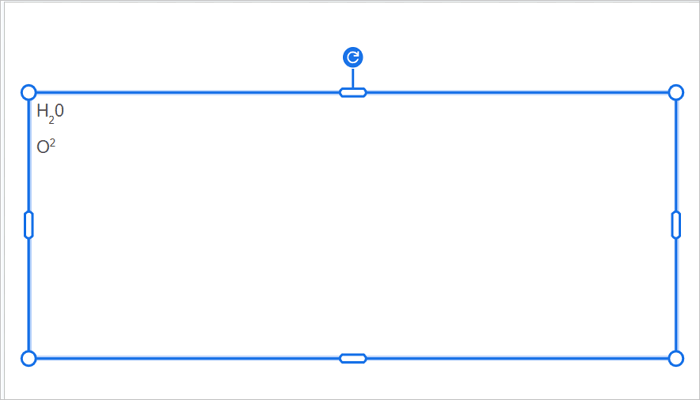
In this case, we’re using Subscript for H2O and Superscript for X2.
Step 4: The formatting should apply immediately.
Method 2: Use Keyboard Shortcuts (Fastest Method)
While the Format menu approach is very reliable, keyboard shortcuts offer something else — speed. Keyboard shortcuts allow you to apply superscript and subscript to text in Google Slides without leaving your keyboard.
This method is ideal for users who format text frequently and want a smoother workflow. Instead of clicking through menus, you can format text instantly with a key combination:
| Formatting | Windows/ChromeOS | Mac |
|---|---|---|
| Superscript | Ctrl + . | Cmd + . |
| Subscript | Ctrl + , | Cmd + , |
All you have to do is select the text you want to format and use the respective keyboard shortcut combination depending on your operating system.
However, there may be an issue. These shortcuts won’t work if your browser or system has already assigned the combination to a different function.
Method 3: Insert Special Characters (For Advanced Cases)
Note that this method is not ideal for everyday formatting. It only comes in handy when you need specific symbols or characters that don’t behave well with normal Google Slides subscript or superscript formatting.
Examples are trademark signs (™), registered marks (®), or mathematical characters like ² or ³ as standalone Unicode symbols.
Instead of styling text, you are inserting a preformatted character directly. So, the result is a fixed symbol, not styled text.
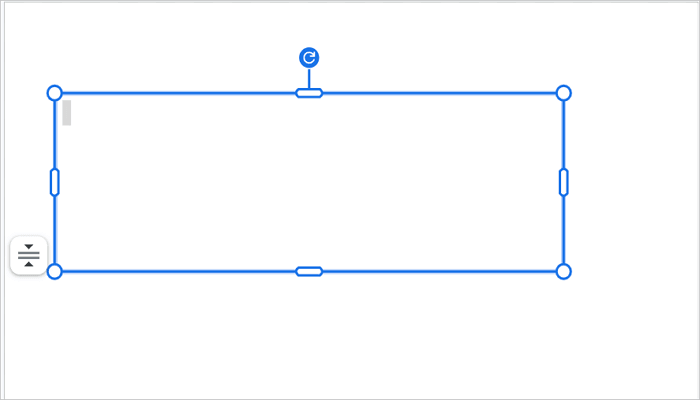
Step 1: Click the text box in Google Slides where you want to add the superscript or subscript.
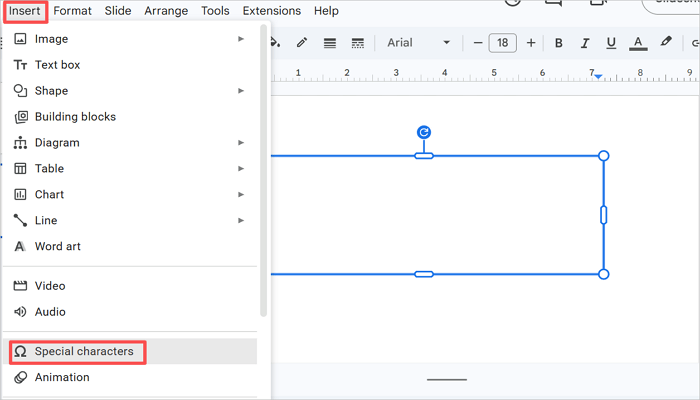
Step 2: Go to the Insert tab in the top menu and select Special characters from the dropdown menu.
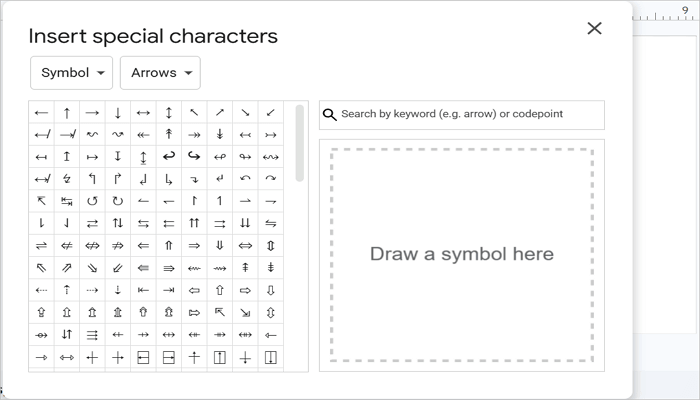
Step 3: Insert your preferred special character by navigation, search, or sketch.
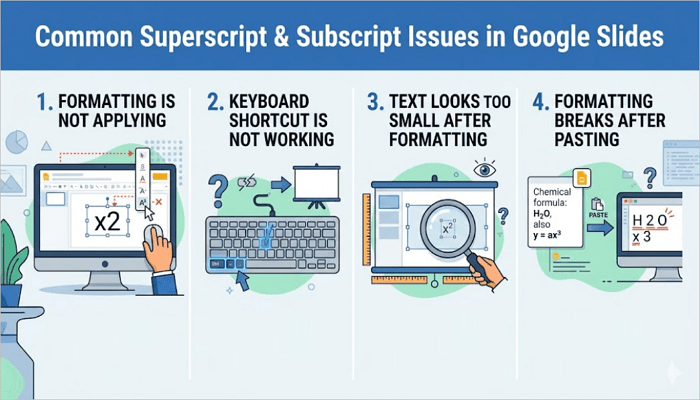
Common Superscript and Subscript Issues in Google Slides
Running into problems while trying to add a subscript or superscript in Google Slides? Let’s explore common issues and how to fix them quickly.
1. Formatting is not applied
That means that you haven’t selected the text yet. Highlight only the specific characters you want to format.
2. The keyboard shortcut is not working
Browser extensions or system settings are probably conflicting. Open Google Slides in an incognito window (which disables extensions) or switch to the Format menu method as an alternative.
3. Text looks too small after formatting
Superscript and subscript reduce font sizes automatically in Google Slides. To fix this issue, increase the font size of the selected character after applying the formatting.
4. Formatting breaks after pasting
Copying formatted text from an external source and pasting it into Google Slides does not always preserve the formatting. Instead, paste the text first using Ctrl+Shift+V (paste without formatting), then apply the superscript or subscript manually.
Conclusion
While they may look minor, formatting details like superscripts and subscripts in Google Slides help your audience read technical content clearly and without confusion.
A good rule of thumb is to use shortcuts to add a subscript or superscript in Google Slides when you want a faster editing workflow, and the Format menu when you need consistent results across devices.
Try one of these methods on a real slide and see how much cleaner your content looks. With time and practice, you’ll become comfortable using it.
Learn More About Superscript and Subscript
Do you still have questions? This section covers how to apply superscript and subscript on different devices and operating systems.
1. How to do subscript in Google Slides on Mac?
To add a subscript in Google Slides on Mac:
- Open your presentation in Google Slides on your Mac browser.
- Click into the text box and highlight the character you want to format.
- Press Cmd + , to apply the subscript instantly.
- Alternatively, go to Format > Text > Subscript from the menu bar.
2. How to do superscript in Google Slides on iPad?
To create a Google Slides superscript on iPad, you’ll need to use the Format menu since keyboard shortcuts may not be available on your tablet interface:
- Open Google Slides on your iPad browser or the mobile app.
- Tap on the text box and select the character you want to format.
- Tap the three-dot menu or the Format option in the toolbar.
- Navigate to Text formatting options and select Superscript.
3. How to add Superscript in Google Slides on Mobile?
Here’s how to make a superscript on mobile:
- Open the Google Slides app on your Android or iPhone.
- Tap and highlight the text you want to format.
- Tap the Format (A) icon in the toolbar.
- Look for the text formatting options and choose the superscript (X2) icon.