Have you been wondering how to highlight text in PowerPoint? If so, we’ll show you how to do it, even if you’re new to PowerPoint.
With the PowerPoint highlight feature, you can emphasize text, data, or visuals to help your audience quickly spot key points in reports, school slides, or business presentations.
However, PowerPoint doesn’t always behave like Word. The highlighter is limited in some versions, which means you may need to explore alternatives.
That’s why we’ll cover six different ways to highlight in PowerPoint, so you can choose the one that works best for you.
Method 1. Highlight Text in PPT Using the Built-in Tool
The built-in tool is the quickest option when it comes to highlighting text in PowerPoint. However, this highlighter in PPT is only available in newer versions like Microsoft 365 and PowerPoint 2019+.
The built-in highlighter allows you to use highlight cursor mode, which lets you select multiple text sections without reopening the menu. This makes it faster when working on long slides.
💡 Best for: quick edits and simple highlighting.
Step 1: Select the text you want to highlight on the slide.
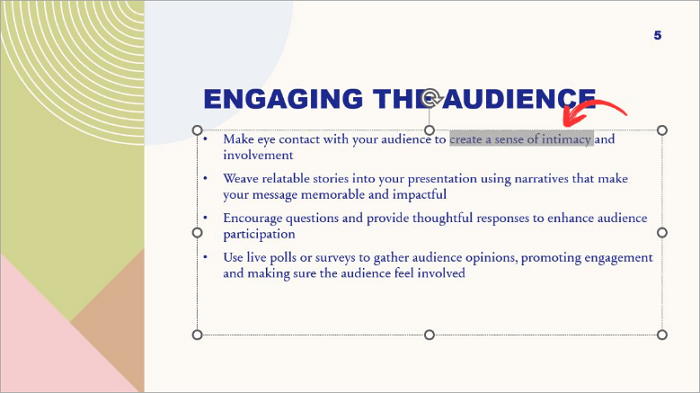
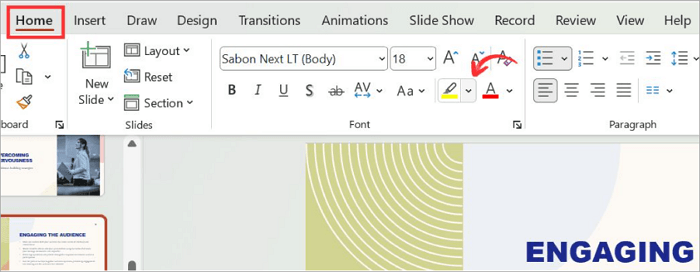
Step 2: Go to the Home tab and click the dropdown arrow next to the Text Highlight Color button.
Step 3: Choose your most preferred highlight color.
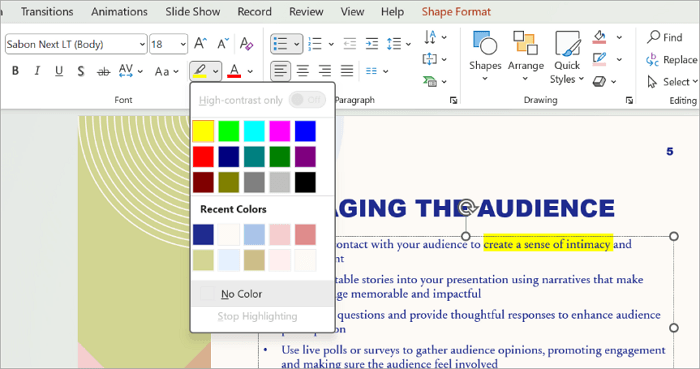
Step 4: To use cursor mode, click the highlight button first without selecting the text. Your cursor will change to a highlighter, which you can drag over any text on the slide.
Method 2. Highlight Text in PowerPoint with Shapes
If you’re using an older version that doesn’t support the built-in highlighter, this method comes in quite handy. With it, you can customize the color, shape, and transparency in your presentation.
However, you should know a few things to get the best out of this method. They include:
- Adjusting the transparency ensures that your text remains readable while still creating emphasis.
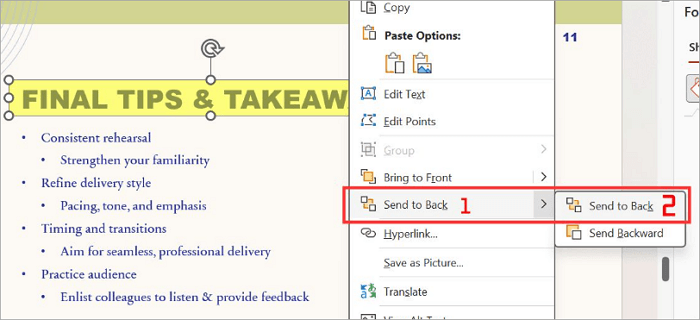
- To ensure clarity, send the shape to the back so it sits behind the text.
- Use matching colors with your design theme to keep the design consistent.
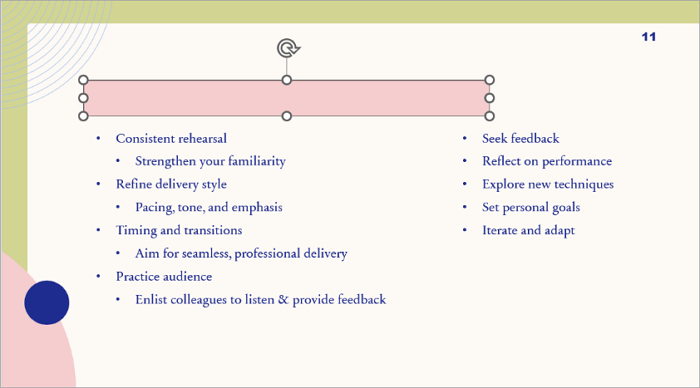
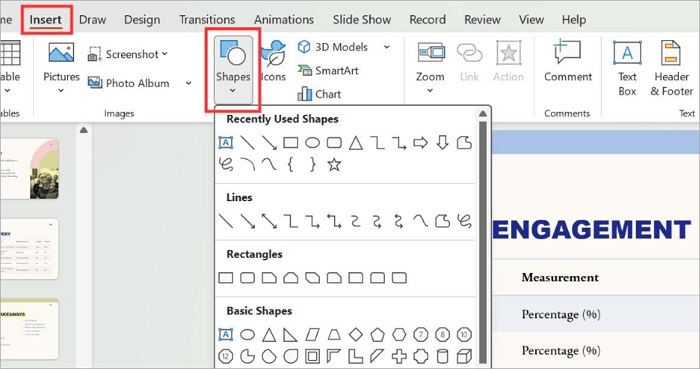
Step 1: From the Insert tab, proceed to Shapes and select a rectangle.
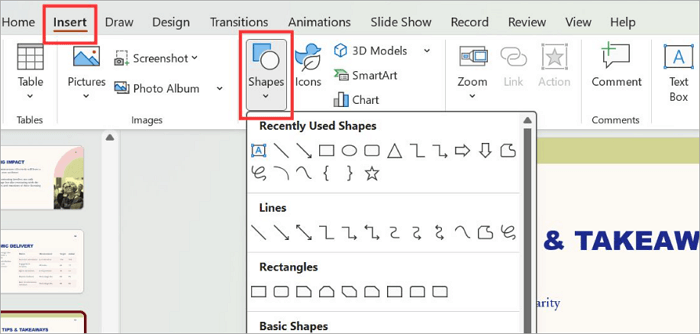
Step 2: Draw the rectangle over the text you want to highlight.
Step 3: Right-click the shape and select Format Shape from the menu. Click Solid Fill, select a color, and set the transparency between 50-60%.
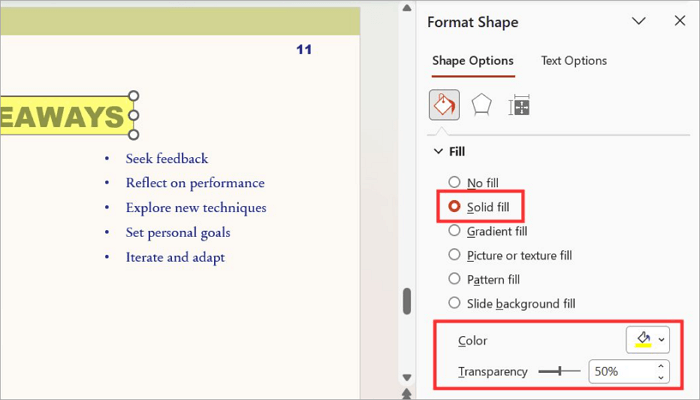
Step 4: Set the Line option to No Line to remove the shape border.

Step 5: Right-click the shape and select Send to Back to place it behind the text.
Method 3. Highlight in PPT Using Font Styling
You can also highlight words in PowerPoint simply by adjusting your font styling, such as changing the color, applying bold, underline, or italics.
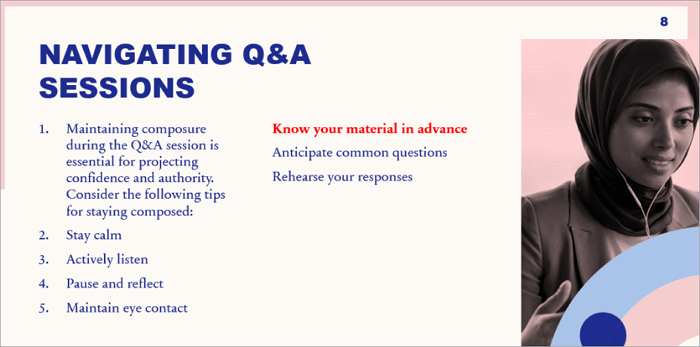
The best way to use this method, however, is by combining one or two styles. For example, using bold + color change creates emphasis on your text without cluttering the slide.
Always avoid using too many styles at once, so it doesn’t reduce clarity and distract your audience during a presentation.
Step 1: Select the text you want to highlight.

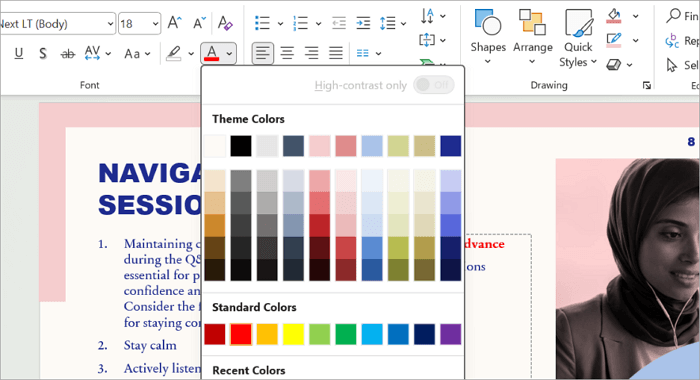
Step 2: Go to the Home tab and choose a Bold, Italic, or Underline format.
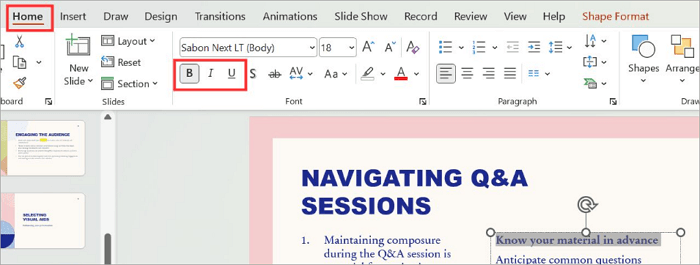
Step 3: Click the Font color dropdown icon and choose a contrasting color.
Step 4: Preview your slide.
Method 4. Use Animation as a Highlighter in PPT
Animations can be used to highlight text in PowerPoint, but they work quite differently from other methods. Rather than creating static visuals, animations highlight content over time, helping to guide audience attention step-by-step during live presentations.
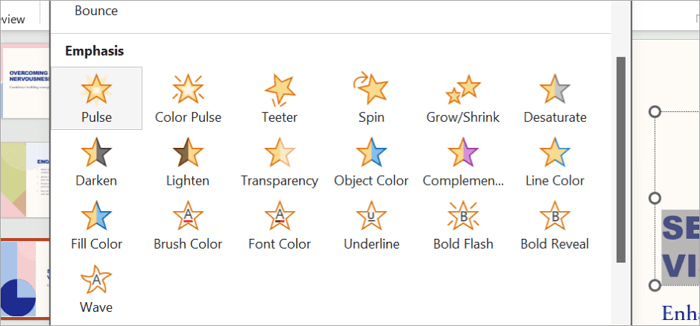
Pulse and Color Emphasis are some of the most common animation effects used to highlight in PowerPoint. Depending on the pace of your presentation, you can control the timing to either play On Click or Automatically.
Also, remember to use animations carefully, so they support the message and do not distract from it.
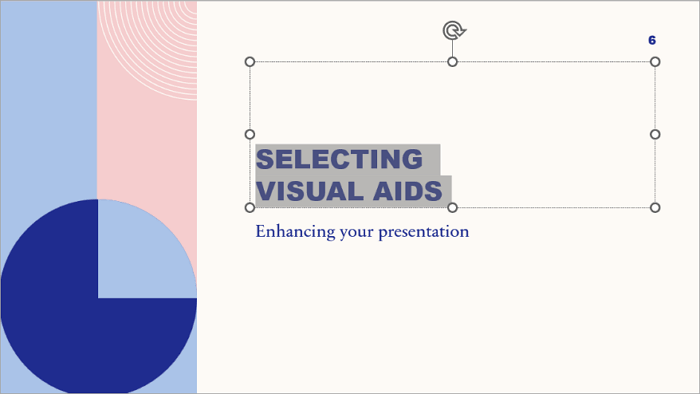
Step 1: Select the text you wish to highlight.
Step 2: Go to the Animations tab and click the dropdown in the Animation group.
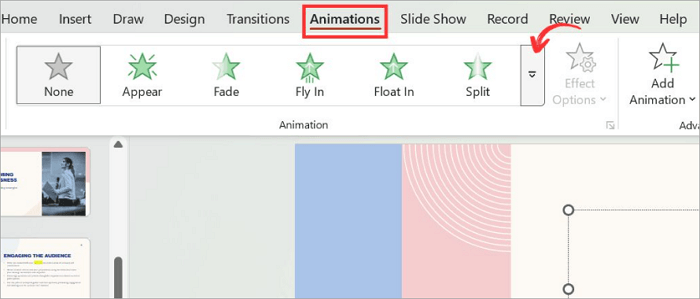
Step 3: Choose Pulse or Color Pulse from the Emphasis category.
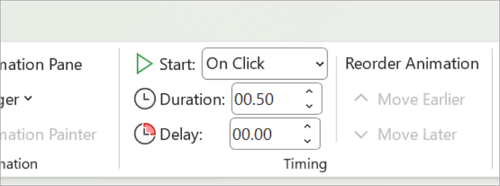
Step 4: Go to Timing and change Start to On Click or set a specific delay.
Method 5. Highlight Words in PowerPoint with Text Effects
This is a more visual and modern option you should explore when highlighting text in PPT. Instead of using a traditional highlight background, you can use effects like Glow and Outline to add a visual layer around the letters themselves.
The glow feature works well on dark slides, while the outline helps text stand out on busy backgrounds. They are both ideal when creating design-heavy slides such as pitch decks, portfolios, or branded presentations.
Step 1: Select the text.

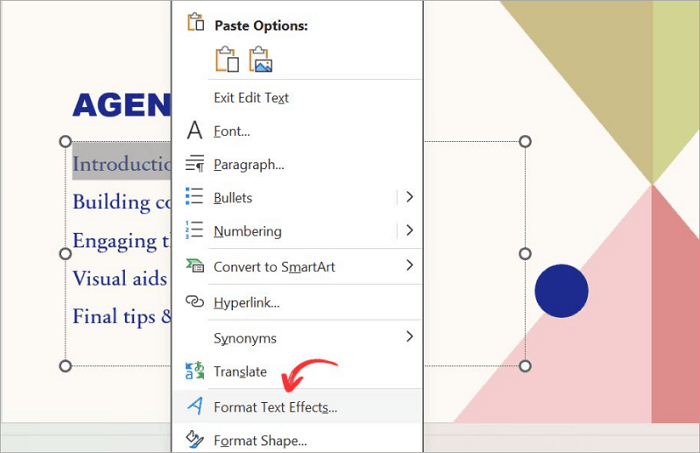
Step 2: Right-click your selection and go to Format Text Effects.
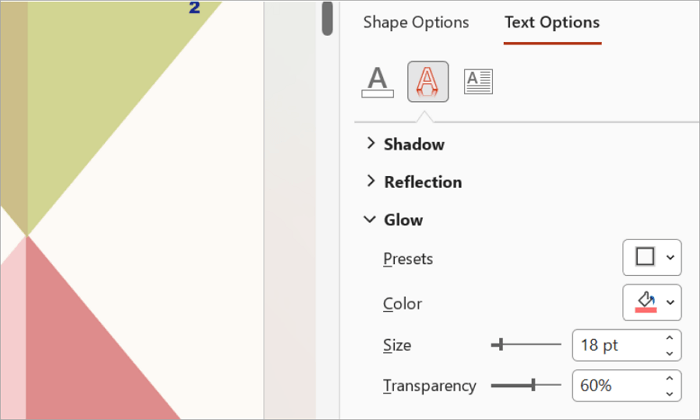
Step 3: From the pane that opens at the right, expand Glow and select a preset or customize the color or size.
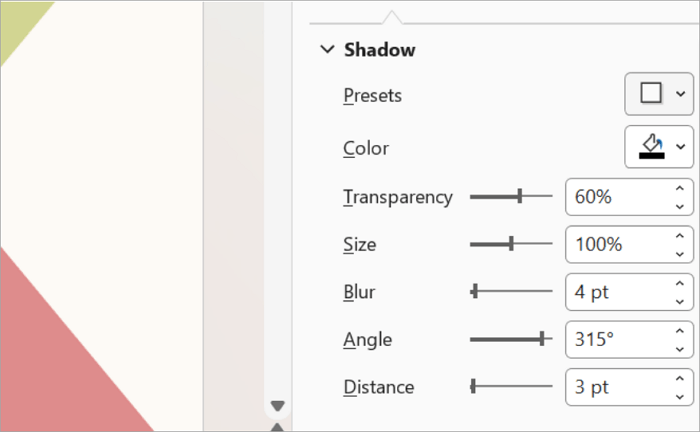
Step 4: To apply an outline, expand Shadow and choose your preferred color and weight or select a preset.
Method 6. Highlight Data in Charts and Tables
As we do for text, we can also highlight data in charts and tables to guide attention. In business reports and analytics presentations, highlighting data helps your audience understand key insights faster.
There are different ways you can emphasize data in PowerPoint, including:
- Using a contrasting color for one value.
- Adding labels or callouts.
- Keeping other data neutral.
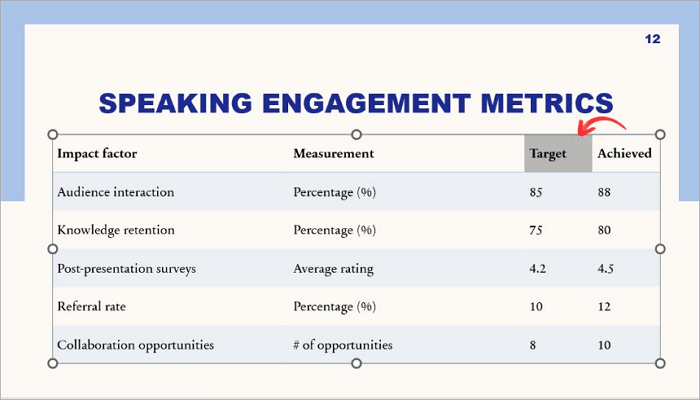
Step 1: Click the chart or table in your PowerPoint slide and go to the cell or data series you want to highlight.
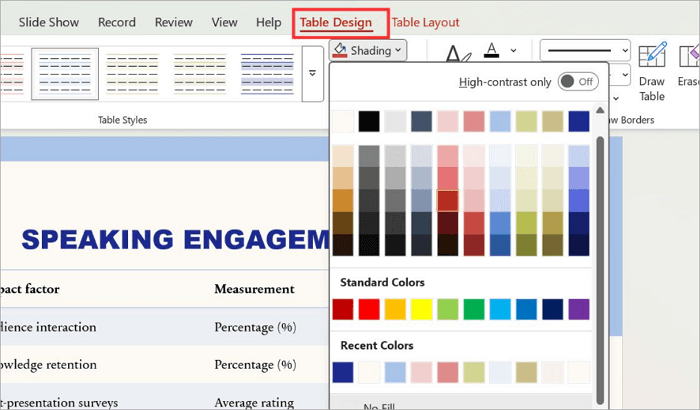
Step 2: Go to the Table Design tab and use Shading to apply your preferred highlight color.
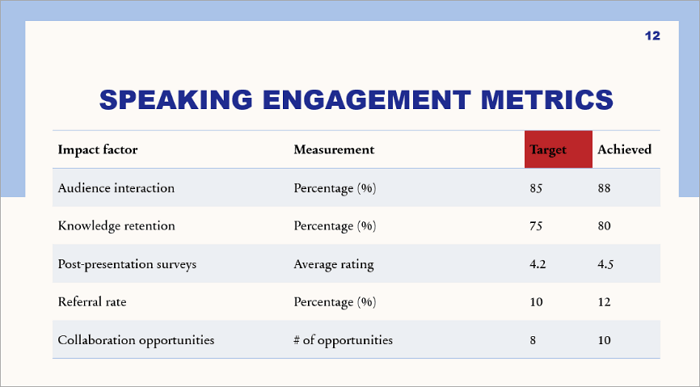
Step 3: Set other data in the table or chart to a neutral tone so that the highlighted data stands out.
Step 4: Add a callout shape from Insert > Shapes to label the highlighted data point with context.
Tips for Better Highlighting in PPT
No matter the highlighting option you choose to work with, you get better results when you know how to use it properly in your slides.
Here are some principles to keep in mind for better highlighting in PPT:
- Use a maximum of two highlight colors in a slide to avoid visual clutter.
- Keep styles consistent across slides to maintain clarity in your presentation.
- Use contrast carefully. A dark blue highlight stands out better than a yellow highlight on a white background.
- Highlight only key information so it can be seen quickly.
Conclusion
During your presentations, it becomes easier for your audience to understand the most important details when you know how to highlight in PowerPoint.
Keep in mind that the primary motive behind highlighting is not decoration but a way to guide attention and communicate priority faster.
We’ve covered various highlight options, including the built-in tool, shapes, animations, text effects, data callouts, and font styling. Pick one of them and try using it to create emphasis in your next slide.
Frequently Asked Questions
Let’s explore answers to common questions users ask about how to highlight in PPT on new and old PowerPoint versions.
1. How do you highlight words in PowerPoint 2016?
You won’t find the highlighter tool in any PowerPoint version below 2019. You can go about it this way instead:
- Select the text.
- Go to Insert > Shapes.
- Choose a rectangle shape.
- Draw it over the text.
- Fill the shape with a solid color and adjust transparency to make the text visible.
- Send the shape to the back.
2. How to highlight words on a PowerPoint with a shortcut?
To highlight words on PPT with shortcuts:
- Select the text.
- Press Alt + H to open the Home tab.
- Press I for the highlight menu (newer versions from 2019).
- Choose a color with the arrow keys.
- Press Enter to apply the color setting.
3. How do I highlight text in PowerPoint during a presentation?
Here’s how to highlight text in PPT during a presentation:
- Begin your slideshow by clicking F5 on the keyboard.
- Right-click during the presentation and hover over Pointer Options.
- Select Highlighter to turn the cursor into a highlighter pen.
- Drag the pen over the text you want to highlight. The mark appears in real time on screen.