There must have been a time when you downloaded a font to use on PowerPoint and were unable to find it. Or worse, you discovered that the font looked completely different on someone else’s computer.
This usually happens when you download PowerPoint fonts incorrectly. Adding a font, installing it correctly, and embedding it are three different things, and you need to understand each approach before using fonts in PowerPoint.
This guide walks you through all three and the installation processes on Windows and Mac.
Key Takeaways:
- There are various websites where you can download fonts for free online.
- Downloading a font does not automatically make it available in PowerPoint.
- Install fonts through Windows or Font Book on Mac, then restart PowerPoint.
- Embedding fonts can help preserve formatting when sharing a presentation.
What You Should Know Before Adding Fonts
There are a few things you should keep in mind before adding a font to PowerPoint.
➤ 1. Where PowerPoint Gets Its Fonts
PowerPoint does not download fonts directly into the app. It simply displays whatever fonts are installed on your operating system. That is, you must install a font on your device before PowerPoint lets you apply it to a slide.
➤ 2. Supported Font Formats
Most fonts you’ll find online come in TrueType (TTF) and OpenType (OTF) formats. Modern versions of PowerPoint can use both formats without any extra plugins.
➤ 3. Download Fonts from Trusted Sources
Always download fonts from trusted sources and check their licensing terms before using them in commercial or client-facing presentations.
How to Add Fonts to PowerPoint on Windows or Mac
Windows and Mac install fonts through slightly different menus, but once a font is installed, PowerPoint detects it the same way on both systems. Here’s how to add fonts to PPT, from downloading to applying them on a slide.
Step 1: Download the Font
Choose a font from a reliable font provider and download it to your computer. Some reputable websites where you can find free fonts online are:
- Google Fonts
- Dafont
- 1001freefonts
- Fontspace
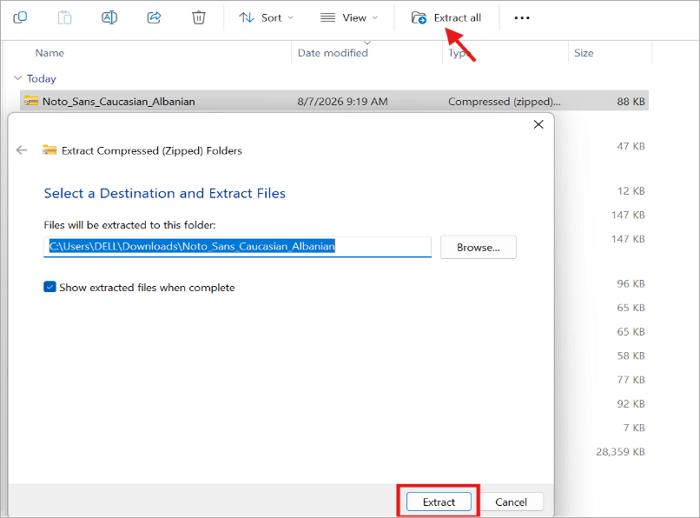
If it arrives in a ZIP file, extract the folder before installing the font.
Step 2: Install the Font
On Windows, you have three options after locating the extracted file.
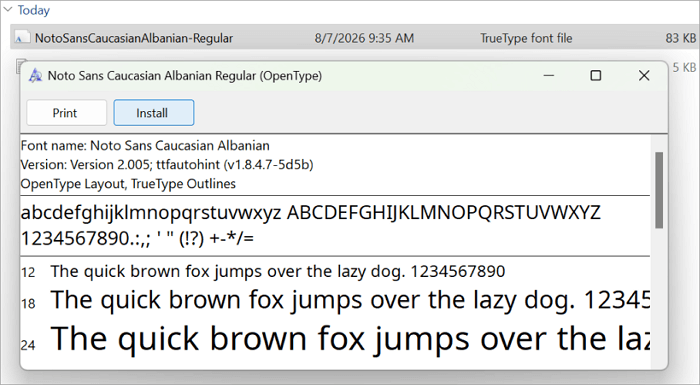
- Install: Double-click the font file, then click Install to add it for your account only.
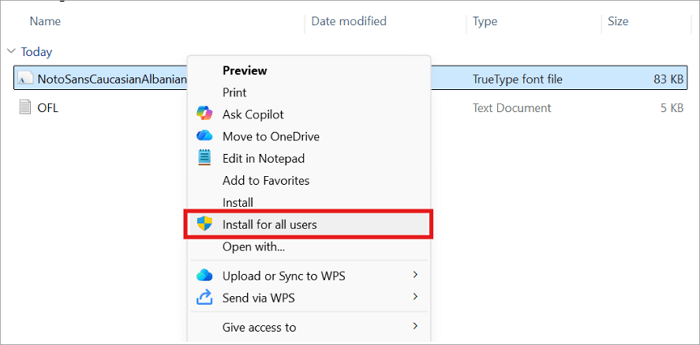
- Install for All Users: Right-click the font file and select this option if you need the font available to every account on the PC. Note that Windows may request administrator permission.
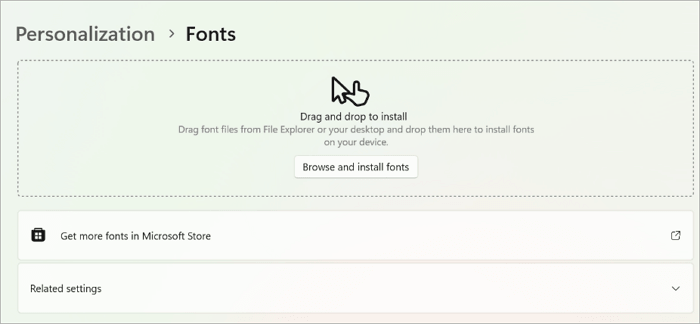
- Drag and drop: Open Settings > Personalization > Fonts and drag the font file directly into the window.
On Mac, fonts are installed through Font Book:
- Double-click the downloaded font file to open it in Font Book.
- Click Install Font at the bottom of the window.
Step 3: Restart PowerPoint
If PowerPoint was already open while you installed the font, close the application and reopen it. This refreshes the font list so the new font shows up.
Step 4: Apply the Font
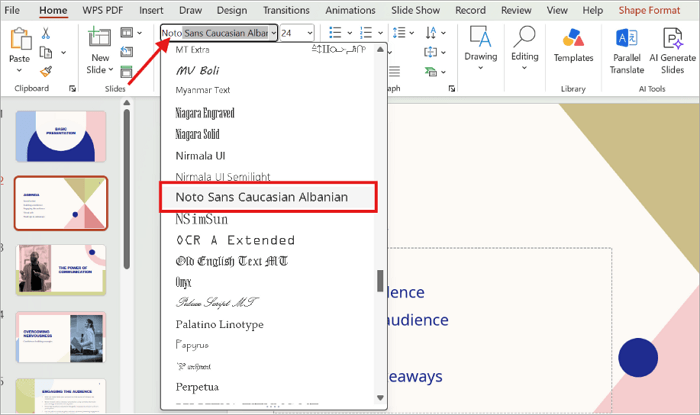
Select your text box, click the Font drop-down in the Home tab, and either scroll or type the font name to search for it. Click the font to apply it instantly.
How to Embed Fonts in PowerPoint Before Sharing
When you install a font in PowerPoint, it is only available on that computer. If someone opens the same presentation on a different computer without the font installed, PowerPoint may substitute another typeface.
Embedding fonts helps preserve the presentation’s typography when you share it.
To embed fonts in PowerPoint, follow these steps:
🖥️ Windows:
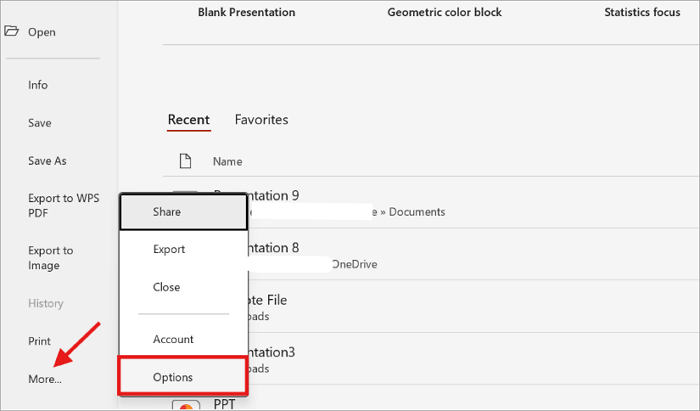
Step 1: Open your presentation and go to File > More > Options.
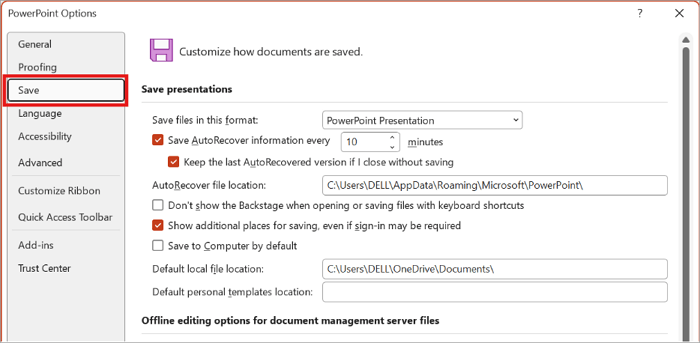
Step 2: Open the Save option.
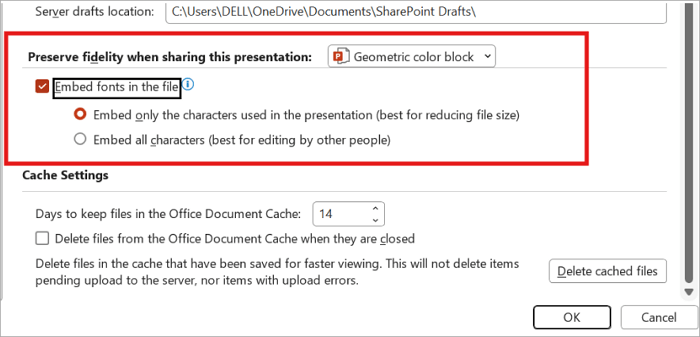
Step 3: Check Embed fonts in the file under Preserve fidelity when sharing this presentation. Then choose between two options:
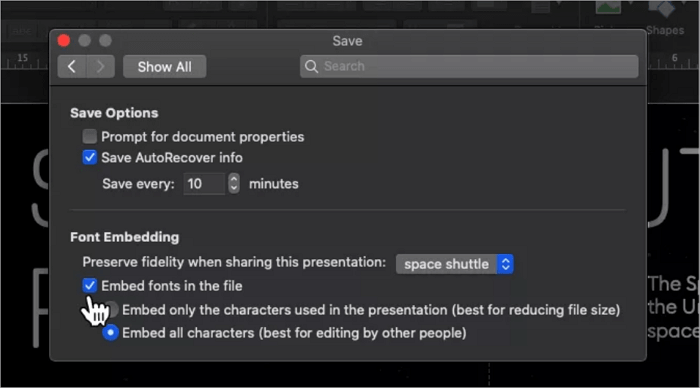
- Embed only the characters used: Best for viewing the presentation while keeping the file size smaller.
- Embed all characters: Best for allowing others to edit the presentation.
🖥️ Mac:
Step 1: Open your presentation and go to PowerPoint > Preferences > Save.
Step 2: Check Embed fonts in the file under Font Embedding.
Step 3: Choose your preferred embedding option.
Tips: How to Check Whether Fonts Are Embedded
Save the presentation, close it, and reopen it to confirm that your custom font still displays correctly. Then, test the file on another computer that doesn’t have the font installed. If the text still displays correctly, your embedding worked.
Create Beautiful Slides Faster with AiPPT.com
Manually installing and embedding fonts is worth knowing, but if you’re building presentations often, there’s a faster path with AI. AiPPT.com turns a topic, document, or outline into a fully designed, editable presentation in minutes, complete with fonts, layouts, and visuals.
Key Features of AiPPT.com
- Automatic outline creation for well-structured presentations
- Wide range of modern, customizable slide templates
- Variety of fonts for various presentation styles
- AI-powered presentation generation from prompts, documents, or URLs
- Editable PowerPoint exports
Here’s how to create stunning slides with AiPPT.com:
Step 1: Visit AiPPT.com and sign in or create a new account.

Step 2: Enter your presentation topic or upload a document.

Step 3: Choose a template that matches your style or purpose.
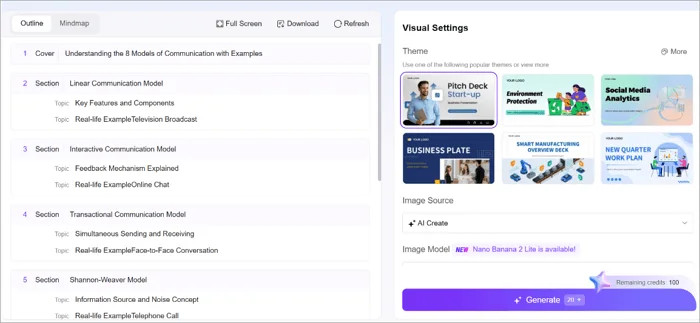
Step 4: Use the Insert menu or Design panel to edit the text, images, or layouts.

Step 5: Open the Download menu and export your presentation as a PowerPoint file.

Note: Besides AiPPT.com Classic Mode, this tool also offers the Agent Mode. With the AI Presentation Agent, you can simply describe your font preferences (such as style, tone, or use case), and it will customize the fonts accordingly without requiring manual adjustments.
Conclusion
With the right PowerPoint fonts, you can easily make your presentations look more polished and professional. However, you must install them correctly through your operating system to ensure that they are available for use in PowerPoint
If you plan to share the deck, embedding the font can help ensure that it isn’t substituted when opened on another computer.
As a rule of thumb, before presenting or sharing a presentation, always open the final file on another computer to confirm that the fonts and layouts appear exactly as they should.
FAQs on Adding a Font to PowerPoint
Still have questions about PowerPoint fonts? Here are quick answers to common situations involving Mac, iPad, and mobile devices.
1. How do I add a font to PowerPoint on Mac?
Here’s how to add a font to PowerPoint on Mac:
- Download the font file and extract it if it comes in a compressed ZIP folder.
- Double-click the .ttf or .otf file, then select Install Font in the preview window.
- Font Book will add the typeface to your Mac.
- Close and reopen PowerPoint.
- Then, go to Home > Font and select the newly installed font.
2. How to download fonts into PowerPoint on iPad?
To use custom fonts in PowerPoint on an iPad, you must install the font files into iPadOS system settings using a third-party manager. Here’s how to go about it:
- Download the font file online.
- Install it via a font management app such as iFont or AnyFont.
- Open the Settings app and go to Profile Downloaded to install the font.
- Use the font in PowerPoint.
3. How to import fonts into PowerPoint on mobile?
You cannot directly install or import new font files into PowerPoint on iOS or Android mobile devices. PowerPoint mobile relies entirely on the system fonts pre-installed on your phone.
Alternatively, you can embed the font on a desktop computer before opening the presentation on a mobile device.