People often share PowerPoint presentations on screens, but you may need to print them for meetings, classes, or training sessions. Printed copies come in handy as full-page slides for reference, speaker notes to guide your delivery, or handouts for your audience to follow along.
PowerPoint offers several printing layouts, so you can easily choose a format based on how the printed copy will be used.
This guide covers how to print a PPT slide, print selected pages, include speaker notes, create handouts, improve print quality, and convert presentations to PDF format with AiPPT.com.
Key Takeaways
- Print an entire PowerPoint presentation on full pages.
- Include speaker notes for presentations and teaching.
- Print individual slides or a custom slide range.
- Fit multiple slides onto one page to create handouts.
- Fix common printing and formatting problems.
- Convert PowerPoint to PDF for easier sharing and printing.
How to Print a PowerPoint Presentation
If you need a physical copy of every slide in your presentation, PowerPoint lets you print them using its default full-page layout. This is ideal when you need large, readable slides for reference or want to review your presentation off the screen.
Here is how to print a PowerPoint presentation:
Step 1: Open your presentation and go to File → Print to open the printing settings.
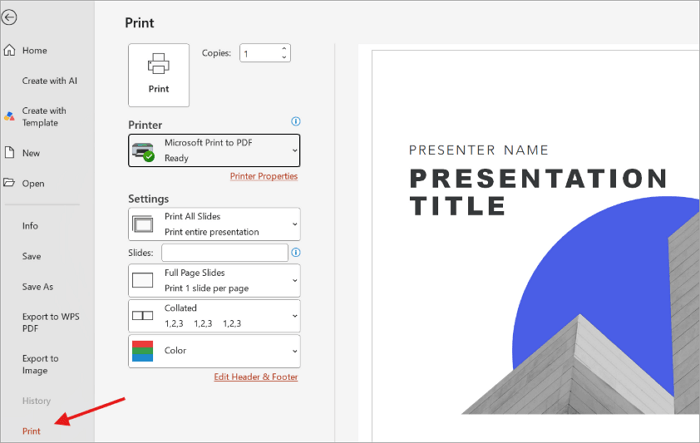
Step 2: Select the printer you want to use and also keep Print All Slides selected in the Settings menu.
Step 3: Enter the number of copies to be printed and choose between Color, Grayscale, or Pure Black and White, depending on your printer and preferences.
Step 4: Check the print preview and click Print if you are satisfied.
PowerPoint also allows you to print the entire presentation with speaker notes if you need talking points alongside each slide:
- Keep Print All Slides selected in the print settings.
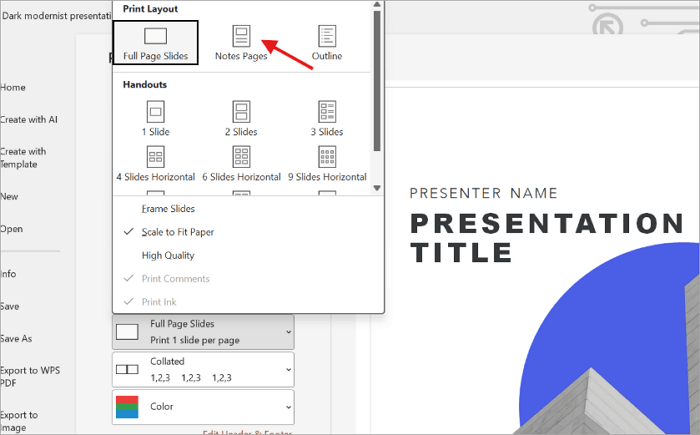
- Open the menu showing Full Page Slides and select Notes Pages.
- Check the preview to ensure that your notes appear below the corresponding slide.
- Then click Print.
If your slides contain page numbers, dates, or other identifying information, you can first learn how to edit footers in PowerPoint before printing the entire presentation.
How to Print One or Selected PowerPoint Slides
Sometimes, you may need to print only a few slides from an entire presentation. PowerPoint lets you select the current slide or specify slide numbers when printing to help you save paper and avoid unnecessary copies. It is useful when printing revised pages, selected classroom materials, or specific slides for a meeting.
Here is how to print a slide from PowerPoint or select several slides:
Step 1: Go to File → Print in your presentation and open the slide selection menu under Settings.
Step 2: Select Print Current Slide to print the slide currently open, or choose Custom Range to specify slides.
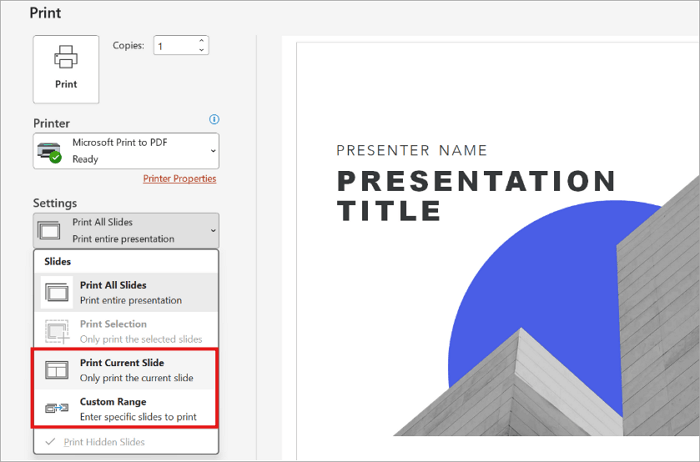
Step 3: Enter the slide numbers you want. For example, type 2, 5, 8 to print those three pages individually.
Step 4: For consecutive slides, enter a range such as 3-7. You can also combine individual slide numbers and ranges, such as 2, 5, 8-10.
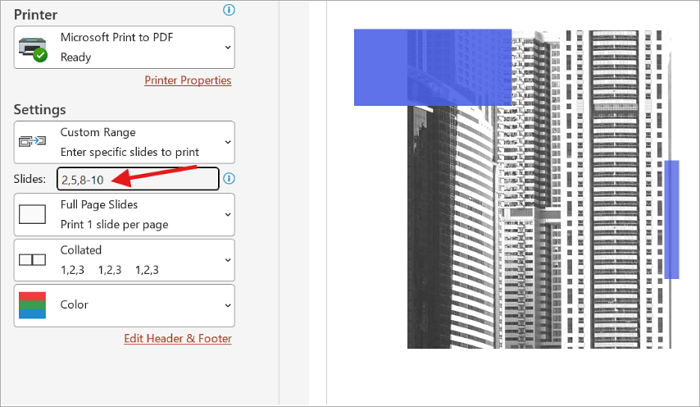
Step 5: Check the preview to confirm that you have selected the correct slides and click Print.
Convert PowerPoint to PDF for Easier Printing with AiPPT
One issue with PPT files is that their formatting may change when they are opened on other devices, shared with someone else, or sent to a print shop. This is where converting to PDF comes in handy because it helps the file retain its formatting anywhere it is opened.
AiPPT.com offers an online PPT to PDF tool that converts presentation files into PDF documents while aiming to preserve their original:
- Layouts
- Fonts
- Images
- Graphics
- Charts
- Tables
These steps explain how to print a PPT after converting it to PDF on AiPPT:
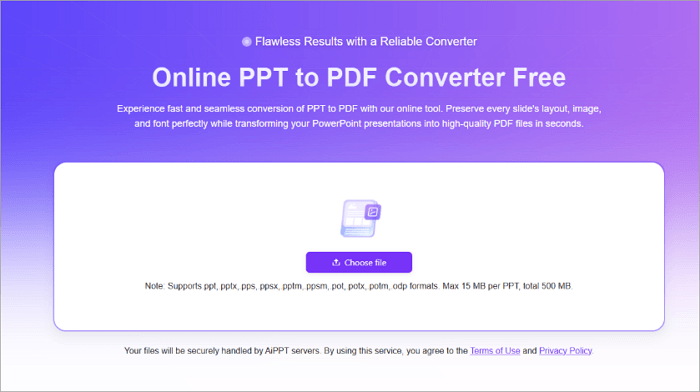
Step 1: Visit AiPPT’s PPT to PDF tool and upload your PowerPoint file.
Step 2: Click Convert to proceed.
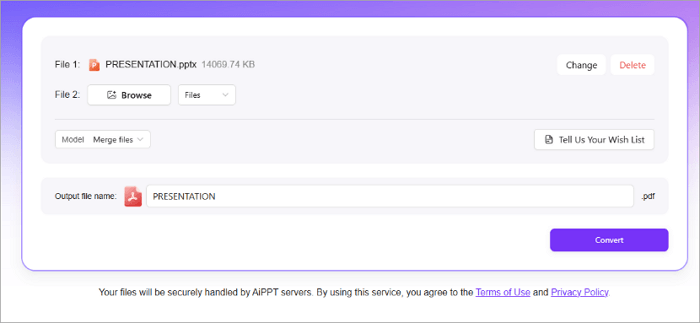
Step 3: Download the converted file and open it in a PDF viewer such as WPS or Adobe Acrobat.
Step 4: Select the Print option, choose your settings, and print.
Common PowerPoint Printing Problems and Fixes
You may not always get the results you expect when you print in PowerPoint because issues can arise. Here are some common problems and quick ways to fix them.
| Problem | Quick fix |
| Slides are cut off | Check the preview and enable Fit to Paper if available |
| Speaker notes are missing | Select Notes Pages instead of Full Page Slides |
| Text is too small | Print fewer slides per handout page |
| Images look blurry | Use higher-resolution images in your presentation |
| Colors look different | Check the color settings and printer capabilities |
| Handout slides are too small | Choose a layout with fewer slides per page |
| Wrong slides are printed | Verify the selected slide range before printing |
| Formatting changes on another computer | Convert the presentation to PDF and review the result |
Conclusion
Knowing how to print a PPT slide helps you prepare materials for different situations, from delivering a speech to sharing classroom resources or keeping a physical copy of important information.
The key is to decide the purpose of the printed pages before choosing a layout. Full-page slides work well for detailed visuals, notes pages support speakers, and handouts make it easier for audiences to follow along.
Before sending your presentation to the printer, review the preview and confirm your settings. If you’re sharing the file or printing it on another computer, consider converting it to PDF with AiPPT first.
FAQs About Printing PowerPoint Slides
PowerPoint’s printing options can be confusing when you need a particular page layout. These answers cover three common questions to help you prepare your presentation for printing.
1. How do I print multiple slides on one page?
To print multiple slides on a single page:
- Open your presentation and select File → Print.
- Click the Full Page Slides dropdown and choose a layout under Handouts, such as 2, 3, 4, 6, or 9 slides per page, depending on what you need.
- Check the preview and click Print.
2. How do I print PowerPoint with notes?
Here is how to print your PowerPoint presentation alongside speaker notes:
- Open the presentation and go to File → Print.
- Under Settings, open the Full Page Slides dropdown and select Notes Pages.
- Confirm that the preview shows each slide with its corresponding speaker notes.
- Specify your printer and other settings.
- Then click Print.
3. Should I convert PowerPoint to PDF before printing?
It is not necessary, but converting your PowerPoint presentations to PDF is ideal when sharing files across devices or sending them to a print shop. A PDF format helps maintain consistent formatting, but you should still inspect the converted file for unexpected changes.
You can use the AiPPT PPT to PDF converter to convert your presentation online before printing.