It takes almost no skill or time to create a Google Slides presentation. The tool allows you to put your ideas into a visual format without installing any complicated software.
Even with other presentation platforms such as PowerPoint, Google Slides remains as important as ever and will always come in handy for your presentation needs. This guide explains what Google Slides does, where it fits best, its key features, and how to use it to get the best results in your work.
But before getting into details, let’s quickly compare Google Slides and PowerPoint based on their most important features.
| Feature | Google Slides | PowerPoint |
| Collaboration | Real-time | Needs OneDrive sync |
| Offline Use | Needs setup | Excellent by default |
| Cost | Free with a Google account | Paid Office license |
| Templates | Basic, built-in templates | Extensive, with third-party libraries available |
| Cloud Storage | Automatic, with files saved to Drive | Manual unless synced |
What is Google Slides and How Does It Work?
To understand how Google Slides work, you should see what it actually offers and why its approach is different from other traditional presentation tools.
Definition of Google Slides
Google Slides is an online presentation application built as part of Google Workspace. It lets you create, edit, format, present, and share slide decks through a web browser or mobile app. You can also collaborate with other people on the same presentation.
How Does Google Slides Work?
You can easily see the difference when you look at how your files are created, stored, and shared in Google Slides. Here’s how the tool works:
✅ Browser-Based Presentation Software: You can create and edit presentations online, so there’s nothing to download or update.
✅ Cloud Storage and Auto-Save: Presentations are stored in Google Drive, and changes are automatically saved as you work.
✅ Real-Time Collaboration: Multiple people can work on a presentation and leave comments or suggestions instead of passing different versions of the file around.
✅ Cross-Device Access: You can access your presentations on different laptops, tablets, or phones.
What is Google Slides Used For?
There is a lot more to do with Google Slides than just create Google Slideshow decks. Let’s explore some of its most common use cases.
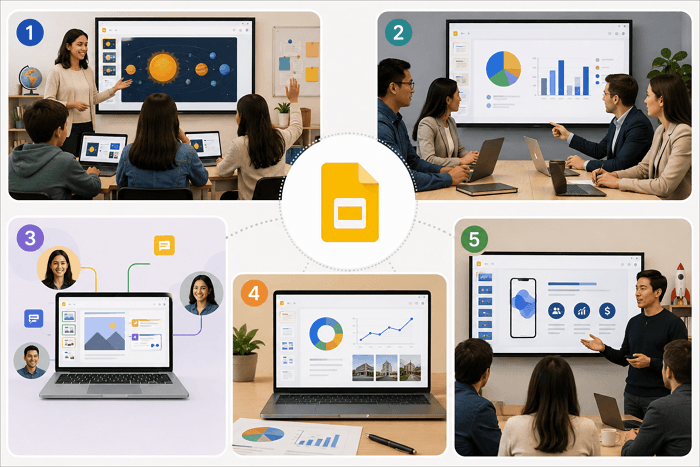
1. Classroom Presentations
Teachers use Slides to prepare lessons, while students use it to create presentations individually or to work together on group assignments. Its real-time collaboration makes this easier, allowing students to contribute without constantly exchanging files.
2. Business Meetings
Google Slides is also used regularly in corporate environments for weekly updates, status meetings, and internal communication. Colleagues can easily update information in shared presentations before meetings.
3. Team Collaboration
One of the biggest advantages of using Google Slides is being able to work on the same deck with other people. Instead of the usual back and forth of presentations, team members can edit, comment, or review the file from a shared workspace.
4. Project Reports
You can also use Google Slides to turn project information into a format that is easier to discuss. Teams can combine text, charts, images, and other visuals to summarize progress, challenges, and next steps.
5. Pitch Decks
Google Slides can also work for pitch decks. Startups use it to organize ideas, explain products, present market information, or outline business plans before moving to more specialized presentation tools.
Key Features of Google Slides
Google Slides has many familiar presentation features, but its real strength comes from how those features work together. Here’s what stands out:
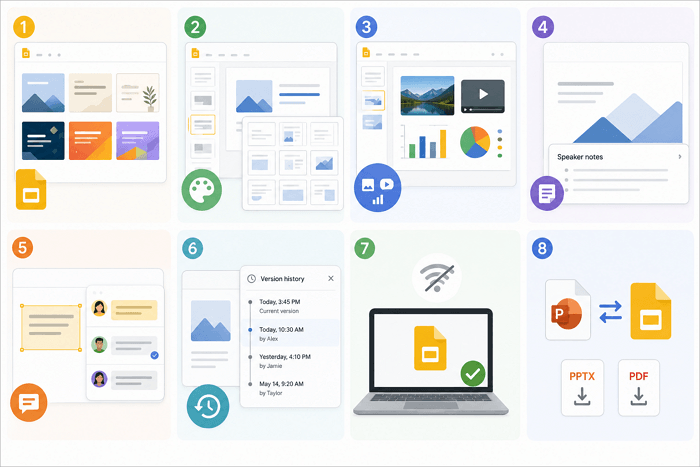
1. Ready-Made Templates
Starting a presentation with a blank slide can be intimidating, especially if you aren’t confident in your design skills. With templates, you get a starting structure, meaning you don’t have to design every element from scratch.
2. Themes and Layouts
Layouts help keep your presentation consistent, so slides don’t look out of place. Instead of manually formatting every slide, you can use a common visual style and select layouts that arrange titles, text, and images appropriately.
3. Images, Videos, and Charts
Google Slides supports adding and formatting common media elements directly within presentations because they make information easier to understand. For example, a chart can make a trend clearer than a paragraph full of numbers, while an image or video can provide context for an idea.
4. Speaker Notes
Google Slides also offers speaker notes, giving you a spot to keep talking points without putting all your information on the slide itself. This feature is particularly useful when you need reminders while presenting but want to keep the visible slide simple.
5. Comments and Suggestions
Collaboration becomes much easier with comments. They allow teammates to discuss specific parts of a presentation without altering the content immediately. This comes in handy when you need to review a deck before presenting it.
6. Version History
Made a change you don’t like? Version history can show previous versions of a presentation and allow you to view or restore an earlier version when necessary. This is one feature that you’ll come to love very quickly.
7. Offline Editing
Google Slides can also be used offline, but you need to set up offline access beforehand via the Google Docs Offline extension. The feature is useful when you know you may not have an internet connection.
However, any changes you make to the presentation are saved to your device and automatically sync to the cloud when a connection is restored.
8. PowerPoint Compatibility
You don’t necessarily have to abandon PowerPoint files when using Google Slides. Microsoft Office presentations can be opened and edited through Google Drive, and presentations can also be downloaded in PPTX and PDF formats.
How to Use Google Slides Step by Step
If you’re new to Slides, the interface can look busy at first. Fortunately, you only need to know a few basic steps to create your first deck.
Step 1: Create a New Presentation
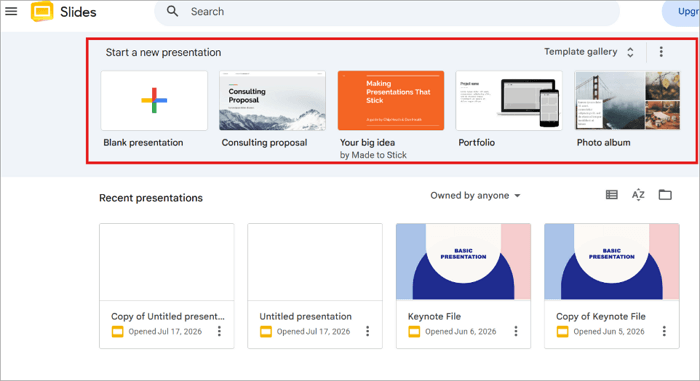
Open Google Slides and choose a blank presentation or a template. You can also import an existing presentation through Google Drive.
Step 2: Add and Organize Slides
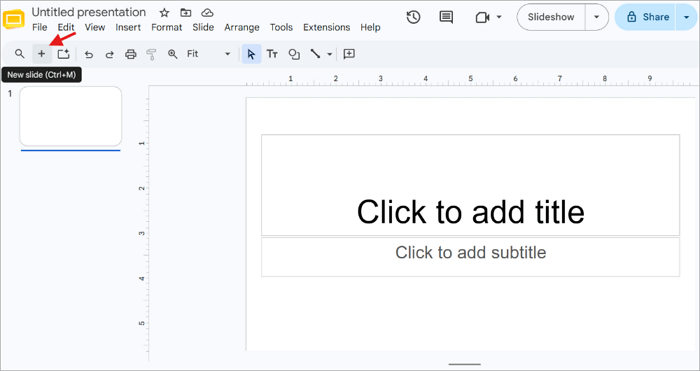
Use the + button to add slides, and drag thumbnails in the sidebar to reorder them.
Step 3: Customize Your Slides
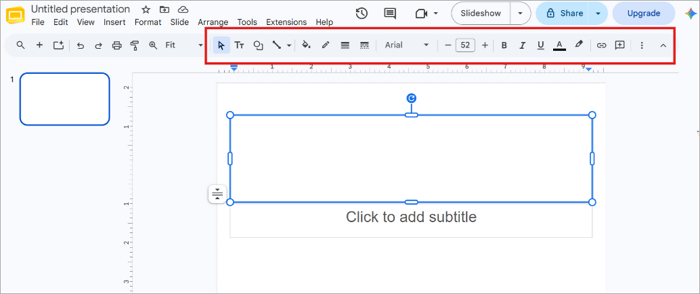
Choose or import a theme and adjust fonts and colors from the toolbar. Keep your fonts, colors, and spacing consistent, and leave enough whitespace.
Step 4: Insert Multimedia Elements
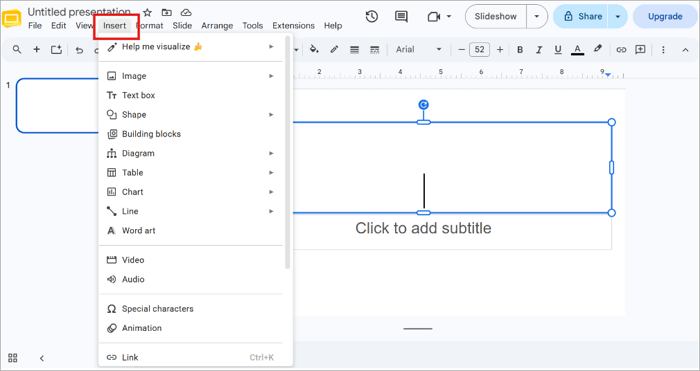
Use Insert to add images, videos, charts, shapes, or any media element when they help explain your point.
Step 5: Present or Export Your Deck
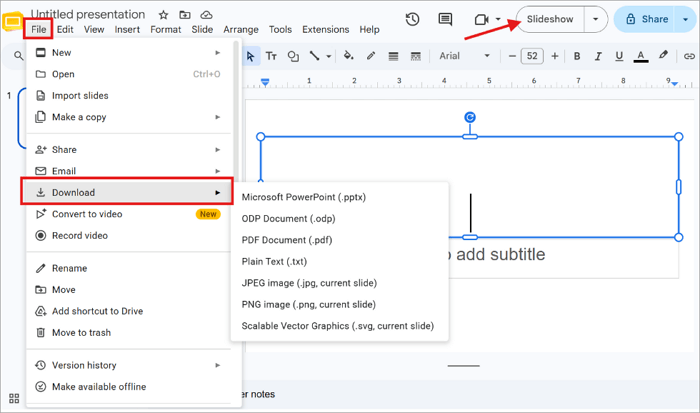
Click Slideshow to run the presentation directly in your browser, or use File > Download to export it if you’re sharing it outside Google Slides.
Conclusion
Presentation tools have changed considerably from the days when slide decks needed to be passed around as attachments for people to work on.
Today, collaboration is just as important as slide design, and Google Slides reflects that shift by making sharing, editing, commenting, and automatic saving part of the whole presentation experience.
If you’re also considering using Google Slides, don’t just compare the features with other tools. Create a short Google Slides presentation, invite someone to review it, and see how well the workflow fits the way you work.
Learn More About Google Slides Presentation
People ask a lot of questions about creating Google presentations. Here are quick answers to some of the most common ones.
1. How to use Google Slides for a presentation?
To create a presentation in Google Slides:
- Open Google Slides and start with a blank presentation or template.
- Add slides using the + icon.
- Reorder your slides using the left panel.
- Choose a theme and insert text or visuals.
- Add speaker notes if necessary.
- Click Slideshow to present.
2. Can I use Google Slides like PowerPoint?
Absolutely. Google Slides offers many of the same features as PowerPoint, including creating slides, adding multimedia, applying themes, presenting, and sharing. It can also work with Microsoft PowerPoint files.
However, both tools have different interfaces and feature sets, so some advanced workflows may work better in PowerPoint.
3. What are Google Slides good for?
Google Slides is best suited for collaborative presentations, classroom assignments, business meetings, project reports, training materials, and pitch decks. Its biggest advantage is the combination of online access, automatic saving, sharing, and real-time collaboration. If several people need to work on the same presentation, those features can make the process much simpler.