It is one thing to download templates from external sources on the web and another to import and use them properly in a tool like Google Slides.
When you need to import Google Slides templates, you can either import the entire theme or specific slides while keeping their original formatting.
Whichever option you prefer, this guide breaks down each process clearly so you can get your slides looking exactly the way you want.
Key Takeaways
- You can import or change the theme of your Google Slides presentation without rebuilding from scratch.
- Google Slides allows you to import existing design themes from other platforms such as Canva and PowerPoint.
- You may often need to make minor adjustments to fonts, spacing, and image alignment after importing a theme.
1. How to Import Themes to Google Slides
Importing a theme into Google Slides basically involves pulling a design style from another presentation file, instead of building one manually. This includes fonts, colors, backgrounds, slide layouts, and other elements that you can apply to your current presentation.
Step 1: Open the Themes Panel
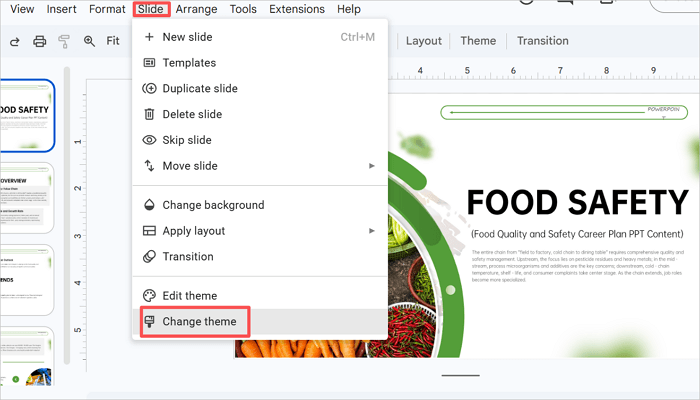
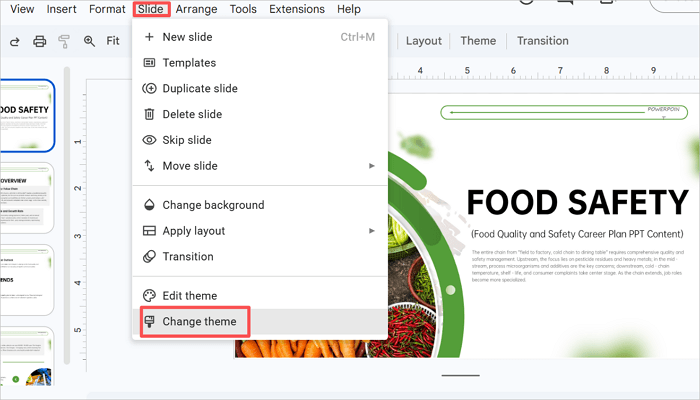
Proceed to the top menu in your Google Slides presentation and go to Slide > Change theme. This is where you’ll find Google Slides’ default and imported theme options.
Step 2: Import Existing Theme
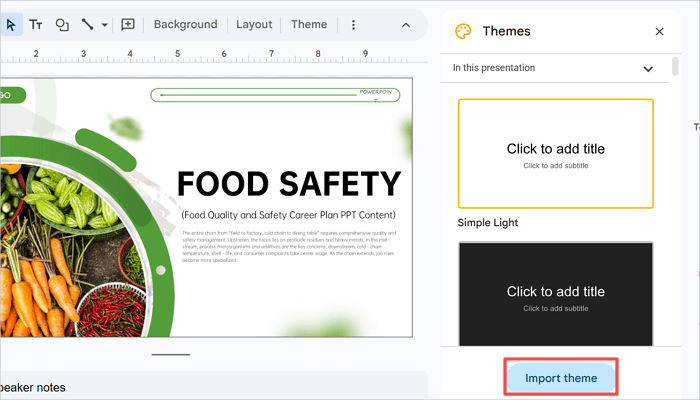
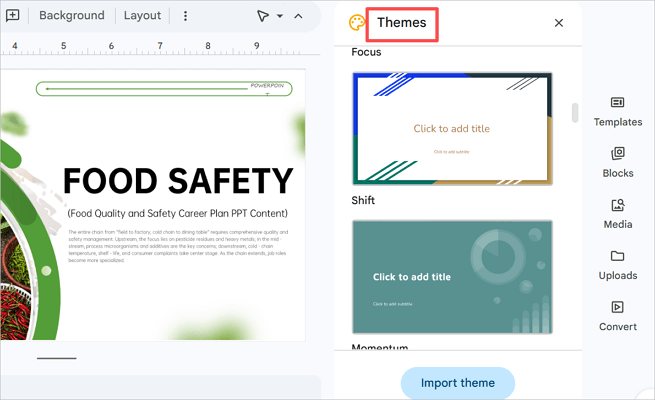
Scroll down within the Themes panel and click Import theme. This should open a dialog box showing various options to import themes to Google Slides.
Step 3: Choose your Presentation File
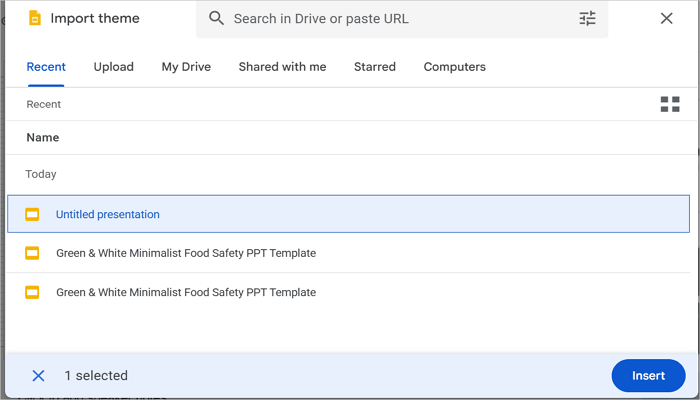
Find and select the presentation containing your preferred theme, then click Insert to apply it to your current file. Your slides will update to reflect the new theme’s colors, fonts, and background styles.
2. How to Import a Theme from PowerPoint to Google Slides
You may prefer to import a theme to Google Slides from a platform like PowerPoint. This could come in handy when you need to reuse old company presentations or branded PowerPoint templates within Google Slides.
Fortunately, Google Slides also reads PowerPoint (.pptx) files and allows you to import their themes seamlessly.
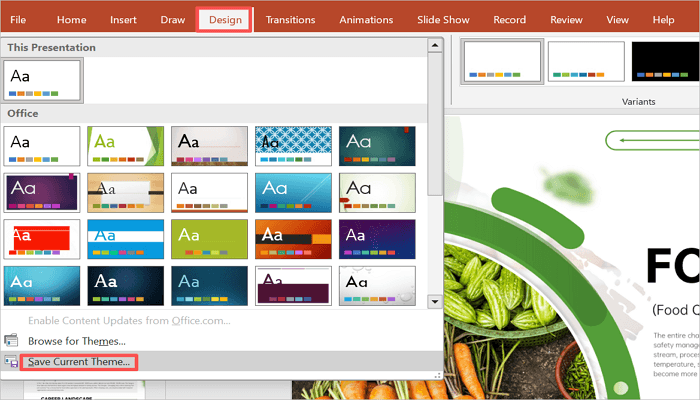
Step 1: Save your PowerPoint theme file
Open the PowerPoint presentation and go to Design > Themes. Select your preferred theme and save the presentation as a .pptx file.
Step 2: Open in Google Slides
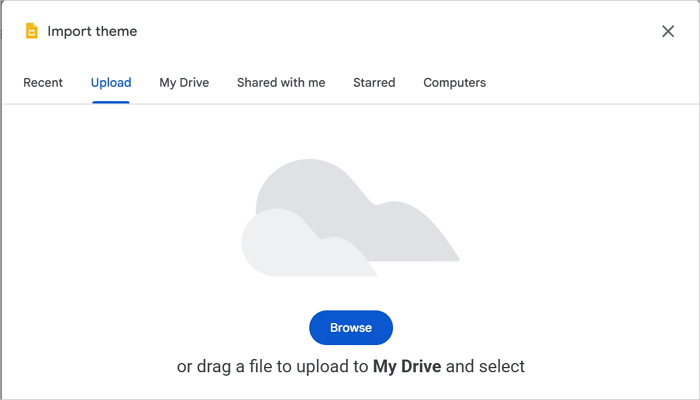
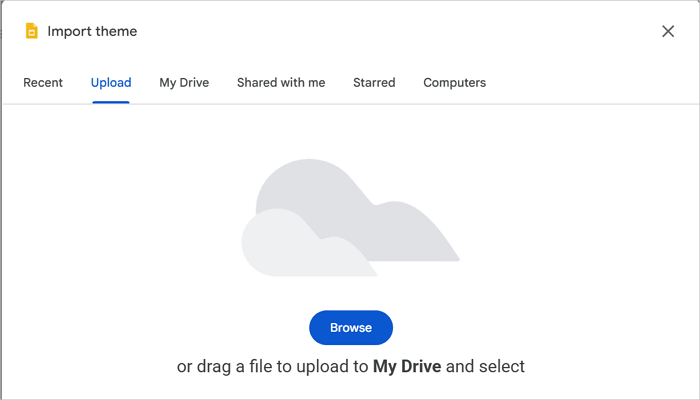
Go to your Google Slides presentation and revisit the Import theme section via Slide > Change theme. Select Browse in the Upload tab to open your PowerPoint theme file in Google Slides.
Step 3: Apply the Theme
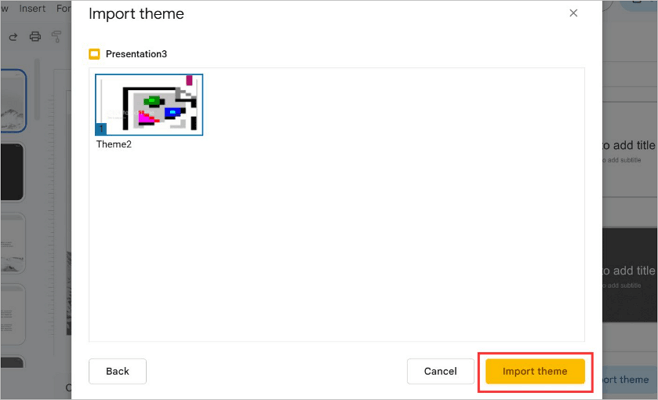
Select the file and click Import theme to apply the previous PowerPoint layout in this presentation.
3. How to Import a Canva Theme to Google Slides
Did you download a design from Canva and want to know how you can edit it in Google Slides? You can easily do this by exporting the Canva presentation as a PowerPoint file first.
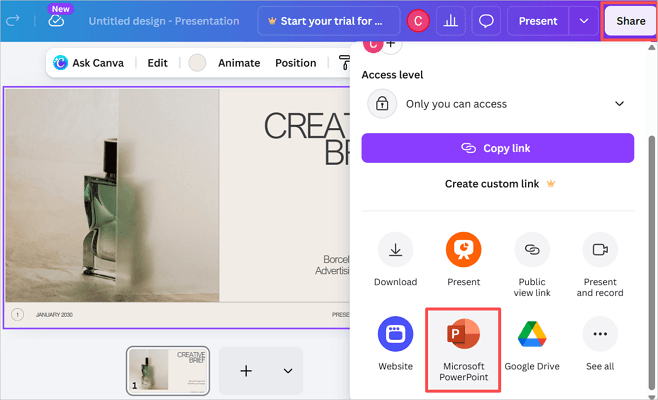
Step 1: Export your Canva presentation as PPT
Go to the Share option in your Canva presentation and select Microsoft PowerPoint to save your design as a PowerPoint document.
Step 2: Import your Canva Theme into Google Slides
Open your Google Slides presentation and go to Slide > Change theme to access the Themes panel once again. Then, upload your Canva design.
Step 3: Make adjustments
After importing and applying the Canva theme to your Google Slides presentation, take some time to adjust typography. This is because Canva uses its own fonts, which may be unavailable in Google Slides.
4. How to Change Theme on Google Slides
As mentioned earlier, importing and changing a theme on Google Slides are two different things. Importing usually means bringing in a theme from another presentation, while changing a theme means switching your current presentation to another design.
Here, you’ll see how to change your Google Slides theme.
Step 1: Open Theme Panel in Google Slides
In your Google Slides presentation, go to Slide > Change theme to access the Themes panel. You’ll find a gallery of available theme options here.
Step 2: Browse and Preview Themes
Click any theme thumbnail to see a live preview of how your current slides would look. Google Slides temporarily applies the theme you select so you can easily compare your options.
Step 3: Import your preferred theme
Seen a layout you like? Click the theme thumbnail to apply it directly. Close the panel, and you’re done.
5. How to Get More Themes on Google Slides
After some time, Google Slides themes begin to feel repetitive, which may not be best for professional presentations that need to stand out. This is where external template libraries like AiPPT.com become helpful for sourcing modern designs.
AiPPT.com offers a large library of ready-made presentation templates across business, marketing, education, and many other categories. These templates are fully editable, allowing you to save significant time compared to building slides from scratch.
You can download a template, open it in Google Slides using the theme import method covered in this guide, and have a polished deck in minutes.
6. What to Check After Importing a Theme
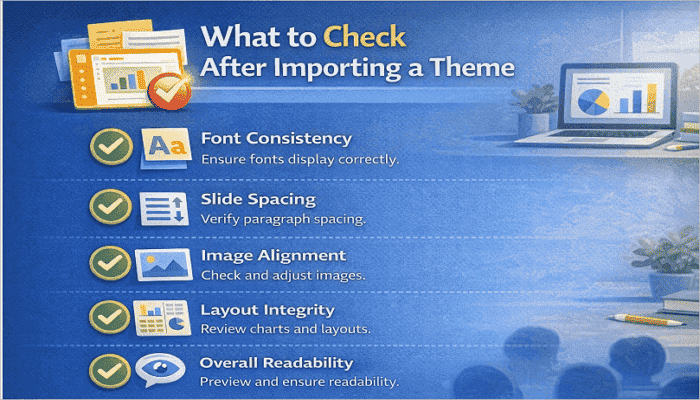
After you add a theme to Google Slides, you may need to make minor adjustments before presenting or sharing the file. Here’s a list of some things to look out for.
- Font consistency: Some fonts used in PowerPoint or Canva may not exist in Google Slides. Check headings and body text to ensure that they display correctly.
- Slide spacing: Changing themes can also shift paragraph spacing. Scroll through each slide and compare the text to the design you imported.
- Image alignment: Images may appear stretched, cropped, or slightly misplaced after importing them to Google Slides. Review and resize them if needed.
- Layout integrity: Review charts, tables, and placeholders carefully, as certain layouts from PowerPoint or Canva may not perfectly match Google Slides formatting.
- Overall readability: Always preview the entire presentation before presenting to ensure that colors, contrast, and text sizes remain easy to read.
Conclusion
Theme control matters more than most people realize. When you are working across tools like PowerPoint, Canva, and Google Slides, knowing how to import Google Slides templates allows you to achieve a consistent look and save time without rebuilding slides from scratch.
If you’re coming across formatting issues in the process, it might be because different presentation tools process layouts differently, not necessarily that the theme itself is broken.
Before building your next presentation from scratch, try testing a template on a duplicate presentation first to see how it performs.
Learn More About Google Slides Themes
Google Slides offers more flexibility with themes than you may already know about. This section covers common scenarios people run into when working with themes across devices and use cases.
1. How do I get themes on Google Slides?
Here’s how to easily find themes on Google Slides:
- Open your Google Slides presentation.
- Go to the Slide tab in the top menu and select Change theme.
- Click Import theme in the Themes panel that opens on the right.
- Upload a presentation from your local device or select one from Google Drive to continue.
2. How do you make a custom theme for Google Slides?
To create a custom theme in Google Slides:
- Open your Google Slides presentation and proceed to the Slide tab.
- Scroll down and select Edit theme.
- Edit the master slide to set your preferred fonts, colors, and backgrounds.
- When you finish, click Close to exit the theme editor.
- Your custom design is now saved as the theme for that presentation.
3. How to add a theme to Google Slides on iPad?
To add a theme to Google Slides on your iPad:
- Open the Google Slides app on your iPad.
- Tap the presentation you want to edit.
- Tap the three-dot menu (⋯) in the top-right corner.
- Then, select Change theme.
A theme gallery will appear where you can browse and tap to apply any available theme. Note that the iPad app does not support the Import theme option for external files. Use a desktop version instead.