PowerPoint (PPT) works great until you need to collaborate with team members in real-time, access your presentation on another device, or perform offline edits. Transferring files from Microsoft PowerPoint to Google Slides is the ultimate solution. Google Slides offers real-time collaboration, easy integration with other Google Workspace platforms, automatic saving, and no need to install any app.
This guide covers two simple ways to transfer a PPT to Google Slides: converting it via Google Drive and importing it into Google Slides. We will also share tips and best practices to ensure the new presentation maintains the same formatting as the original.
Method 1: How to Convert a PowerPoint to Google Slides via Google Drive
Using Google Drive to convert PPT to Google Slides is a reliable choice because it utilizes cloud storage for automatic backups, enables easy sharing of files, and keeps the original PowerPoint presentation intact for future reference.
Here are the step-by-step processes on how to convert a PowerPoint to Google Slides through Google Drive:
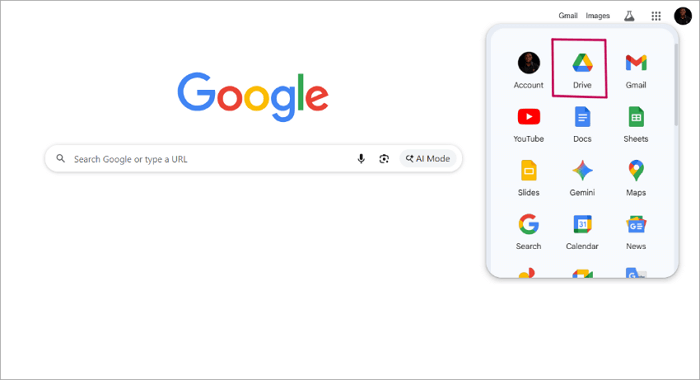
Step 1. Log in to your Google account. Navigate to the Google Workspace section and select Drive.
Step 2. Go towards the top-left side of the screen and click New.
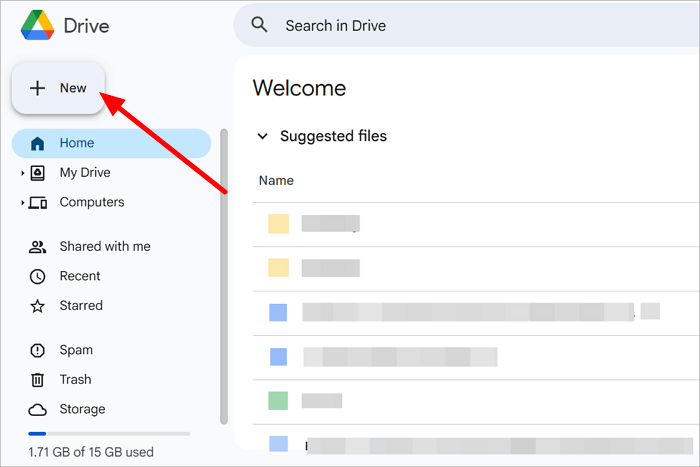
Step 3. Select File upload from the dropdown menu.
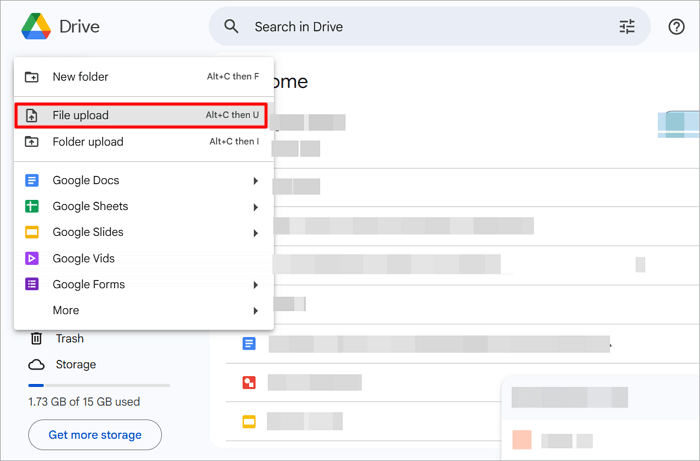
Step 4. Choose the PPT or PPTX file you want to convert. It will be uploaded to your Google Drive. Double-tap the file, and it will open as a Google Slides presentation.
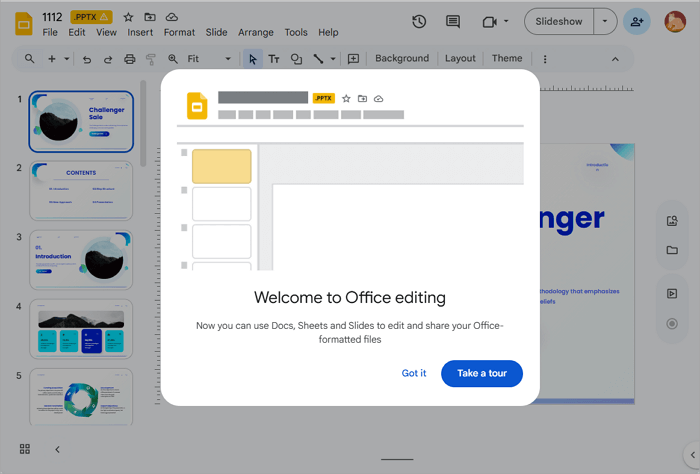
You can edit and make further changes to the presentation. The best thing is that you would have little to nothing to do because Google Drive maintains the structure and fonts of the original PowerPoint.
Method 2: How to Transfer PowerPoint to Google Slides Using Import
When you only need specific parts from a PowerPoint presentation, the go-to option is to import the slides to Google Slides. It saves the stress of converting the entire file just because you need some parts. This option can be used in cases where you need to merge content from presentations.
The steps on how to transfer PowerPoint to Google Slides using Import are:
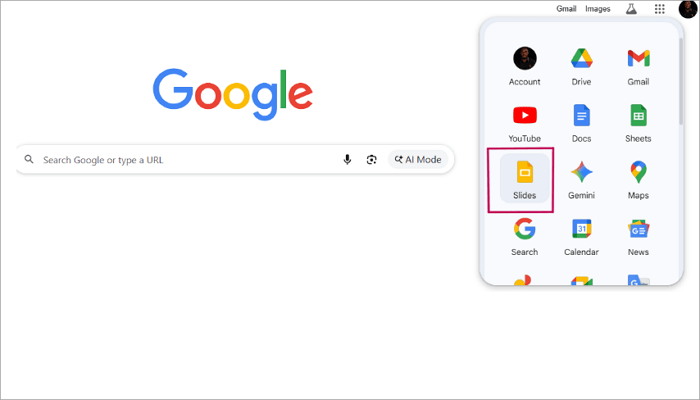
Step 1. Log in to your Google account. Navigate to the Google Workspace section and select Slides.
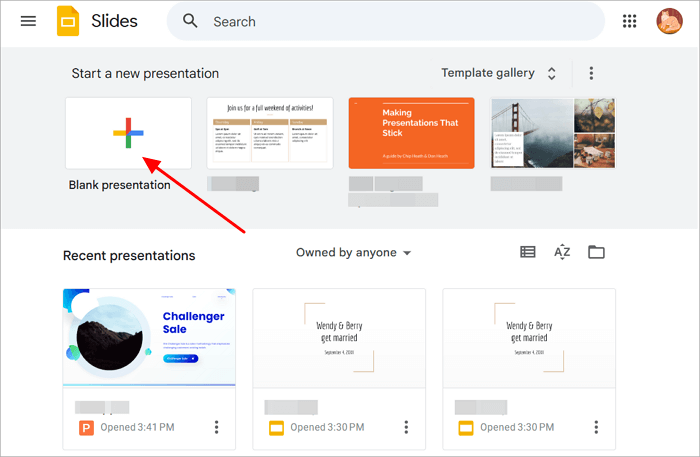
Step 2. Click on Blank presentation.
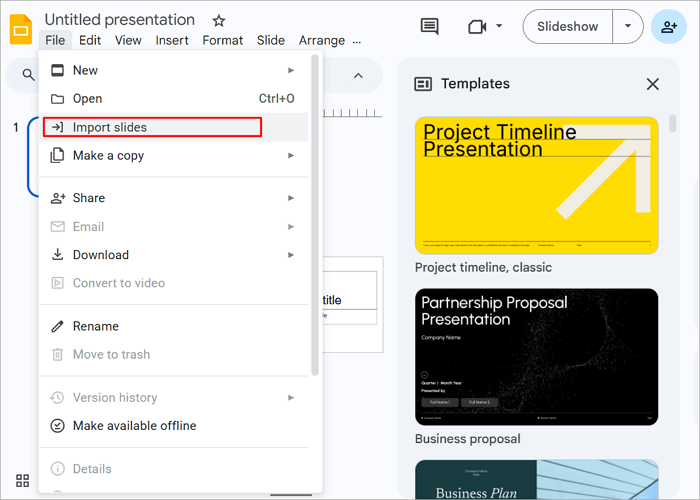
Step 3. Go to the top menu bar, click File, then select Import slides.
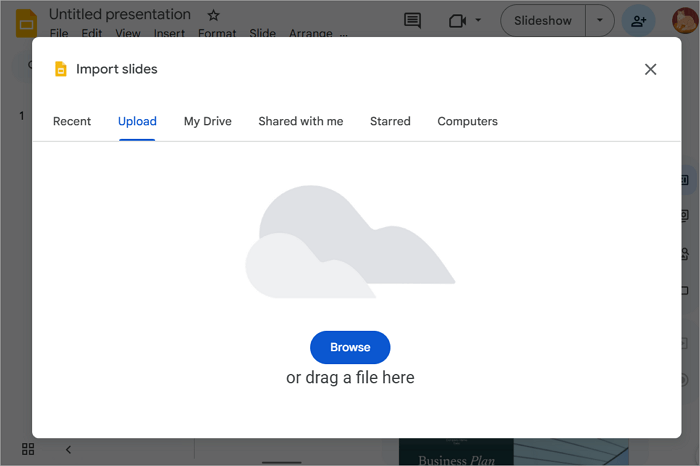
Step 4. Tap Upload and browse your computer to choose the PPT or PPTX file you want to transfer.
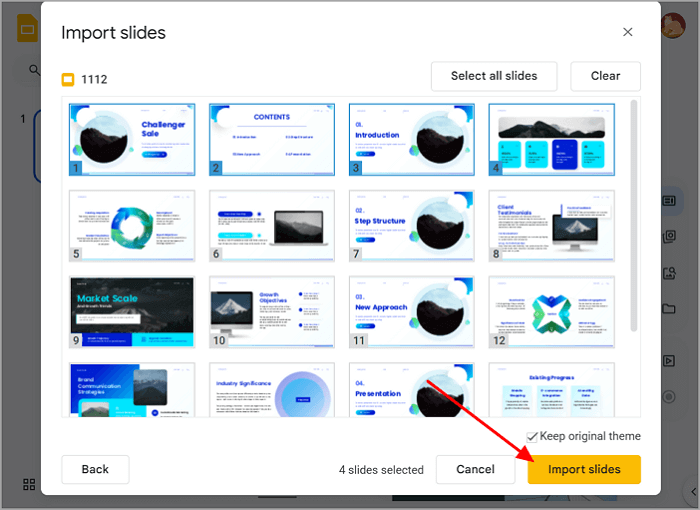
Step 5. Select all or only the slides you want to transfer. Then, click Import slides.
Step 6. The selected slides will be inserted into your Google Slides presentation.
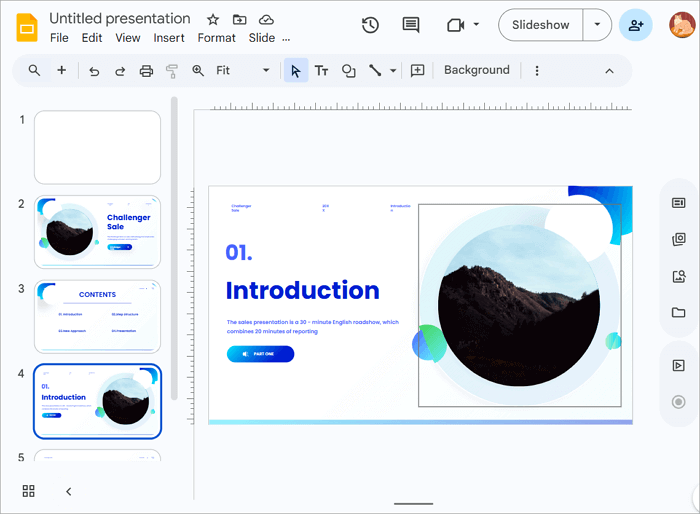
Just like the first method, the structure and fonts of the original PowerPoint will be maintained in this presentation.
Tips to Preserve Formatting When Converting PPT to Google Slides
Formatting issues occur when converting a PPTX to Google Slides because both presentation tools handle elements differently. You may notice missing fonts, misaligned images, or altered charts. To preserve formats, follow these tips:
1️⃣ When working on your PowerPoint, use layouts and themes that are easily accessible on Google Slides.
2️⃣ Learn how to add and change fonts in Google Slides to match the original PowerPoint file.
3️⃣ Explore the best image format to use in Google Slides to enhance your content delivery.
4️⃣ Preview the presentation on different devices (mobile phones and computers) to ensure everything looks correct.
Best Practices after Converting PPT/PPTX to Google Slides
There are essential practices you must follow after converting PPTX/PPT to Google Slides to ensure smooth collaboration with team members and maintain a professional slide appearance.
Below are the key actionable practices to follow:
✅ Organize your slides by grouping related content into sections.
✅ Learn how to add animation in Google Slides for more captivating effects.
✅ Collaborate with colleagues by sharing the file via link and tracking changes in real-time.
✅ Integrate features like how to add speaker notes in Google Slides and how to make Google Slides play automatically on a loop for easier presentation.
✅ Customize the themes and master slides to align with your branding elements.
Conclusion
Transferring PPT to Google Slides unlocks opportunities for greater flexibility. We’ve explained the 2 most reliable methods you can use: Google Drive and Importing Slides. When you follow the steps outlined for these methods, you can rest assured that the formatting will remain consistent. However, to eliminate the chances of format errors, remember to apply the tips outlined above and follow the best practices to refine your presentation.
FAQs on PowerPoint to Google Slides Converter
If you have lingering questions about how to convert a PowerPoint to Google Slides, check out the answers to these frequently asked questions for more insights.
1. Can I convert PPT to Google Slides without losing formatting?
Yes, you can convert PPT to Google Slides and maintain the formatting. But it may sometimes not be so, particularly when the PowerPoint file contains animations and fonts that are not available on Google Slides. That’s why it’s important to use simple elements that are available on both presentation tools.
2. How to import a PowerPoint template to Google Slides?
Google Slides supports importing a PowerPoint template into a new presentation. This will transfer the layout, colors, and fonts. Although you will have to verify if the template is imported correctly, you will also have to make a few tweaks for optimal results.
Here are the steps involved:
- Open a new or existing Google Slides presentation.
- Go to File > Open.
- Click on the Upload tab and browse through your computer to double-tap the PPT/PPTX template file.
- The PowerPoint template will automatically be inserted into your Google Slides presentation.
3. Is there any online PowerPoint to Google Slides converter?
Google Drive itself serves as a free online PowerPoint to Google Slides converter. Alternatives include third-party tools like Zamzar and smallpdf, where you upload your file, select Google Slides output, and download the converted file. They are quick for one-off needs but often have file size limits or privacy concerns. For best results, it’s advisable to stick with Google Drive.