Need to submit the presentation fast, but your professor is annoyed by the spinning text in the slide? We have all been there. PowerPoint animations can make your slides pop, but they can just as easily become a distraction or a nightmare to edit.
If you are stuck, don’t worry. This guide covers four easy ways to remove animation from PowerPoint, starting with clearing animation from a single object and moving to cleaning the entire deck at once, in simple, easy steps.
How to Remove Animation from a Single Object in PowerPoint
Let’s start with removing animation from a single object, like a textbox or an image. This method will not affect other animations on the slide or the presentation.
Step 1: Select the animated object
Open your presentation and click on the object where you want the animation removed.
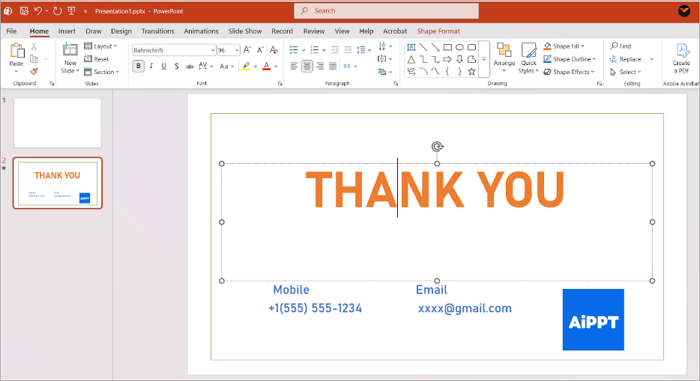
Step 2: Go to the Animation tab
From the Top menu, select the Animation Tab. In the Animation options row, you will see the effect highlighted.
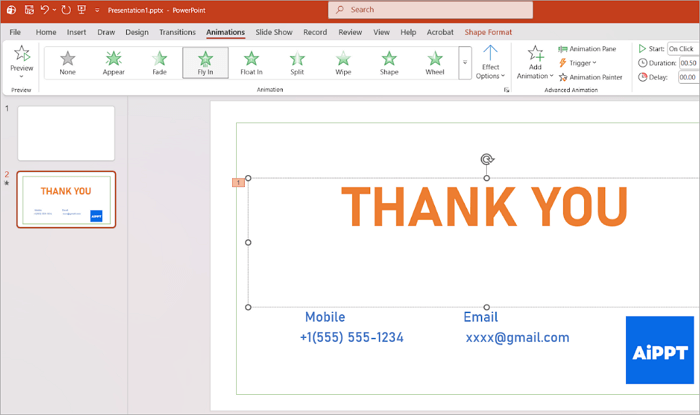
Step 3: Delete the Animation
In the Animation pane, click the animation effect attached to the object and press Delete or select None.
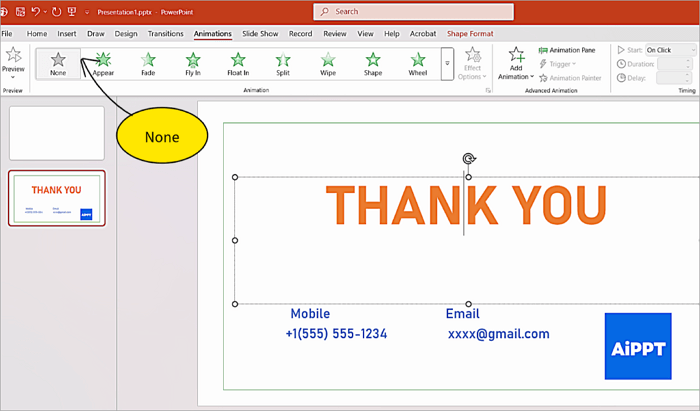
This will clear the selected animation.
How to Remove All PowerPoint Animations from One Slide
Now you know how to clear animations in a single object. But what happens if you have several animations on the same slide?
The following PowerPoint clear animation guide shows you how to delete all animations on a PowerPoint slide in one go. This way, you will save time and also avoid missing elements.
Step 1: Go to the slide you want to clean
On the left thumb panel, click the slide that contains unwanted animations.
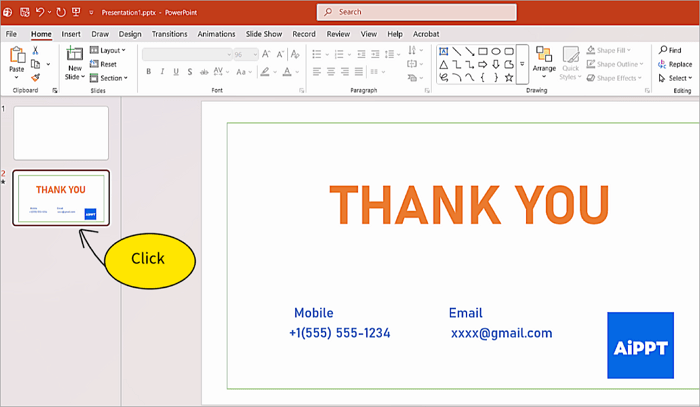
Step 2: Open the Animations tab
In the Animation tab, the Animations pane will display all active animations.
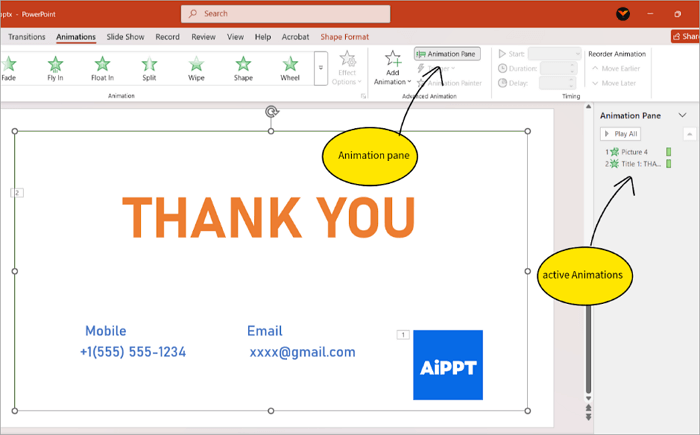
Step 3: Select all animations and delete
In the Animation pane, select the first animation. Then press and hold CTRL and select the rest. To delete all animations, press delete. The Animation Pane will be empty.
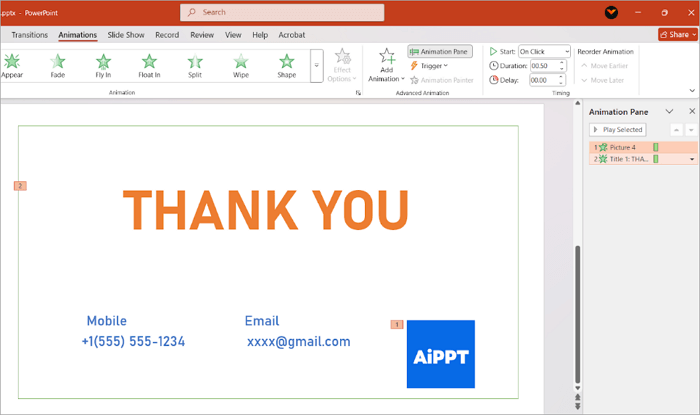
How to Remove All Animations from PowerPoint at Once
This method clears all animations in the presentation at once. It’s useful when you are working on a large deck or shared files full of unwanted animations in infographics or text.
It is the fastest and most reliable way to clear animations in one action.
Step 1: Go to the Slideshow tab
Open the PowerPoint presentation and go to the Slideshow tab in the top menu.
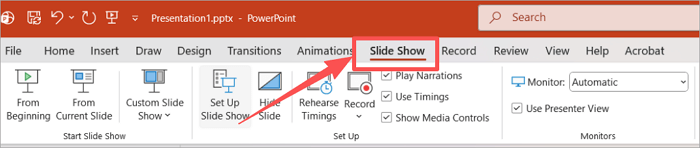
Step 2: Select Set up slideshow
From the menu bar, select Setup slideshow. A new menu will open. Tick the “Show without animation” option.
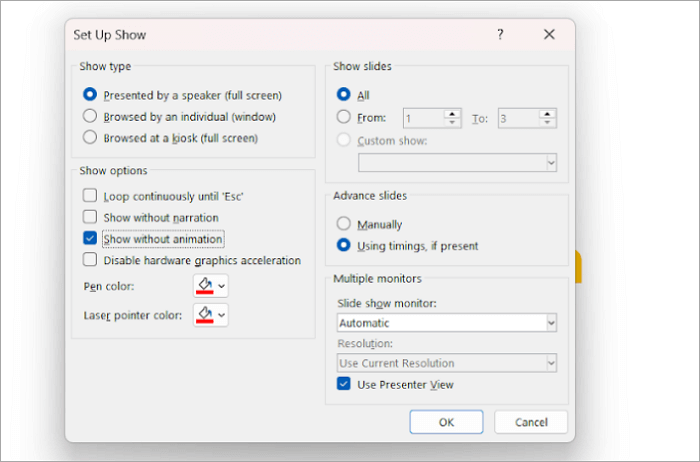
Step 3: Click “OK”
Click on the “OK” button to confirm the settings. All animations are now inactive, presentation-wide.
How to Remove Slide Transitions in PowerPoint
Slide transitions are visual effects that play between the slides, such as fades, wipes, or zooms. While they look polished, too many transitions can distract the audience from your content.
The following method removes only slide transitions, not the animations on the slides.
Step 1: Select the Slides
In the Presentation, select the slide you want to remove the transition from. To select multiple slides, press and hold CTRL and click on the slides in the left pane.
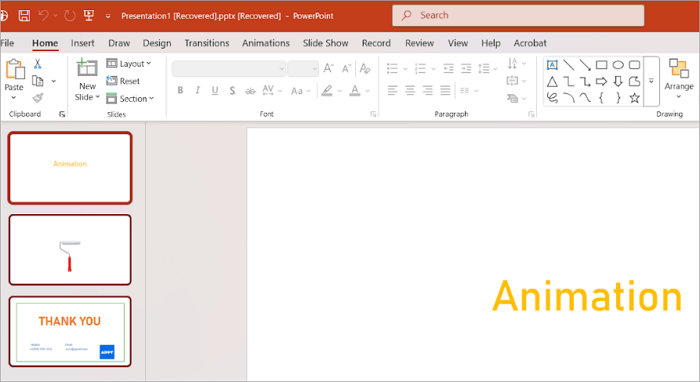
Step 2: Open the Transitions tab
Click the transitions tab in the top ribbon to see the transition options. To remove all transitions, select None from the list.

Slides will now switch instantly, keeping the presentation clean.
Troubleshooting Common PowerPoint Animation Issues
Even after removing animations, you may sometimes observe effects still playing during the presentation playback.
This usually happens due to hidden animations or slide-level settings that are easy to miss. We are going to show you how to rectify the lingering issues, so your presentations come out the way you expect.
1. Animation Effects Still Playing After You Remove Animations
This issue normally happens when animations are applied to grouped objects. The following steps will fix it
Step 1: Open the animation pane
On your slide, go to the Animations > Animation Pane.
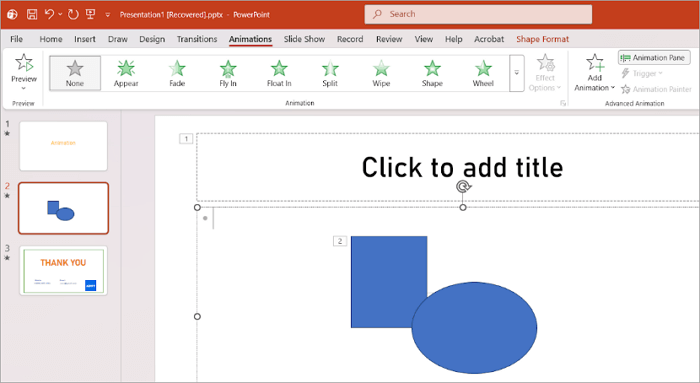
Step 2: Check for leftover effects
Check the animation pane for animations not linked to visible objects. Right-click on the object and go to Group/ungroup, and recheck the pane.
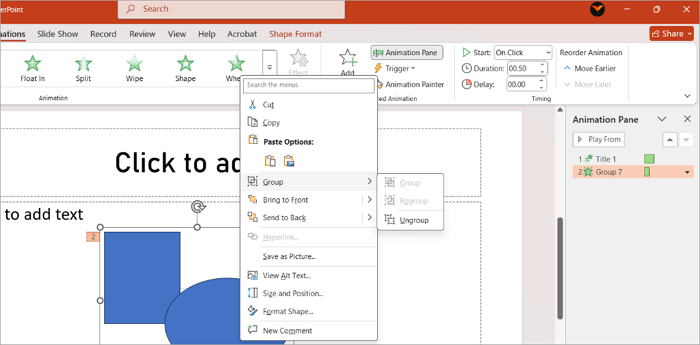
Step 3: Delete any remaining animations
Select and remove remaining animations. The animation pane will show up empty.
2. Hidden or Placeholder Animations from PowerPoint Templates
Templates often include animations for placeholders such as titles or images. We will show you how to fix this issue.
Step 1: Go to Slide master View
Open the Slide Show and click the View tab. Select the Slide master View.
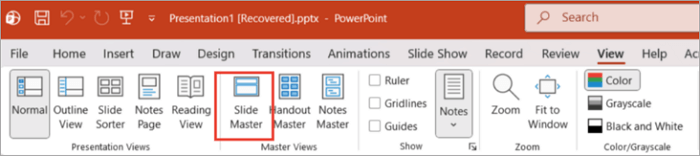
Step 2: Select the layout
Select the layout in use and go to the animation pane.
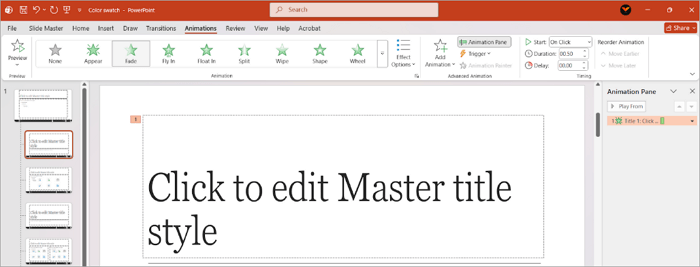
Step 3: Remove all animations from PPT
Check for animations in the animation pane. Select the animation and press delete to remove the animation. The animation pane will appear empty. Close the slide master view.
3. How to Confirm Animations Are Fully Removed in Slide Show Mode
You have cleared all animations in the slideshow. But want to make sure no surprises are popping up during the final presentation?
You have a valid point there. Sometimes, animations appear to be removed in the edit view but still play during the presentation.
To confirm that the presentation will go as planned, follow the steps below.
Step 1:Start the slide show
Press F5 on the keyboard or click the slideshow button at the bottom of the screen
Step 2: Advance slides normally
Check whether slides appear instantly without animation. If the animations are already removed, there should be no visual effects.
Step 3: Enable Show without animation
Go to Slideshow > Setup Slideshow. In the new Window that opens, select the option for Show without animation.
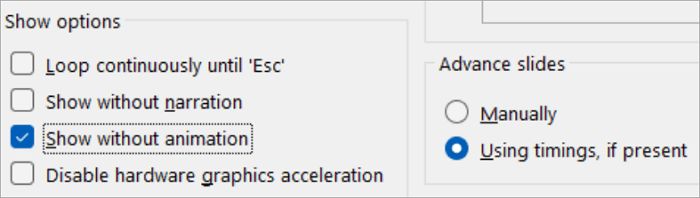
If slides appear instantly, your presentation is now animation-free!
Conclusion
Animations can enhance a PowerPoint presentation when used carefully, but they can also distract viewers from the point you are trying to make.
By using the methods explained in this guide to remove animation from PowerPoint, you can regain full control over the slideshow. We have discussed removing the animation effect from a single slide, from the entire presentation, and the complications arising from the process in detail.
With these simple steps, you can remove any unwanted animations from the presentation and deliver a clear, professional slideshow to the audience.
FAQs About Removing Animations in PowerPoint
Here are some additional questions you might have regarding how to delete animations in PowerPoint, along with detailed answers.
1. Is there a way to remove all transitions from PowerPoint?
Yes, PowerPoint has made it easy to remove transitions from the entire slideshow. You can do this in three easy steps.
- Go to the Transitions tab
- Select None.
- Click Apply to All
This instantly clears all transitions from the presentation. But you have to keep in mind that this method clears transitions between slides and not the animations in the deck.
2. How to remove animation from PowerPoint on Mac
If you are using a Mac, follow the steps below to delete animation from PowerPoint.
- Go to the Animations tab> Animation Pane
- Select the animated object and then select the relevant animation in the animation pane.
- Press Delete.
You can remove multiple animations on a slide by selecting all animations in the pane and pressing Delete.
3. How to delete animations in PowerPoint from a master mode
When using PowerPoint, you can remove all animations in the master mode.
- Go to View> Slide master
- Select the slide layout used in your presentation and click animations> animation pane
- Look for animations in titles and text boxes. Select each one and press delete.
- Click Close master view
This process ensures template-based animations are removed in the master view.