Numbering is one element you shouldn’t leave out when creating slides in PowerPoint. It helps you quickly navigate your deck and reference slides during presentations. But sometimes, you only notice the missing numbers after finishing your presentation, or worse, they suddenly disappear after switching templates.
This is why every presenter should know how to add page numbers in PowerPoint the right way. Although you may know them as “page numbers,” PowerPoint uses the term “slide numbers”, so don’t get confused when they are used interchangeably in this guide.
Key Takeaways
- Add page numbers in PowerPoint across all slides.
- Move and format page numbers using the Slide Master.
- Start numbering in PowerPoint from a custom number.
- Fix common slide numbering issues in PowerPoint.
1. What Slide Numbers Do in PowerPoint
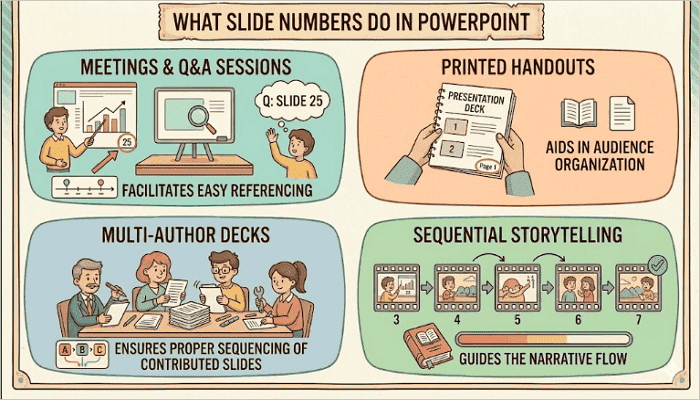
Slide numbers do more than just improve slide appearance. They help you stay organized, especially when working with large decks. Here are the most common use cases.
- Meetings and Q&A sessions: Audiences can easily refer to specific PowerPoint page numbers during discussion.
- Printed handouts: Numbered pages make it easier to navigate physical copies.
- Multi-author decks: It improves collaboration by helping team members flag issues by slide numbers during review.
- Sequential storytelling: Page numbers help you track pacing during delivery.
One thing to note, however, is that PowerPoint’s numbering is automatic. Unlike manually typing numbers into text boxes, it automatically updates numbering when slides are added, deleted, or rearranged. This saves time and prevents numbering mistakes.
2. How to Add Page Numbers in PowerPoint
The process of adding page numbers to your PowerPoint presentations becomes straightforward once you know where the settings are located.
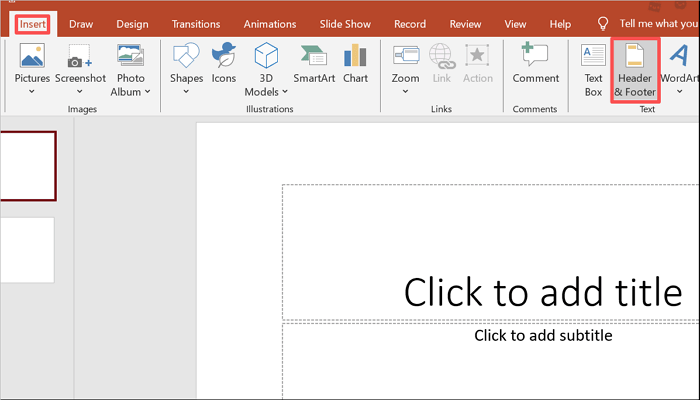
Step 1: Open the Insert tab
Open your PowerPoint presentation and go to the Insert tab in the ribbon. Then, find and select the Header & Footer button in the Text group. Depending on your version of PowerPoint, you may find a direct Slide Number button instead.
Step 2: Enable Slide Numbers
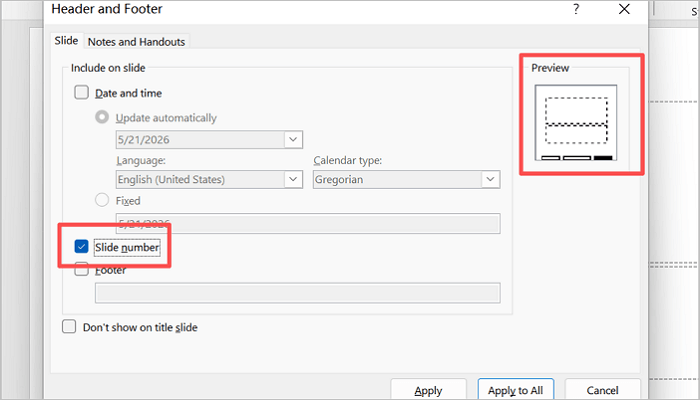
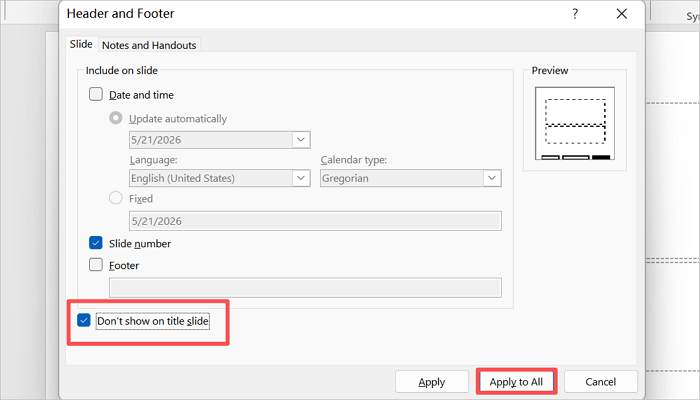
Inside the Header & Footer dialog box, tick the Slide number checkbox. You’ll also find a preview panel showing where the slide number will appear on your slide. The position depends on your current theme’s layout, but you can adjust it later.
Step 3: Apply Numbers to Slides
This is where you choose how you want the slide numbering to appear in your presentation. There are two options:
- Apply only adds a slide number to the current slide.
- Apply to All adds it across the entire presentation. This is usually the preferred choice for presentations.
There is also a checkbox that reads “Don’t show on title slide.” Check this box if your title slide will be a cover and you want numbering to begin from your second slide.
3. How to Change Slide Number in PowerPoint
You might need to edit slide numbers, but doing that on individual slides can create inconsistent layouts. The Slide Master comes in handy here, giving you more control when you need to change a PowerPoint slide number in your presentation.
Step 1: Open Slide Master View
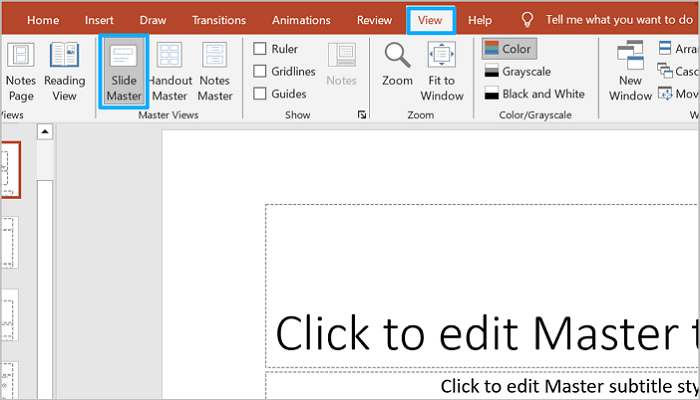
Open the View tab and go to Slide Master. Instead of editing each slide individually, any change you make to the Slide Master will apply to the entire presentation.
This helps save you time and keep formatting consistent.
Step 2: Locate the Slide Number Placeholder
While in the Slide Master view, look for a small text box that shows <#>. This is the slide number placeholder, and you’ll usually find it at the bottom of the slide. However, some layouts may remove or reposition this placeholder by default.
If you can’t find it, you may need to restore or enable it manually by going to Insert > Header & Footer and checking the Slide number box from there.

Step 3: Move and Format the Number
Select the <#> placeholder and drag it to reposition it anywhere on the slide. You can also:
- Resize the placeholder box.
- Change the font size or color.
- Adjust alignment.
- Increase contrast.
Also, try to keep slide numbers subtle but readable. They can distract the audience from your content if they appear too large or bright.

4. How to Start Slide Numbers from a Different Number
Sometimes you want to continue your presentation from a different file, hide appendix sections, or match printed materials with existing numbering. This is where custom numbering becomes helpful.
Step 1: Open Custom Slide Size
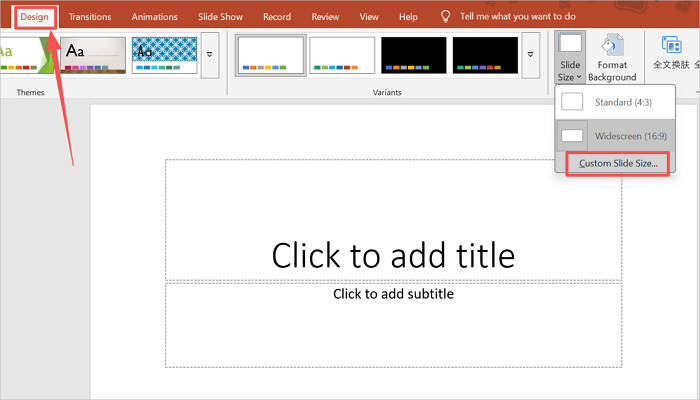
Go to Design > Slide Size and select Custom Slide Size from the dropdown menu. You’ll only find the setting here because the numbering control in PowerPoint is connected to slide setup settings.
Step 2: Change the Starting Number
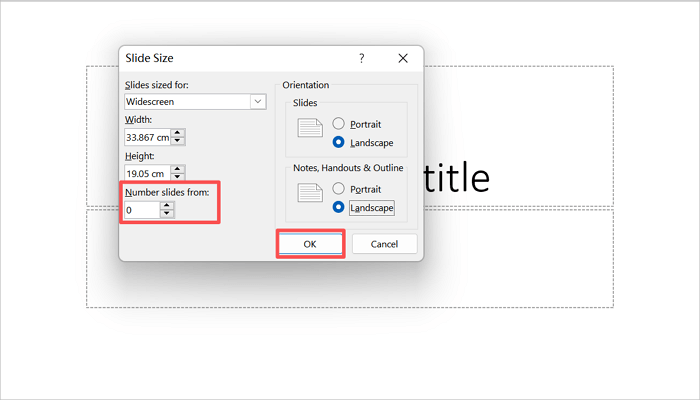
In the Custom Slide Size dialog box, look for the “Number slides from” field. By default, it is set to 1, but you can change it to whatever number you like. You may choose to start from 0 to hide the title slide or 2 if you want the first slide to act as a cover page.
Step 3: Apply and Review
Click OK and scroll through the presentation carefully to confirm that the numbering system has been applied. Check that the slides are consistent before exporting or presenting to the audience.
5. Common Problems and Quick Fixes
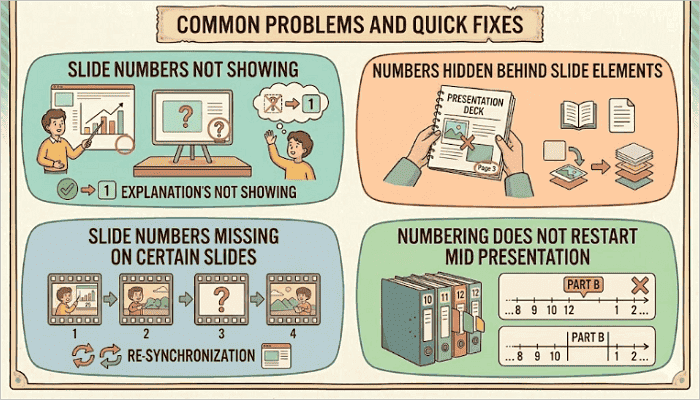
You may know how to put a page number in PowerPoint and still run into issues once in a while. Here, we’ll address some of these issues and how you can fix them in no time.
1️⃣ Slide Numbers not Showing
Go to Insert > Header & Footer and confirm that you’ve checked the Slide Number box. Then select Apply to All again.
2️⃣ Numbers Hidden Behind Slide Elements
Is your template placing images, shapes, or graphics over the slide numbering area? Open the Slide Master and move the PowerPoint slide number placeholder to a visible location.
3️⃣ Slide Numbers Missing on Certain Slides
Go to the Slide Master and check that each layout in your presentation has a slide number placeholder.
4️⃣ Numbering Does Not Restart Mid Presentation
Unfortunately, PowerPoint does not allow automatic numbering restarts in sections. You may need to split the presentation into separate files or manually adjust numbering settings from the Custom Slide Size menu.
Conclusion
It may seem like a small skill, but knowing how to add page numbers in PowerPoint saves you a lot of stress in situations where slides get reordered, templates change, or a colleague needs to reference a slide during a meeting.
Save more time on your next presentation by testing the numbering setup inside the template and adjusting Slide Master settings early. If the slide number placeholder is properly positioned from the start, you won’t have issues to fix later.
Learn More About PowerPoint Page Numbers
Once you understand the basics, small adjustments become easier. These answers cover the most common questions users ask when numbering slides in PowerPoint.
1. Why are PowerPoint page numbers not showing on some slides?
The most likely reason is that your current layout is hiding or does not include the slide number placeholder.
Going to View > Slide Master to confirm that the <#> placeholder is present in the individual layout thumbnails on the left panel. If it is missing, insert it manually via Insert > Header & Footer and click “Apply to All.”
2. How to change the position of the PowerPoint slide numbers?
After you successfully add slide numbers in PowerPoint, here’s how to change their positions:
- Open the Slide Master via View > Slide Master.
- Locate the <#> placeholder in the Slide Master view.
- Select and drag it to your preferred position on the slide.
- Resize the box or reformat the font from the toolbar.
- Click “Close Master View” when you’re done.
3. How to insert page numbers in PowerPoint Online?
To insert page numbers in PowerPoint Online:
- Open your presentation for the Web.
- Click the Insert tab and select Header & Footer.
- In the dialog that opens, check “Slide number.”
- You can check the “Don’t show on title slide” box.
- Click “Apply to All”.