Do you have a PowerPoint presentation that you’ve already finished or halfway done, but just when you’re about to exit, something comes up, and now you have to apply a new template (aka, a theme)?
This usually happens. It could be branding changes, a client requested a different style, or the presentation just feels visually unappealing. The good news is that you don’t need to rebuild everything from scratch.
In this article, we will explore the various methods to apply a template to an existing PowerPoint to give your deck a makeover.
Method 1: How to Apply a Template to an Existing PowerPoint Using “Design”
If you’re looking for the fastest and lowest-effort way to replace a PowerPoint template, the “Design” feature in PowerPoint is the solution. It’s most ideal in cases where your slides are not many, have simple layouts, or the content structure already aligns well.
📝 Here are the steps to switch the PowerPoint template through “Design”:
Step 1: Open Your Existing Presentation
Open the PowerPoint file you want to update. It’s advisable that you save a backup of the original presentation for reference purposes.
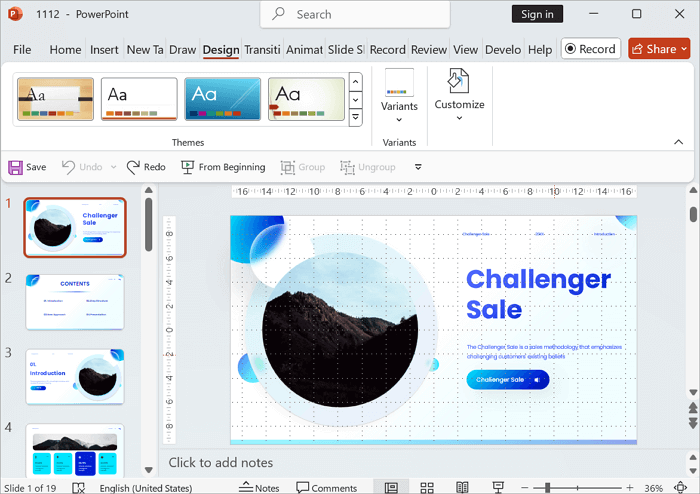
Step 2: Go to the Design Tab
Navigate to the top menu and click the Design tab. This is where you will see the various themes you can change to.
Step 3: Select Your Preferred Theme
Click the dropdown button to choose your preferred theme. PowerPoint automatically changes all your slides’ look to the new theme.

NOTE: Templates come with a pre-defined setting, so there might be inconsistent formatting in the new presentation. You need to check thoroughly and manually correct anything wrong.
Method 2: How to Import a PowerPoint Template from Another File
In cases where design consistency matters more than speed, especially for branded or client-owned decks, this solution is better. When you create a presentation from multiple sources but want a specific template, this option is also very reliable.
Unlike Method 1, where you simply apply a theme from PowerPoint, here, you will import the template from another file. This is different from when you’re importing slides. While themes importation modifies the presentation design only, slides importation changes everything—texts, fonts, layouts, and structure.
📝 Follow these steps to import a PPT template from another file:
Step 1: Open Your Existing Presentation
Open the presentation you’re currently working on and click the Design tab.
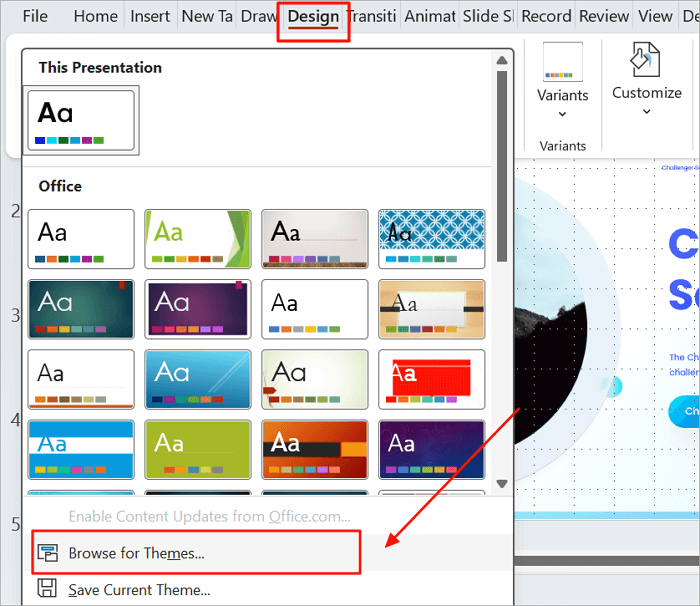
Step 2: Expand the Themes Gallery
Click the dropdown button to expand the Themes gallery, and click Browse for Themes.
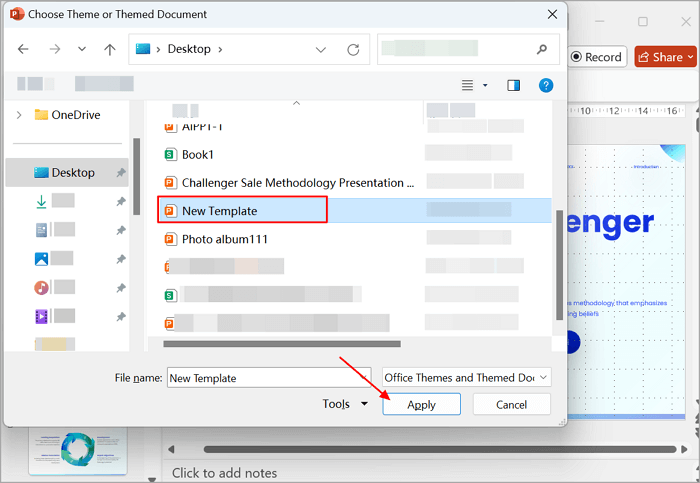
Step 3: Select the PowerPoint Template File
Go to where you saved the other file that has the template you want to import. Select it and click Apply. Your existing presentation will be changed to the new template.
Method 3: How to Change the PowerPoint Template via Slide Master
The process to edit PowerPoint templates through the Slide Master is pretty straightforward. In fact, it’s fair to say it’s the most structured way to change the PowerPoint background template from an existing presentation.
When you make modifications to the “Master Slide,” the whole deck follows suit. This makes it a convenient option when you have many slides and want to modify all of them at once.
📝 Wondering how to change the PPT template with the Slide Master? Follow these steps:
Step 1: Open Your Existing Presentation
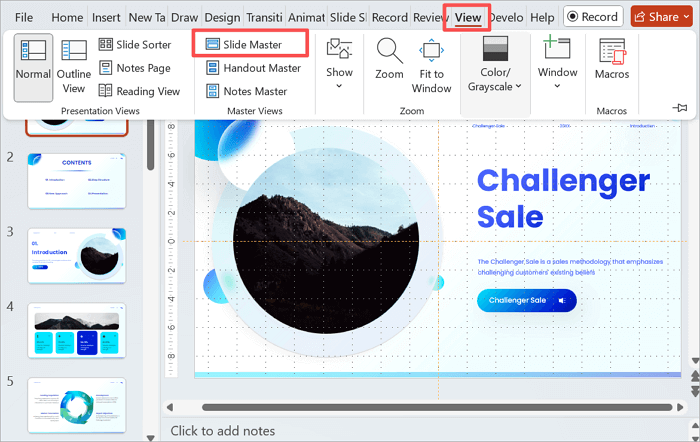
Open the PowerPoint file whose template you want to change, click on the View tab, and select Slide Master.
Step 2: Identify the Master Slide
Scroll up to select the top slide. The changes made to it will be reflected on other slides.
Step 3: Choose Your Preferred Theme
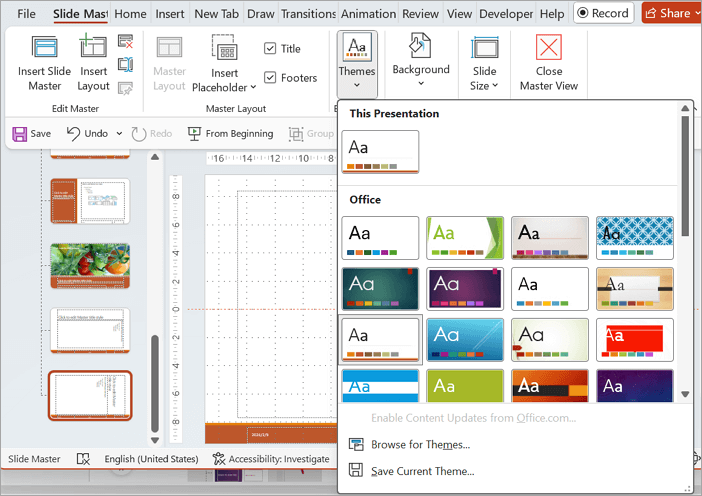
Click the drop-down button under the Themes menu and select your preferred template.
Step 4: Exit Master View
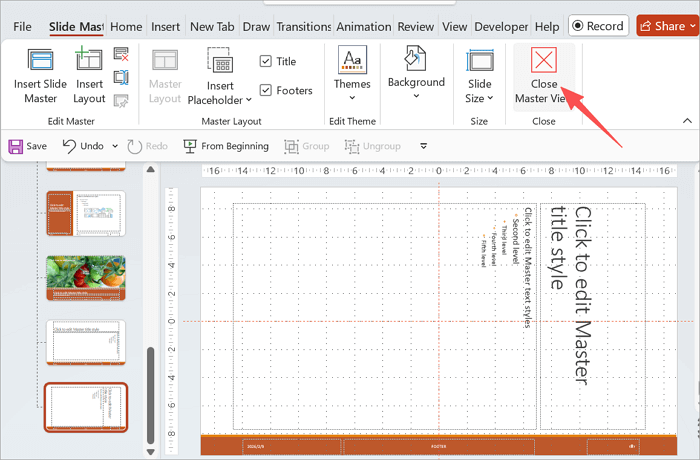
Click on Close Master View to go back to the Home tab.
Method 4: How to Add a PowerPoint Template to Slides Using AiPPT.com
Many issues associated with PowerPoint templates come from fixing designs after slides already exist. The way out is to generate slides with templates from the start, and a reliable way to do this is via AiPPT.com. It’s an AI presentation maker that helps to create stunning slides from prompts, documents, and URLs.
If you’re looking to create your own custom PowerPoint templates, this is the go-to option. It enables you to add a PPT template to PowerPoint slides, allowing for layout consistency, time management, and lightweight files that can easily be shared via links.
📝 Here are the steps to generate a PowerPoint presentation using the template you like:
Step 1: Go to AiPPT.com.
Go to AiPPT.com and sign in/sign up.

Step 2: Enter Your Presentation Topic
Input the topic, document, text, or URL of the presentation.

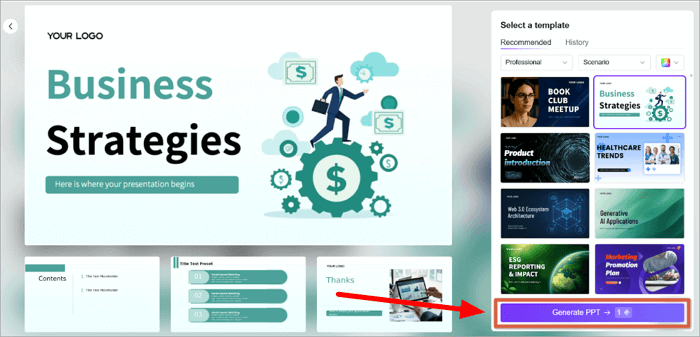
Step 3: Review the Outline and Choose a Template
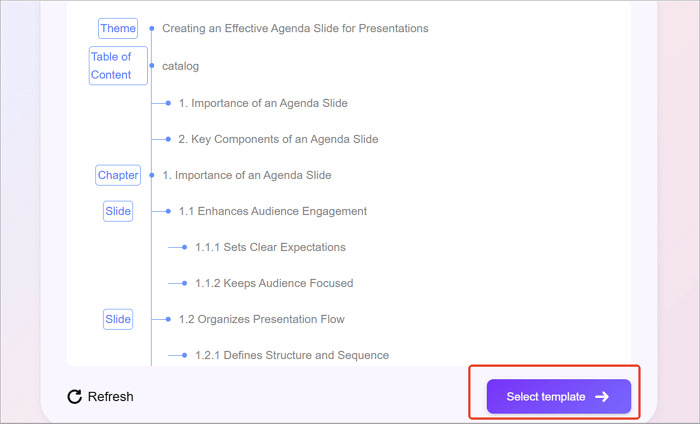
It will create a well-structured outline for the presentation. Check to edit (if needed) and select a template that best complements your presentation.
Step 4: Generate PPT
Click on Generate PPT to create the presentation with quality content, visuals, and a theme.
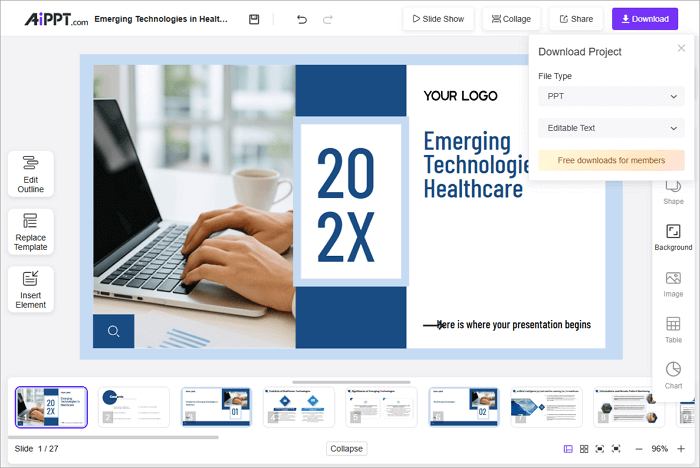
Step 5. Download or Share
After the presentation is fully created, you can share it via a link or download it to your device.
Conclusion
Presentations rarely have a static template choice, especially when dealing with projects that require various designs. Thus, you must know several ways to apply a template to an existing PowerPoint, as you would most likely be facing deadlines, branding, and collaborative tasks.
Finally, you need to choose the method you want to use before editing your slides to avoid any rework or delay. You can start now—try out the methods discussed above on an existing presentation to see which fits your workflow best.
Learn More about Applying a PPT Template
Would you like to know more about how to apply a template to an existing PowerPoint? Here are answers to some frequently asked questions:
1. How to change the PowerPoint template for an existing presentation online?
AiPPT.com has a ton of templates you can download and use for an existing presentation online. Follow these steps to change the PowerPoint template using AiPPT.com:
- Go to the AiPPT.com templates page and select the design option you want.
- Click Download, and it will be saved to your device.
- Import the downloaded template file into your existing presentation. Go to the Design tab, extend the Themes gallery, and click on Browse for Themes.
- Go to where the downloaded template file was saved. Select it and click Apply.
2. How do I switch a template in PowerPoint?
PowerPoint has a Design tab feature that allows you to easily switch templates without leaving the app. The steps are straightforward. They include:
- Open the PowerPoint file and click on the Design tab at the top menu.
- Tap the dropdown button to show more themes to choose from.
- Click the theme you want, and your PowerPoint will be switched immediately.
3. Can I replace the PowerPoint template for all slides?
Yes, you can replace the PowerPoint template for all slides. This can be done at once when you use the Slide Master, meaning you don’t have to modify each slide manually.
Here are the steps involved:
- Open the PowerPoint presentation, click on the View tab, and tap Slide Master.
- Select the Main Master Slide, go to Themes, and choose the template you want. All the slides in the presentation will be replaced with the chosen template.
- Click on Close Master View to exit.