Trying to insert PDF into PowerPoint? Or does the document keep coming out blurry, misaligned, or unusable in the process? We understand how frustrating this experience can be.
In fact, several users face this issue when adding a PDF to PowerPoint. Most of the time, this happens because they don’t know the right method to use.
In this guide, we’ll explore not just a list of methods for adding PDFs to PowerPoint, but also when to use each one, so your final presentation looks exactly how you intended.
Why PDF Quality Gets Lost in PowerPoint
You’ve probably noticed that the quality of your document drops every time you insert PDF in PowerPoint, and you may wonder why.
That is because PowerPoint isn’t built to natively render PDF content. Instead, it converts the PDF into a format it can display, such as images. This conversion often reduces the sharpness of the PDF — and may be what you’re experiencing.
Also, PowerPoint’s default image compression setting, which reduces the file size, can compromise quality.
Luckily, you can easily fix this issue when inserting a PDF into PowerPoint. All you need to do is choose a method that matches your goal:
| Your Goal | Best Method |
|---|---|
| Show a PDF as a visual (chart, report page) | Convert PDF to a high-resolution image |
| Attach the full PDF for reference | Insert PDF as an object |
| Edit or reuse the PDF content | Convert PDF to editable PowerPoint slides |
| Keep the file size small with a linked file | Link to the PDF file |
Method 1: Convert PDF to High-Resolution Images (Most Reliable)
This remains the best method to use when it comes to maintaining clarity in your PowerPoint presentation. It involves converting each PDF page into high-resolution images to preserve the layout, fonts, and overall visual quality.
This approach is best when you need to insert charts, infographic pages, and single-page reports. However, you should always export the file at 300 DPI (Dots Per Inch) to maintain quality and prevent blurring.
To put a PDF into PowerPoint as a high-resolution image:
Step 1: Open your PDF file using a converter tool like Adobe Acrobat or WPS.
Step 2: Export each page as a high-resolution PNG or JPEG.
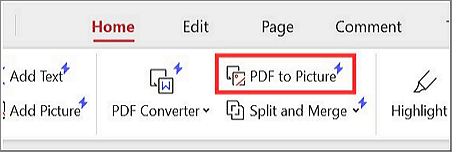
Step 3: Proceed to PowerPoint and select the slide where you want to add the image.
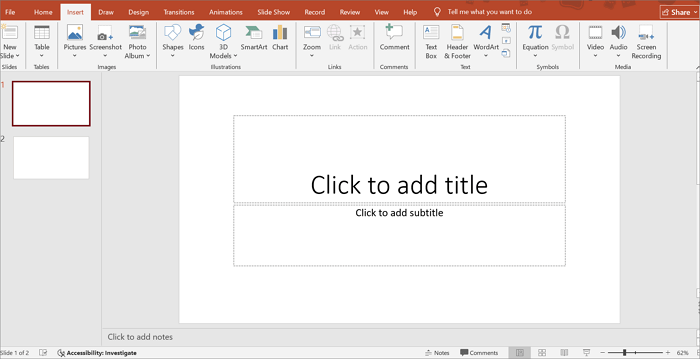
Step 4: Click Insert > Pictures > This Device to upload the PDF image file.
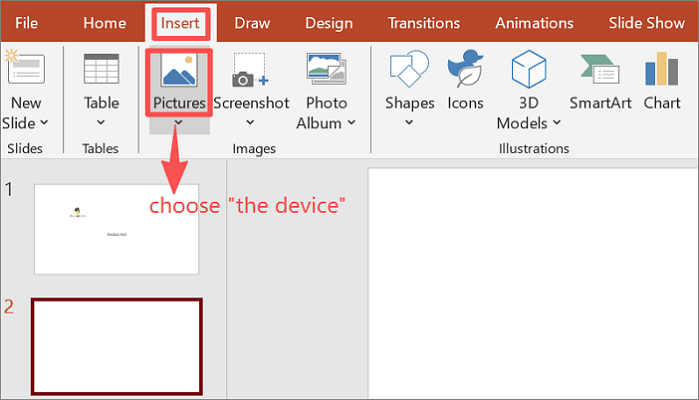
Step 5: Resize and position carefully to maintain clarity.
Method 2: Insert PDF as an Object (For Full Documents)
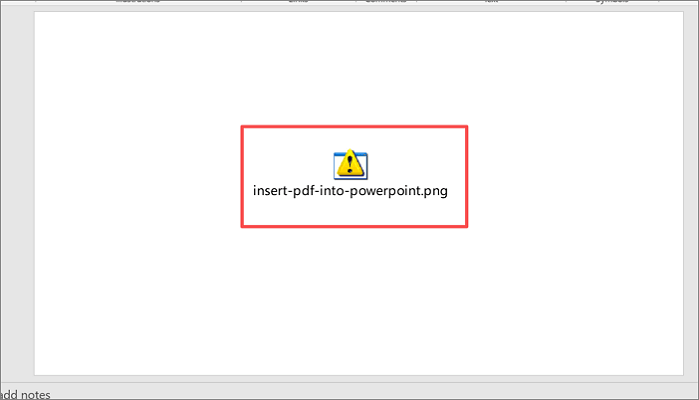
This method comes in handy when you need to embed PDF in PowerPoint directly. However, it does not display the full document in your presentation. Instead, the PDF appears as an icon or preview, which you can double-click to open during the presentation.
It is most useful when you need to reference a multi-page document or share the source file with your audience.
Want to embed a PDF in PowerPoint this way? Here’s how to go about it:
Step 1: Open your PowerPoint presentation and proceed to the slide where you want the PDF.
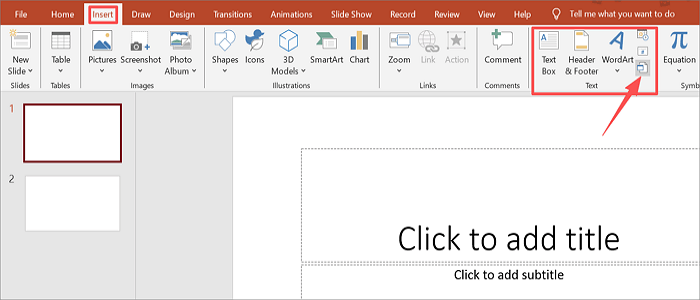
Step 2: Go to Insert > Object from the Text group.
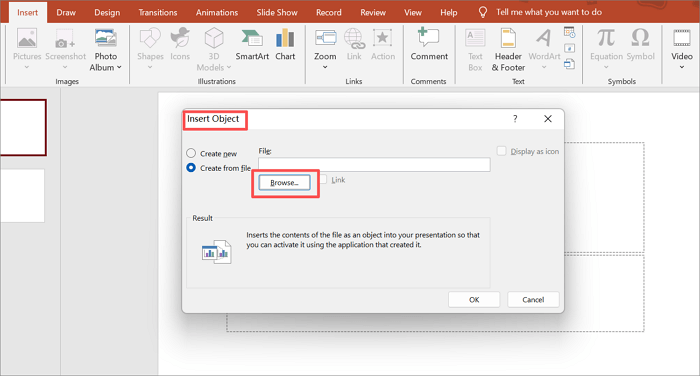
Step 3: In the dialog box, choose Create from File, then click Browse to locate your PDF.
Step 4: Check Display as icon if you prefer an icon to a preview thumbnail.
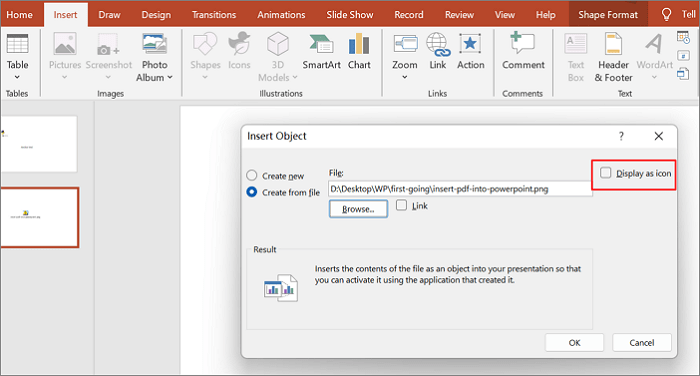
Step 5: Click OK. The PDF icon or preview will appear on the slide. Resize and position it as needed.
Method 3: Convert PDF to Editable PowerPoint Slides
If you want the content of your PDF file to be editable in PowerPoint, this method is for you. It allows you to change text, swap images, or restructure the layout. The trade-off, however, is that the formatting may not survive the conversion to PPT.
Still, it’s your best bet for reusing or updating existing content in your presentation. It’ll save you a lot of time.
Here’s how to import PDF into PowerPoint by converting it into PPT first:
Step 1: Open your PDF in a converter tool like Adobe Acrobat or WPS.
Step 2: Export the PDF into PowerPoint (.pptx) format.
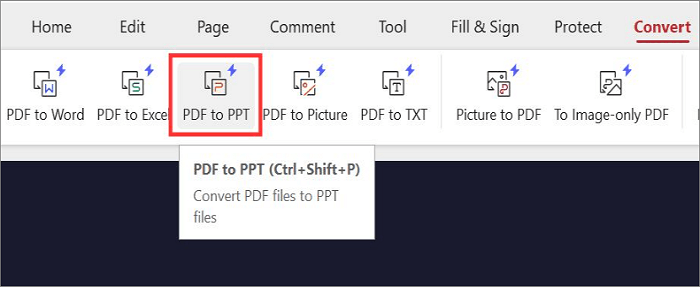
Step 3: Open the converted file in PowerPoint.
Step 4: Edit the PPT as needed.
Method 4: Link to the PDF File (Lightweight Option)
Another PowerPoint insert PDF method you can explore is by linking directly to the PDF file. This method has several advantages, including linking the PDF externally instead of embedding it.
The slide stays clean, and the PDF quality is untouched because the file itself is never imported. The limitation of this method, however, is that it requires access to the file during every presentation.
It is ideal for team presentations where all participants have access to a shared folder or cloud drive.
To link externally to a PDF file:
Step 1: Upload your PDF to your computer or cloud storage (Google Drive) and copy the link.
Step 2: Open PowerPoint and highlight the anchor text or object.
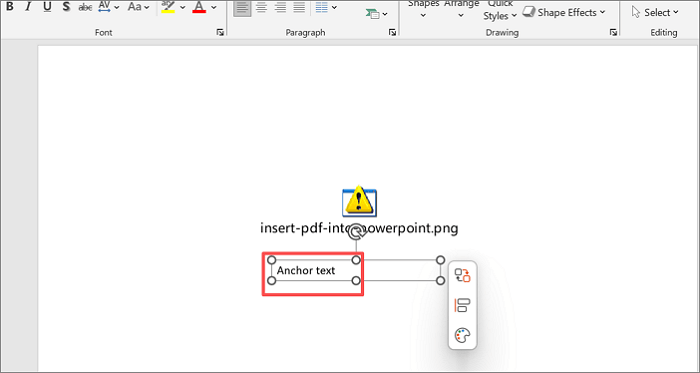
Step 3: Right-click and select Hyperlink.
Step 4: In the dialog, choose “Existing File or Web Page,” then paste the link you copied. If you’re linking to an existing file, simply browse to select your PDF file.
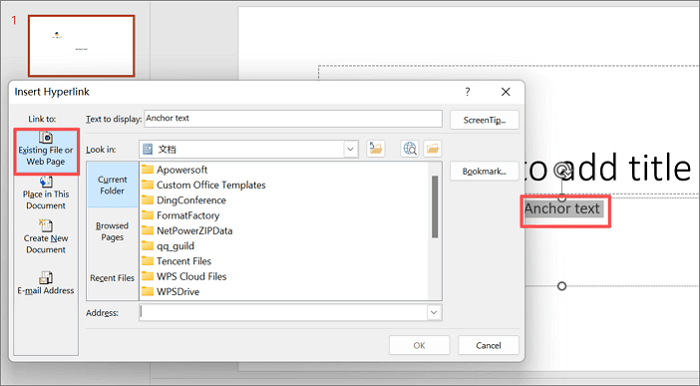
Step 5: Click OK to apply the hyperlink setting.
How to Maintain High Quality (Expert Tips)
Wondering how to insert files into PowerPoint without losing quality? These tips will come in handy.
| Tips | Why it matters |
|---|---|
| Use high-resolution images (300 DPI) | Keeps the image sharp on projectors and high-resolution screens. Lower resolutions may look blurry when enlarged. |
| Turn off image compression in PowerPoint | Since its default compression setting reduces image quality, disabling it preserves the full quality. |
| Match slide dimensions before inserting | Adding an image that does not match your slide ratio (too big or too small) causes distortion or unwanted white space. |
| Avoid stretching images past their original size | Scaling up or zooming in on low-resolution images makes pixelation worse. If you have to, ensure that the image is high-resolution. |
| Use PNG for text-heavy PDFs | PNGs retain their quality when compressed, unlike JPEGs. |
Conclusion
While there are different ways to insert PDF into PowerPoint, the best one depends on your goal. High-resolution images are your go-to if you want clean visuals, while embedding the PDF as an object is great for full document access.
If you need to edit the PDF, convert the file to PPT, and if you want concise slides, go with a link.
Choose your preferred method, follow the steps carefully, and apply it to a presentation at school or work. Your slides will look sharper, load better, and present more professionally.
More About Adding a PDF to a PowerPoint
Trying to get a PDF into your PowerPoint but worried about blurry images or broken formatting? Let’s walk through the most common questions, including what works in Google Slides.
1. How do I insert a PDF file into PowerPoint?
The best option to attach PDF to PowerPoint is to convert the PDF page to a high-resolution PNG image and insert it as a picture.
However, this method is best for displaying single-page static content (such as charts, report covers), and is not suitable for cases where you need to keep the text searchable or browse multiple pages.
Here’s how to go about it:
- Open the PDF file in Adobe Acrobat or WPS.
- Export your desired page as PNG at 300 DPI.
- Open PowerPoint and go to Insert > Pictures > This Device.
- Select the image and click Insert.
2. Can I insert a PDF into PowerPoint?
Absolutely, yes! You can either embed it as an object, convert it to high-res images, or turn it into editable PowerPoint slides. Each method has its own purpose, depending on whether you want display, editing, or file sharing flexibility.
3. How to insert a PDF into Google Slides?
At the moment, Google Slides does not support adding a PDF directly to presentations. However, you can paste the PDF by using this workaround:
- Convert the PDF page to a PNG or JPEG image.
- Open Google Slides and navigate to your target slide.
- Go to Insert > Image > Upload from computer.
- Select your image and click Open.