You’ll come across hundreds of PowerPoint presentation tips online today, but the most common one usually is to make your slides as attractive as possible.
A lot of presentations contain useful information but fail to engage the audience because of poor structure or design choices. This is something you want to avoid when you’re preparing for a business meeting, pitching to investors, teaching a class, or wrapping up a project report.
This article guides you through the process of creating attractive presentations, not just by adding decorations, but by combining clear communication, visual balance, and confident delivery.
Key Takeaways:
- Attractive presentations start with a clear message, not a template.
- Keep slides simple by highlighting only the most important information.
- Use visuals that support your message rather than distract from it.
- Delivery, including practice, eye contact, and engagement, is as important as slide design.
How to Make a Presentation Attractive
It’s not that difficult to make a successful PowerPoint presentation once you’re aware that the way you organize your ideas and choose layouts affects how easily your audience follows your message.
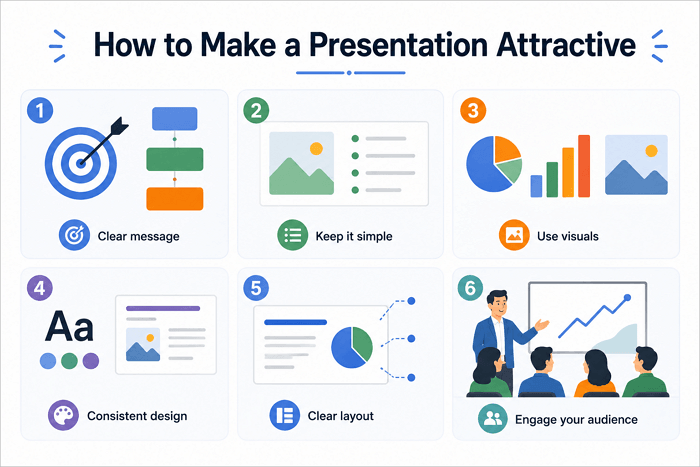
Step 1. Start With a Clear Message and Structure
Every strong presentation starts before the design stage. Identify the main message you want your audience to remember and ensure that every slide supports it, instead of adding random information.
Then, organize your ideas into a logical structure, with a clear introduction, discussion, and conclusion.
If you’re unsure where to begin, AiPPT.com offers professionally designed templates, which can provide a structured starting point.
Step 2. Keep Slides Simple and Focused
A mistake many presenters make is putting too much information on a single slide. This isn’t usually effective because audiences cannot read large amounts of text while listening to you speak.
Instead, focus each slide on one primary idea. You can also:
- Use short bullet points
- Adopt layouts that are easy to follow
- Highlight keywords
- Remove unnecessary explanations
Step 3. Use Visuals to Support Your Message
You also want a bit of variety in your presentation, and visuals can work to your advantage in that aspect. However, ensure that the visuals you use clarify your message, not just decorate your slides.
For example:
- Compare numbers or trends using charts
- Explain workflows with diagrams
- Use images to illustrate ideas or create context
Step 4. Choose a Consistent Design Style
Consistency gives presentations a polished and professional appearance. Avoid using random fonts, colors, and layouts in PowerPoint that make your slides look disconnected and distract from the message.
Alternatively, you can use presentation templates on AiPPT to maintain this consistency and save time. However, you may need to customize these templates to fit your topic and audience.
Step 5. Improve Layout With White Space and Visual Hierarchy
Your presentation doesn’t have to fill every empty area on the slide before it can make an impact. White space helps important information stand out while making slides easier to read.
Visual hierarchy is equally important. Your audience should immediately recognize the most important information. You can achieve this by:
- Using larger headings
- Positioning important content near the top
- Balancing text with visuals
- Avoiding crowded layouts
How to Improve Presentation Delivery
You may know how to make a good presentation PPT, but that’s only half the job. The way you deliver the presentation also contributes to how attractive your audience finds it.
Strong delivery helps transform good slides into memorable presentations.
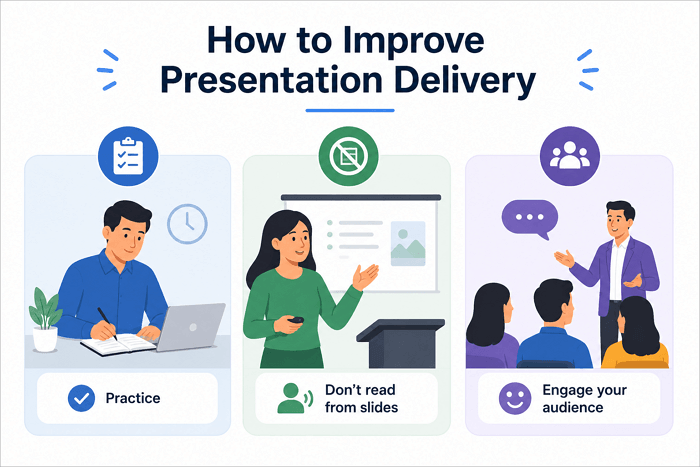
Step 1. Practice Before Presenting
Practice makes perfect—so they say. In presentations, it is one of the best ways to improve your overall delivery. Rehearsing your deck helps you manage your timing, improve your confidence, identify slides that need clarification, and create smoother transitions between topics.
In addition, running through your presentation several times before presenting makes you more comfortable answering potential questions from the audience.
Step 2. Avoid Reading Directly From Slides
Your presentation delivery becomes worse when you start reading directly from slides like scripts. This reduces audience engagement because they can read the content themselves. Instead, explain your ideas naturally while using your slides to reinforce the main points.
Step 3. Engage With Your Audience
Presentations work best when they feel like conversations rather than lectures. Maintain eye contact, ask occasional questions, and pay attention to audience reactions. If people look confused, provide another example.
If they seem engaged, build on that interest. You can ask questions such as “What would you do in this situation?” or “Has anyone experienced something similar?”
Common Mistakes That Make Presentations Less Attractive
Even with the best tips on how to present a PowerPoint presentation, you may make mistakes. However, recognizing them early helps you avoid distractions and improve audience understanding.
1. Adding Too Much Text
Text-heavy slides force your audience to divide their attention between reading and listening. Instead, summarize key ideas with concise bullet points and explain the details verbally. This keeps slides clean while allowing your audience to focus on your presentation.
2. Using Too Many Visual Effects
While they can help improve presentation flow, animations, transitions, and decorative elements can also distract from the message when used excessively. A rule of thumb is to only use these visual effects when they explain information.
3. Ignoring Audience Needs
Every audience is different, and so are their preferences. Executives may prefer concise summaries, while students often want additional explanations and examples. So, always adjust your content and visual style to match your audience’s experience and expectations.
Create Attractive Presentations Faster With AI Tools
It can take hours to create professional presentations from scratch, especially when you need to organize content and design slides. However, AI presentation tools simplify this process by generating structured outlines, suggesting layouts, and improving visual consistency.
AiPPT.com is an AI-powered presentation tool that helps users convert ideas, documents, or outlines into presentation-ready slides.
Some of AiPPT.com’s features include:
- Professionally designed templates
- AI-assisted layouts
- Extensive editing tools
- Export to PPT, image, and PDF formats
All of these features work hand-in-hand to reduce repetitive design work while allowing you to customize the final presentation. AI tools like this do not replace creativity. They simply help you spend less time adjusting slide formatting and focus on your message instead.
Conclusion
Strong presentations help audiences understand ideas, remember important information, and take meaningful action.
While attractive slides certainly capture attention, they are only truly effective when they combine thoughtful organization, clear communication, and confident delivery. Every design choice should also support your message rather than compete with it.
The next time you create a presentation, don’t try to improve everything at once. Instead, review one area at a time—from structure to visuals and delivery. Applying these PowerPoint presentation tips consistently will help you create memorable presentations.
More About Tips for PowerPoint Presentation
Now, you can create well-structured presentations and deliver them confidently. But there are still additional ways to improve your slides and presentation skills. Let’s check them out.
1. What are the phrases to engage the audience when doing a PowerPoint?
Good engagement phrases invite participation and encourage your audience to think. Examples include:
- What do you notice here?
- Let’s explore this together
- Imagine this scenario
- How would you solve this problem?
These questions create interaction instead of turning your presentation into a lecture that just goes one way.
2. How to make a great presentation on PowerPoint for free online?
You can easily create PowerPoint presentations for free using PowerPoint for the web. This free version allows you to create slides from scratch, select clean templates, and use icons, charts, and images. However, it comes with some limitations. You may not have access to all resources unless you’re subscribed to Microsoft 365.
3. How to make a good PowerPoint presentation with animation?
Animations should guide attention rather than entertain. Here are some tips for using them effectively in presentations:
- Reveal bullet points one at a time
- Use subtle fade or appear effects
- Animate charts only when explaining data step by step
- Avoid excessive transitions or flashy animations that distract from your message