Why click through slides when you can easily set up your PowerPoint presentation to run smoothly on its own?
Whether you’re presenting at an event, running a display screen, or sharing a recorded presentation, manual control breaks the flow. This is why presenters need to know how to play PowerPoint slides automatically without clicking.
However, this autoplay feature in Microsoft PowerPoint isn’t controlled by a single button. It involves a combination of settings, which may explain why it can be confusing.
Let’s quickly compare the various setup methods to help you choose the right one.
| Method | Best for | Timing control | Ease of setup |
|---|---|---|---|
| 1. Slide transitions | Uniform slides, events, displays | Fixed timing | Very easy |
| 2. Rehearse timings | Narrated or varied-length slides | Recorded timing | Moderate |
| 3. Kiosk mode | Unattended screens, booths, kiosks | Used with other methods | Easy (combined) |
Method 1: Use Slide Transitions to Auto-Advance Slides
The most straightforward approach to setting up PowerPoint autoplay is by using slide transitions. This method lets you set a specific time for each slide, and PowerPoint automatically moves to the next slide once that time elapses.
However, it works best when your slides have similar content lengths and do not require narration-based timing, such as in event slideshows or photo displays.
Also, since slides will move automatically, you need to set the timing carefully, so your presentation doesn’t feel too fast or too slow.
Step 1: Open your PowerPoint presentation and go to the Transitions tab in the top menu.
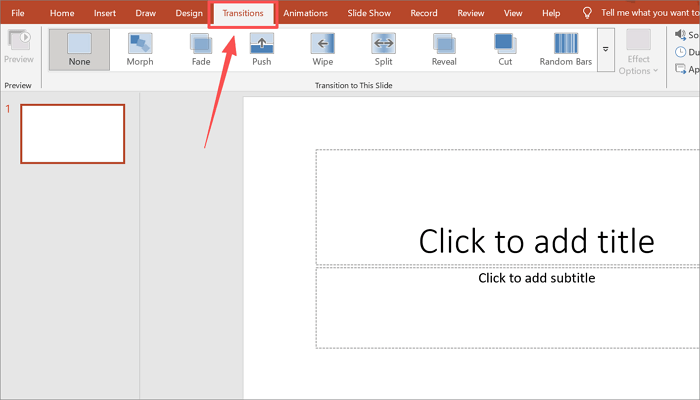
Step 2: Locate the Timing section on the right and uncheck On Mouse Click.
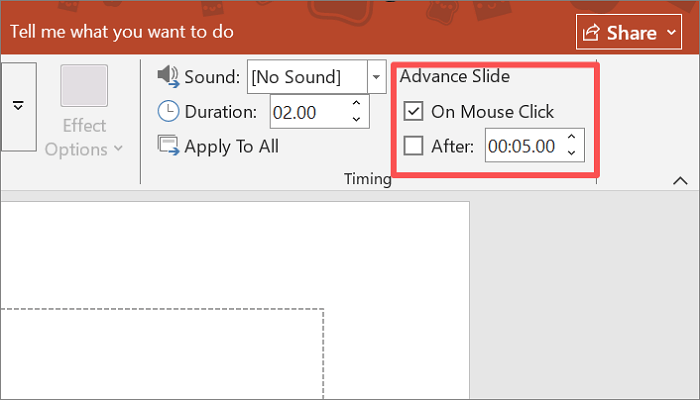
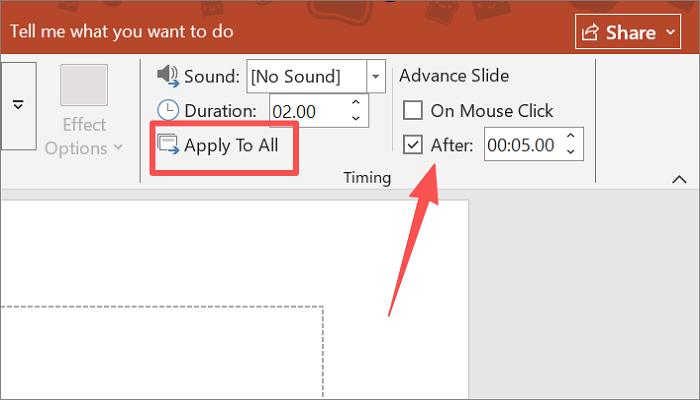
Step 3: Check the After box and set the time you want each slide to display. (e.g., 00:05.00 for five seconds). Click Apply to All to set the same timing across every slide.
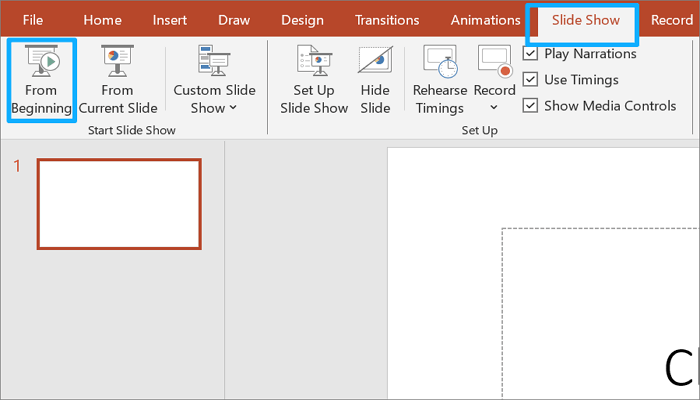
Step 4: Go to Slide Show > From Beginning to preview your presentation.
Method 2: Use Rehearse Timings for Natural Playback
Unlike the previous slide transition method, Rehearse Timings records how long you actually spend on each slide. This method creates a more natural flow because the PPT autoplay timing adapts to your content, not a preset number.
It’s the ideal option when your slides vary in depth and require different amounts of time for presentation. Rehearse Timings also come in handy when your presentation includes narration or a recorded voiceover.
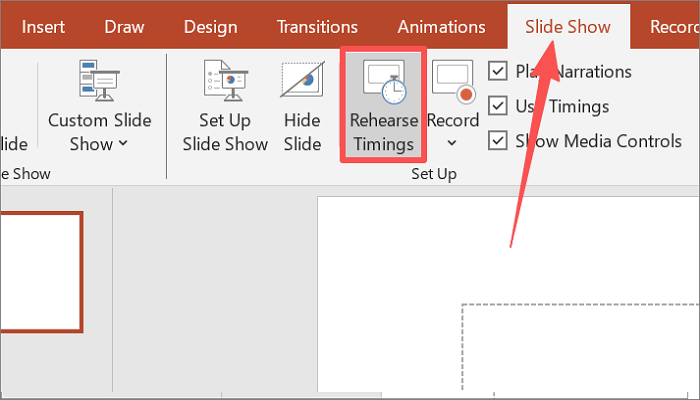
Step 1: Go to the Slide Show tab of your PowerPoint presentation and click Rehearse Timings.
Step 2: PowerPoint will enter full-screen mode and begin a recording timer in the top-left corner. Go through the slides and speak as if you’re presenting.

Step 3: Move to the next slide when you’re ready by clicking the Arrow.

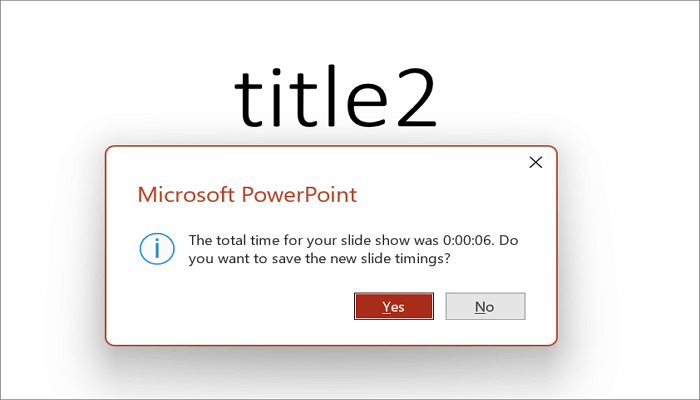
Step 4: At the end, PowerPoint will ask if you want to save the timings. Click Yes.
Method 3: Set Up a Self-Running Slide Show (Kiosk Mode)
Kiosk Mode offers a slightly different approach from the ones we covered, because it does not control slide timing on its own. Instead, it locks the presentation into a self-running loop, where you can’t manually click through the slides.
However, Kiosk Mode only works when it is combined with timing settings from slide transitions or Rehearse Timings.
This setup is perfect for public displays, trade show booths, reception area screens, or any unattended screen where the slides need to loop continuously.
Step 1: Set slide timings using either the Transitions or Rehearse Timings method.
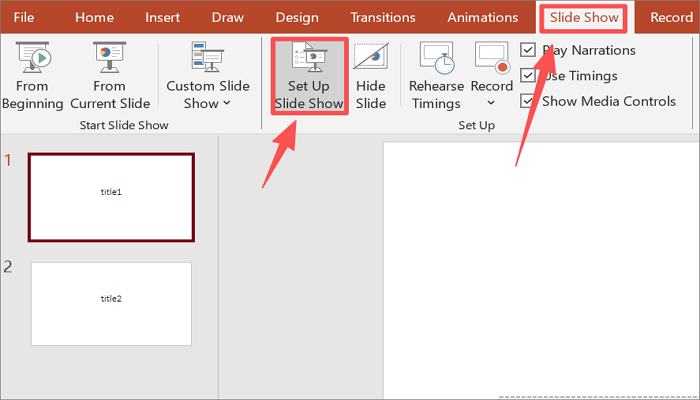
Step 2: Proceed to the Slide Show tab and click Set Up Slide Show.
Step 3: Under Show type, select Browsed at a kiosk (full screen). Then, click OK.
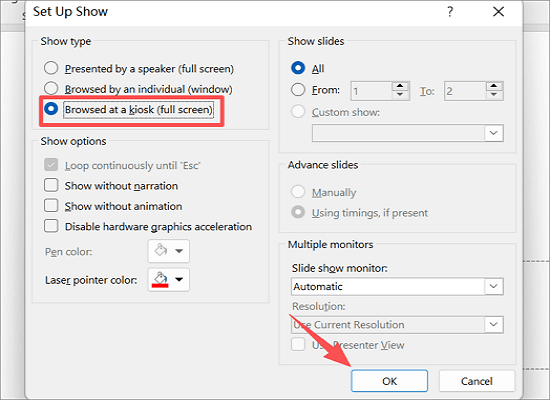
Step 4: Go to Slide Show > From Beginning to start the PowerPoint automatically advance slide loop.
Troubleshooting Common PowerPoint Autoplay Issues
Are your autoplay settings not working as expected? Here’s how to fix them quickly.
1. Slides are not advancing
Cause: The On Mouse Click box is still checked in the Transitions tab, and is overriding automatic timing.
Fix: Go to Transitions > Timing and uncheck On Mouse Click. Make sure that After is also checked with a valid time value.
2. Timings are not working
Cause: The Use Timings option is disabled in slideshow settings.
Fix: Go to Slide Show > Set Up Slide Show and select Use timings, if present under the Advance slides section.
3. Autoplay is not consistent
Cause: Timings have not been applied to all slides.
Fix: Go back to the Timing group in the Transitions tab and click Apply To All.
4. Kiosk mode timing is off
Cause: Timings were not saved after the Rehearse Timings session.
Fix: Re-run Rehearse Timings and confirm Yes when prompted to save.
Conclusion
As a presenter, you should know how to play PowerPoint slides automatically without clicking. It transforms your presentation from something you manage into one that works for you, by creating a smoother, more professional flow.
However, you get the best results when you know how to combine the right settings for your situation. Transitions set the pace, Rehearse Timings make it natural, and Kiosk Mode keeps it running unattended.
After creating your presentation with automatic playback, always test it from start to finish. This ensures everything runs as expected.
Learn More About PPT Autoplay
If you still have questions about setting up an autoplay PowerPoint presentation, here are some helpful answers
1. Can PowerPoint automatically advance slides?
Yes, PowerPoint can automatically advance slides without any clicking. You can do this through the Transitions tab by setting a time duration for each slide under the After option.
Alternatively, the Rehearse Timings feature lets you record how long you spend on each slide during a practice run. Both are reliable options for playing PowerPoint slides automatically.
2. How to play PowerPoint slides automatically without clicking on a mobile device?
PowerPoint mobile doesn’t let you create timings from scratch. However, if your presentation already has timings saved from the desktop version, the app will follow suit.
To play your slides automatically on mobile:
- Open the file.
- Tap the slideshow icon in the top right corner.
- The slides will advance automatically without clicking.
3. How to play a slideshow in PowerPoint automatically on an iPad?
To set up autoplay on an iPad:
- Open your presentation in the Microsoft PowerPoint app on your iPad.
- Tap Slide Show at the top of the screen.
- Select Set Up Slide Show from the dropdown.
- Under Advance Slides, choose Use Timings.
- Tap OK to confirm the settings.
- Select From Beginning or the play icon to start the slideshow.