PowerPoint presentations can look great, but still feel flat and not engaging enough. However, when you add music, narrations, or audio effects, what was a basic deck can quickly be transformed into a more immersive and professional presentation. This is very common in training modules, recorded lectures, business pitches, and event slideshows.
Do you want this type of presentation but don’t know how to go about it? Don’t worry, this guide explains how to add audio to PowerPoint presentations on Windows and Mac, control playback, record voiceovers, and fix possible issues.
Types of Audios You Can Add to PowerPoint
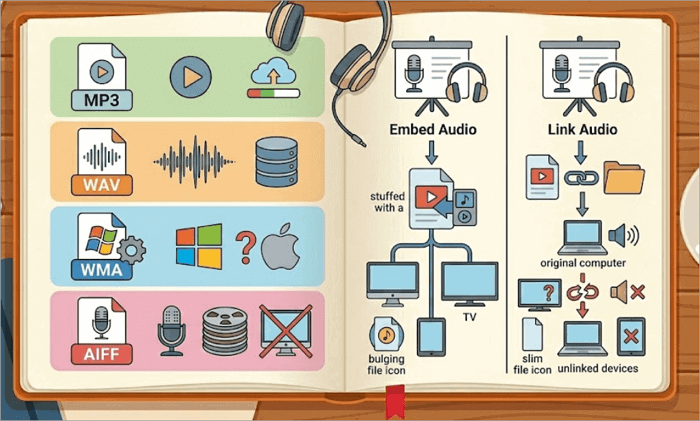
The commonly supported PowerPoint audio formats are:
- MP3 (Windows & Mac): Most widely compatible format. Small file size and perfect for all audio types.
- WAV (Windows & Mac): Very high sound quality but large file size.
- WMA (Mostly Windows): Primarily designed for Windows computers. Might not play properly on Mac.
- AIFF (Best for Mac): Professional-audio quality but large file size. Not often supported on Windows.
There are 2 primary ways to insert audio to PowerPoint: Embed or Link.
🎧 Embed Audio:
Choose this if you want to play a PowerPoint presentation on TV or another device. It saves the audio inside the presentation, so it plays anywhere without issues. The downside is that it makes the file larger.
🎧 Link Audio:
If keeping the file size small is important, this method works well. The presentation will only play on your computer because the linked audio is not embedded, so the sound will not work on other devices.
How to Add Audio to PowerPoint on Windows & Mac
On both Windows and Mac, music can be added easily by pressing the right buttons. The instructions below explain how.
1. Add Song to PowerPoint on Windows
Before adding audio to PowerPoint, confirm that the file format is supported on Windows. Also, ensure the audio is available on your computer—not on cloud storage or an external drive.
Step 1: Launch Microsoft PowerPoint
Open your presentation and select the slide where you want to add sound.
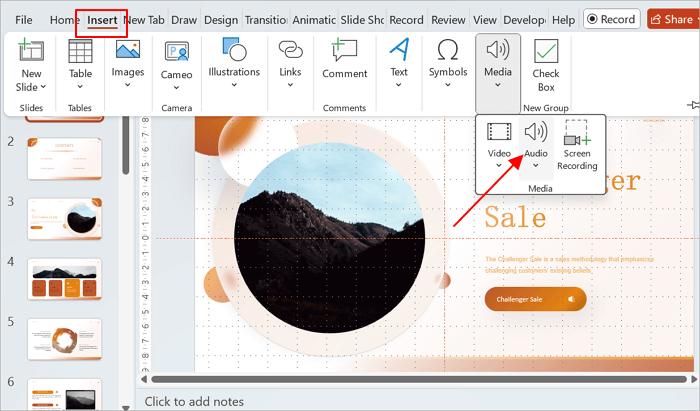
Step 2: Insert an Audio File
Click on Insert > Audio > Audio on my PC.
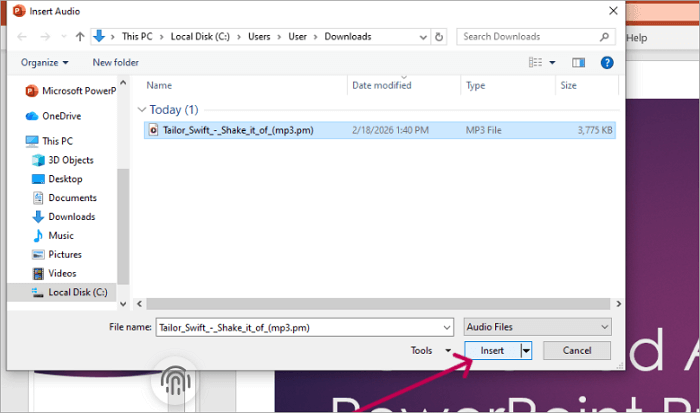
Step 3: Choose Audio File from Computer
Browse through your computer to select the audio you want to insert.
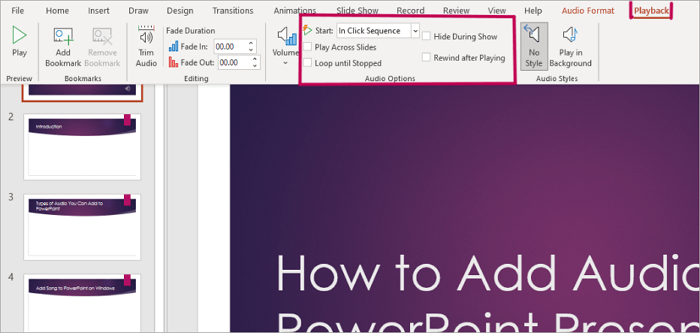
Step 4: Customize the Audio Playback
With the audio already inserted, a Playback tab will appear in the top toolbar. Tap it to customize the playback options. Here, you can set how you want the audio to start, play across slides, loop until stopped, hide during the show, or rewind after playing.
Step 5: Preview
To confirm that your audio is playing as you want, click the Slide Show tab and select From Beginning (it may be displayed as Play on some Windows).
2. Insert Audio in PowerPoint on Mac
Firstly, you need to verify that the audio format you want to add is supported by Mac. Unlike Windows, you can attach music to PowerPoint from your cloud storage.
Step 1: Launch Microsoft PowerPoint
Open your presentation and go to the slide where you want to insert the audio.
Step 2: Insert an Audio File
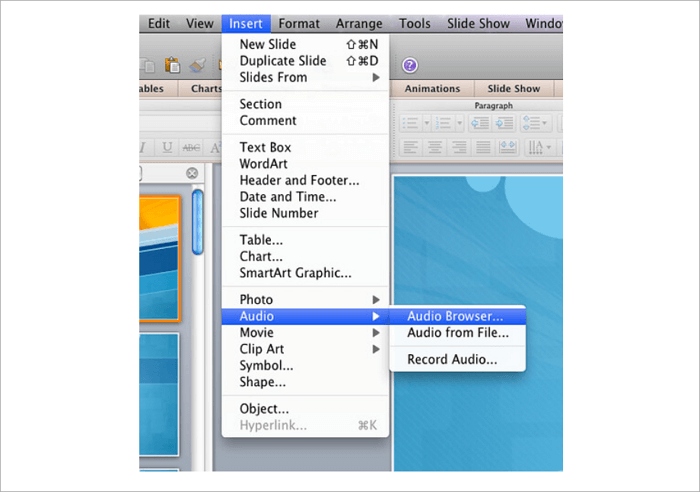
Click Insert > Audio. A dialog box will come up, asking you to select audio from Browser (iTunes) or File (computer).
Step 3: Edit Playback Options
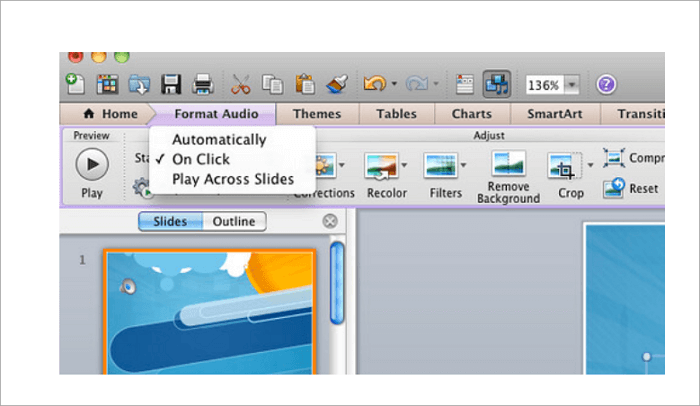
Tap the audio icon, go to the Format Audio tab, and choose the playback options you want.
Step 4: Preview
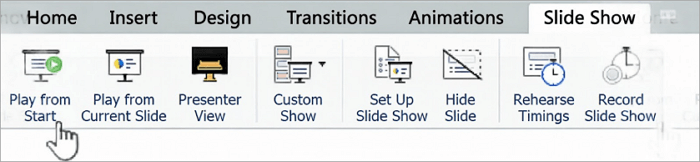
To be sure your audio is working correctly, go to the Slide Show tab and click Play.
The whole process doesn’t just end with how to add music to PowerPoint; you also need to know the Playback options because they influence the outcome of the sound:
| Playback Option | Description |
|---|---|
| 1. Automatic Start | Audio plays automatically when the slide it’s attached to appears. |
| 2. On Click Start | Audio starts only when the Play button is clicked. |
| 3. Looping | Audio repeats continuously until manually stopped. |
| 4. Trimming | Adjust the audio by setting specific start and end times. |
| 5. Fade In / Fade Out | Gradually increase or decrease the audio volume over a few seconds. |
| 6. Volume | Control how loud or soft the audio plays. |
How to Add Recorded Narration or Voiceover to PPT
Narration is important when you need to give further explanation for the viewers to understand the slides. This includes cases like tutorials, lessons, and technical topics for presentation.
Follow these steps to add recorded narration or voiceover to PowerPoint:
- Open your presentation and go to the slide(s) you want to add the recording.
- Click Insert > Audio > Record Audio.
- A recording toolbar will come up. Enter the name of the audio file and select Record (the red button) to start speaking. To end, select Stop (the middle button). To listen to the recording, select Play (the button on the left. If satisfactory, click OK. If not, press Record again.
How to Add Music to PowerPoint Across Multiple Slides
Smooth playback shows professionalism, especially when you need to make a PowerPoint loop slideshow automatically since slides and sound must be looped together.
Here’s how to add a song to PowerPoint across multiple slides at once:
- Go to the first slide, click Insert > Audio > Audio on My PC.
- Insert the song.
- Select the Playback tab and choose Play Across Slides.
The music should flow smoothly. It should enhance your message, not compete with it.
How to Fix Issues When Adding Audio to PowerPoint
You might experience one or two issues when you add sound to PowerPoint, but don’t panic. Most problems are simple to fix with the right settings.
The table below shows quick fixes.
| Issue | Likely Cause | Fix |
| 1. Audio won’t play on another computer | Unsupported format | Convert to MP3 |
| 2. Sound missing entirely | Linked file moved | Embed audio |
| 3. Audio stops after one slide | The playback setting is wrong | Enable Play Across Slides |
| 4. File too large to send | WAV or AIFF file | Compress or convert to MP3 |
| 5. No sound during the slideshow | Device muted | Check volume |
Conclusion
Knowing how to add audio to PowerPoint isn’t just about decorating the presentation, but also for clearer communication, stronger engagement, and making slides easier to follow. You should also know how to add notes to PowerPoint step by step, sync sound, and manage playback settings—they give you control over your presentation delivery.
Now, open an existing PowerPoint presentation to enhance its overall look and feel by inserting audio.
Learn More about Adding Audio to PowerPoint
Still need some guidance on how to insert sound on PowerPoint? These quick walkthroughs will help you.
1. How do you put sound in PowerPoint?
Adding sound can make your presentation more engaging for your audience. Here are the steps to help you do so:
- Go to Insert > Audio > Audio on My PC.
- Select the sound file from your computer.
- Click Insert to put the sound in your presentation.
2. How do you add narration to PowerPoint?
Narration is helpful when you want your slides to explain themselves without you speaking live. To add narration to PowerPoint, follow these steps:
- Go to Insert > Audio > Record Audio.
- Select the Record button to begin the narration.
- Click the Stop button and then tap the Play button to preview the narration.
- Click OK.
3. How to record your voice on PowerPoint?
PowerPoint lets you add your voice to slides so the audience can follow your presentation even when you are not there. To do this, follow these steps.
- Go to Insert > Audio > Record Audio.
- Select the Record button and start speaking.
- When you’re done, click the Stop button. Tap the Play button to preview the narration.
- Click OK.