Ever wonder why some PowerPoint slides instantly look more polished? The secret is outlined letters, with a bold border around each letter that makes the words pop on any slide.
In this guide, you will learn how to outline text in PowerPoint and add creative effects that elevate your designs. We will also help you quickly resolve common outline issues. And the best part? You need zero design skills: just a simple trick that will make your slides stand out and grab attention.
Types of Fonts You Can Add to PowerPoint
Not every font works well for PowerPoint outline text, as some come out messy when outlined. Some of us learned this the hard way. So, choosing the right font from the beginning will save you time.
The following are a few tips that could help you select a font and make an effective presentation.
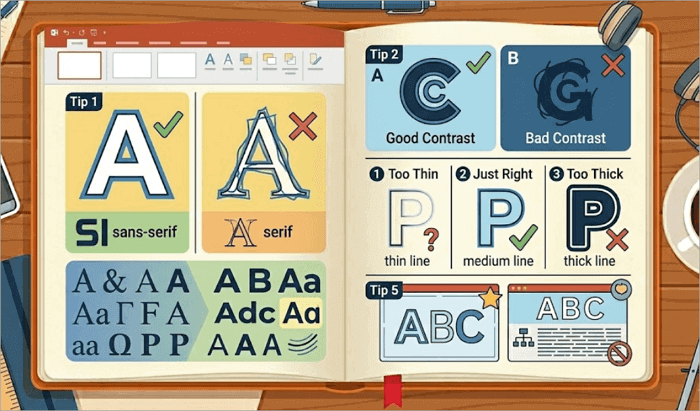
1️⃣ Choose bold sans-serif fonts
Fonts like Arial and Montserrat have clean edges, which make outlines look smooth and easy to follow.
2️⃣ Use color contrast
Dark outlines on a light background are much easier on the audience’s eyes. They also make the text pop out, without feeling harsh.
3️⃣ Be mindful of the outline thickness
Getting the outline thickness just right needs a little trial and error. If the outline is too thin, you can’t see it. But if it’s too thick, letters start to feel heavy. A balanced outline thickness keeps everything clear and readable.
4️⃣ Use only for emphasis
Outline text in PowerPoint is best used for emphasis in slide titles or headings. Skip using outlines for body text.
How to Get Outlined Letters in PowerPoint Step by Step
Outlining text in PowerPoint is easier than you think, and it instantly gives your slides a dynamic feel. Whether you are crafting a bold title or an eye-catching poster, the process is simple.
Ready to make your text pop? We will walk you through it step by step.
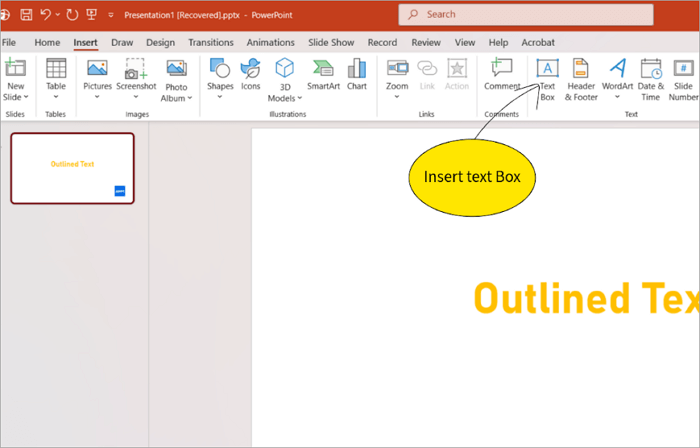
Step 1: Insert text box
Go to the Insert tab and add a Text Box. For best results, pick a bold sans-serif font.
Step 2: Apply text outline
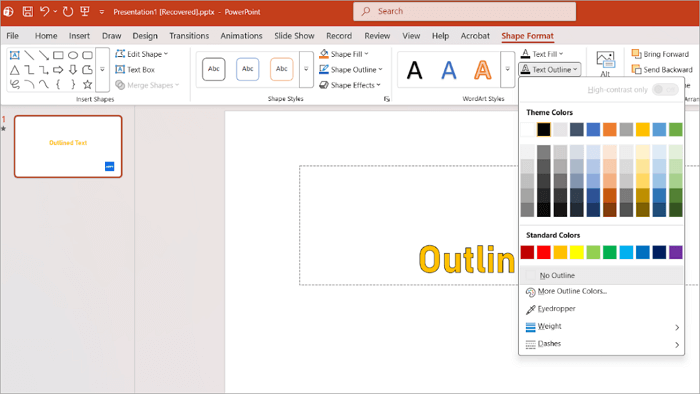
To select a color for the text outline, go to the Shape format tab. Click text outline. Select a suitable color from the pop-up menu.
Step 3: Remove text fill if required
For a hollow text effect, select No fill from thetext fill options. This will give your text a transparent interior.
Step 4: Adjust outline thickness
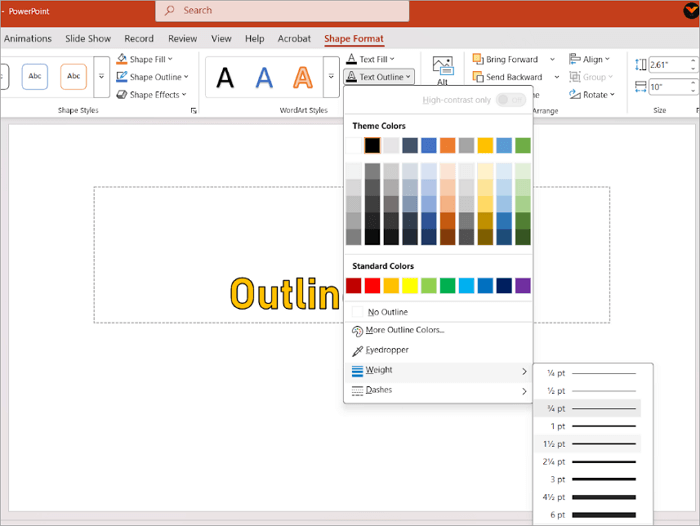
You can adjust the outline thickness by going to the Text outline > weight. Start with a thin outline and gradually increase the weight until you find the right one.
Step 5: Add final touches and save
Your Presentation with outlined text is almost ready! Review the colors and add subtle effects, such as shadows, for the best appearance.
Customize Creative Text Outline in PowerPoint Effects
By now, you know the magic you can create with a PowerPoint text outline. There are a few creative effects you can add to bring depth and personality to the slide deck.
Creative effects should be used sparingly to support your message and not distract the viewer from it.
Here are a few advanced customizations worth trying.
1. Gradient Outlines
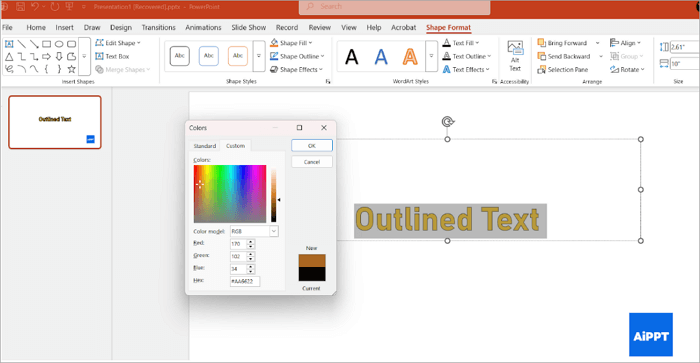
Select the text, then go to the text outline and More Outline Colors. Explore the color options by blending two colors.
2. Shadow and Glow Effect
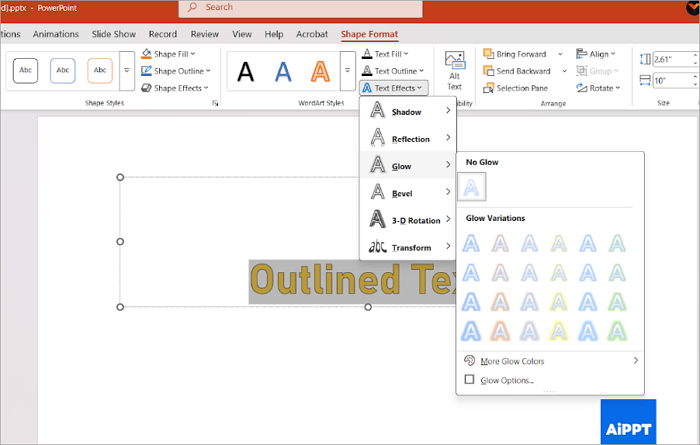
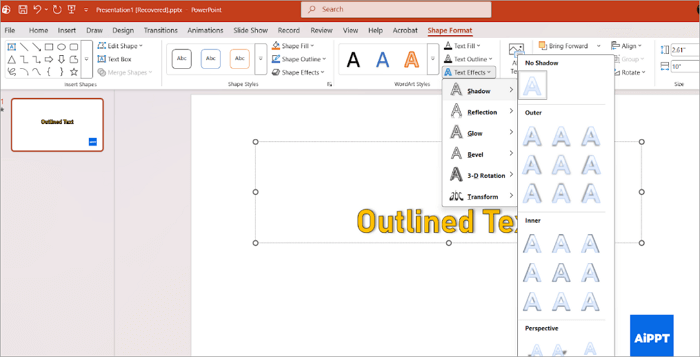
Use Text effects > Shadow or Glow to separate outlined text from backgrounds. These effects keep the outlined text soft and minimal for readability.
3. Layered Text for Depth
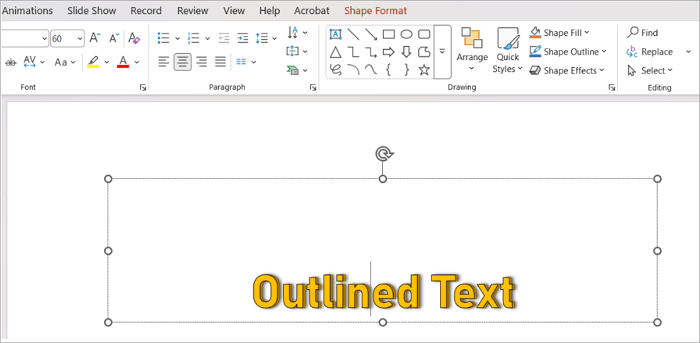
Duplicate your outlined text and place the copy slightly behind. Change its outline color. This creates a bold, poster-style effect.
4. Word Art Styles
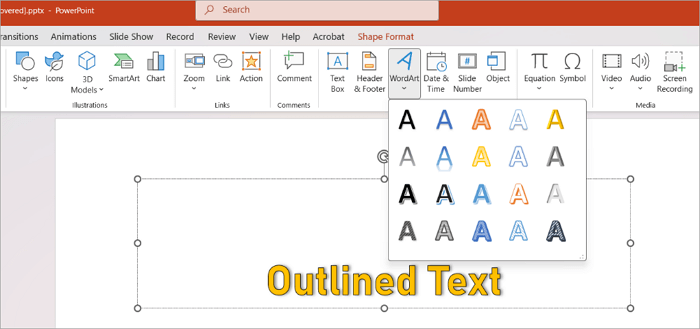
Explore built-in WordArt for quick inspiration, then customize outlines to match your theme.
Always preview your slide. If it’s too hard to read, dial it back. Creativity works best when paired with clarity.
Fix Issues When You Outline Text in PPT
Outline text in ppt can look great on your screen, but issues sometimes show up when you export or switch devices.
The good news? Most outline issues stem from contrast, thickness, or font handling. So these are easy to fix once you know what to adjust. Use the quick solutions below to troubleshoot without breaking your design flow.
| Common Problem | Quick Fix |
|---|---|
| 1. Outlines look too thin | Increase by going to text outline> Weight until it’s clearly visible |
| 2. Outline blends with the background | Switch to a higher contrast outline color or darken/lighten the background |
| 3. Text looks blurry on projectors | Avoid very thin outlines and neon colors. Use solid bold tones |
| 4. Outline disappears in PDF export | Embed fonts before exporting and avoid uncommon font styles |
| 5. Text loses clarity when resized | Scale the text proportionally and recheck the outline thickness. |
A quick preview on different screens can save you from last-minute surprises!
Conclusion
Mastering outline text in PowerPoint can completely change how our slides look and feel. They help important words stand out and improve readability on busy backgrounds. It is a subtle way to guide audience attention to the main subject without adding clutter.
Want instant results? Take one existing slide, redesign the heading using an outline, and then preview it full-screen. You will be happy with the time invested in learning how to outline text in ppt!
If you are short on time, you can speed things up by using a ready-made PowerPoint template and customizing the outlines to match your style.
FAQs About PowerPoint Outline Text
Still have questions? These quick FAQs cover the most common text outline in PowerPoint scenarios.
1. How do I outline letters in PowerPoint?
Outlining text in PowerPoint is easy once you know the right formatting tools.
- Start by inserting a text Box from the Insert tab and typing in your text.
- Select the text, then open the Shape format tab.
- Click text Outline. Choose an outline color and adjust the weight to control thickness.
- Finish by testing the contrast against your background to ensure the outline remains clear on all slides.
2. How to convert fonts to outlines in PowerPoint?
PowerPoint does not directly convert text to vector outlines, but there is a workaround.
- Select the text box and fill it with a simple shape, such as a rectangle.
- Go to the shape format tab and click Merge Shapes. Then select fragment or intersect.
- Delete any leftover pieces of the rectangle. The Font has now become a shape!
Your text is no longer editable, so make sure you got the spelling correct before you convert.
3. How to create tracing letters in PowerPoint?
If you are creating tracing letters for a learning activity, use a bold font and simple styling so students can follow them more easily.
- Insert a text box and choose a bold font. Apply a text outline color.
- Set the text fill to No Fill. Increase the outline weight to make the letter shape easier to follow.
- For practice sheets, lower the outline opacity or use a light grey color.
- Duplicate letters evenly across the slide to create a clean, printable tracing guide perfect for classroom use.