Imagine working on a 50-slide deck in Google Slides, and you need to make revisions on slides 9 through 32. Now you’re clicking each one individually and repeating the same edit on each. How slow and frustrating that is!
Many creators are unaware of Google Slides’ feature that allows you to select more than one slide and apply bulk actions such as edit, move, delete, format, etc.
In this article, we’ll cover how to select multiple slides in Google Slides and save more time on slide creation.
When Selecting Multiple Slides in Google Slides to Save Time
Single-slide editing works fine until it doesn’t. In many scenarios, you’ll find the multiple slide selection very helpful.
| Use Case | Description |
| 1. Applying formatting or layout | When you need to use consistent formatting across various slides in the same presentation. An example is changing the background color from blue to white across certain slides. |
| 2. Making bulk changes | To adjust font sizes, replace images, or make other changes to large decks simultaneously. |
| 3. Reordering slides | Move groups of slides to a different position in or outside the presentation. For example, moving all product slides to the end of the deck. |
| 4. Deleting slides | When you need to remove specific slides, especially when reusing content from templates or previous work. |
Knowing how to select slides in Google Slides comes in handy in all of these scenarios, for work, school, etc.
How to Select Multiple in Google Slides Using a Mouse
This method comes in handy when your slides are adjacent or scattered from each other. Here, the cursor gives you precise control, especially when you need to see which slides you’re selecting.
Step 1: Open your Google Slides presentation and proceed to the slide panel on the left side of your screen.

Step 2: Click on the first slide you want to select. A blue border should appear around it.
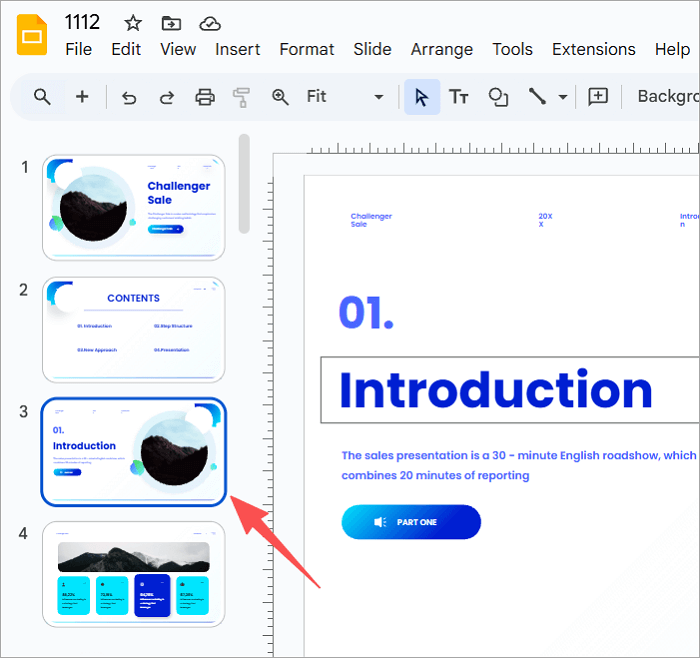
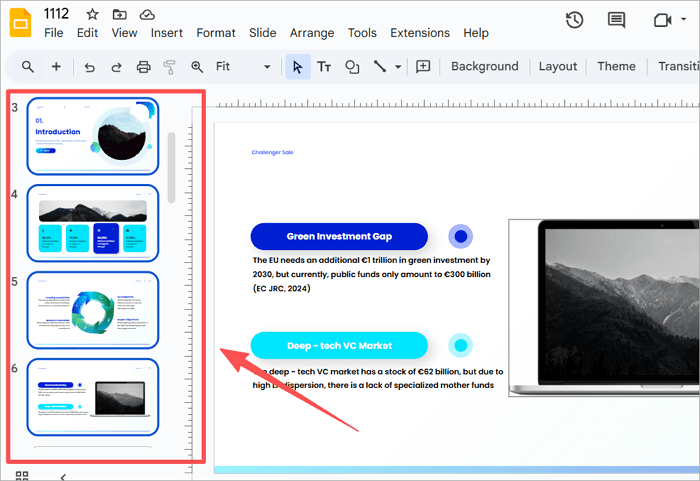
Step 3: Hold down the Shift key on your keyboard and click on the last slide in the range you want to select. This command will highlight all slides in that range.
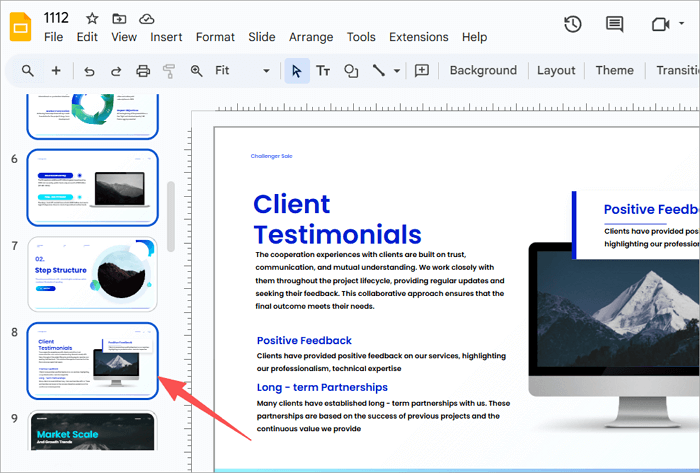
Step 4: To select slides that aren’t next to each other, hold down the Ctrl key or Cmd key (Mac) and click on each slide you want to add to your collection.
How to Select Multiple Slides on Google Slides Using Shortcuts
Shortcuts provide a quicker way to select multiple slides on Google Slides than using the mouse. While this method can help you save more time, you should know that it differs slightly between operating systems.
Method 1. Select Slides in Google Slides on Windows
As a Windows user, you may already know Ctrl from countless other applications. While the same logic applies here, you’ll want to be careful not to click outside the panel, as this will reset your selection.
Step 1: Click on any slide in the left panel.
Step 2: Hold Ctrl and click on other slides you want to select.
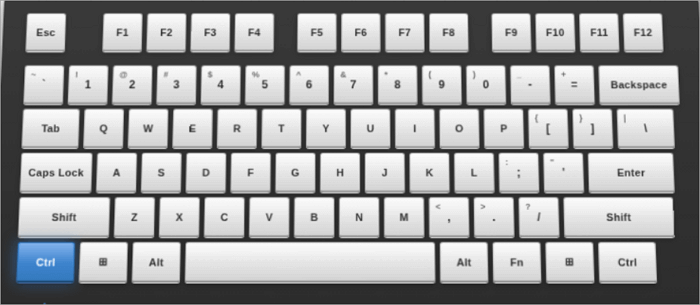
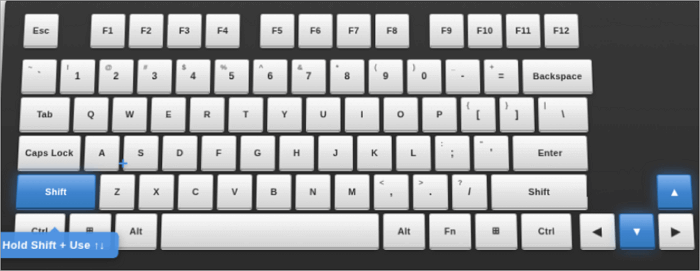
Step 3: To select multiple slides in a consecutive order, hold Shift and use the Up/Down arrow keys.
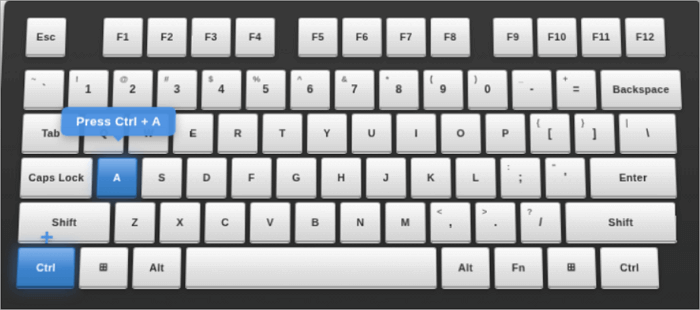
Step 4: To select all the slides in the deck, press Ctrl + A.
Method 2. Select All Slides in Google Slideson Mac
Selecting all slides on a Mac is pretty simple and straightforward.
Step 1: Click on any slide in the left panel.
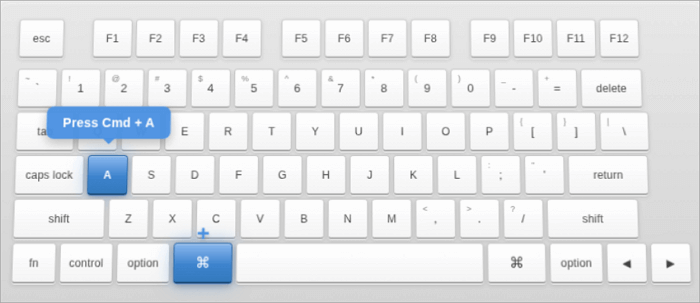
Step 2: Press Cmd + A to select every slide instantly.
How to Manage Multiple Presentations on Google Slides
It’s one thing to select slides and another to organize them. Managing slides allows you to reuse content across projects, rearrange or delete slides, and ensure consistent formatting and avoid mistakes.
1. Copy and Paste Multiple Slides in Google Slides
One of the many ways to cut your creation time is by reusing content, such as templates or slide formats. Instead of building from scratch, you can copy and paste slides to carry that work forward.
Step 1: Select the slides you want to copy and press Ctrl + C (Windows) or Cmd + C (Mac) to copy them.
Step 2: Go to your preferred destination (new slide or new presentation) and press Ctrl + V (Windows) or Cmd + V (Mac) to paste.
The slides will appear at your insertion point, maintaining their original formatting, images, and layout.
2. Delete Slides in Google Slides
Need to clean up drafts or remove outdated content? Deleting comes in handy. But everyone feels like they’re making a mistake when deleting. Luckily, Google Slides allows you to recover deleted items, and we’ll also show you how.
Step 1: Select the slides you want to delete and double-check them.
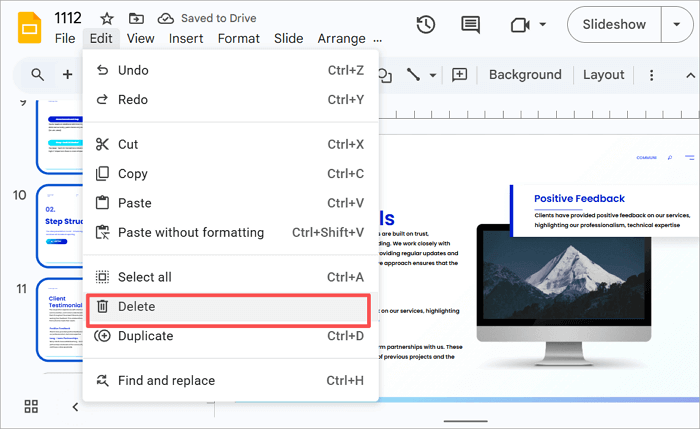
Step 2: Right-click your selection and click on Delete. Alternatively, press the Delete key (or backspace on some keyboards).
Did you delete the wrong slide? Press Ctrl + Z (Windows) or Cmd + Z (Mac) to reverse the action.
3. Move or Rearrange Slides
Moving slides is more than just dragging them about. The way you order your slides shapes how your audience processes the information in them.
Step 1: Click and hold on any slide in your selection to change the cursor into a grabbing hand icon.
Step 2: Click and hold on a slide to grab it and move it to its new location. Release the left-click button to drop the slide.
Conclusion
Now that you know how to select multiple slides in Google Slides, you’ll save yourself a lot of hassle, especially when you’re in a rush. You can make quick edits, reuse content across projects, and even encounter fewer errors.
The next time you open an old deck that needs restructuring, or your team sends revision notes affecting twenty scattered slides, you’ll be able to move through the work without hesitation. You can even make your work faster by generating an outline for your presentation with AiPPT, our AI-powered PPT maker.
FAQs on Selecting Slides in Google Slides
While selecting slides may look really simple, little differences across devices can be confusing. Here are common questions on the topic to help you work more confidently across platforms.
1. How to select multiple slides in Google Slides on iPad?
Google Slides on iPad has limited multi-select support. To select multiple slides on iPad, however:
- Open your presentation in the Google Slides app.
- Tap the Grid View icon (four squares) in the top right corner to see all your slides at once.
- Tap and hold one slide until it is highlighted with a blue border.
- While keeping that slide selected, tap additional slides with your finger.
- Once you’ve selected all desired slides, you can tap the three-dot menu to access options like delete, duplicate, or move.
2. How to select multiple slides on Google Slides and delete?
To select and delete multiple slides on Google Slides:
- Use any method to choose the slides you want to remove.
- Right-click and select Delete.
- Alternatively, press Delete or backspace on your keyboard.
- If you made a mistake, immediately press Ctrl + Z (Windows) or Cmd + Z (Mac) to restore the deleted slides.
3. How to copy multiple slides in Google Slideson Chromebook?
Here’s how to copy multiple slides on a Chromebook device:
- Open your Google Slides presentation on Chromebook.
- Click on the first slide you want to copy.
- Hold Ctrl and select additional slides. Then release the Ctrl key.
- Press Ctrl + C to copy the slides to your clipboard.
- Go to the destination slide and click Ctrl + V to paste.