Do you need a brochure for a school project or a business idea? Design software like Photoshop or InDesign is great, but learning how to use them takes time.
That’s where simpler alternatives like Google Slides come in handy by giving you more accessibility. With the right Google Slides brochure template, you can easily build clean and presentable brochures.
In this guide, you’ll learn how to structure your brochure, design it properly, and use templates to save time.
What Makes Google Slides Suitable for Brochures?
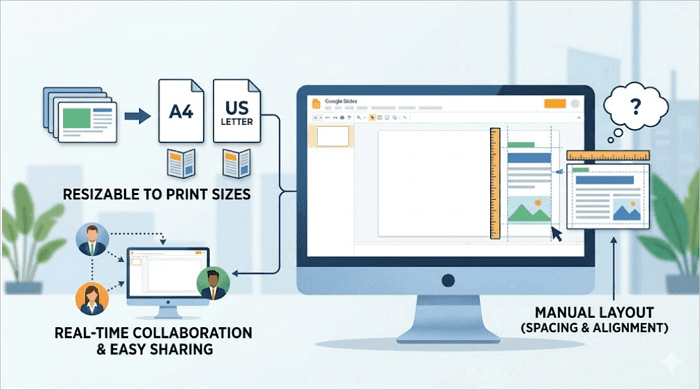
Google Slides uses the landscape orientation by default, but can easily be resized and restructured like print pages, such as A4 or US Letter, similar to brochure layouts, which is why it works perfectly for creating brochures.
Also, it is easy to edit, share, and collaborate, making it particularly useful when you’re working with a team or need a quick revision, since all changes are updated in real time.
However, unlike dedicated design tools, layouts are entirely manual. This means that you have to think about spacing, alignment, and panel structure yourself.
Types of Brochures You Can Create in Google Slides
To make a brochure on Google Slides, you first need to understand the different formats available.
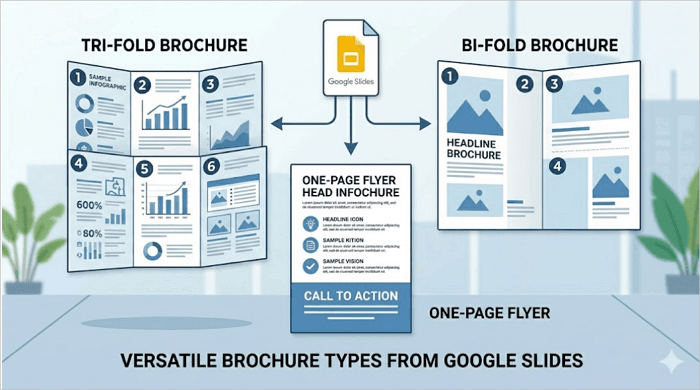
1. Tri-fold (Most common, six panels)
This is the default choice for most users looking to create brochures in Google Slides. A single sheet is folded twice, dividing a page into three sections on each side, making six panels in total:
- A front cover
- A back panel with contact information
- Four interior panels for your main content
The layout is perfect for businesses, events, and school projects, because it organizes information clearly.
2. Bi-fold (Simpler, four panels)
A bi-fold brochure is folded just once, giving you four panels. It is a cleaner, less-crowded option, and is ideal when your content is limited or when you want your design to feel more open and visual.
This format works well for portfolios, product highlights, real estate listings, and simple event programs.
3. One-page (flyer-style)
As the name implies, this type isn’t folded at all. It is more like a flyer or poster and works well when you need to communicate one idea quickly. This could be a sale, an announcement, or a single call to action.
If you need to communicate more than one idea, you go for a bi-fold or tri-fold instead.
How to Make a Brochure on Google Slides
Now that you understand the various formats available, let’s walk you through how to make a brochure in Google Slides step-by-step.
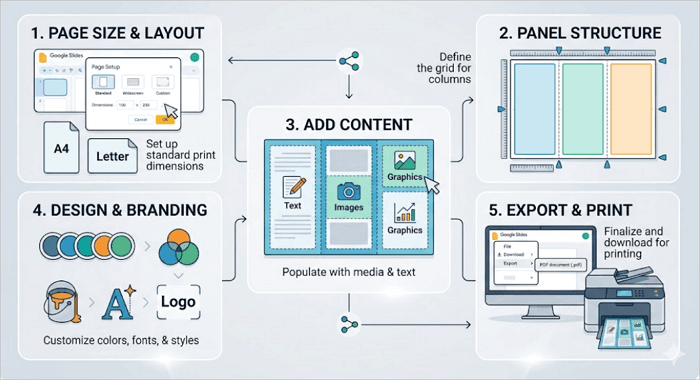
Step 1: Set Up Page Size and Layout
Before anything else, you need to set up your slide dimensions when creating a Google Slides brochure. If you skip this step, your slide may become messy, and you’ll need to spend more time on realignment.
Go to File > Page Setup > Custom.
Choose A4 or US Letter, depending on your needs. Landscape orientation is usually better for brochures because it gives you enough horizontal space for panel layouts to fit.
Step 2: Create Panel Structure
Once your page is sized, the next step is to mark out your panels using vertical lines or thin text boxes as dividers. For example, a tri-fold layout should have three equal vertical sections.
However, you should remain mindful of panel order. What you see on screen may not be how it folds in real life. For better context, the right-most panel on the outside becomes your front cover, and the left-most becomes the back.
Step 3: Add Content to Each Panel
This is where you need to start filling in content. But you need to understand what goes where.
A typical structure for a tri-fold brochure looks like this:
- Front cover – Brand name, tagline, image, title
- Interior panels – Details, features, key message, supporting details
- Back panel – Contact info, call to action
Step 4: Customize Design and Branding
Pick two or three brand colors and stick to them throughout your slide. The same goes for other elements like font and image style. It creates a visual consistency that people tend to appreciate.
Whether it’s for business, an event, or school, your design should match its purpose.
Step 5: Prepare for Export and Print
After completing the layout, go to File > Download > PDF Document to export as a PDF. This format preserves your layouts and fonts, making it ideal for sharing and printing.
Also, check the fold alignment by printing a test copy and folding it manually. Ensure that content near the fold isn’t too close to the edge and that the panels fold correctly.
Free Google Slides Brochure Template
You can save more time building by exploring these brochure templates for Google Slides. With templates, you won’t only shorten setup time, but also reduce mistakes in your layout.
When choosing templates, look for three things:
- A clear panel structure that mirrors the type of fold you need.
- A print-friendly layout with enough margin space near the edges.
- Editable elements (text, images, shapes, and colors).
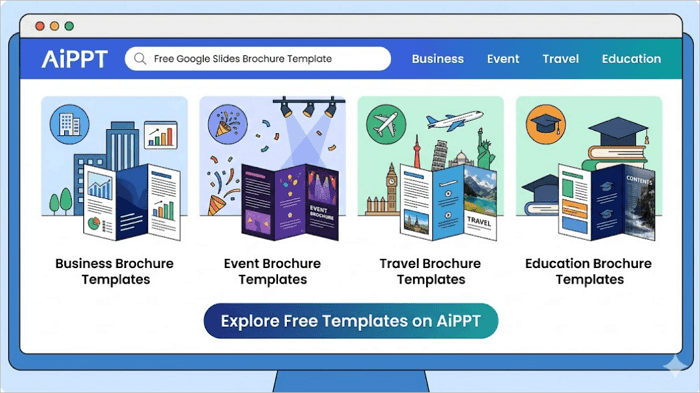
Let’s explore some of these Google Slides brochure templates, what they are best for, and how to find them on AiPPT.
1. Business Brochure Templates
The business template collection on AiPPT offers clean, professional layouts, making it easy to adapt them into a two or three-panel business brochure. It is best for product sheets, service brochures, and capability decks.
2. Event Brochure Templates
The AiPPT event templates include sections for objectives, deliverables, and timelines, which can be adapted into a detailed multi-panel brochure. These templates are ideal for event pitches and service contracts.
3. Travel Brochure Templates
Are you a tour operator, local event planner, or travel agency? You’ll also find templates with image-forward layouts that naturally lend themselves to a tri-fold or leaflet-style brochure on AiPPT. They will come in handy when preparing photography and destination highlights.
4. Education Brochure Templates
AiPPT education templates feature options with structured content areas that can be repurposed as brochure panels. They have an approachable feel while remaining professional enough for academic use, such as in school programs and course overviews.
Conclusion
You can easily create a brochure in Google Slides when you need something accessible and simple to customize. The key, however, is planning the panel structure early, before adding any content.
Once your panels are correctly set up, you can build an effective brochure without advanced design software, and you worry less about fixing layout issues later.
To save more time, pick a Google Slides brochure template with the right structure instead of creating one from scratch, then customize it to suit your purpose.
Learn More About Brochure Template
Are you just getting started or exploring more ways to create brochures? This guide will help you move forward quickly.
1. How can I create a brochure in Google Slides?
To create a simple brochure on Google Slides:
- Go to File > Page Setup > Custom
- Set your slide dimensions to A4 or Letter (Landscape).
- Divide the slide into equal vertical panels using guides.
- Add content to each panel.
- Design and brand each panel with consistent fonts and colors.
- Export as PDF.
2. How to Make a Brochure on Google Docs?
To make a brochure on Google Docs:
- Go to File > Page Setup.
- Set the orientation to Landscape and click OK.
- Add a table with the number of columns matching your panels.
- Remove the table borders by setting them to 0pt.
- Add your content (text, images, and contact info) to each cell.
- Then go to File > Download > PDF Document to export as PDF.
3. How to Create a Trifold Brochure Template in Google Docs?
To create a tri-fold brochure template within Google Docs:
- Go to File > Page Setup.
- Change the current orientation to Landscape and click OK.
- Insert a table with three columns and one row via Insert > Table.
- Set the column widths to be equal by right-clicking the table and adjusting the properties.
- Remove table borders.
- Adjust margins for spacing.
- Insert content into each column.
- Export as PDF.