Canva has become a popular choice among presenters for creating stunning slides easily. However, you may suddenly be required to convert Canva to Google Slides for a class, client, or team project.
But the conversion isn’t always smooth. Canva and Google Slides use different rendering engines, fonts, and layout systems, so some elements may change or disappear in the process.
The good news? This guide covers four methods to easily convert Canva to Google Slides, each suited to your priorities, including speed, design accuracy, or editability.
Challenges in Converting Canva to Google Slides
When converting a Canva presentation to Google Slides, you may lose formatting. Here’s a quick breakdown of the most common issues and their root causes, so you can understand why they happen.
| Issue (What you see) | Main cause (Why it happens) | What it affects |
|---|---|---|
| 1. Fonts look different | Canva custom fonts are not available in Google Slides | Headlines, body text, branding |
| 2. Layout shifts | Differences in rendering engines between the two platforms | Images, text boxes, shapes, alignment, and spacing |
| 3. Missing animations | Google Slides doesn’t support Canva animations | Transitions, entrance effects |
| 4. Image quality appears lower | Compression applied during export/import | Photos, illustrations |
| 5. Elements become uneditable | Some objects convert to flat images instead of live objects | Grouped elements, icons |
Method 1: Convert Canva to Google Slides via PPTX
This is the most common approach to turn Canva into Google Slides. It works by exporting your Canva presentation as a PowerPoint (.pptx) file, then uploading and opening it in Google Slides.
The PPTX format is supported by both platforms, and this helps ensure that most of the structure, including text and layout, remains intact during transfer. However, you might still encounter minor formatting issues like font changes or spacing adjustments.
The upside of this method is that it allows you to create editable slides quickly, without starting from scratch.
Step 1: Open your presentation in Canva and click Share at the top right corner.
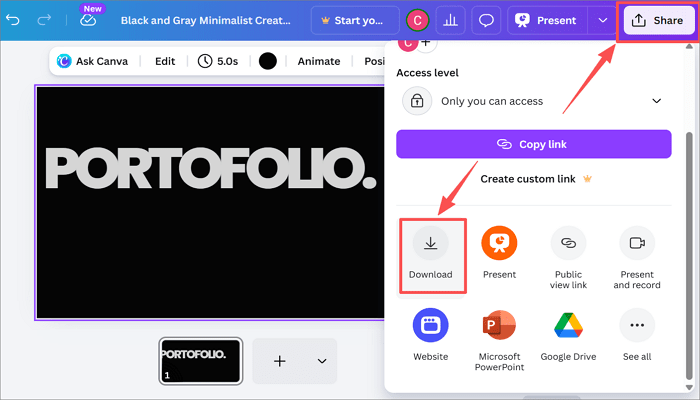
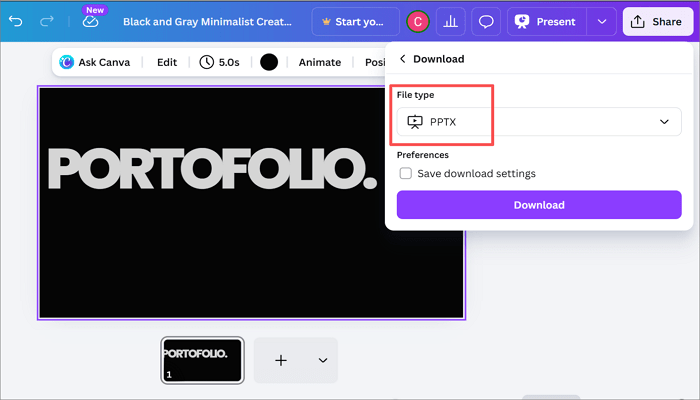
Step 2: Select Download from the dropdown menu. Then, set the file type to PPTX and click Download.
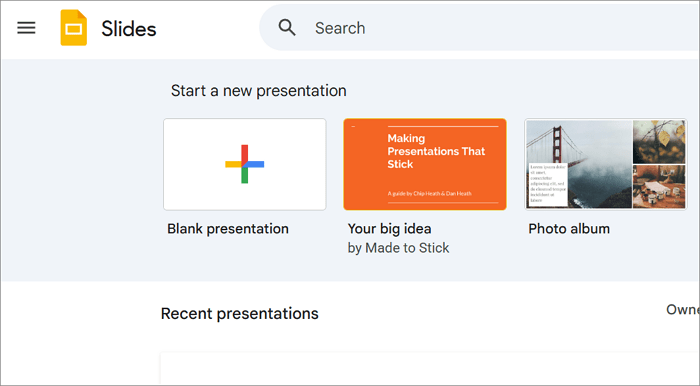
Step 3: Go to Google Slides and start a new presentation.
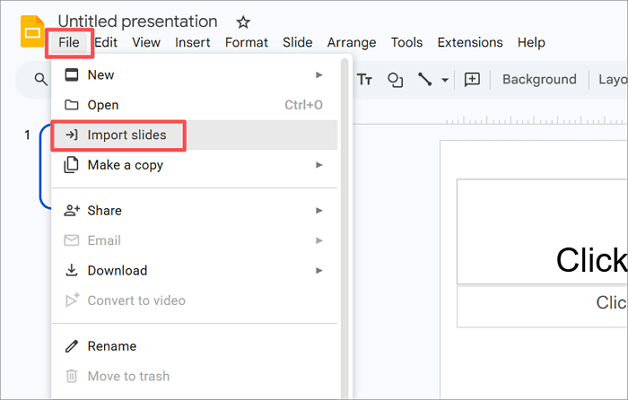
Step 4: Open the File menu and select Import slides.
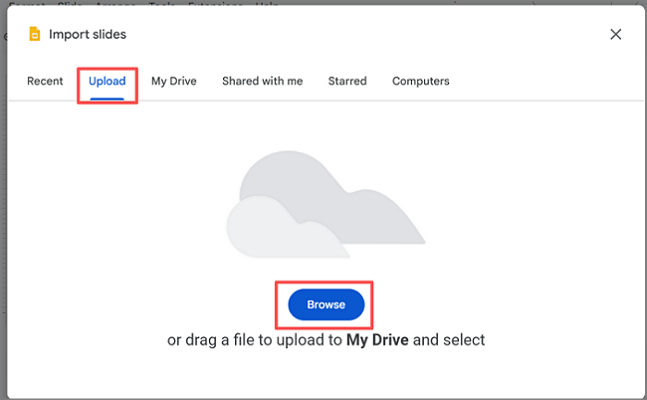
Step 5: Proceed to the Upload tab and click Browse to import the presentation.
Method 2: Export Canva as PDF (Preserve Design Exactly)
If your priority is preserving slide design as it looks in Canva, this is the method to use. Instead of editing later in Google Slides, you finish on Canva before exporting as a PDF.
Exporting as a PDF locks all design elements in place — fonts, layout, spacing, and images all stay intact because nothing gets re-rendered in Google Slides.
This also means you will no longer be able to edit the slides once you export Canva to Google Slides as a PDF. It is perfect for finalized presentations; you only need to display, not modify.
Step 1: Open your presentation in Canva and click Share at the top right corner.
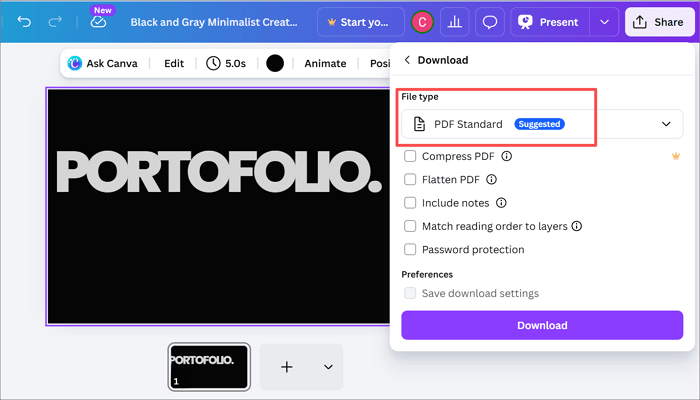
Step 2: Once again, choose Download from the dropdown menu and select PDF Standard as file type. Then, click Download.
Step 3: Proceed to Google Drive and click the + button to upload the PDF file.
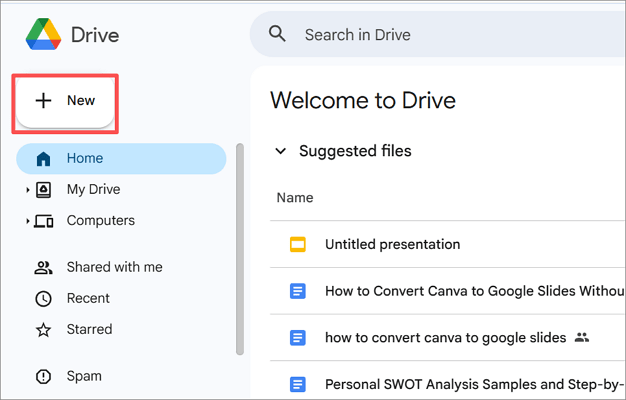
Step 4: Once uploaded, right-click the file and choose Open with > Google Slides.
Method 3: Use Google Drive Integration (Faster Workflow)
Canva can be directly integrated with Google Drive. This allows you to share files without having to download them first. You’ll find this method helpful when working regularly in a team across Canva and Google Workspace or when you need to move Canva to Google Slides repeatedly.
Kindly note that this process only removes the download step — it doesn’t improve formatting accuracy over the PPTX approach.
Step 1: Open your Canva presentation and click the Share option.
Step 2: Select Google Drive from the available sharing options.
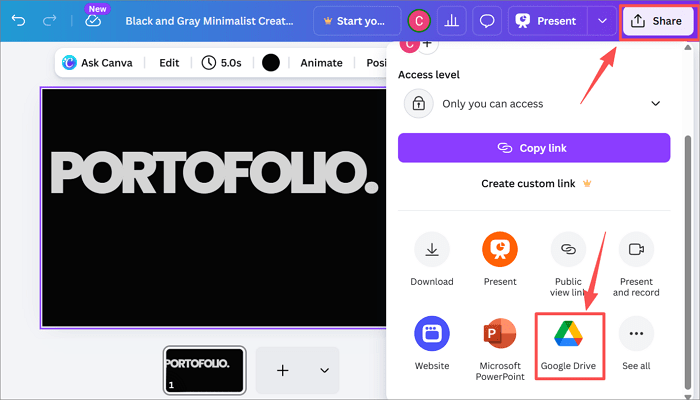
Step 3: After connecting to Google Drive, choose your preferred destination or create a new folder to upload the file.
Step 4: Open Google Drive, right-click the uploaded file, and choose Open with > Google Slides.
Method 4: Manual Copy-Paste or Rebuild (Maximum Control)
This method involves rebuilding slides manually in Google Slides. While it gives you full control over layout and design, it can be troublesome and time-consuming, especially for large presentations.
The approach is most suitable for small decks or when formatting accuracy is non-negotiable, and other methods can’t make up for it.
To speed things up when rebuilding, tools like AiPPT.com can help generate structured slides quickly before you refine them.
Step 1: Open a new presentation in Google Slides. Keep the Canva presentation open in a different tab and use it as a reference.
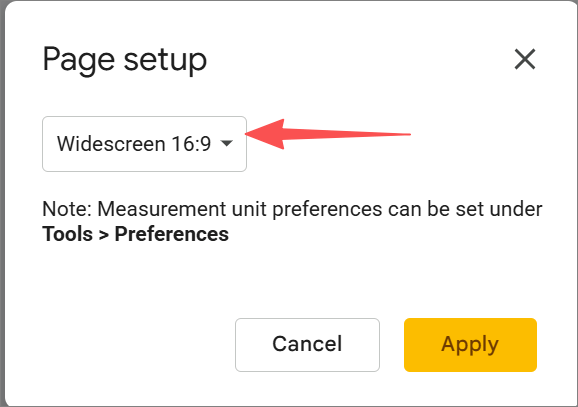
Step 2: Continue with the preset dimensions or adjust them to match Canva’s default (16:9) by going to File> Page Setup > Widescreen 16:9.
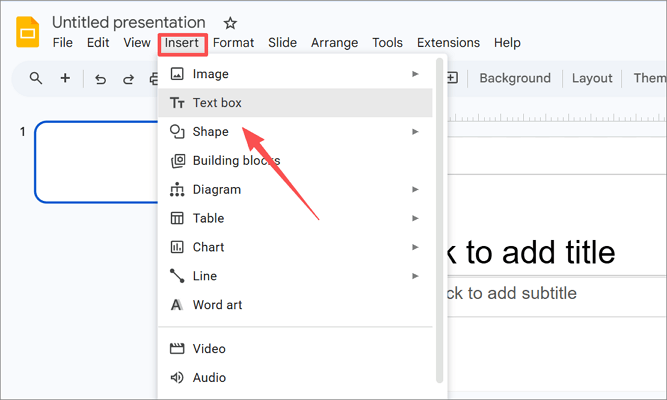
Step 3: For each slide, use the Insert menu to add text boxes, shapes, and images to your presentation.
Step 4: Match fonts as closely as possible using Google Fonts available in Google Slides.
Step 5: Once all slides are complete, review the full deck to check alignment and consistency.
Troubleshooting Common Issues After Conversion
As mentioned earlier, you may encounter some formatting issues while trying to transfer Canva to Google Slides. Let’s see how to handle the most common ones.
- Font changes: Open each slide and manually replace fonts with similar options in Google Slides.
- Layout shifts: Click on the affected element, then use the Position and Size panel (Format > Position and size) to realign it precisely.
- Image quality drops: Re-upload high-resolution images from Canva into Google Slides via Insert > Image.
- Uneditable elements: When grouped, Canva objects convert to flat images, delete and recreate them using Google Slides’ built-in shapes, icons, or text boxes.
- Missing animations: Canva animations do not transfer through any export method. Recreate them using Google Slides’ built-in animation panel (View > Animation).
After any conversion, always review every slide from start to finish before sharing or presenting.
Conclusion
Switching tools mid-project is a normal part of working with presentations, and knowing how to convert Canva to Google Slides cleanly without formatting issues can save you a lot of time.
There are four different approaches, including PPTX, PDF, Google Drive integration, and manual rebuilding. The right approach depends on what you need — whether it’s speed, accuracy, or full control.
Choose a method before you start converting, and you’ll spend far less time fixing things afterward.
FAQs on Converting Canva to Google Slides
Before you get started, here are answers to some of the most common questions about moving presentations between these two platforms.
Can you export Canva to Google Slides?
Yes, you can export or upload Canva to Google Slides by downloading your presentation as a PowerPoint (.pptx) file, then importing it into Google Slides.
Here’s how to go about it:
- Open your Canva presentation and click the Share option at the top right corner.
- Select the Download button.
- Set the file type to PPTX and click Download.
How to import Canva to Google Slides?
To import Canva to Google Slides, you first need to export from Canva before uploading into Google Slides.
- Download your Canva file as PPTX.
- Go to Google Slides and proceed to File > Import Slides.
- Select the Upload tab and Browse to select the PPTX file.
How to convert Canva to Google Slides without losing animation?
You can’t fully preserve animations when you convert Canva to Google Slides. This happens because both platforms use different animation systems.
The best workaround is to recreate animations manually in Google Slides after importing:
- Export your Canva file as PPTX and open it in Google Slides.
- Select the element you want to animate.
- Go to Insert > Animation to open the motion panel.
- Choose an animation type and set the trigger (on click, after previous).
- Use Add animation to stack multiple effects on the same element.