There is more to creating a successful presentation than simply having great content. You need to arrange it into slides that look professional and keep your audience interested.
A well-planned presentation slide layout not only improves appearance but also helps people understand your message and follow your ideas naturally.
This guide explores eight slide layout ideas, from split-screen designs to data-focused slides, that can help you present different types of content.
Key Takeaways
- Choose a layout based on what the slide will communicate.
- Use images, charts, and visual sections to make complex information easier to understand.
- Keep fonts, colors, and margins consistent across the deck.
- Explore templates and AI presentation tools to save time on design.
8 Creative Slide Layout Ideas for Your Next Presentation
The ideal layout depends on your presentation’s purpose and the kind of information you want to communicate.
Here are eight different slide layout ideas you can recreate for your presentation.
1. Split-Screen Layout
A split-screen layout divides a slide into two sections, usually placing text on one side and an image or illustration on the other.
For example, when introducing a new product, you can place its name, features, and benefits on the left and a product photograph on the right. It also works well for case studies and educational presentations.

💡 Tip: Keep the text concise and give the image enough room to stand out.
2. Rule of Three Layout
This layout divides your content into three equal sections, making it particularly useful for presenting related information such as product benefits, business priorities, or key concepts.
For example, a marketing presentation could use three columns to explain brand awareness, customer engagement, and sales growth.
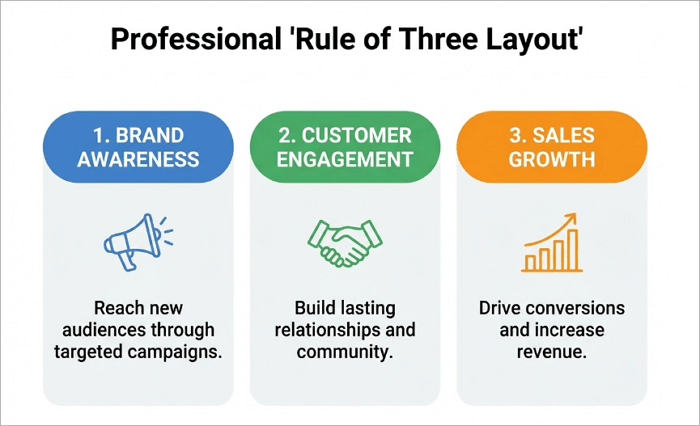
💡 Tip: Use a matching heading, icons, and spacing for each section to make it easy to read.
3. Full-Screen Image Layout
In a full-screen image layout, a photograph or illustration serves as the background, with a short title or statement placed over it.
It works particularly well for opening slides, storytelling, and introducing important themes. A presentation about environmental conservation, for example, could begin with a striking photograph of a forest.

💡 Tip: Choose an image with enough negative space for your text and use a subtle overlay when text needs more contrast.
4. Minimalist Centered Layout
This layout draws attention to one important statement, statistic, or takeaway by positioning the main message in the center.
A minimalist centered layout can be used in a business presentation to highlight an impressive sales figure or an important milestone.

💡 Tip: Use bold typography and contrasting font weights to establish hierarchy.
5. Grid-Based Layout
A grid-based layout organizes several images, icons, or content cards into rows and columns, giving the slide a structured appearance.
This is one of the most useful presentation layout ideas for team introductions, product galleries, portfolios, and service overviews.

💡 Tip: Use images with consistent dimensions and maintain equal spacing between cards.
6. Side-by-Side Comparison Layout
You can use a side-by-side comparison layout when your presentation needs to explain the differences between two options, products, or strategies.
For example, a sales presentation could compare two subscription plans by showing their prices, features, and limitations.
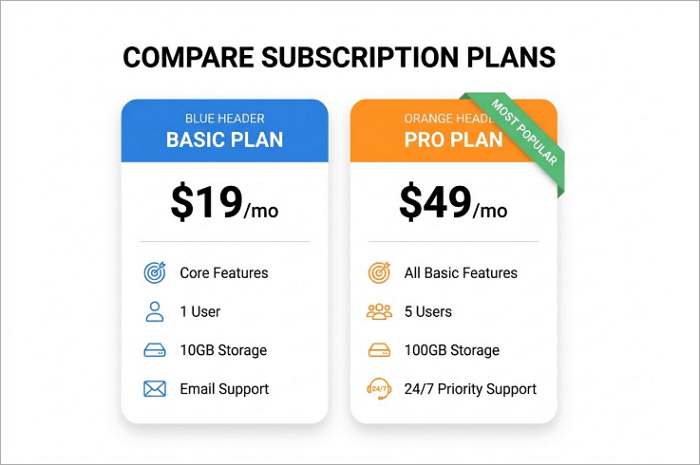
💡 Tip: Use matching headings, align related information, and highlight the most important differences.
7. Data-Focused Layout
In a data-focused layout, a chart, graph, or important statistic is placed at the center of attention.
It is particularly useful for business reports, financial presentations, research findings, and marketing performance reviews.
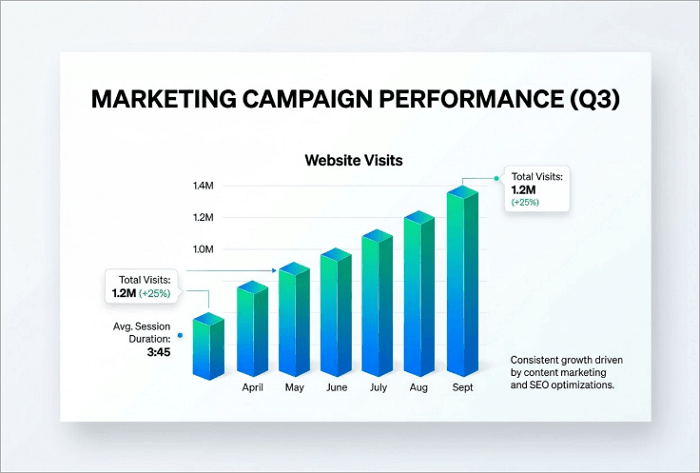
💡 Tip: Start with a descriptive headline and include only the supporting text needed to explain the key insight.
8. Timeline or Process Layout
This type of layout arranges information in a sequence. It uses numbered steps, connecting lines, arrows, or directional elements to show how events progress.
You can use a timeline layout to explain a project schedule, introduce company milestones, or demonstrate how a product moves through different development stages.
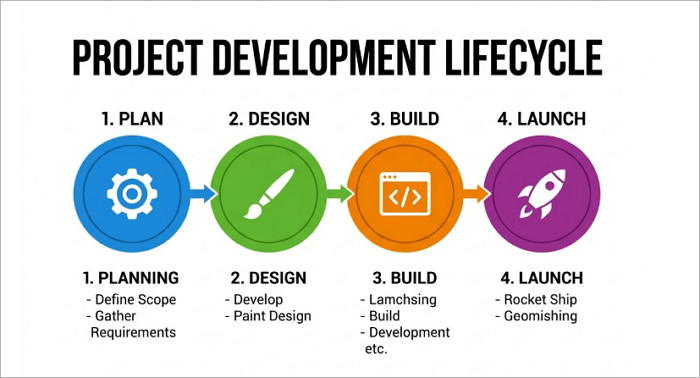
💡 Tip: Keep the sequence easy to follow from left to right and use short descriptions beneath each milestone.
How to Choose and Improve Your Slide Layout
When choosing a presentation page layout, first consider the message you want to communicate.
For example, use:
- Comparison layout to explain differences
- Timeline to show a sequence
- Data-focused design to highlight an important finding
You should also maintain a consistent appearance throughout your presentation, even when combining different layouts. Use the same font families, color palette, margins, and image styles throughout your deck.
These slide formatting ideas may also come in handy:
- Keep elements properly aligned.
- Choose readable font sizes and limit font variations.
- Make headings and important information stand out.
- Leave enough space between elements to prevent overcrowding.
- Avoid excessive decoration, inconsistent spacing, and poor color contrast.
In addition, consider your audience and their viewing environment. A slide displayed on a projector may need larger text than one shared as a digital document.
Create Professional Slide Layouts Faster with AiPPT
It can take some time to design every slide from scratch. AiPPT.com offers two approaches to help you create professional presentations more efficiently.
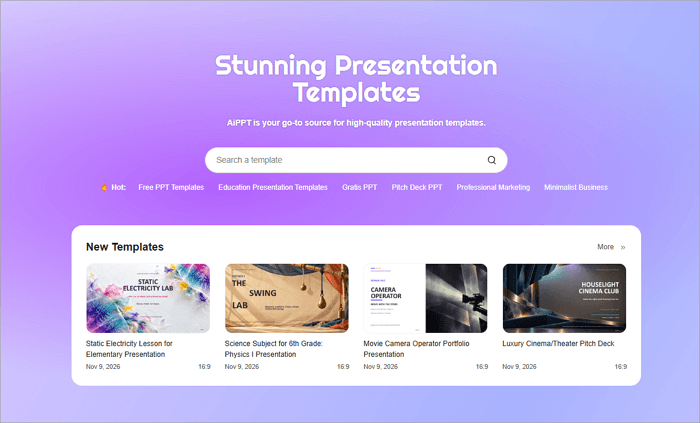
AiPPT Templates: Browse the presentation template library for ready-made designs suitable for business, education, marketing, and other scenarios. Choose a suitable template and customize its text, images, and other elements.
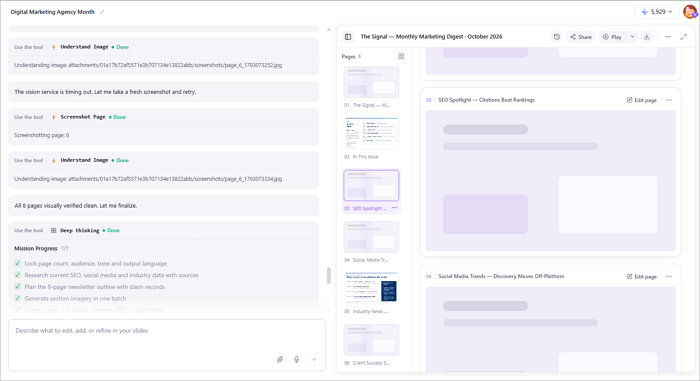
AiPPT Agent: If you want to generate presentations from natural-language instructions or source files, try AiPPT Agent. Enter a topic or upload a source document, and the Agent will organize the information into structured slides, generate visuals, and create suitable layouts. You can also request conversational revisions and export your presentation to PowerPoint.
Conclusion
A good presentation slide layout should make your ideas easier to understand, whether you are pitching a product, teaching a class, or presenting business results.
However, the most creative layout isn’t necessarily the best choice. What matters is how effectively it communicates your message.
Start by reviewing an existing presentation and identifying slides that feel difficult to follow. Replace them with more suitable layouts or explore an AiPPT template for a fresh start.
FAQs About Slide Layout Ideas
Here are answers to some common questions about different PowerPoint slide layout ideas.
1. What is the best layout for a PowerPoint presentation?
The best layout for a presentation depends on the type of content you want to present. For example, a split-screen design works well for combining text and images, while comparison layouts can help when evaluating different options.
Always choose a structure that supports your message and makes information easy to follow.
2. How do I create a custom slide layout in PowerPoint?
To create a custom slide layout in PowerPoint:
- Open your presentation and go to the View tab.
- Select Slide Master to access the master view.
- Then open Insert Layout to create a new layout.
- Use Insert Placeholder to add spaces for text, images, charts, or other elements.
- Resize and reposition the placeholders to create your preferred arrangement.
- Select Close Master View.
3. How do I make a presentation slide look professional?
Here are some tips to make your slides look more professional:
- Start with a main idea for each slide and remove any detail that doesn’t support it.
- Use readable fonts, consistent colours, and properly aligned elements.
- Include relevant images, charts, or icons where needed.
- Avoid overcrowding the slide with text and decorations.
- Review the entire presentation before presenting it.