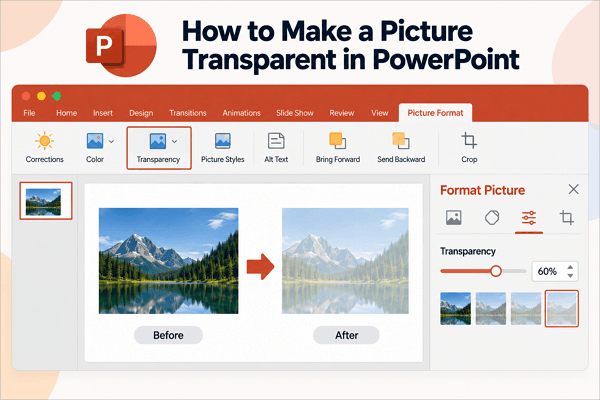
The first slide of a presentation, known as a PPT front page or cover page, creates the first impression for an audience, even before you utter a single word.
This page helps capture attention, establish a professional tone, and give your audience an immediate idea of what the presentation is about. The problem, however, is that many speakers struggle with creating one, especially if they’re new to designing slides.
In this guide, you’ll learn how to create a polished cover page in PowerPoint and see how templates can help you save time on design.
How to Make a PowerPoint Presentation Cover Page
You don’t need advanced design skills to create an effective PowerPoint first slide.
Here are a few simple steps to get started quickly.
Step 1: Create a New Slide and Choose a Layout
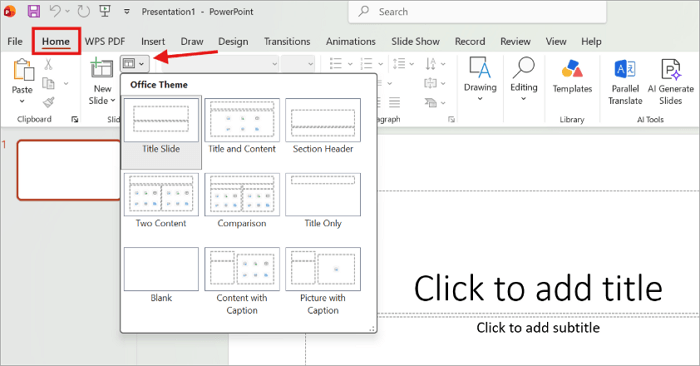
Open your PowerPoint presentation and start with a blank slide or go to Home > Slide Layout to choose a suitable layout. Leave enough space around the title so the slide doesn’t feel crowded.
Step 2: Add Your Presentation Title and Information
Add your main presentation title first, but make it the most noticeable text on the slide. You can also include other key details such as a subtitle, presenter name, or date.

Step 3: Add Images or Visual Elements
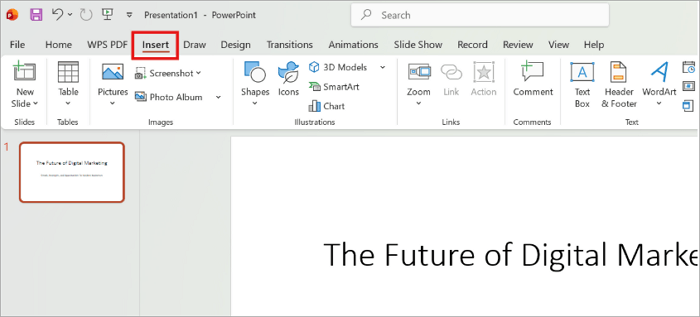
A relevant image, illustration, icon, or shape can make your front page more visually interesting. Use the Insert tab to add visuals that support your topic rather than simply filling space.
Step 4: Customize Fonts, Colors, and Layout
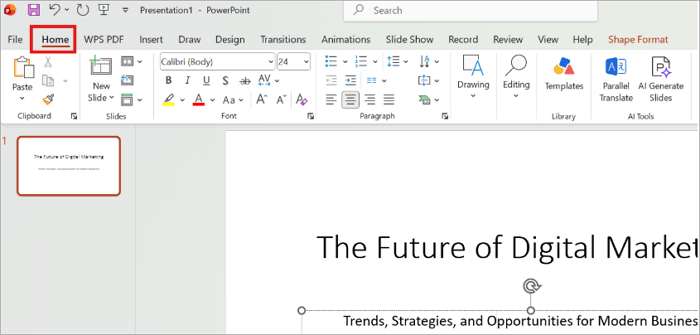
Go to the Home tab and adjust your fonts, colors, spacing, and alignment so everything feels easy to read and consistent with the rest of your deck.
Step 5: Review and Adjust the Final Design
Before presenting, view the slide in full-screen mode. Check whether the title is easy to read, the visuals are sharp, and all elements are properly aligned.
Use PPT Front Page Templates to Save Time
Why waste time building a PPT cover page from scratch when there are templates with ready-made layouts for you to use? All you need to do is customize them with your own text, images, and branding.
Check out these AiPPT.com front page templates across various categories:
1. Creative Business Model Canvas PowerPoint Template
🎯 Best for: Startup pitches, strategy workshops, investor meetings
Opening on this template signals a structured, strategic conversation ahead. Its vibrant purple theme gives your front page an energetic, modern edge while keeping the clean lines a business audience expects, with bold title placement that puts your presentation name front and center before the nine building blocks follow.
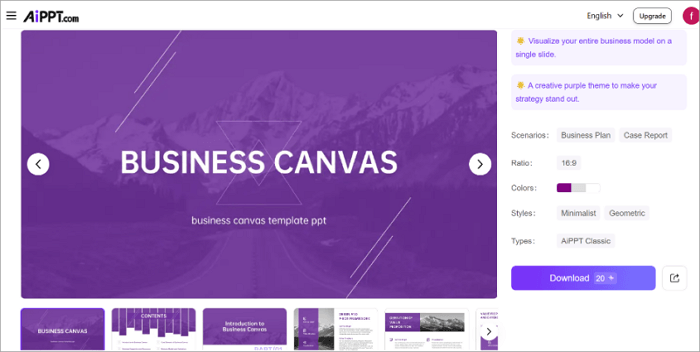
Try this template: Creative Business Model Canvas PowerPoint Template
2. Technology Brand Digital Marketing PPT
🎯 Best for: Marketing reports, campaign reviews, SEO/KPI presentations
This template has a vibrant purple theme and a data-driven feel that makes a strong first impression for any presentation built around metrics. Its bold title placement and clean structure signal a polished, KPI-focused deck before your audience sees a single chart.
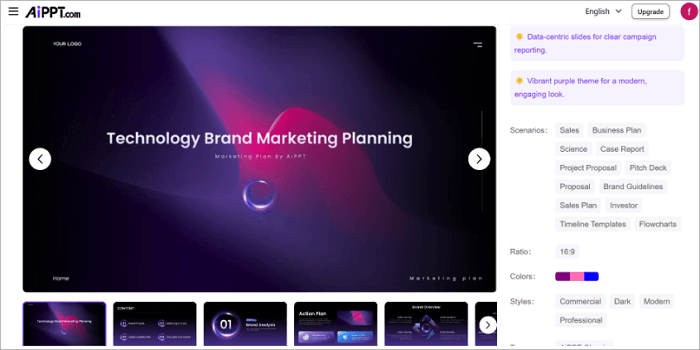
Try this template: Technology Brand Digital Marketing PPT
3. Challenger Sales Methodology Teaching PPT
🎯 Best for: Sales training, enablement sessions, B2B strategy decks
Dark mountain imagery and clean grids give this PPT front page an authoritative, no-nonsense feel before training starts. Its bold green and blue accents make the title pop, setting a credible tone for sales enablement and B2B strategy sessions.
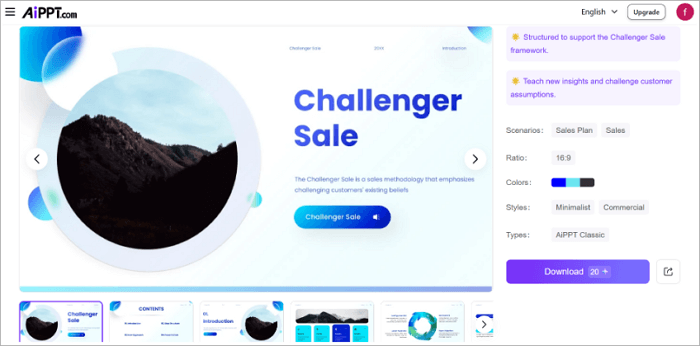
Try this template: Challenger Sales Methodology Teaching PPT
4. Real Estate Market Research Presentation
🎯 Best for: Property investment pitches, real estate market reports
Investors decide fast, and this PPT front page earns their trust before slide two even loads. A punch of orange cutting through dark data visuals promises a market analysis that means business, not another generic property deck. It reads credible before a single number appears.

Try this template: Real Estate Market Research Presentation
5. World Tourism Day PPT
🎯 Best for: Travel presentations, tourism reports, vacation photo showcases
The crisp white space and sweeping landscape photography give your audience an instant invitation to wander. It features bold numbered titles and a signature orange accent line to keep things structured without dulling the scenery, letting your images do most of the talking.
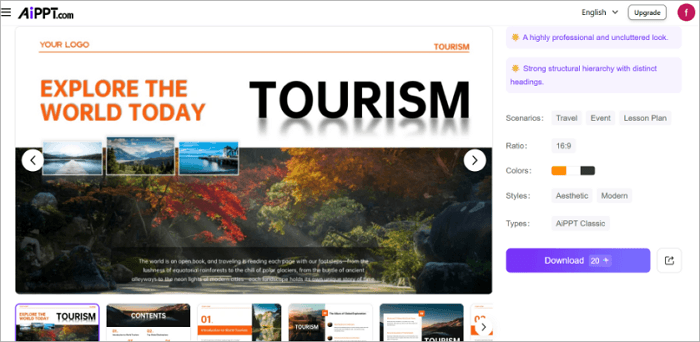
Try this template: World Tourism Day PPT
Create a Presentation Cover Page Faster With AiPPT.com
If you do not want to build every slide manually, AiPPT.com can help you generate a complete presentation from a topic, text, document, or URL. You can then select a suitable theme and customize the generated slides.
Key features of AiPPT.com include:
- Presentation generation from prompts, documents, or webpages
- Smart diagrams and interactive components like charts, videos, and tables
- Layouts that adjust automatically
- Professional templates and reusable themes
Here is a simple way to get started:
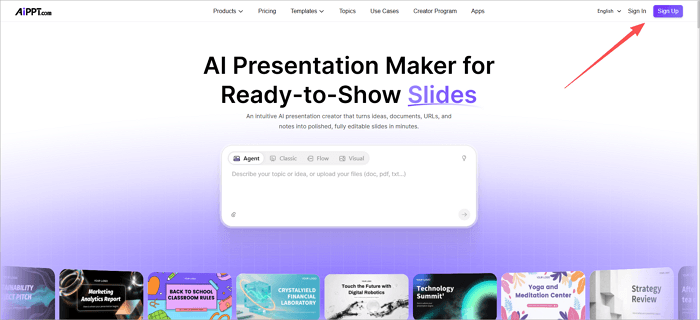
Step 1: Sign in or sign up on AiPPT.com.
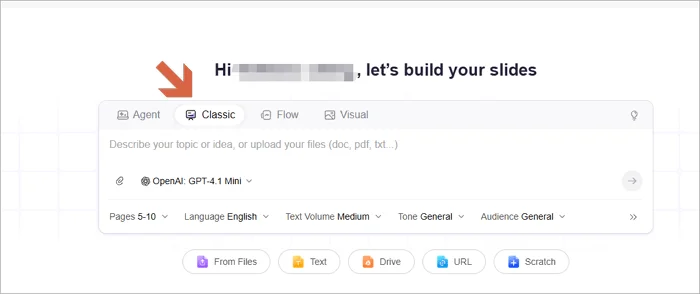
Step 2: Enter your topic or upload a document containing your content.
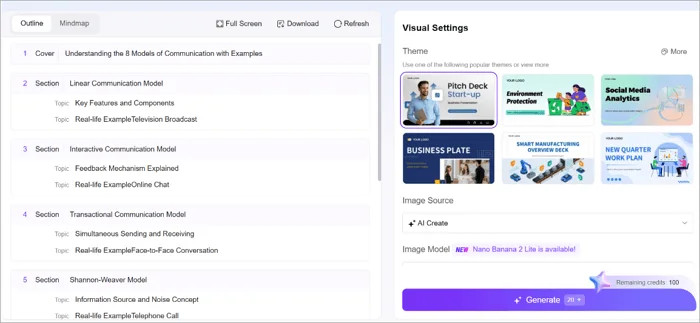
Step 3: Select a suitable template for the presentation.
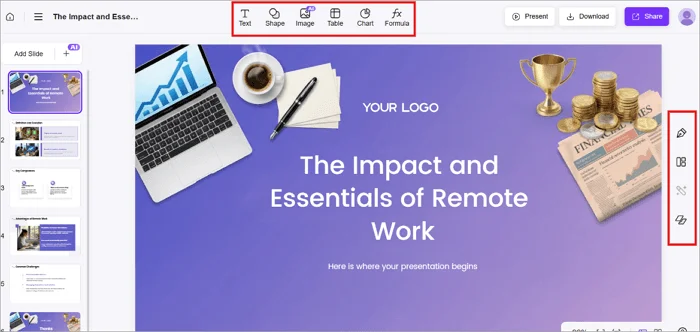
Step 4: After generating your presentation, use the Insert menu or Design panel to edit the text, images, or layouts.
Step 5: Open the Download menu and export your presentation as a PowerPoint file.
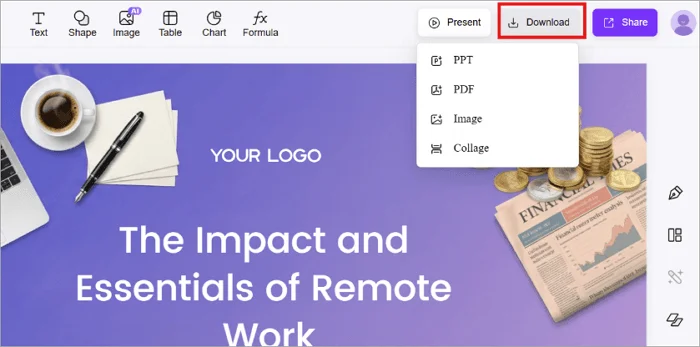
Note: AiPPT.com also offers an AI Presentation Agent with advanced presentation features. You can simply chat with the agent to customize any slide, including the title slide, based on your specific needs.
Conclusion
Your PPT front page not only introduces your subject but also sets expectations for what follows. It comes in handy for various presentations to students, clients, managers, investors, or business teams.
Before designing a cover slide, always ensure that you have a clear idea of your presentation’s main message. It makes it easier to choose the right title and visual style.
If you want to save time, explore AiPPT.com templates or generate a presentation using the tool and customize the opening slide to suit your needs.
FAQs on Front Page of PPT
There are many questions that come up when people are putting together cover slides for their presentations. Let’s explore some of them, which you may also find helpful.
1. What is the front page of a PPT?
This is the first slide that introduces a presentation. It usually displays key details about the presentation, such as:
- Title
- Subtitle
- Presenter name
- Organization
- Date
- Logo
- Relevant visual
The main purpose of this page is to set expectations before the main content begins.
2. How to make a front page for a PPT on Mac?
Here’s a step-by-step guide to creating a PPT front page on Mac:
- Open your PowerPoint presentation and select the first slide.
- Go to Home > Layout and choose Title Slide or another suitable layout.
- Add your title and subtitle.
- Use the Insert menu to add relevant images or shapes.
- Adjust the fonts, colors, alignment, and spacing.
3. How to make a PPT cover page for business?
To make a cover page for a presentation in a business setting:
- Begin with a clean layout and add your company or presentation title.
- Include a short subtitle, if necessary.
- Add your name, position, company, logo, and date.
- Use your brand colors and a professional visual.
- Keep the design simple and uncluttered.