Keynote is great for creating beautiful presentations, but it can quickly lead to compatibility issues. For example, a teammate who doesn’t use Apple devices may need to edit the presentation, or you may be required to submit a Google Slides version for work or school.
This is why it helps to know how to convert Keynote to Google Slides. Whether you use a Mac, iPhone, or even a Windows PC, there is a method for you, and this guide walks you through it.
⭐ Key Takeaways
- Exporting Keynote as a PowerPoint (.pptx) file is usually the easiest method.
- Some fonts and animations may change after conversion to Google Slides.
- Windows users can use iCloud to access and convert Keynote files online.
- It is important to review formatting after importing into Google Slides.
1. Easiest Way to Change Keynote to PowerPoint
It’s always advisable to export a Keynote presentation as a PowerPoint file before importing it into Google Slides. This is necessary because Google Slides cannot directly open Keynote files.
However, while Google Slides and PowerPoint can be quite compatible, some elements, such as custom fonts and certain animations, may still change during the conversion.
Step 1: Open Your File
Open the Keynote presentation file you want to convert.
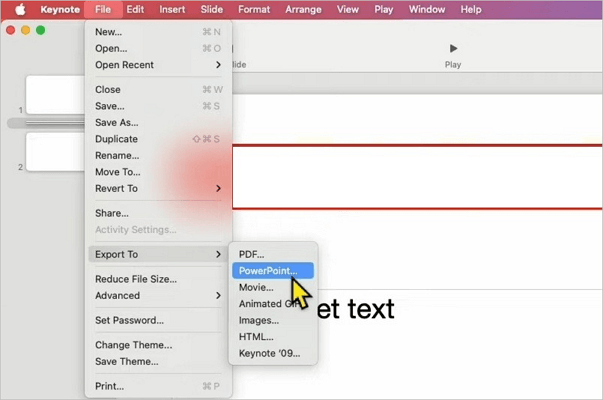
Step 2: Export to PowerPoint
Click File in the top menu bar and select Export To. Then, choose PowerPoint from the submenu.
Step 3: Save your PowerPoint Presentation
Select Save in the pop-up menu.

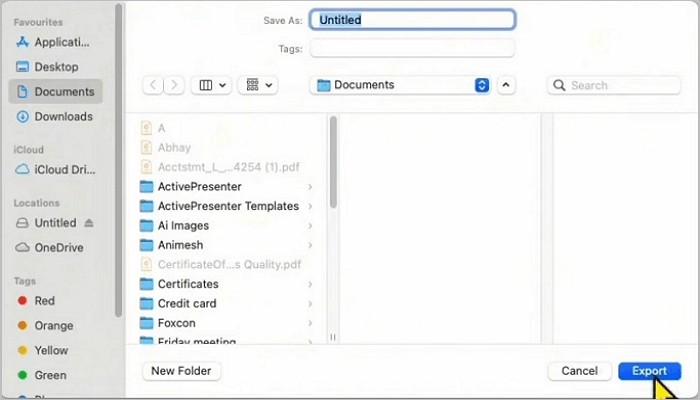
Step 4: Name the New PPT File
Choose a location to save the file to on your computer. Then, name the file and click Export.
2. How to Import Keynote to Google Slides
After exporting your Keynote presentation as a .pptx file, you can now upload it to Google Slides. However, uploading the file is not the final step in this process.
You must also save the file as a native Google Slides presentation so you can open and edit it on the platform. As soon as you import the presentation, check fonts, layouts, animations, and adjust any formatting issues that may have occurred.
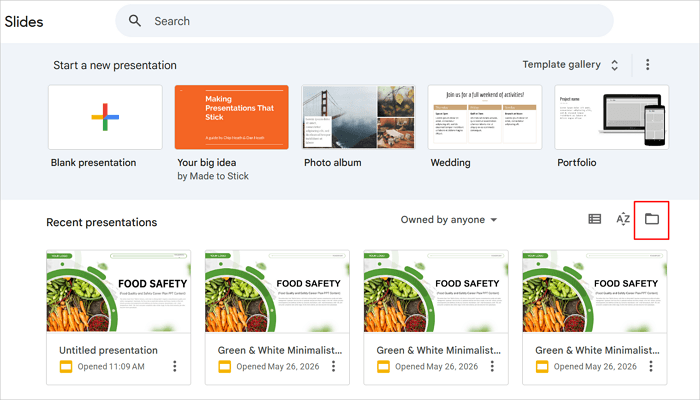
Step 1: Open Google Slides
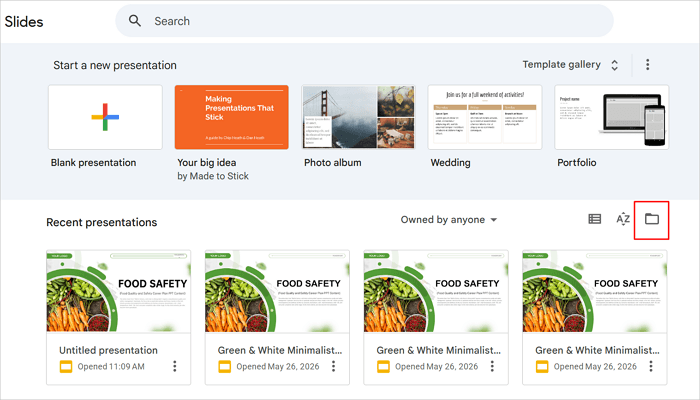
Go to Google Slides in your browser and click the Folder icon to find your Keynote file.
Step 2: Find the Keynote File
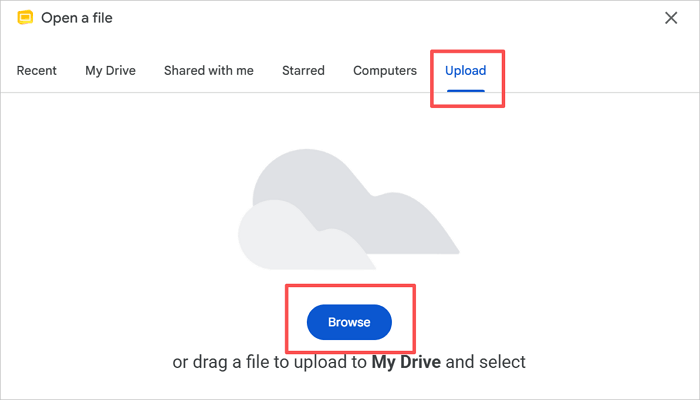
Switch to the Upload tab and click Browse to select your presentation.
Step 3: Select and Upload the File
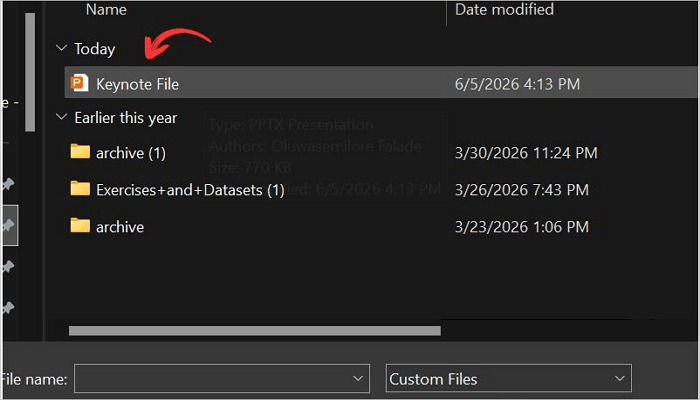
Select the PowerPoint file you exported from Keynote.
Step 4: Read Through the Converted File
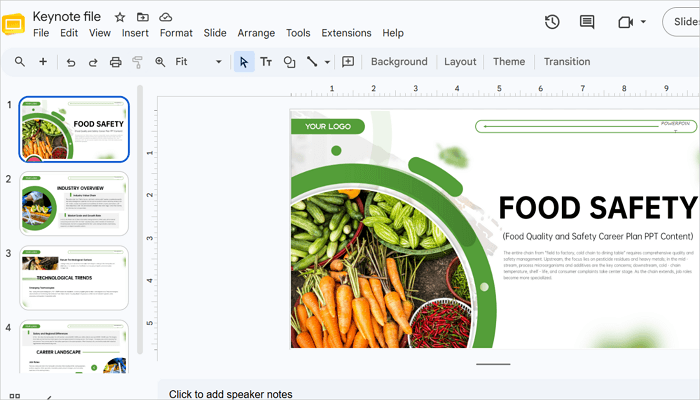
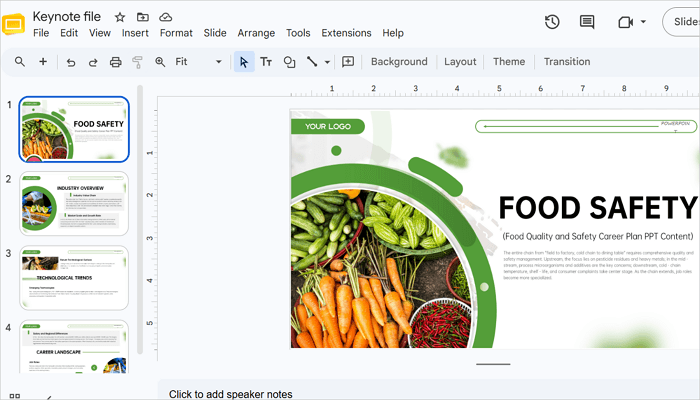
Google Slides will automatically convert and open the .pptx file. Review the slides for any formatting issues.
Step 5: Make a Copy of the File
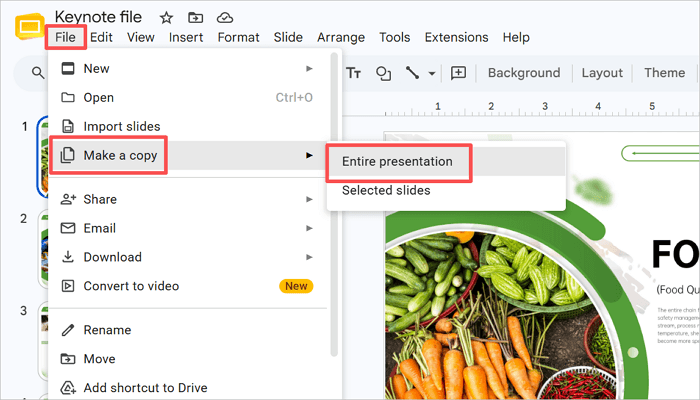
Go to File > Make a copy to create a new copy of your Google Slides presentation.
3. How to Convert Keynote to Google Slides Using iCloud
You don’t always need to access a Mac or other Apple devices to work with Keynote files. As a Windows user, you can take advantage of iCloud to access and convert Keynote files online through your browser. To use this method, however, you need an Apple account.
The main limitation when converting Keynote files through iCloud is that some complex animations or builds may not export perfectly, especially if you’re creating them on the web version.
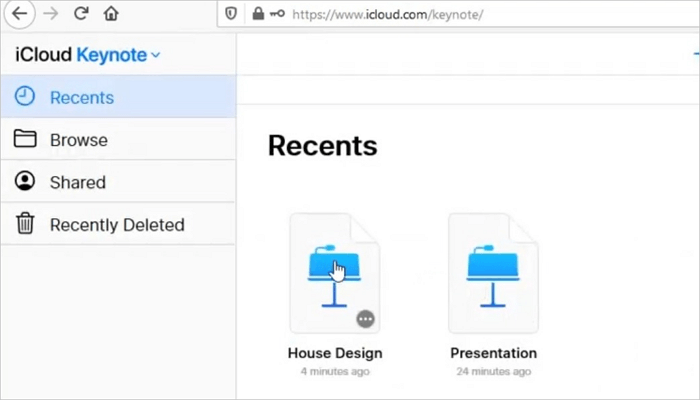
Step 1: Open Keynote Web on iCloud
Sign in to iCloud and proceed to Keynote Web.

Step 2: Find Your File
Browse through your Keynote files to find the specific one you want to convert.
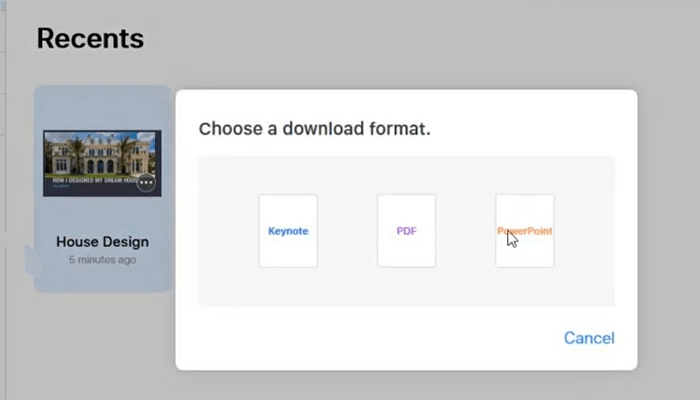
Step 3: Export to PowerPoint
Right-click on the file and select Download a Copy > PowerPoint.
Step 4: Upload the File to Google Slides
Switch back to Google Slides and click the Folder icon to upload your file.
Step 5: Review the Converted File
The file will open and be automatically converted into a native Google Slides presentation.
4. Common Issues When Converting Keynote to Google Slides
You may encounter a number of formatting issues when converting presentation files between Keynote and Google Slides because of different rendering engines. Basically, they do not read and open file formats the same way.
For example, if a font used in Keynote is unavailable in Google Slides, the system replaces it with a similar option. This may slightly affect spacing and alignment.
Animations and slide transitions may also disappear after conversion, because some Keynote effects are not supported in Google Slides.
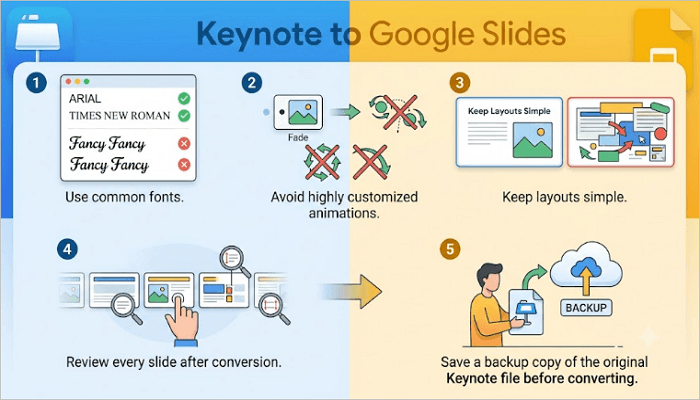
⭐ To reduce these formatting problems when converting Keynote to Google Slides:
- Use common fonts.
- Avoid highly customized animations.
- Keep layouts simple.
- Review every slide after conversion.
- Save a backup copy of the original Keynote file before converting.
5. Improve Google Slides Presentation Using AiPPT.com
Even after successfully converting a file from Keynote to Google Slides, you may still need to make some improvements to it. Fonts may be different, the layout may feel off, and some slides may feel outdated.
This is where AiPPT.com becomes useful. With this tool, you can generate presentations from raw ideas, documents, webpages, and Google Drive content while also accessing a large library of templates and AI-powered design tools.
⭐ This tool can help you:
- Improve slide layouts.
- Maintain visual consistency.
- Generate new slides faster.
- Enhance presentation design.
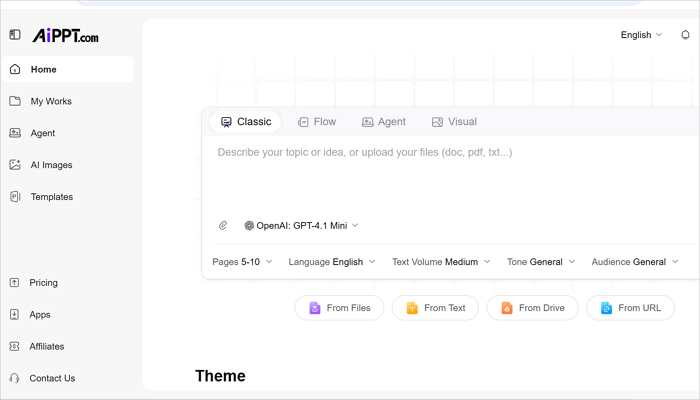
Here’s how to use AiPPT.com to generate and refine presentations for Google Slides.
Step 1: Go to AiPPT.com, click Get Started, and sign in using your preferred option.
Step 2: Describe your idea, upload a document or URL to generate slides.
Step 3: Review the AI-generated outline and select a theme to continue.
Step 4: Preview and download your PPT or click Edit to customize your slides in the built-in tool.
Conclusion
Team members often use different devices, operating systems, and presentation tools, making compatibility more important than ever in modern workplaces and classrooms. Luckily, you can now convert Keynote to Google Slides by exporting as a PowerPoint file or accessing it via iCloud.
After importing your presentation, always review the formatting carefully and make final improvements before sharing.
FAQs on Converting Keynote to Google Slides
Still have concerns about converting Keynote files to Google Slides? Let’s explore common situations other users face in the process.
1. How to convert from Keynote to PowerPoint on PC?
Here’s how to convert a Keynote file to PowerPoint:
- Open your presentation in Keynote.
- Go to File > Export To.
- Select PowerPoint from the submenu.
- Confirm settings such as the image quality and click Next.
- Choose your preferred location to save the file.
2. How to convert Keynote to Google Slides without changing?
Although you may not be able to completely avoid formatting changes, you can minimize them by following these steps:
- In Keynote, replace Apple-exclusive fonts with universal fonts like Arial or Georgia.
- Remove or simplify complex animations.
- Export the file as PowerPoint via File > Export To > PowerPoint.
- Upload and open the .pptx in Google Slides.
- Review the slides and make corrections before sharing.
3. How to change Keynote to PowerPoint on iPad?
To change Keynote to PowerPoint on iPad:
- Open your presentation in the Keynote app.
- Tap the three-dot menu (…) in the top-right corner.
- Select Export from the options.
- Choose PowerPoint as the export format.
- Choose how you want to share or save the file—via email, AirDrop, Files app, or cloud storage.