It should be very easy to change text color in your PowerPoint presentation. But sometimes you select a bullet list, choose a new font color, and realize the change only affects the text, while the bullets remain the same.
If you’re currently dealing with PowerPoint bullet points not changing color, it could be that the bullets have separate formatting from the text.
Various factors, such as theme settings, templates, and Slide Master formatting, influence how bullets appear. Fortunately, you can fix the issue in a few steps, which this article will cover.
Key Takeaways:
- When you need to change the color of a single bullet in a list, use the Bullets and Numbering menu.
- Use Slide Master when the same bullet color problem affects several slides or keeps returning.
- Always check contrast after changing bullet colors, especially when using a new theme or background.
Why Are My PowerPoint Bullet Points Not Changing Color?
There are a number of reasons why your bullet points in PowerPoint may not change color. It helps to understand which one you’re actually dealing with before trying to fix it.
1. The Bullet Has Separate Formatting
In PowerPoint, the bullet character and the text next to it are formatted independently. When you highlight a line and change the Font Color, you’re only recoloring the words—the bullet color, on the other hand, needs to be formatted separately via the Bullets and Numbering option.
2. A Theme or Template Is Controlling the Bullet Color
PowerPoint themes can affect the colors used throughout a presentation. If your bullets suddenly change after switching themes, the theme is likely responsible.
You’ll notice this more quickly when you copy slides from another presentation or apply a new design. The text may follow one formatting choice while the bullet retains that of the theme.
3. Slide Master Formatting Is Overriding Your Changes
Placeholders on your slides often pull their bullet style from the Slide Master rather than from anything you set directly. So if the same bullet color keeps appearing on new slides, the Slide Master may be controlling it.
4. The Background Makes The Bullet Look Missing
Sometimes, the bullet color changes the way you want, but you don’t notice quickly because it blends directly with the background. For example, white bullets can become almost invisible on a white or pale background. This can happen after applying a new theme or copying content from another deck.
How to Change Bullet Color in PowerPoint
Now that you understand what may be causing the issue after adding bullets, here’s how to change the color of bullets in PowerPoint quickly:
Step 1: Select the Bullet List
Click inside the text box and select the list you want to edit. If you select the entire list, the formatting change can apply to all of its bullets. If you select one specific list item, you can target that item instead.

Step 2: Open Bullets and Numbering
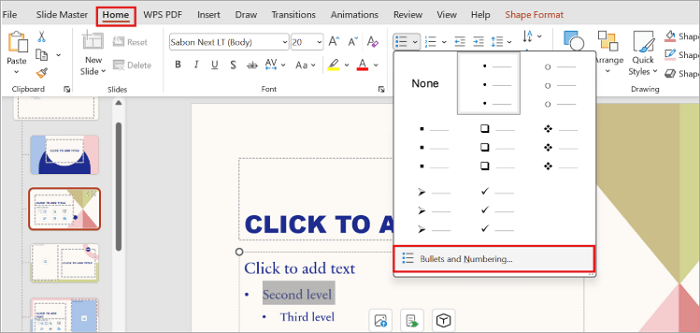
Proceed to the Home tab, click the small arrow next to the Bullets icon, and choose Bullets and Numbering from the drop-down. You’ll usually find this option in the Paragraph section, but it may vary slightly depending on your PowerPoint version.
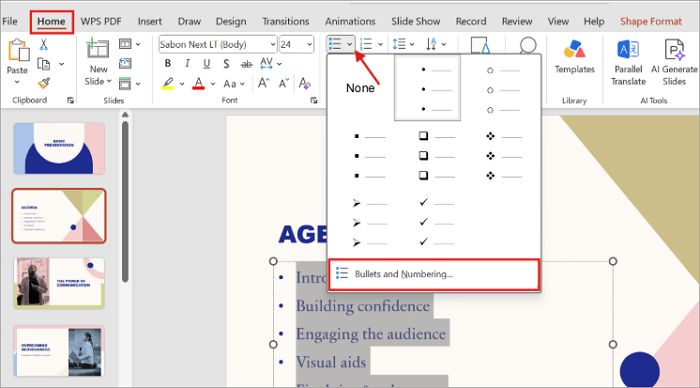
Step 3: Choose a Bullet Color
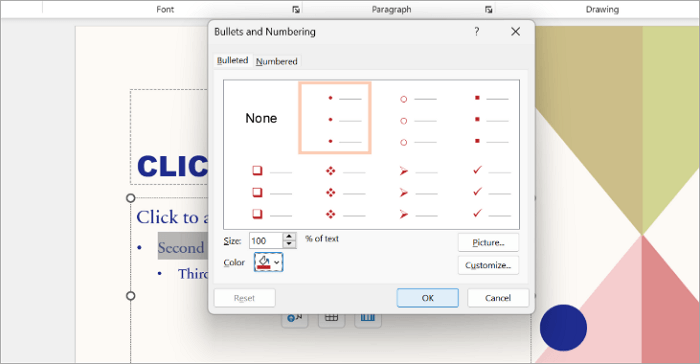
Find the Color option in the Bullets and Numbering dialog box. Then, choose a color from the available theme colors if you want the bullets to match your presentation, or select More Colors for a custom shade.
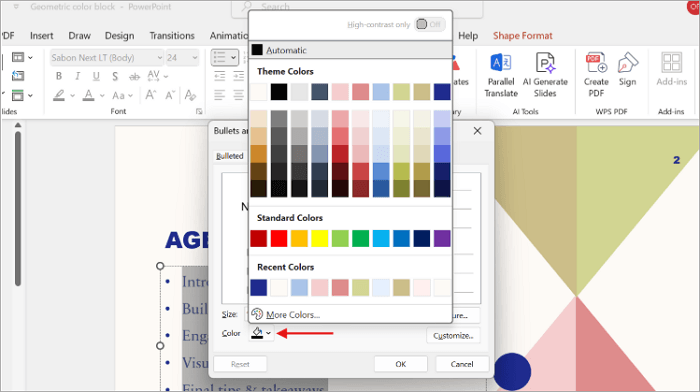
Step 4: Apply the Change
Click OK to apply the new color. Then check the list on your slide. If it still does not change, return to the selection step or check whether a Slide Master layout controls the affected text.

How to Fix Bullet Colors Across Every Slide with Slide Master
If you change bullet color in PowerPoint and the same problem still appears across multiple slides, Slide Master offers a better approach because it lets you modify formatting at the layout level.
Any changes you make to the appropriate master layout can then flow to slides that use that layout.
Step 1: Open Slide Master
Go to the View tab and select Slide Master.
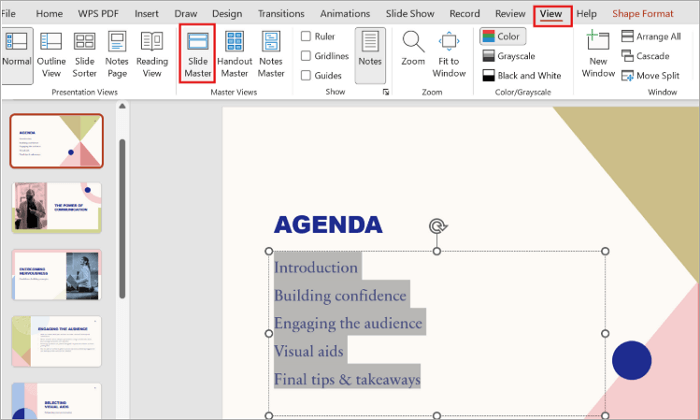
Step 2: Select the Correct Layout
In the Slide Master view, look through the layouts and choose the one used by the slides with the incorrect bullets. Select the body text placeholder containing the bullet formatting.
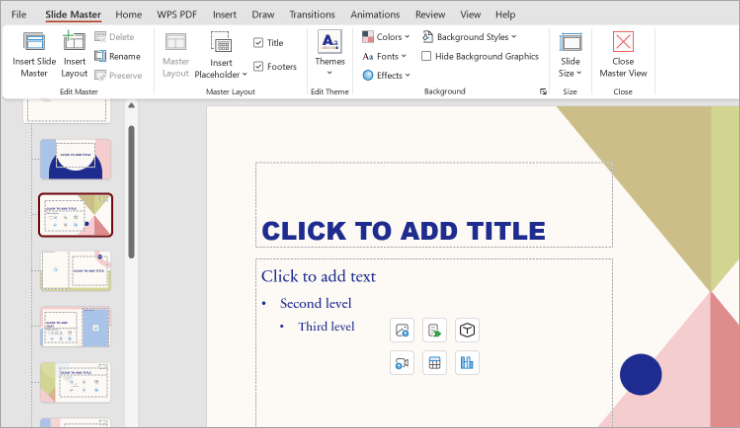
Step 3: Open the Bullets and Numbering Menu
Select the body text placeholder and go to Home > Bullets and open Bullets and Numbering.
Step 4: Change the Bullet Color
Choose the desired color and apply it to the bullet formatting.
Step 5: Close Master View
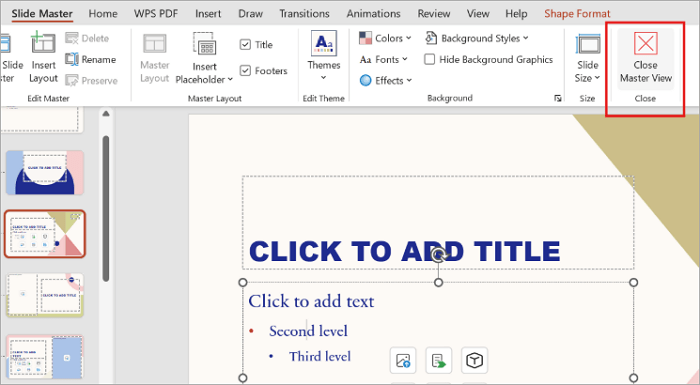
Click Close Master View to return to your presentation.
Conclusion
Inconsistent bullet colors can make a polished presentation look unfinished. They can also make lists harder to read, particularly when the bullets blend into the background.
The fix is simple: change the color of an individual list through Bullets and Numbering, but use Slide Master when the same issue keeps appearing across your deck.
If you’re still dealing with PowerPoint bullet points not changing color, check whether the formatting comes from the bullet settings, the theme, or the master layout before making more manual changes.
FAQs on PowerPoint Bullet Points Not Changing Color
These quick answers cover some of the most common situations users encounter when trying to change bullet color in PPT.
1. Why are my bullet points white on PowerPoint slides?
Your bullets may be white because of their separate formatting, a presentation theme, or a Slide Master layout.
A light background can also make white bullets appear as though they are missing. Open Bullets and Numbering and check the Color setting. If the problem affects multiple slides, inspect the relevant Slide Master layout as well.
2. How do I change bullet color without changing the text color?
To change bullet point color in PowerPoint, follow these simple steps:
- Select the bullet list.
- Open Home > Bullets > Bullets and Numbering.
- Find the Color option and choose your preferred shade.
- Click OK to apply the setting.
- This changes the bullet formatting separately from the text formatting.
3. Can I make each bullet a different color in PowerPoint?
Yes. You can change the color of individual bullet points in PowerPoint. To do this:
- Select the list item you want to modify.
- Open Bullets and Numbering.
- Choose a color and apply the change.
Then, repeat the process for other bullets. This works well when colors have a clear purpose, such as separating categories or highlighting priorities.