As much as Google Slides has become quite popular for its cloud access, there are still several occasions where PowerPoint is better suited. This includes cases where you don’t have access to the internet, when you need to share presentations with colleagues who only use Microsoft Office tools, or when clients specifically request a PPTX file.
Converting Google Slides to PowerPoint is simple, but it’s imperative to mention that small formatting errors may happen. This guide explains how you can easily convert Google Slides to PowerPoint without going through unnecessary steps or confusion.
Can You Convert Google Slides to PowerPoint?
Yes, just as it’s possible to convert PowerPoint to Google Slides, so also is it possible to turn Google Slides into PowerPoint.
Google Slides has a built-in option that allows you to export presentations as PowerPoint (.pptx) files, making it easy for even first-time users. Elements like text, charts, and basic layouts often transfer smoothly. But some fonts and animations may be distorted, requiring that you manually fix them.
The good thing is that aside from the built-in method, there are other practical ways to transfer Google Slides to PowerPoint, and they will be discussed in the next sections.
Let’s go!
Method 1: How to Transfer Google Slides to PowerPoint by Downloading
This method is the fastest option when you need to convert a single presentation or make a quick copy for offline use. It involves using the built-in “Download” feature that enables converting Google Slides to PowerPoint without leaving the app.
Here are the steps involved:
Step 1. Go to Google Slides and open the presentation that you want to convert.
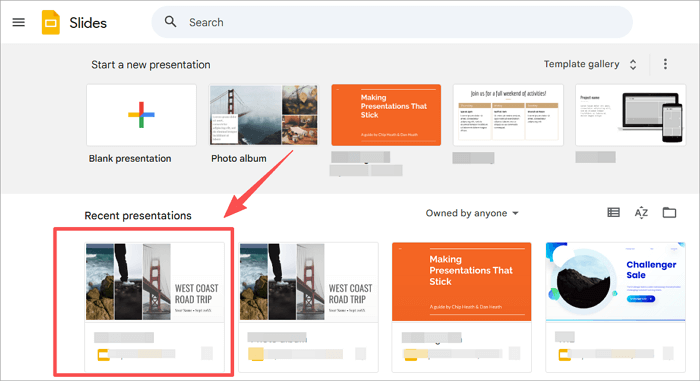
Step 2. Navigate to the menu bar and click File.
Step 3. Hover on Download from the dropdown options and choose Microsoft PowerPoint (.pptx).
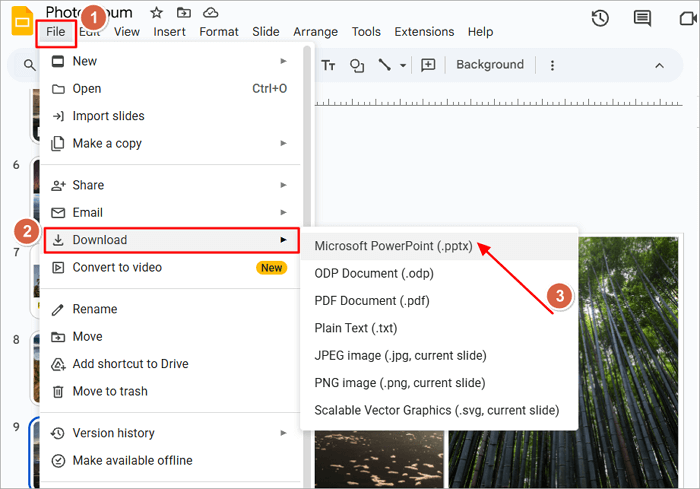
Step 4. The presentation will automatically be saved on your device. Check the Downloads folder to access it.
Method 2: How to Convert Google Slides to PPT via Google Drive
Google Drive is ideal in cases where the built-in “Download” option is inefficient. This includes when you are handling multiple decks at once or when you want to convert a presentation to PPT without opening the Slides app. It’s also helpful if you’re preparing several presentations for a PowerPoint-based review or archiving system.
With this approach, you can export Google Slides to PowerPoint in the background, so you don’t have to open several tabs of presentations.
Here are the steps involved:
Step 1. Open Google Drive in your browser.
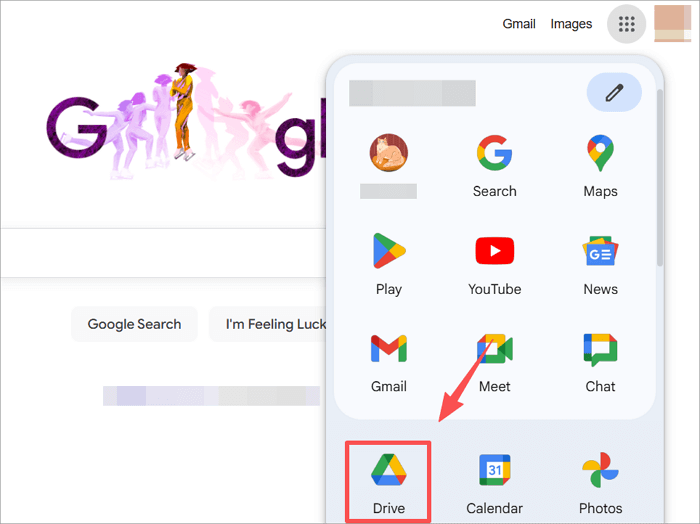
Step 2. Locate the Google Slides file you want to convert.
Step 3. Right-click the file and select Download from the menu.
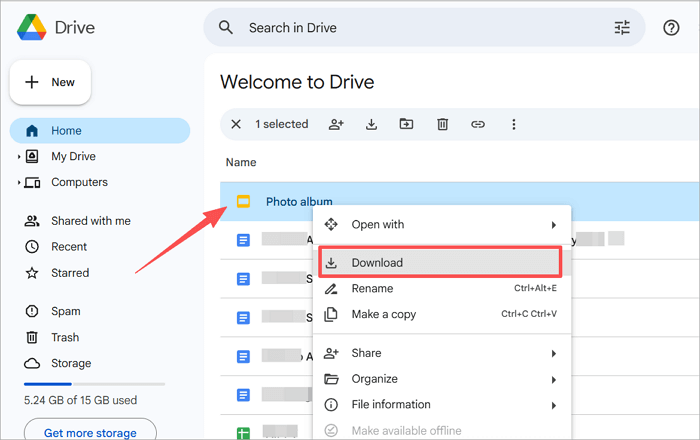
Step 4. Google Drive automatically changes the file to PPTX and saves it to your device.
Fix Issues after Converting Google Slides to PowerPoint
After converting your Google Slides to PowerPoint, it’s a good idea to do a quick review because there might be some formatting issues.
Common issues and fixes are:
1️⃣ Fonts: Google Slides may use fonts that are not available in PowerPoint; they are changed when converted to PPTX. The perfect remedy is to replace the fonts with a standard alternative.
2️⃣ Spacing and Alignment: Google Slides and PowerPoint handle layouts differently, which is why their spacing and alignment sometimes shift. The solution is to adjust the slide margins and text boxes.
3️⃣ Images: If images are cropped or layered, they will appear incorrectly in PowerPoint. A quick resize or reset usually restores them.
4️⃣ Animations: PowerPoint sometimes simplifies or changes advanced effects, which may affect your visuals. The fix is to run through the presentation again to reapply key animations or learn how to remove animations from PowerPoint.
Create PowerPoint Slides Directly with AiPPT.com
Since your end goal is a PowerPoint file, there’s no point in starting from Google Slides and converting later. AiPPT.com allows you to create presentations directly in PowerPoint format, avoiding common errors that happen when you convert Google Slides to PPT. It provides you with over 200,000 ready-made PowerPoint layouts that are clean and easy to edit.
Just by entering a prompt, it helps you create professional slides that are optimized for .pptx compatibility, support multimedia elements like images and charts, and can be shared via links. This eliminates the need to send large files back and forth.
Here’s how to create PowerPoint Slides directly with AiPPT.com:
Step 1. Go to AiPPT.com and sign in/sign up.

Step 2. Enter your PowerPoint presentation topic, import a document, paste text, or a URL.

Step 3. AiPPT.com creates an outline for the presentation. Review and edit it (if necessary), then select a template.

Step 4. Click on Generate PPT to create the PowerPoint Slides with correct formatting.
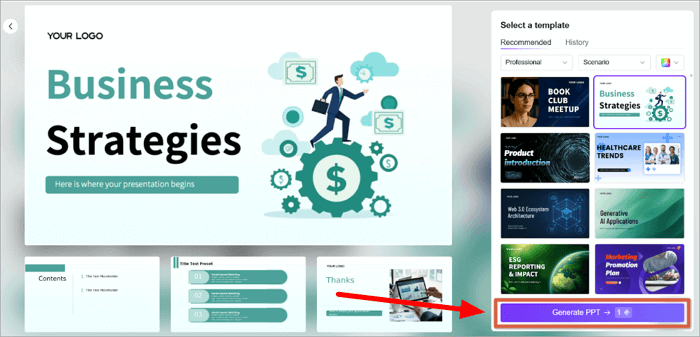
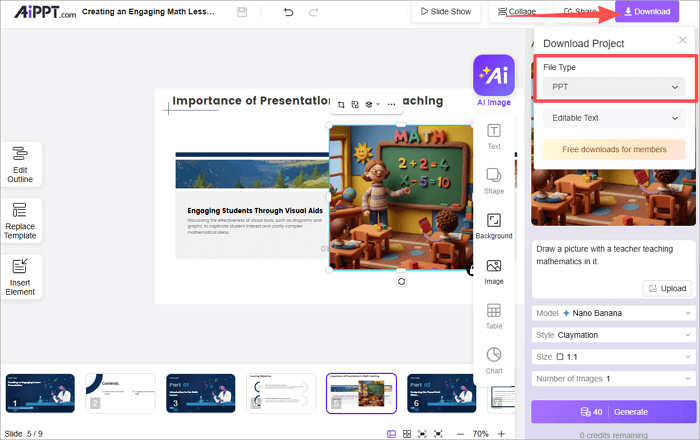
Step 5. Download the PPTX file to your device or share it with teammates via a link.
Conclusion
Knowing how to convert Google Slides to PowerPoint is very important for teamwork, compatibility, and reliable presentations. The conversion process is easy, but creating your presentation with a tool like AiPPT.com can sometimes be the smarter move—particularly when your end goal is a PowerPoint file. This saves you the hassle of creating in Google Slides and then battling with the various formatting errors of conversion.
FAQs on Converting Google Slides to PowerPoint
Want to know more about how to save Google Slides as PPT? Below are answers to some commonly asked questions:
1. Can I convert Google Slides to PowerPoint without losing quality?
Yes, you can convert Google Slides to PowerPoint without losing overall quality, but minor changes may occur. Texts and basic layouts usually transfer accurately. Issues often come from fonts that are not available in PowerPoint, small spacing differences, and advanced animations. A quick review and editing after conversion can help to fix this.
2. Can I export a single slide from Google Slides to PowerPoint?
Yes, but Google Slides doesn’t export individual slides directly. However, there’s a trick you can use.
Follow these steps:
- Open your presentation in Google Slides and click on the slide you want to export.
- Click on File > Make a copy > Selected slides.
- Enter the details of the new presentation and click Make a copy.
3. Can you convert a PowerPoint file back to Google Slides?
Yes, PowerPoint files can be converted back to Google Slides.
Follow these steps:
- Open Google Slides in your browser and select Blank presentation.
- Click File > Import slides.
- Tap Upload and browse through your device to select the PowerPoint file.
- Click Select all slides and tap Import slides.