Working with several shapes, pictures, icons, or text boxes can become frustrating when you need to move or resize each element separately. This is where knowing how to group things in PowerPoint comes in handy.
The Group option lets you treat multiple objects as one, making it easier to move, resize, rotate, format, or duplicate them. You can also ungroup the objects whenever you need to edit individual elements and regroup them afterward.
This guide explains how to group, ungroup, and regroup objects in PowerPoint. You’ll also learn what to do when certain objects cannot be grouped and the shortcuts that can speed up the process.
Key Takeaways
- Grouping is useful for diagrams, icons, pictures, text boxes, and other slide elements.
- Ctrl + G groups selected objects on Windows.
- Ctrl + Shift + G ungroups them.
- Ctrl + Shift + J restores the most recent grouping.
How to Group Objects in PowerPoint
Grouping comes in handy in PowerPoint, particularly when you need several elements to form a visual, such as an infographic, diagram, or custom icon. If you need to combine shapes into a single shape rather than simply group them, you can merge the shapes instead.
Before you can group on PowerPoint, you must select at least two objects or elements on the same slide. The Group option won’t be enabled if you haven’t done this first.
Step 1: Select the Objects
Hold Ctrl and click each shape, picture, icon, or text box you want to include in the group. Alternatively, drag a selection box around several nearby items to select them.

Step 2: Open the Group Menu
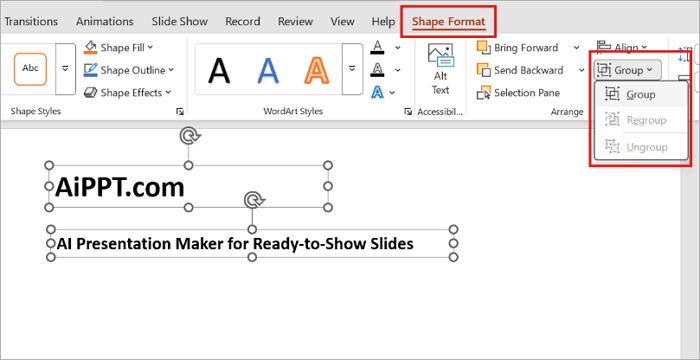
Go to Shape Format/Picture Format > Group > Group. You can also right-click one of the selected objects and choose Group > Group.
Step 3: Move the Group
Once grouped, click the new group and drag it to another position. You can also resize or rotate it as one unit.

How to Ungroup Objects in PowerPoint
After you group items in PowerPoint, you may need to edit a shape, image, label, or another component without affecting the rest. Ungrouping gives you access to the individual elements again.
In situations where a graphic contains a group inside another group, you may need to ungroup more than once to edit individual elements.
Step 1: Select the Group
Click the grouped object on your slide. PowerPoint will display one selection box around the entire group.

Step 2: Choose Ungroup
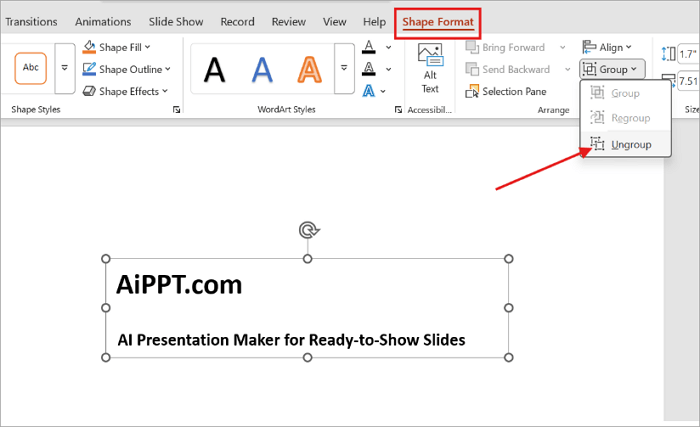
Go to Shape Format > Group > Ungroup. You can also right-click the group and select Group > Ungroup. Alternatively, you can use the shortcut Ctrl + Shift + G on Windows.
Step 3: Edit an Individual Object
After ungrouping, click any shape, image, icon, or text box separately. You can now move, resize, delete, or format that element without changing the others.

How to Regroup Objects in PowerPoint
Did you temporarily ungroup a graphic and want to restore the previous group in PPT? This is where regrouping is particularly useful. That way, you do not have to select every original element again.
Keep in mind that Regroup remembers the most recent grouping relationship, not every level of nested groups. It may also stop working after you close and reopen the presentation, so regroup the objects before closing the file if you want to restore the group.
Step 1: Select an Original Object
After making your edits, click an object that was previously part of the group.

Step 2: Choose Regroup
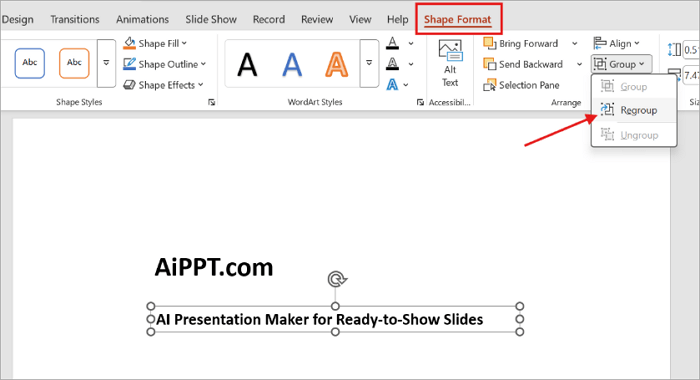
Open Shape Format > Group > Regroup. PowerPoint will restore the previous grouping relationship.
Step 3: Check the Restored Group
Click the resulting group and move it to confirm that the objects have been grouped again.

Why May Some Objects Not Group Normally?
While you can group things in PowerPoint, not every object can be grouped in the same way. If the Group option is unavailable or disabled after selecting multiple objects, one of the selected elements may be causing the problem.
For example:
- Tables may not group with standard shapes or other objects.
- SmartArt has its own editing and formatting controls, which can affect how it works with other objects.
- Slide placeholders can behave differently from regular text boxes and shapes.
- Some SVG or icon formats may have different grouping behavior depending on how they were inserted or converted.
To troubleshoot grouping problems, test the selection by removing one unusual object at a time. But note that PowerPoint’s behavior can also vary depending on the object format and the version you are using.
Conclusion
When you know how to group things in PowerPoint, complex slide layouts become much easier to manage.
Once the components of a diagram are properly aligned, group them so you can reposition, duplicate, or resize the whole design as one without disturbing its original layout.
For your next presentation, if a slide contains many overlapping elements, open the Selection Pane first to make individual objects easier to find.
You can also check how to group and ungroup objects in Google Slides.
FAQs on Grouping in PowerPoint
Grouping becomes easier once you know how selection, grouping, and regrouping work together. Below are quick answers to some of the most common questions people ask about how to group in PowerPoint.
1. How to group images in PowerPoint?
Follow these steps to group images in your PowerPoint presentation:
- Go to Insert > Pictures to add the images to the same slide.
- Hold Ctrl and select each image you want to include in the group.
- Then go to Picture Format > Group > Group.
- Alternatively, right-click the selection and choose Group > Group.
- Once grouped, the pictures can be moved and resized together.
2. Can I group objects on different PowerPoint slides?
No, grouping in PowerPoint only applies to objects on the same slide. If you have related elements spread across multiple slides, you need to group them separately on each slide.
If you want to reuse the same group, you can copy and paste the completed group onto another slide.
3. What is the shortcut to group objects in PowerPoint?
On Windows, use:
- Ctrl + G to group
- Ctrl + Shift + G to ungroup
- Ctrl + Shift + J to regroup
On Mac, use:
- Command + Option + G to group
- Command + Option + Shift + G to ungroup
- Command + Option + J to regroup