Keeping your audience engaged during a presentation is important, and one of the most reliable ways to do this is by creating a separate slide for the table of contents.
A table of contents in PowerPoint helps your audience understand how the presentation flows before going into the details. In addition, this table comes in handy as a navigation tool for moving quickly between sections, especially in long business reports, training decks, project presentations, or pitch decks.
Let’s see how you can also build your own table of contents using many methods in PowerPoint.
Key Takeaways:
- A table of contents is a clear overview of your presentation.
- It improves navigation, especially in long presentations with multiple sections.
- You can build a table of contents slide manually or make it interactive using hyperlinks or Summary Zoom.
- AI tools like AiPPT Flow simplify the design process with ready-made components and templates.
What is a Table of Contents Slide in PowerPoint
This slide introduces the major sections in your presentation before the main content begins. Think of it as a roadmap that tells your audience what to expect as you progress.
Unlike a basic agenda slide that briefly lists discussion points, a table of contents slide often includes organized section names, chapter titles, slide numbers, or clickable links that allow you and your viewers to jump directly to specific sections.
A business presentation, for example, can be divided into sections such as:
- Company overview
- Market analysis
- Financial performance
- Growth strategy
- Questions & answers
It is particularly useful when the presentation is long enough (more than 3 sections) that the audience could lose track of where they are, like in lengthy reports, employee training materials, sales presentations, educational lessons, and project updates.
How to Create a Table of Contents Slide in PowerPoint
The key to creating a table of contents slide in PowerPoint is structuring your presentation before designing the slide. Let’s see how you can easily go about it.
1. Organize Your Presentation Sections First
First, you want to divide your presentation into logical sections. Instead of treating every slide as its own topic, group related slides into broader chapters such as introduction, industry background, research findings, recommendations, conclusion, and so on.
This initial approach makes the content slide and final presentation easier to navigate for you and your audience.
2. Add a New Table of Contents Slide
The next step after organizing your content is to create a new slide at the beginning of your presentation. Then, choose a layout that provides enough space for your content.
Depending on your presentation style, you can choose between:
- A simple bullet list
- Numbered sections
- Visual blocks
3. Add Section Titles and Slide Information
When writing your section titles, keep them short and descriptive, so they serve as a summary that immediately tells the audience what to expect in your presentation. Avoid copying individual slide titles into your PowerPoint table of contents slide.

4. Create a Clickable Table of Contents
You can even make your presentation more interactive by using hyperlinks to create a clickable table of contents, particularly if it’ll be delivered digitally.
To create hyperlinks in PowerPoint:
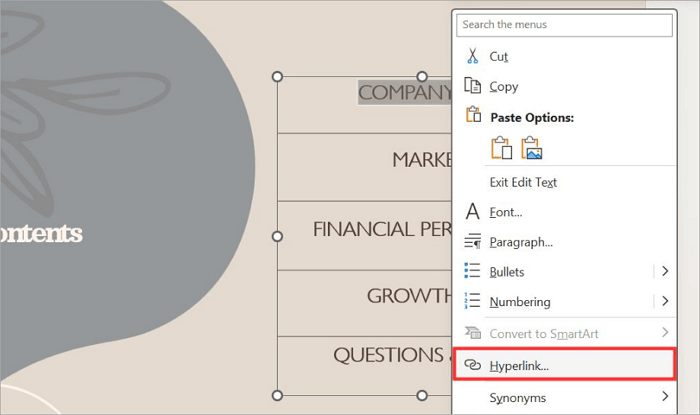
Step 1: Right-click on a section title and select Hyperlink.
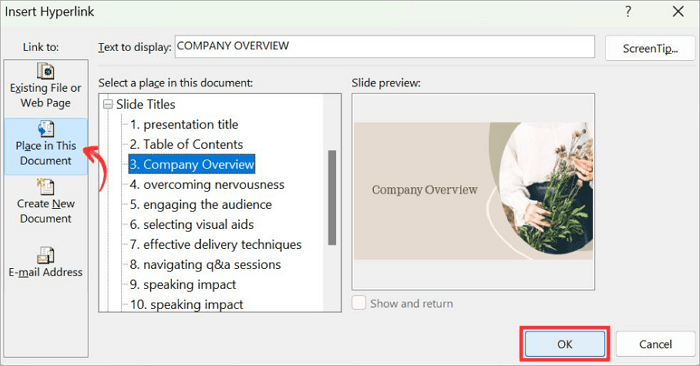
Step 2: Select Place in This Document and choose the destination slide.
You can also use PowerPoint’s Action settings to assign navigation to shapes, icons, or buttons.
How to Create a Table of Contents in PowerPoint Automatically
Unlike Word, Microsoft PowerPoint doesn’t offer a native table of contents feature. However, you can use built-in features and a number of external tools to speed up the process, especially when you’re working with longer presentations.
1. Use PowerPoint Sections to Organize Slides
PowerPoint Sections help you divide a presentation into different chapters, without creating any new slides. To create sections in PPT:
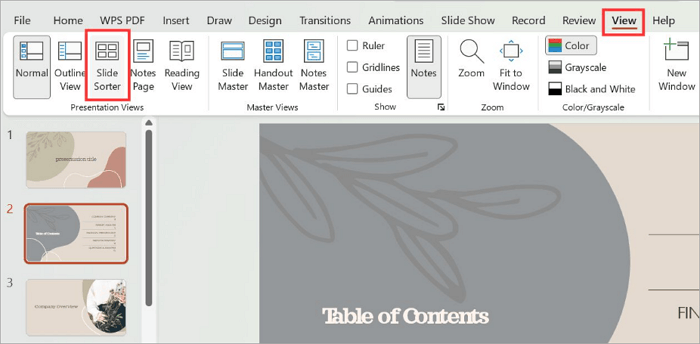
Step 1: Go to View > Slide Sorter in your PowerPoint presentation.
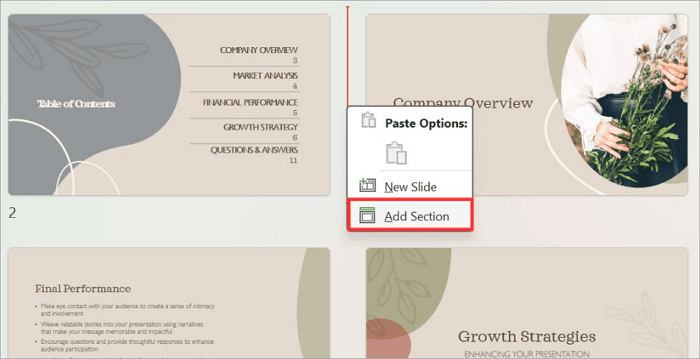
Step 2: Right-click between two slides and select Add Section.
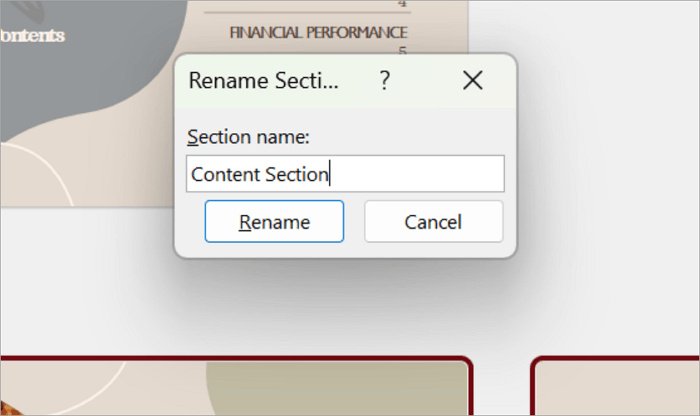
Step 3: Rename each section.
2. Use Summary Zoom to Create an Interactive Contents Slide
You can also use the PowerPoint Zoom feature to turn sections into an interactive navigation page with clickable previews.
Here’s how to go about it:
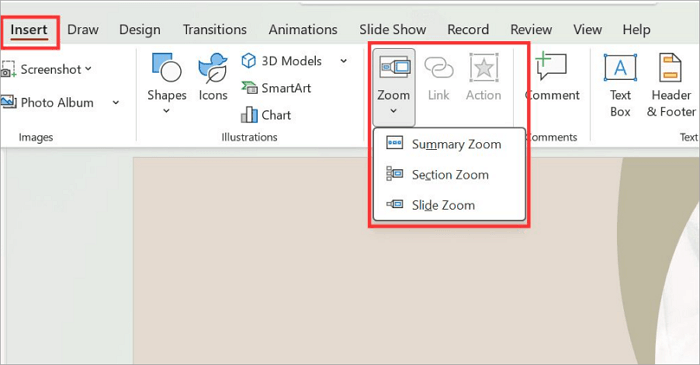
Step 1: Open the Insert tab in your presentation and select Zoom > Summary Zoom.
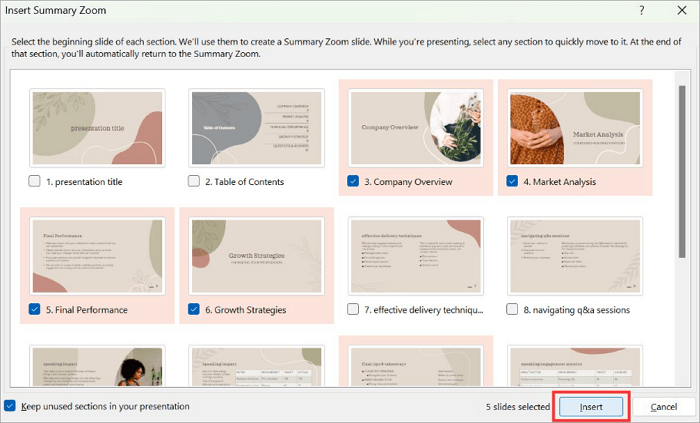
Step 2: Select the sections you want and click Insert.
3. Use Add-ins or AI Tools for Faster Creation
Beyond PowerPoint’s native features, AI tools and dedicated add-ins can speed up the entire process—not just the table of contents slide, but also structuring the presentation itself.
The PPT Productivity add-in, for example, is a downloadable add-in that installs its own tab in the PowerPoint ribbon. Once installed, its Agenda Wizard can generate a table of contents slide from your existing slide titles or PowerPoint Sections. It can also update your content slide whenever the deck changes.
PowerPoint Table of Contents Slide Ideas and Examples
As mentioned earlier, the right layout for a PowerPoint content slide depends on your audience and the type of presentation you’re building. Here are three layouts that work well in different situations.
1. Numbered Section Layout
A simple numbered list creates a clear visual order and looks professional in any presentation setting. Each major section receives its own number, making it easy for viewers to follow the presentation from beginning to end. It works particularly well for formal reports, training decks, and any presentation with a step-by-step structure that the audience needs to follow in order.

2. Timeline Style Contents Slide
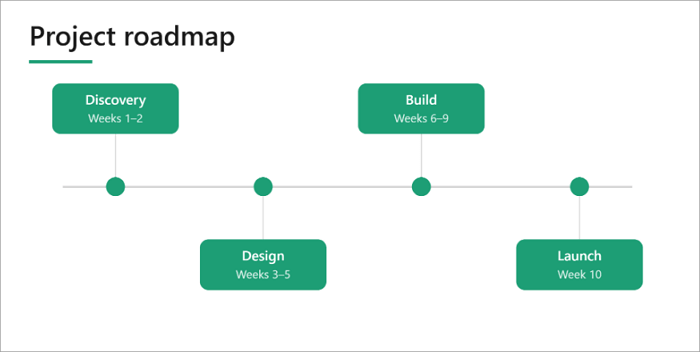
This kind of layout comes in handy when you want to explain progress over time. Instead of listing topics, you can easily plan each section along a horizontal or vertical timeline. It is ideal for project roadmaps, product launches, business strategies, and process documentation.
3. Card-Based Contents Slide
Another option modern presentations use for a PPT content slide is the card layout. In this design, every section appears inside its own rectangle, box, or card with an icon and a short description. This format works really well when each section is equally important.

Use AiPPT Flow to Create a Table of Contents Effortlessly
If you’d rather skip manual layout work entirely, AiPPT Flow offers a faster path to a structured table of contents slide. Inside the toolbox, you’ll find ready-made components, including contents and navigation elements that you can drag and drop directly into your slide.
AiPPT Flow automatically adjusts spacing and formatting as you add new components, so your contents page stays visually consistent with the rest of the deck.
Here’s how to get started:
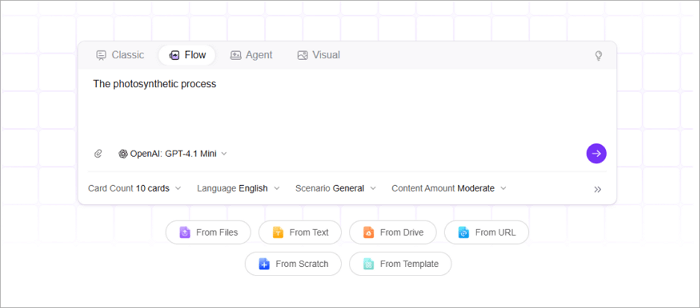
Step 1: Go to AiPPT Flow and type your presentation idea or upload a document.
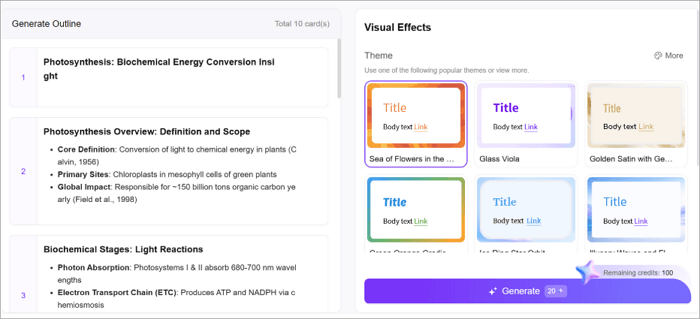
Step 2: Review the outline, choose a theme, and proceed to generate.
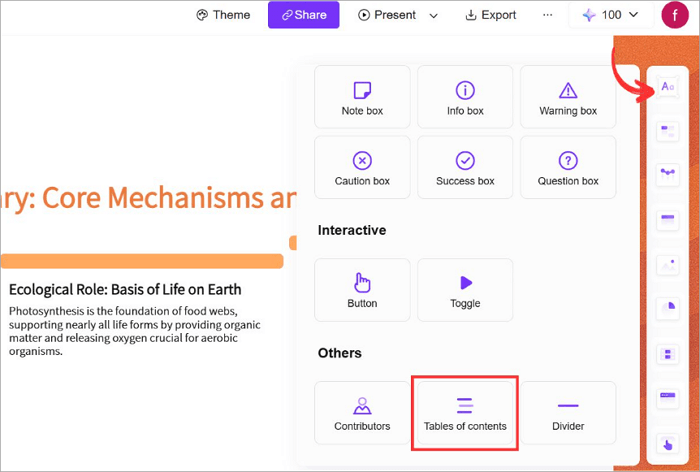
Step 3: Click the Text icon in the right panel and select Table of contents from the menu.
You can also explore AiPPT.com’s template library to choose from professionally designed table of contents slide templates, download them, and customize them for your own presentations.
Conclusion
While others may regard a table of contents in PowerPoint as a slide that just lists presentation topics, it actually helps your audience understand the journey ahead and digest the message more quickly.
When a content slide is well designed, it improves navigation and creates a more professional experience for you and your audience—whether you’re presenting a business proposal, teaching a class, or sharing a project update.
Before designing your next presentation, organize it into logical sections. Then choose the layout or tool that best fits your needs.
FAQs on Table of Contents Slide
If you’re creating your first table of contents in PPT, the following answers cover some of the most common questions other users have.
1. How do I create a table of contents in PPT?
Here’s how you can quickly create a table of contents slide in PowerPoint:
- Organize your presentation into logical sections.
- Insert a new slide near the beginning.
- Add each section name as a list or numbered item.
- Format the text for readability.
- Add hyperlinks to each section so viewers can jump directly to the corresponding slides.
2. Can you make a contents page in PowerPoint 2010?
Yes. Although PowerPoint 2010 doesn’t include Summary Zoom, you can still create a contents page manually in PowerPoint. Here’s how to go about it:
- Insert a blank slide.
- List your major presentation sections.
- Format the list using bullets or numbering.
- Select each heading.
- Insert hyperlinks that point to the appropriate slides.
3. How to make a PowerPoint presentation table of contents with page numbers?
To include page numbers in your PowerPoint presentation table of contents:
- Go to Insert > Header & Footer and enable slide numbers.
- Add your content slide and each major section title.
- Include the starting slide number beside each title.
- Keep the formatting consistent.
- Update the numbers whenever you add or remove slides.