A perfect understanding of how to print Google Slides with notes can be a game-changer for anyone preparing presentations. It allows you to have your slides and detailed notes side-by-side, which are very important when rehearsing a presentation.
This guide will walk you through two clear methods: Print Directly and Download as PDF. We will cover the steps involved and share tips to ensure notes are printed clearly.
Before we go further, check your slides to confirm your speaker notes are added. If not, check how to add speaker notes in Google Slides to make your presentation more comprehensive.
Method 1: How to Print Google Slides with Notes Step by Step
Need slides and speaker notes on paper? Google Slides lets you print both together using its built-in layout options, creating clear, professional handouts in just a few clicks.
Follow these steps to print Google Slides with speaker notes:
Step 1: Open Your Google Slides Presentation
Log in to your Google account via your web browser and navigate to Slides. Then, open the presentation you want to print. If the file was shared with you, confirm that you have editing permission.
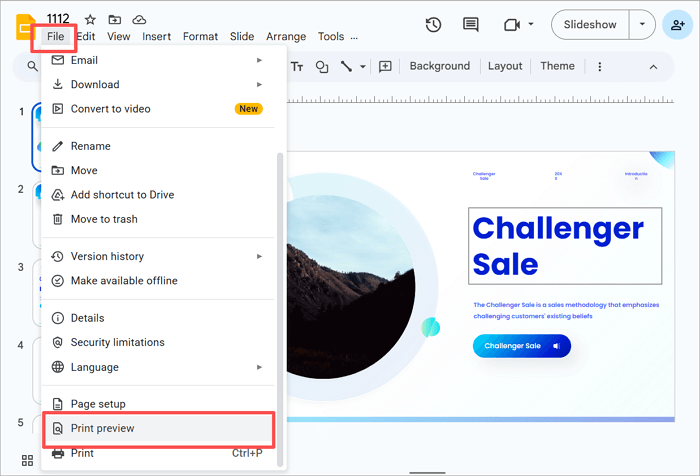
Step 2: Select the File Menu
Go to the top menu bar and click on File. Choose Print preview from the dropdown options. This opens a preview window where you can configure how your presentation will look when printed.
Step 3: Select the Notes Layout
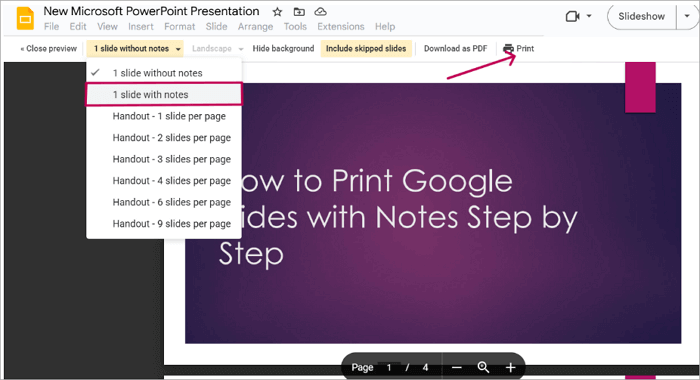
On the top menu, you will see an option (that says 1 Slide Without Notes). Click the downward arrow beside it and choose 1 Slide With Notes. This sets each page to show one slide at the top with your speaker notes below. It’s recommended that you preview each page by scrolling through to ensure the notes appear correctly.
Click the Print button in the preview window. This loads up the printing dialog.
Step 4: Customize Print Settings and Click “Print”
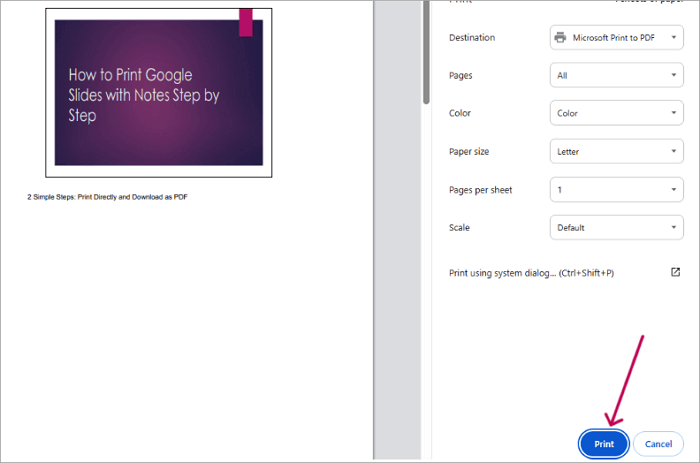
On the print dialog page, you will see several settings, such as:
- Destination: Choose the printer that’s connected to your computer.
- Pages: Select all or only the pages you want to print.
- Color: Choose between color or black & white, depending on your preference and printer’s capability.
- Paper size: Pick your preferred paper layout, usually Letter or A4.
- Pages per sheet: Select how many slides you want to be on each page.
- Scale: Choose between Default, Fit to printable area, Fit to paper, or Custom.
Finally, click the Print button.
Method 2: How to Download Google Slides with Speaker Notes as a PDF
In cases where you’re pitching remotely, or audiences demand that they have a soft copy of your presentation, what you need to do is download the “Google Slides with speaker notes” as a PDF, then share. This is proven to make Google Slides presentations interactive, as your audiences will be able to follow along from start to finish.
Follow these steps to download Google Slides with speaker notes:
Step 1: Open Your Google Slides Presentation
Go to Google Slides through your web browser and open the presentation you want to download.
Step 2: Select “Print Preview”
Select File in the top menu bar and scroll downwards to click Print preview.
Step 3: Choose the Notes Format
Click the layout dropdown arrow (default setting is 1 Slide Without Notes), and change it to 1 Slide With Notes. This means each page will contain one slide with the corresponding speaker note. Scroll through the preview to confirm slides and notes display properly.
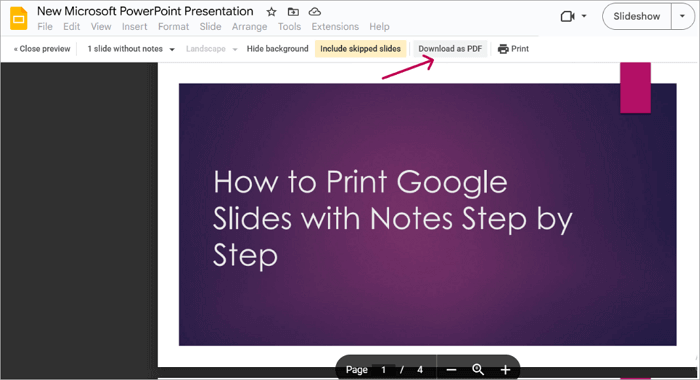
Step 4: Click “Download as PDF”
Tap the Download as PDF option on the menu bar to save the Google Slides with speaker notes to your device. Now you can share with anyone for offline access or to print later.
Tips for Printing Google Slides with Notes Clearly
When printing Google Slides with speaker notes, small design choices can have a big impact on how the final pages appear.
Follow these key tips:
- Check the font used in the speaker notes and make sure it’s easy on the eyes. Simple fonts like Arial usually print more clearly.
- Notes that are too dense often get cut off, so breaking long sentences into shorter points can help everything fit properly.
- Heavy color combinations can make the page look cluttered. Use simple colors for better visual enhancement.
- Before printing, scroll through every page in print preview mode. This helps catch errors that aren’t obvious during editing.
Conclusion
Printing Google Slides with notes doesn’t have to be complicated. It comes in handy for all sorts of presentations— a film pitch deck, a tech talk, and even a class project. You can print them out as hard copies or save them to your device as a PDF. Either way, your notes and slides would stay intact. Finally, it’s important that you go over the key tips shared in the article to make sure your slides are without flaws.
FAQs on Printing Google Slides with Speaker Notes
Do you still have inquiries about how to print Google Slides with notes? Below are answers to frequently asked questions that may be helpful.
1. How do you print a Google Slides to show everything?
Printing Google Slides to show everything (slides, notes, and backgrounds) requires the right settings. This will capture the full content without any omission.
Follow these steps:
- Open your Google Slides presentation.
- Go to File > Print preview.
- Select 1 Slide with notes. The backgrounds are automatically set. Click Print.
- Adjust the other print settings and click Print.
2. How to print Google Slides with lines for notes?
Google Slides doesn’t normally create lines for notes, but you can learn how to add a border so that the notes will be notably separated from other texts on the slide.
3. How to print slides with notes in PowerPoint?
Printing in PowerPoint is similar to Google Slides, but they use different menus.
Follow these steps to print slides with notes in PowerPoint:
- Open your PPT file and click File.
- Select Print. Under Settings, choose Notes Pages. This will print slides with notes.
- Preview and click Print.