Imagine you’re about to deliver a presentation at a client meeting, and you suddenly realize that your deck contains a slide that is meant only for internal team discussion.
Your first instinct might be to delete the slide, but this means permanent loss of crucial information. Instead, you can simply hide the slide so it doesn’t appear during the presentation.
If you’re in a similar situation, we’ll show you how to hide a slide in Google Slides and restore it when necessary.
Can You Hide Slides in Google Slides
Yes, you can hide slides in Google Slides. The feature is called “Skip slide,” but it actually means to hide a slide or skip it during presentation mode.
In case you’re wondering what it means to unskip a slide in Google Slides, you are simply unhiding a slide to make it run in the slideshow again.
Here’s how slides behave when you hide or skip them:
- They remain in the file. Nothing is deleted, so you can always unskip them.
- The slides are skipped in slideshow mode.
- Skipped slides may still appear when printing or exporting the file.
How to Hide a Slide in Google Slides in 3 Ways
You can hide a slide on Google Slides using three methods, including:
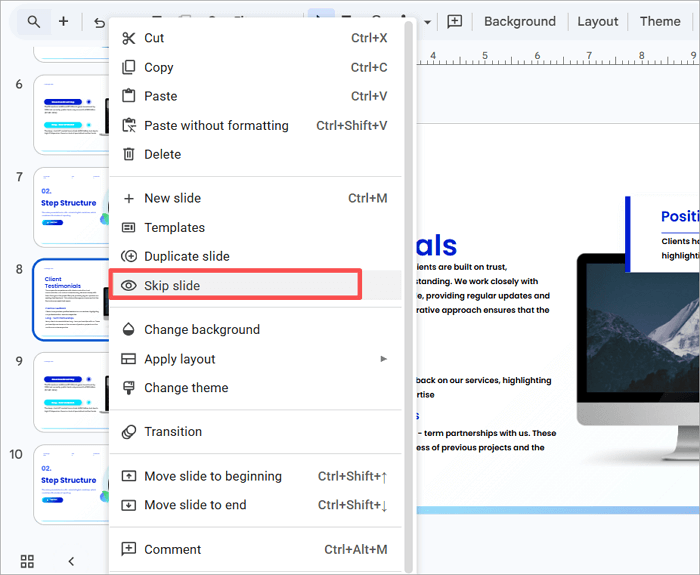
📝 Here’s how to hide a slide on Google Slides using the right-click:
Step 1: Open your Google Slides presentation and select the slide you want to hide from the left thumbnail panel.
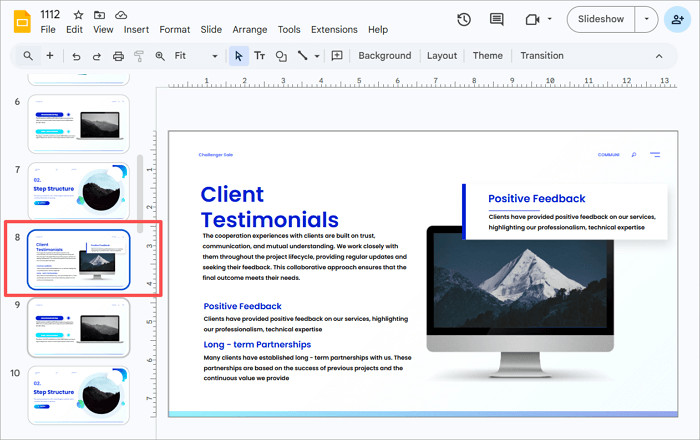
Step 2: Right-click the slide thumbnail and select Skip slide.
Step 3: The slide thumbnail should appear slightly faded and display a crossed-out eye icon.

📝 These steps show you how to hide a Google Slides using the toolbar:
Step 1: Select the slide you want to skip from the thumbnail panel.
Step 2: Go to the Slide tab at the top of the screen and select Skip slide.
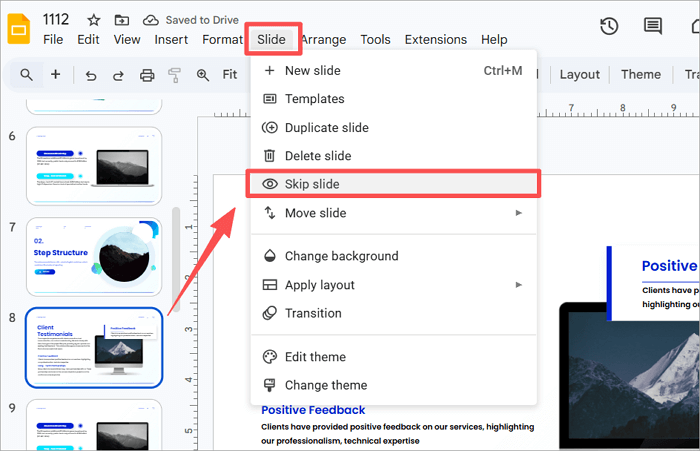
Step 3: The selected slide should also have a crossed-out eye icon displayed over it.
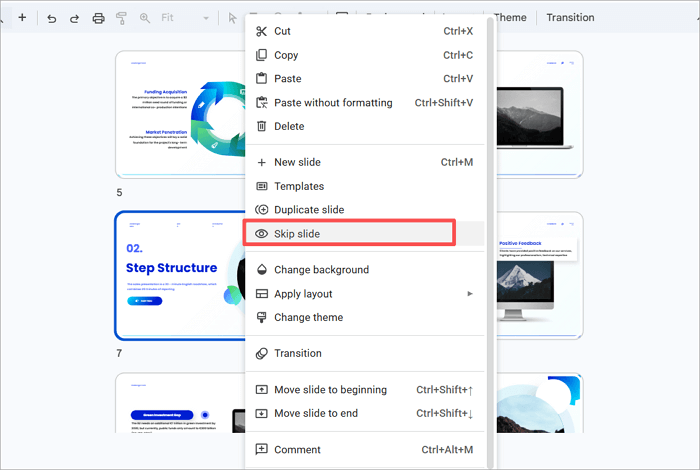
📝 To hide slides in Google Slides using Grid view:
Step 1: Go to the View tab at the top of the screen and click on Grid view. Alternatively, press Ctrl/Cmd + Alt + 1 on your keyboard.
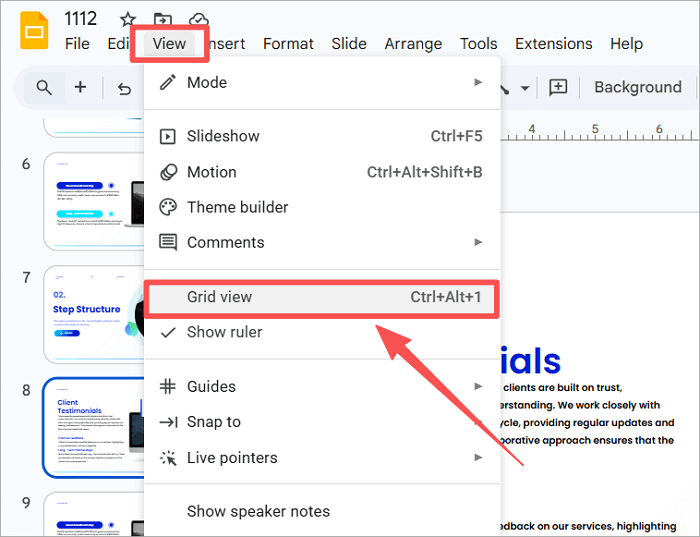
Step 2: Right-click on the slide you want to hide and select Skip slide to hide it during presentation mode.
If you wish to hide multiple slides at once, here’s how to go about it:
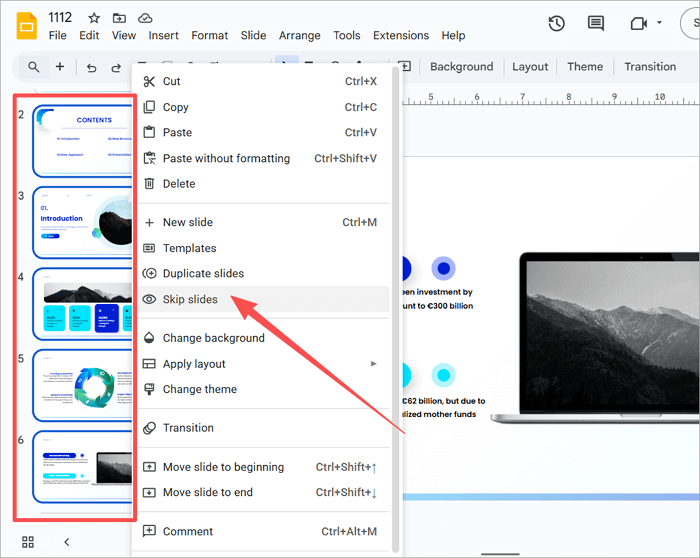
For slides next to each other:
- Click on the first slide
- Hold Shift and click on other slides in the same range
- Right-click and choose Skip slides
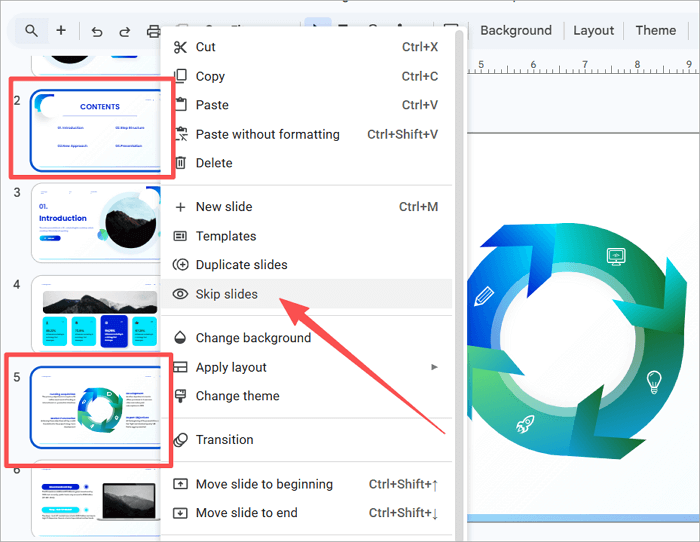
For non-adjacent slides:
- Click on the first slide
- Hold Ctrl/Cmd and select other slides in the file
- Right-click and choose Skip slides
How to Unhide a Slide in Google Slides
As we mentioned earlier, you can always restore hidden slides in Google Slides, because they are not deleted from your file.
You can unhide slides using the right-click, toolbar, or grid view options. Let’s explore how to unskip a slide in Google Slides with these methods.
🔍 Using Right-click:
Step 1: Select the slide you want to unhide from the left thumbnail panel.
Step 2: Right-click on it and select Unskip slide.
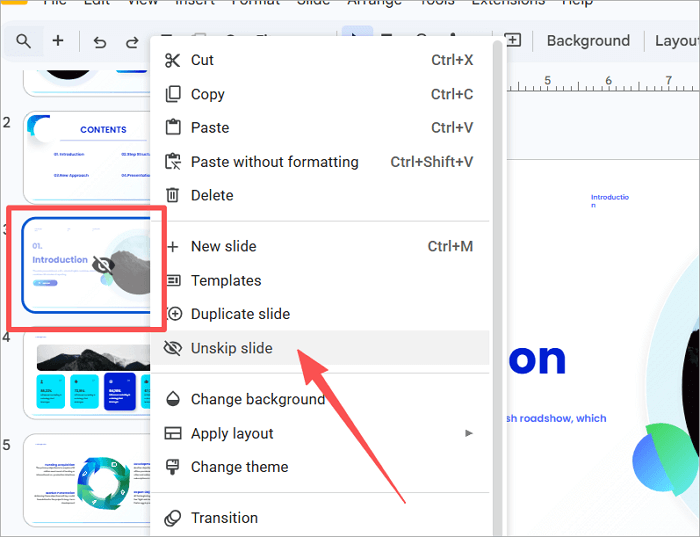
The slide will now appear in your presentation.
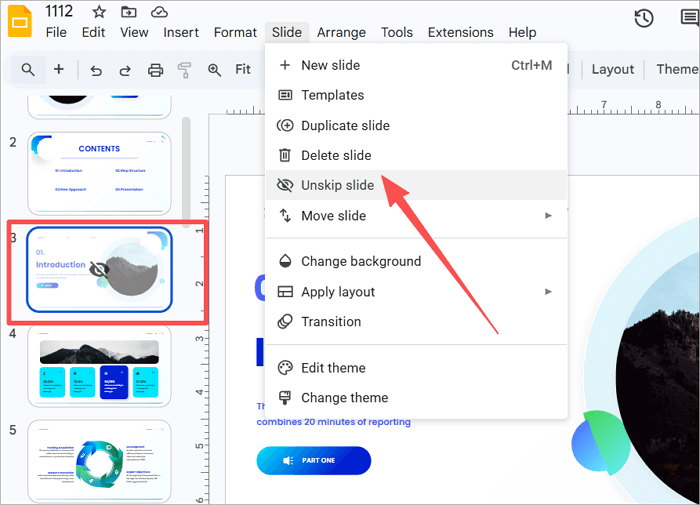
🔍 Using the toolbar:
Step 1: Go to your presentation and left-click on the hidden slide.
Step 2: Navigate to the slide tab at the top of the screen and select Unskip slide from the menu.
🔍 Using Grid view:
Step 1: Proceed to select the slide you want to unskip in your presentation.
Step 2: Navigate to the View tab at the top of the screen and select Grid view.
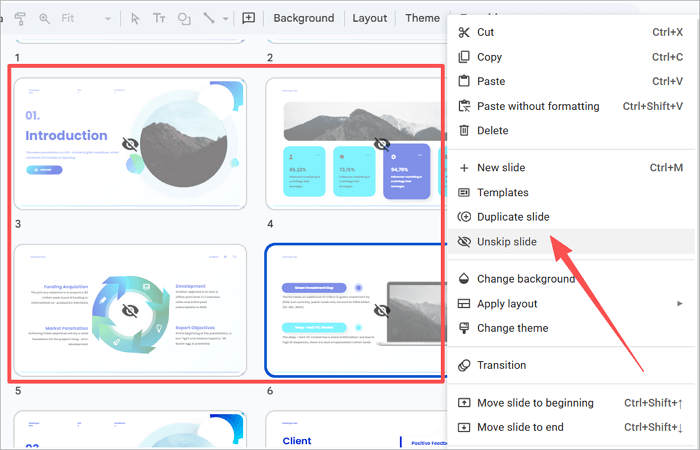
Grid view comes in handy when you need to unhide multiple slides at once. Select them using Shift (for slides in a range) or Ctrl/Cmd (for non-adjacent slides) and right-click to access the Unskip slides option.
Whichever method you choose to use, it will unskip the slide in Google Slides and return it to the normal slide sequence.
Common Issues When Hiding or Unhiding Slides
We understand how frustrating it can be to face issues when hiding or unhiding slides in Google Slides, even after following the right steps.
In the table below, we outline common problems on the topic and how to fix them quickly.
| Problem | Solution |
| 1️⃣ Skipped slides still appear when printing or exporting | Hidden slides are included by default in print/export settings. Adjust print settings or duplicate the deck if necessary. |
| 2️⃣ Slide still showing in the presentation | Confirm that the crossed-out eye icon for Skip appears in the thumbnail panel. |
| 3️⃣ The skip option is not visible | Ensure you have selected the slide thumbnail and that you have editing permissions on the file. |
| 4️⃣ Mobile limitations | Some mobile versions of Google Slides offer limited options, so you should consider switching to desktop mode on your mobile browser for full functionality. |
| 5️⃣ Accidentally hid the wrong slide | Press Ctrl/Cmd + Z to undo the action or right-click on the thumbnail to unskip the selected slide. |
Conclusion
Every presenter should have full control over how their content is delivered. When you know how to hide a slide in Google Slides, your presentation becomes flexible, especially when preparing one deck for multiple audiences. These slides serve as backup content and remain hidden until they are required.
Before your next live session, take a moment to review which slides are skipped or need to be skipped, and make sure everything is in order.
FAQs on Hiding and Unhiding Slides in Google Slides
You already know how to hide slides in Google Slides and unhide them, too. Let’s quickly explore questions users ask about the feature on various devices.
1. How do you hide a slide in Google Slides on a phone?
Although it’s advisable to use Google Slides for desktop, it’s still possible to hide slides on the mobile version. To do this:
- Open the Google Slides presentation.
- Long-press the slide thumbnail you want to hide.
- Press the three-dot menu in the top-right corner.
- Select Skip slide.
If your mobile device doesn’t offer this option, you can access the “Skip slide” option by using the Google Slides desktop version on your browser.
2. How to hide slides in Google Slides on Mac?
Hiding slides on a Mac follows the same process as on any desktop. The only differences are the keyboard shortcuts used for selecting multiple slides.
Here’s the full process for how to hide a Google Slides on a Mac:
- Open Google Slides in Chrome or Safari on your Mac.
- In the slide thumbnail panel, click on the slide you want to hide.
- To select multiple slides, hold Cmd and click on each slide, or hold Shift to select a range.
- Right-click on the selected slide(s) or go to Slide > Skip slide in the top menu.
3. How to unskip a slide in Google Slides on Android?
If you need to unskip a slide in Google Slides on Android, follow these steps.
- Open your presentation in the Google Slides app.
- Locate the skipped slide (it will have a crossed-out eye icon).
- Tap the slide.
- Proceed to the three-dot menu.
- Tap the Show slide.