
Imagine you’re preparing a quarterly business presentation for your team and need to include the supporting data stored in Excel. In situations like this, you want your audience to access the spreadsheet without copying dozens of tables onto different slides.
Fortunately, knowing how to attach Excel file in PPT solves this problem, and there are several ways to go about it.
You may choose an approach depending on whether you want to edit the spreadsheet, keep data updated, or simply let others open the original file. In this article, we’ll show you how to make the best choice.
Key Takeaways:
- There are different ways to insert Excel file in PPT—embedding, linking, icons, and hyperlinks, each of which suits different sharing needs.
- Embedding stores the Excel workbook inside your PowerPoint file.
- Linking keeps PowerPoint in sync with changes you make in Excel.
- Icons provide access to the workbook without displaying spreadsheet content.
Can You Attach an Excel File to PowerPoint?
Yes. PowerPoint offers three built-in methods to attach or connect Excel workbooks. However, the best option depends on how you’ll use the presentation. You can:
- Embed Excel file in PowerPoint.
- Link the spreadsheet to PowerPoint.
- Insert the file as an icon.
- Add the Excel file through a hyperlink.
- Convert Excel data into PowerPoint slides.
Before picking a method for your presentation, think about whether your audience needs to see the raw data, edit it, or simply have access to it on request.
Method 1. Attach an Excel File as an Embedded Object
Embedding offers an easy way to insert Excel file in PPT, because the workbook becomes part of the presentation itself. This makes it easier to share everything with your colleagues or clients in a single file.
The trade-off with this method is that the presentation file may become larger, and any changes you make to the original Excel workbook won’t update automatically.
Step 1: Open your PowerPoint Presentation
Go to the slide where you want to place the Excel workbook.
Step 2: Proceed to the Object menu in the Text group
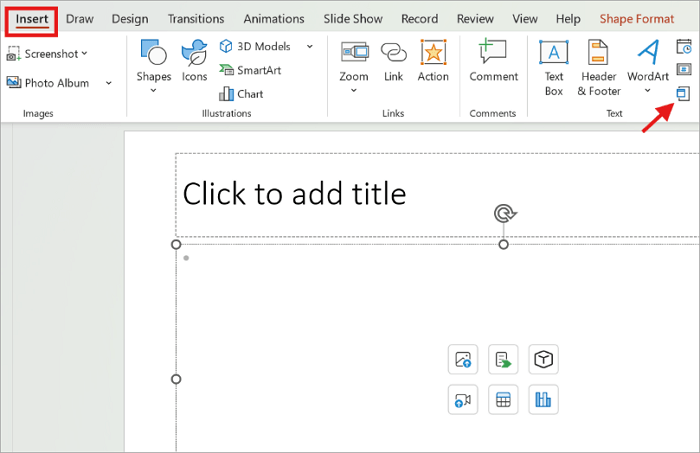
Go to Insert and click the Object icon.
Step 3: Insert your Excel File
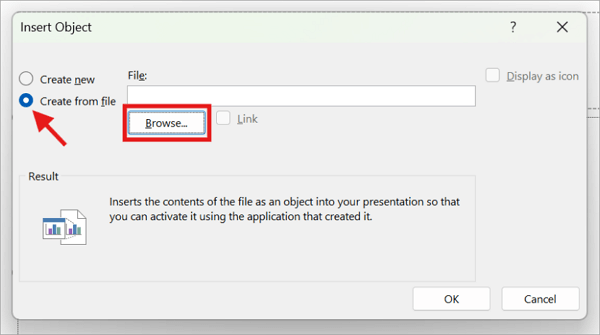
Choose Create from file, then Browse to select your Excel workbook.
Step 4: Embed the Excel Workbook
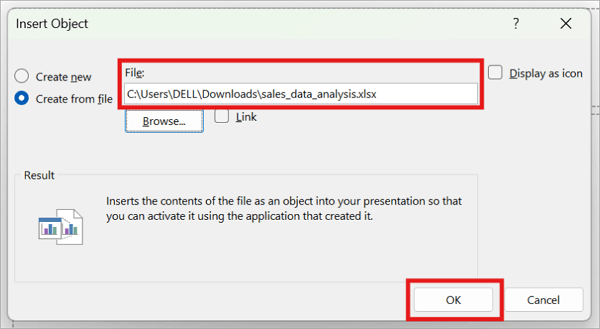
Click OK to embed the workbook into your PPT.
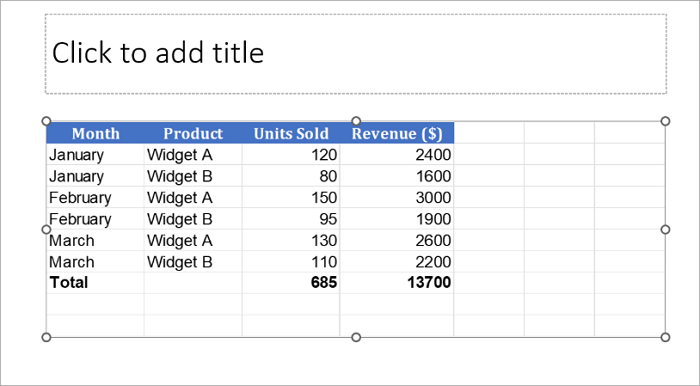
The final result should look like this in PowerPoint:
Method 2: Link an Excel File to PowerPoint
If your Excel workbook is updated regularly, it is better to link the workbook. Instead of storing the workbook inside PowerPoint, this method creates a connection between the presentation and the original file. It is ideal for financial reports, dashboards, and monthly performance presentations.
However, the original Excel workbook must remain in the same location, as updates won’t happen if the file path is broken.
Step 1: Select the Destination Slide
Select the PowerPoint slide where you want the link to appear.
Step 2: Open the Object Menu
Once again, select the Object icon from the Insert menu.
Step 3: Choose Your Excel Workbook
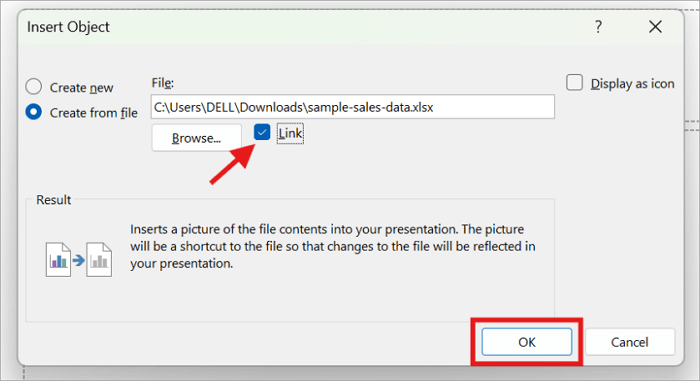
Switch to Create from file and browse your Excel workbook.
Step 4: Enable the Link Option
Check the Link box and click OK to continue.
Method 3: Insert the Excel File as an Icon
You can also insert Excel into PowerPoint as an icon if you simply want to give your audience access to the spreadsheet without displaying its content. This method keeps your slides clean and is particularly useful when you’re presenting summarized data but still want to provide the complete spreadsheet for reference.
The downside to this approach is that viewers need to click the icon to open the file outside of PowerPoint.
Step 1: Go to the Destination Slide
Open your PowerPoint presentation and navigate to the desired slide.
Step 2: Access the Object Menu
Click Insert from the ribbon and select the Object icon.
Step 3: Locate the Excel Workbook
Select Create from file. Then “Browse” the spreadsheet you want to attach.
Step 4: Display the File as an Icon
Check the Display as icon box and click OK.
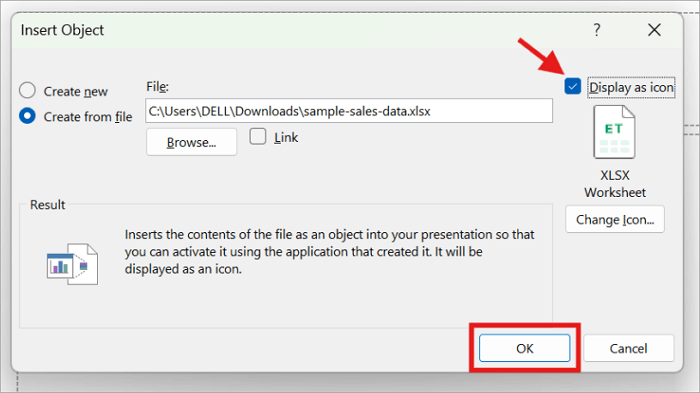
Your worksheet icon will look like this:

Method 4: Add an Excel File Through a Hyperlink
Another option you might want to explore, especially if the Excel file is stored separately, such as on a local computer, shared drive, or cloud storage, is to create a hyperlink.
Unlike embedding, hyperlinks don’t increase your presentation size because the workbook remains in its original location. However, you’ll need to ensure the file path stays the same so that PowerPoint doesn’t have an issue locating it.
Step 1: Select the Link Anchor
Highlight the text, image, shape, or icon that will open the Excel workbook.

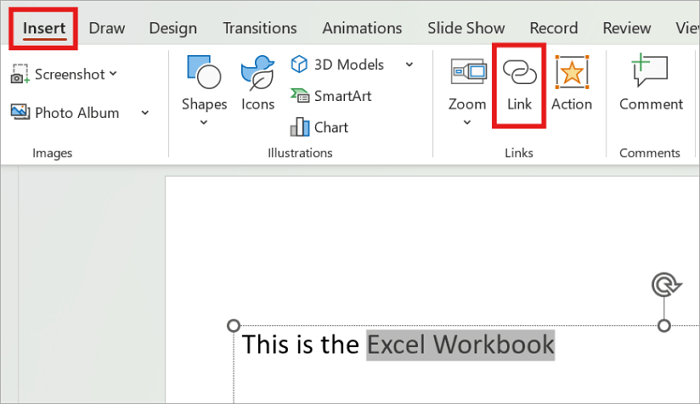
Step 2: Open the Hyperlink Window
Go to the Insert menu and select Link. Alternatively, right-click the selected object and go to Hyperlink.
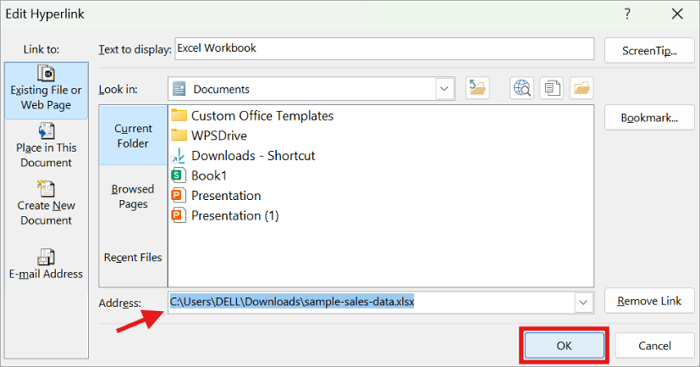
Step 3: Choose the File Location
Select Existing File or Web Page from the options.
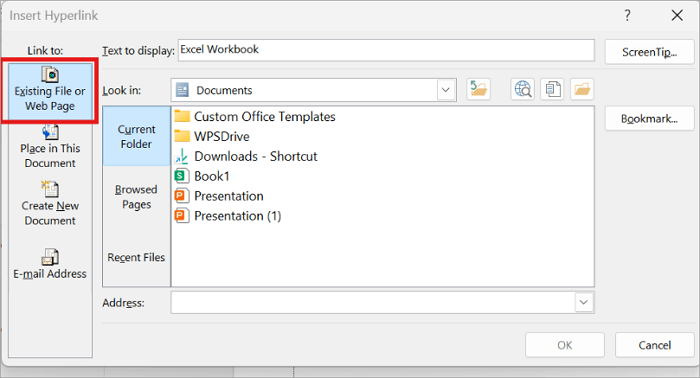
Step 4: Link the Excel Workbook
Browse to your Excel workbook or paste the link into the Address bar and click OK.
Method 5: Convert Excel Data into PowerPoint Slides
There are times when you don’t actually need to add Excel file in PPT, but simply want to turn those tables or charts into presentation-ready slides that your audience can easily understand. Rather than copying tables manually, you can convert Excel content into PowerPoint slides using AI-assisted tools such as AiPPT.com.
This tool can take Excel data and automatically generate formatted, editable slides around it that you can use for sharing sales reports, project updates, financial summaries, and business dashboards.
Step 1: Export the Excel file to PDF or DOCX format.
Step 2: Click Get Started on AiPPT.com and sign in with your preferred method.

Step 3: Switch to Flow and click From Files to upload the PDF.

Step 4: Type a prompt such as “Turn this Excel document into presentation-ready slides for sharing insights” and proceed to generate.
Step 5: Choose a template and make any necessary edits before downloading it.
Common Problems and How to Fix Them
Some issues may come up after you embed Excel in PPT. Fortunately, you can fix them in just a few clicks once you know what’s causing them.
- The Excel file won’t open
This might happen if the workbook has been moved, renamed, or deleted. You may need to verify that the workbook still exists or update the hyperlink.
- Linked data is not updating
The most likely cause of this is that PowerPoint may not have refreshed the connection to the Excel workbook. Quickly fix it by opening the presentation and accepting the prompt to update linked content.
- File size has become huge
Compress images in the presentation and remove unnecessary worksheets before embedding. Alternatively, use linking, especially if the workbook content changes frequently.
- The Excel formatting looks different in PowerPoint
Resize the object manually in PowerPoint or consider converting important tables into images if the layout must remain identical.
Conclusion
You become more flexible in building presentations when you know how to attach Excel file in PPT. There’s an option for whether you want to share the entire workbook, keep your slides synced with changing data, or simply provide a downloadable spreadsheet.
If your goal is to present insights from analyzing data rather than distribute the workbook, converting Excel content into presentation slides with AiPPT.com can help you save considerable time.
Before your next presentation, choose the method that best suits your workflow and test it to ensure everything works as expected.
FAQs on Inserting an Excel File into PowerPoint
If you still have questions about inserting an Excel file into PowerPoint, the answers below cover some of the most common situations you may encounter.
1. How do you insert an Excel spreadsheet into a PowerPoint online?
PowerPoint for the web doesn’t support all the object embedding features available in the desktop version, but you can still add Excel content using Hyperlink:
- Upload your Excel workbook and copy its link.
- Highlight the anchor text in PowerPoint.
- Right-click and select Insert Link.
- Paste the link you copied earlier.
- Click Insert.
Alternatively, you can copy and paste a table or chart from Excel to PowerPoint for the web.
2. How to insert an Excel document into PowerPoint on Mac?
PowerPoint for macOS also lets you embed Excel workbooks from the Object menu. Here’s how to do it:
- Go to Insert > Object.
- Browse and select your Excel file.
- Choose whether to simply embed, link, or display it as an icon.
- Click OK to continue.
3. How to embed Excel in PPT on Windows 11?
Embedding a workbook in Windows 11 follows the same process used in recent versions of Microsoft Office. To do this:
- Go to the slide where you want the workbook.
- Select Insert > Object.
- Choose Create from File, then browse for the Excel workbook.
- Leave the Link box unchecked and click OK.


