Do you want to present processes, progress, stages, categories, or relationships in a compact visual format? If yes, semicircle diagrams will come in handy.
Luckily, you do not need a ready-made template to build one. You can easily create a semicircle in PowerPoint with built-in shapes, then duplicate, arrange, and customize the pieces to match your slide.
This guide covers two ways to make a semicircle and turn it into a complete diagram in PowerPoint.
Key Takeaways
- Create a semicircle with the Partial Circle shape or Merge Shapes.
- Duplicate and arrange semicircles to build diagrams.
- Use colors, labels, icons, and alignment tools to improve readability.
- Keep the design simple so the diagram supports your message.
Common Uses of Semi-Circle Diagrams in PowerPoint
You will find semi-circle diagrams particularly useful when you need to show information in a compact, visual structure. Instead of using several text boxes or a long list, you can arrange related information around a simple curved shape.
Here are some common uses:
- Process stages: Show the steps in a workflow from beginning to completion.
- Progress indicators: Represent completed, ongoing, or remaining progress.
- PowerPoint timelines: Arrange milestones along a curved visual path.
- Business diagrams: Present strategies, workflows, or business models.
- KPI or data displays: Highlight percentages, targets, or performance figures.
- Category comparisons: Place related categories into separate sections.
- Infographics: Combine shapes, icons, and short text to communicate information visually.
- Key information: Use a large semicircle to draw attention to an important figure or message.
You can duplicate, rotate, resize, and combine the basic semicircle shape to create any of these layouts.
How to Create a Semi-Circle Diagram in PowerPoint
Start by creating an accurate semicircle. Once the basic shape is ready, you can duplicate it and arrange the copies into a diagram.
Step 1: Create a Semi-Circle Shape
This is the most straightforward method.
- Open your PowerPoint presentation and go to Insert > Shapes > Partial Circle.
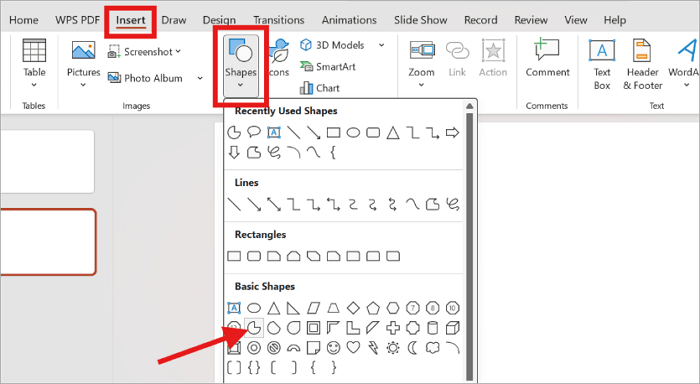
- Draw the shape on your slide.
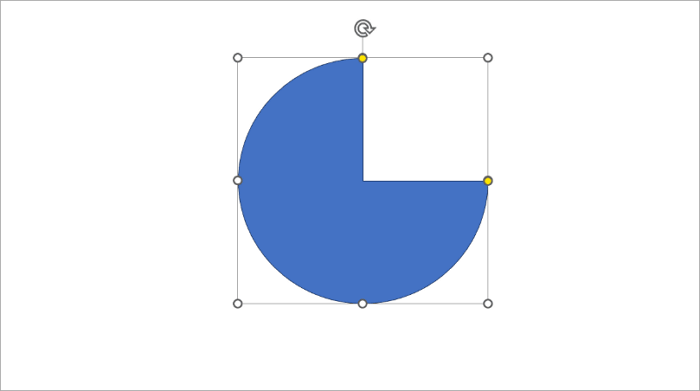
- Then drag the yellow handles until it forms a half circle.
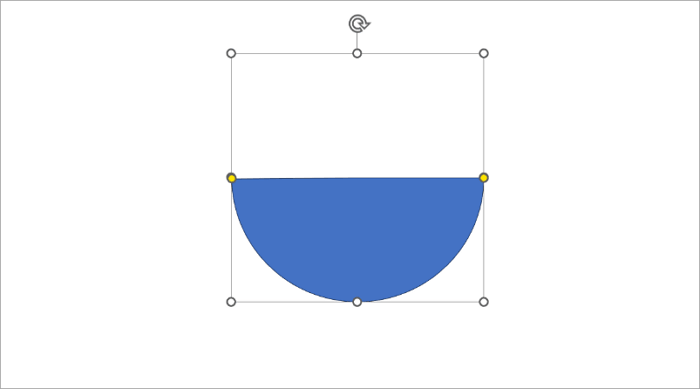
Step 2: Create a Precise Half Circle with Merge Shapes
Alternatively, you can create a more controlled half circle PPT element when you need a consistent shape for a diagram.
- Go to Insert > Shapes and add an Oval and Rectangle.
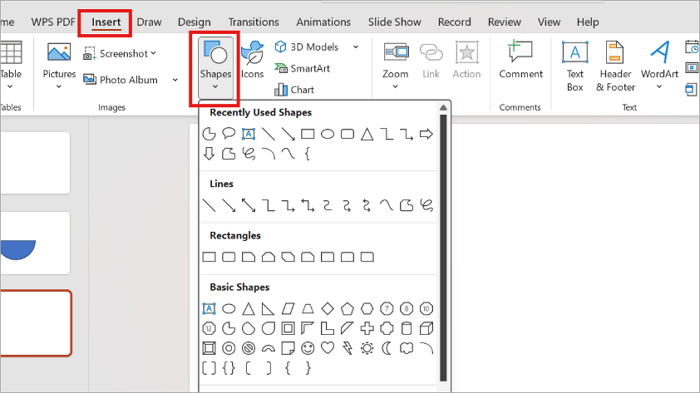
- Position the rectangle so that it overlaps half of the circle.
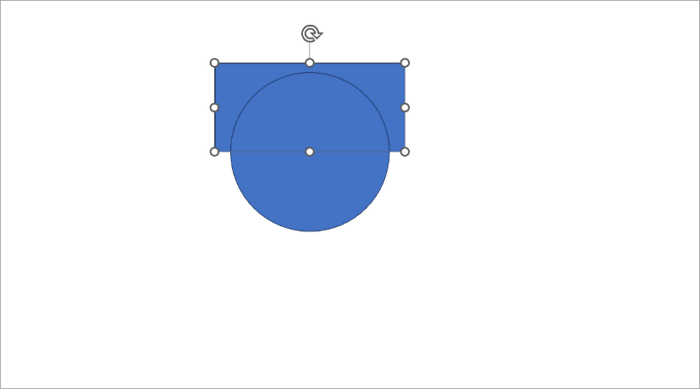
- Select both shapes by holding Shift and clicking, then open Shape Format > Merge Shapes > Intersect.
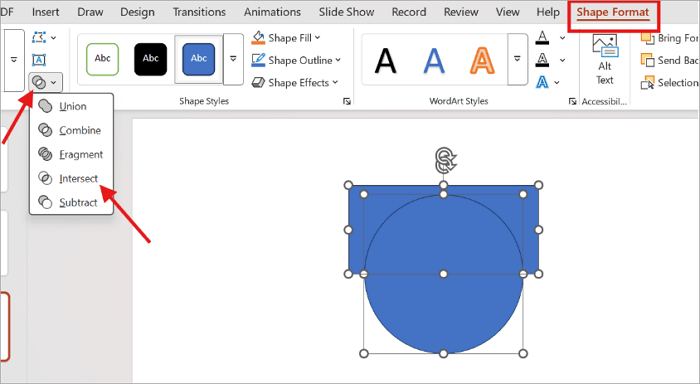
Step 3: Duplicate the Semicircle
One half-circle can become the base of your whole diagram. Select it and press Ctrl+D to make a copy. Resize or rotate each copy to fit the diagram you want to create.

Step 4: Arrange the Shapes into a Diagram
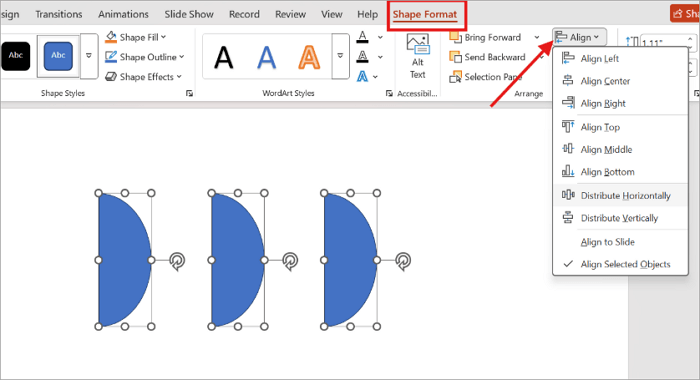
Place the semicircles next to, inside, or around one another. For example, in a three-stage process, you can place three semicircles horizontally and assign one stage to each. Select the shapes and use Shape Format > Align and Distribute to keep the diagram organized.
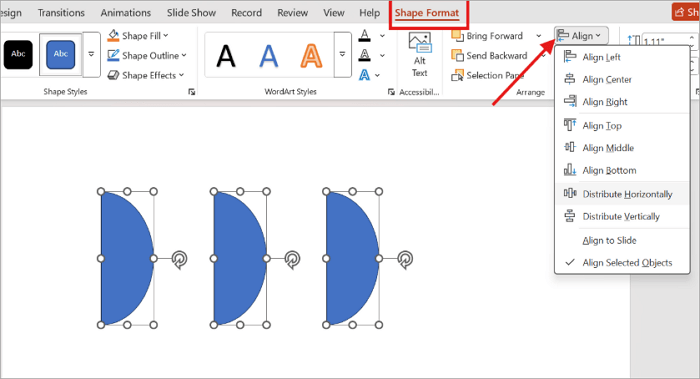
Step 5: Add Text, Icons, and Labels
Add short labels, numbers, icons, or supporting text to each section. Keep the wording brief, especially when the semicircle is small. If there is not enough room inside a segment, place the label beside it and connect the text with a line or arrow.
How to Customize a Semi-Circle Diagram
After creating a semicircle shape in PowerPoint, you can adjust its appearance to match your presentation theme and make the diagram easier to read.
1. Change Colors
Select a semicircle and use Shape Fill to change its color. Give each section a different color when you need to distinguish categories or stages.
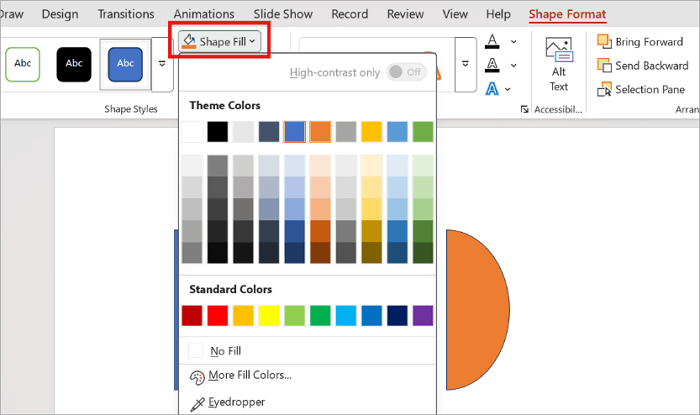
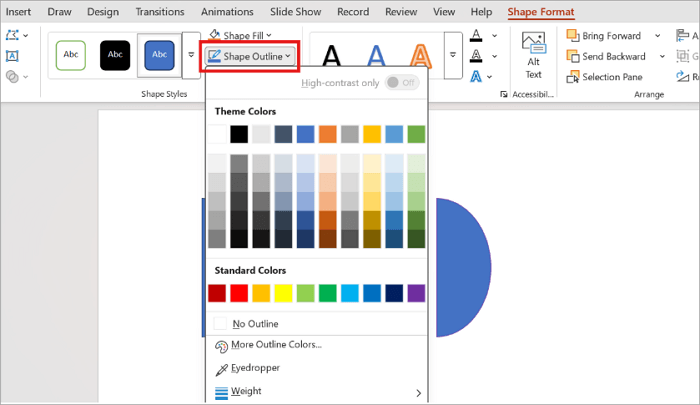
2. Edit the Outline
Use Shape Outline to change the border color and thickness. You can also select No Outline when you want a cleaner appearance.
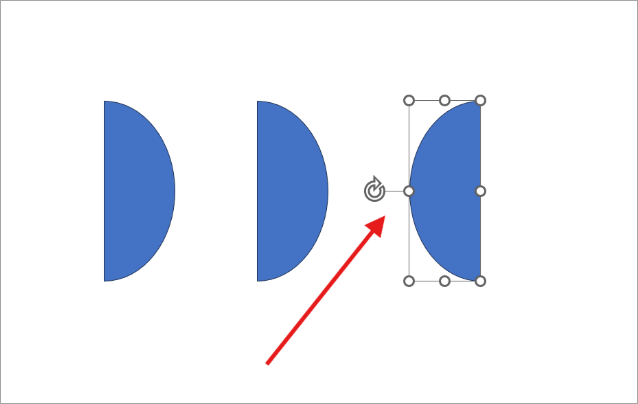
3. Rotate and Resize Shapes
Change the direction of each semicircle using the rotation handle or Rotate options. Then resize duplicated shapes to create layered or nested diagrams.
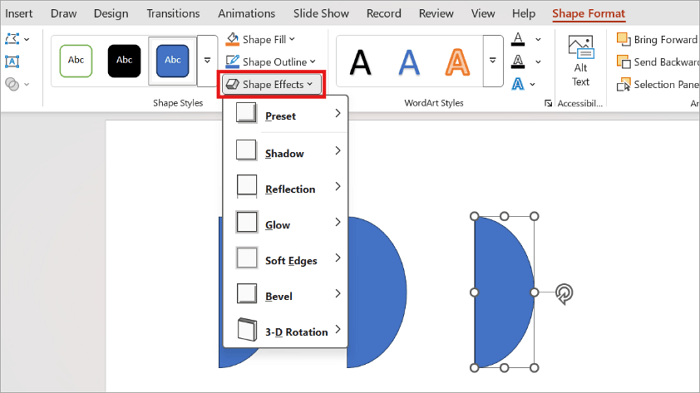
4. Add Effects and Transparency
You can also use PowerPoint’s shadow and glow in Shape Effects, along with transparency settings to improve your slide’s appearance.
5. Keep the Diagram Aligned
Consistent spacing is important when several semicircles form one diagram. Keep the shapes evenly positioned using PowerPoint’s Align and Distribute options.
Tips for Designing a Semicircle Diagram in PowerPoint
A good diagram should make information easier to understand at a glance. Keep these design principles in mind when creating a semicircle diagram in PowerPoint.
- Limit the number of segments so the diagram does not become crowded.
- Use consistent shape sizes when the segments have equal importance.
- Choose colors that work well together for each section.
- Keep labels short and remove unnecessary text.
- Add icons only when they help explain the information.
- Leave enough white space around the diagram.
- Align shapes carefully to create a balanced layout.
- Avoid excessive shadows, glows, and other effects.
- Use contrast to highlight the most important stage or data point.
- Keep the diagram consistent with the fonts, colors, and visual style used throughout the presentation.
If you are building a larger infographic, you can also combine semicircles with other shapes and icons. For more ideas, see our guide on how to make infographics in PowerPoint.
Conclusion
It is very easy to create a semicircle in PowerPoint. Start with the Partial Circle shape or Merge Shapes to build your base. Then duplicate and arrange the shapes, and finish by adding colors, labels, and icons.
Once you understand how to create a basic semicircle, you can adapt the same technique for process diagrams, progress indicators, timelines, business visuals, and infographics.
FAQs on Semicircles in PowerPoint
Want to explore more about using and modifying semicircles in PowerPoint? You will find this section useful.
1. How to make a half circle in PowerPoint?
To create a half circle in PowerPoint:
- Go to Insert > Shapes and choose Partial Circle.
- Draw the shape on your slide.
- Select it and use the yellow adjustment handles to adjust the shape until it forms a half circle.
- For greater control, create an oval and a rectangle and overlap them.
- Select both and choose Shape Format > Merge Shapes > Intersect.
2. What can a semicircle diagram be used for?
A semicircle diagram can show process stages, progress, timelines, categories, comparisons, KPIs, and relationships.
You can also use it as part of an infographic or business presentation. Duplicate and rotate the shapes to create different layouts that fit the information you want to present.
3. Can I divide a semicircle into multiple sections in PowerPoint?
Yes. Create a semicircle first, then duplicate it and arrange the copies as separate sections. You can also use additional shapes and Merge Shapes to create more precise segments.
Give each section a different color and add short labels to make the divisions clear.