A while ago, I made use of ChatGPT in creating a presentation, and my colleagues couldn’t get over it. They kept asking me to show them how I did it.
I bet you were also shocked when you found out that ChatGPT could help you build PowerPoint presentations. You want to generate ideas, structure slide content, and save design time? ChatGPT might be all you need.
This guide covers step-by-step instructions to make a PPT using ChatGPT, sample prompts, and how our presentation maker, AiPPT.com, can help you generate full PPTs with AI.
Can ChatGPT Make PowerPoints?
Can ChatGPT create a PowerPoint? The answer is No and Yes.
ChatGPT cannot help you design slides or add visuals directly to your content. However, it can still generate slide outlines, titles, bullet points, summaries, speaker notes, and every other content that forms the backbone of a PPT presentation.
However, ChatGPT can help suggest charts, diagrams, or visuals that fit into each slide in your presentation.
Whether you’re a student, professional, or educator, this means you no longer have to spend long hours on slide design. ChatGPT now allows you to organize ideas logically and ensure smooth flow from start to finish.
How to Make a PPT Using ChatGPT Step by Step
So, how can you make PPTs using ChatGPT? In case you’ve also been asking this question, here’s a simple guide to help you.
Step 1. Generate a Slide Outline
Got an idea of what a blueprint is used for in construction? That’s exactly how an outline works. It shows every detail for your presentation.
Generating a strong outline is pretty simple: Just enter your desired topic, target audience, presentation length, and objectives.
Here’s an example prompt for a slide outline on ChatGPT:
Create a 10-slide presentation outline on digital marketing trends for small business owners. Include a title slide, introduction, main sections, and a conclusion.
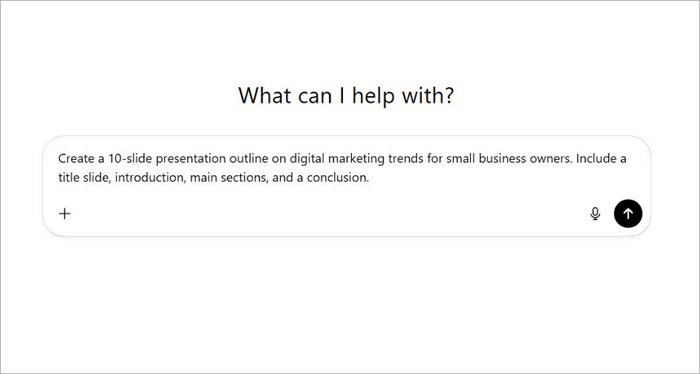
Send your prompt, and it will generate a suitable outline that allows you to visualize the structure of your presentation before going into details.
Step 2. Expand Slide Content
Now it’s time to build on the layout you’ve been given. You can ask ChatGPT to develop detailed content for each slide in the outline.
Request explanations, bullet points, examples, statistics, or data points that support the message you want to convey in your presentation. How you choose to expand your slide content will depend on the presentation topic you have chosen.
Use prompts like “Expand slide 3 about social media strategies with 4-5 bullet points” to get more detailed content.
You can request multiple versions of the same slide content to compare options and select the most compelling phrasing.
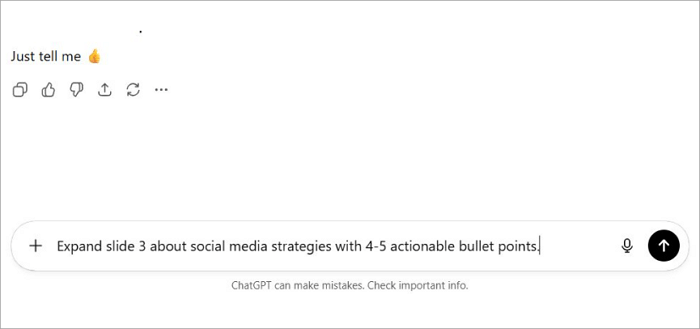
Another option is to refine and edit the text generated by ChatGPT to fit your presentation style.
Step 3. Create Speaker Notes
Speaker notes work like private scripts that help you remember extra details, reminders or explanations that don’t appear in your presentation itself. They come in handy when you don’t want to overcrowd your slides with unnecessary information.
If you wish to add speaker notes to your PowerPoint presentation, you can ask ChatGPT to generate detailed notes for each slide. These could be talking points, examples, statistics, or transition phrases.
Step 4. Integrate Visual Suggestions
ChatGPT will also recommend appropriate visual elements for your presentation, even though it cannot create or add them directly.
Ask for suggestions on charts, icons, images, or diagrams, such as comparison tables, flowcharts, or infographics that would complement the message in each slide.
These suggestions will come in handy when you need to create or generate your own images quickly using the AiPPT.com AI image generator.
Prompts to Get ChatGPT to Make a Full PowerPoint Presentation
Knowing how to use effective prompts can be a great hack for anyone who wants to generate high-quality results with ChatGPT.
A rule of thumb when writing prompts for tools like ChatGPT is to keep your request specific enough so that your message is understood clearly and you receive the best possible response.
If you want your prompt to get ChatGPT to make a full PowerPoint presentation, include details like:
- Topic
- Audience
- Slide count
- Tone
- Presentation type (informative, persuasive, motivational, etc.)
Check out some prompts you can use to create presentations on ChatGPT:
1️⃣ Create a 10-slide informative PowerPoint presentation on renewable energy for university students. Use a neutral, educational tone and include slide titles, 3–5 bullet points per slide, and brief speaker notes.
2️⃣ Create an outline for a 6-slide webinar presentation about AI in Human Resources. For each slide, include a slide title, description, layout, and placeholder content.
3️⃣ Generate a 12-slide persuasive presentation arguing for the adoption of remote work in mid-sized companies. The audience is business managers, so you should use a professional, convincing tone.
4️⃣ Draft a 15-slide presentation on social media marketing trends for startups. Include slide titles, bullet points, speaker notes, and suggestions for visuals such as charts, icons, or diagrams for each slide.
Create Presentations with AiPPT.com’s AI-Powered PPT Generator
What if you had access to a tool that lets you do more than just create outlines for your presentation? AiPPT.com, our AI-powered presentation maker, helps you generate PPTs using prompts and its templates.
All you need to do is enter your prompt, and AiPPT.com will create your full presentation in just a few minutes.
Features of AiPPT.com include:
- Extensive template library around business, education, marketing, technology, etc.
- AI image generation with Nano Banana Pro.
- Simple drag-and-drop editing interface.
- PPTX, PDF, and image export options.
Here’s how to generate PPTs on AiPPT.com with prompts and templates.
Step 1: Go to AiPPT.com and click Get Started. Then choose your preferred sign-in or sign-up option to continue.

Step 2: Upon sign-in, choose how you’d like to create your PPT. Select Create from Topic and enter the topic.

Step 3: Review the outline generated and click Select template.
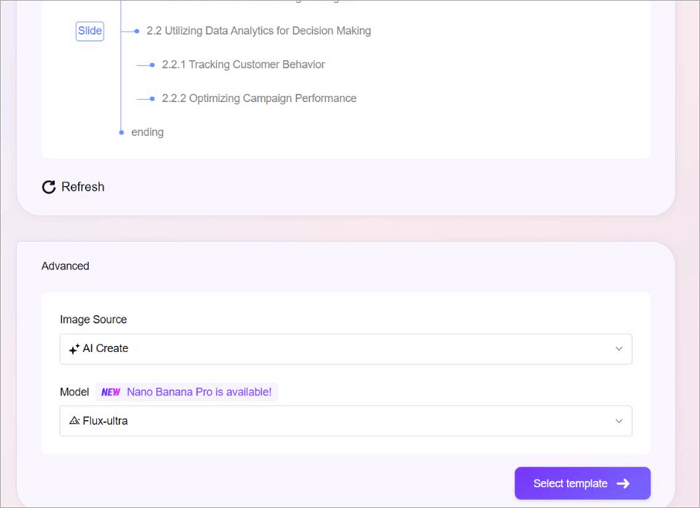
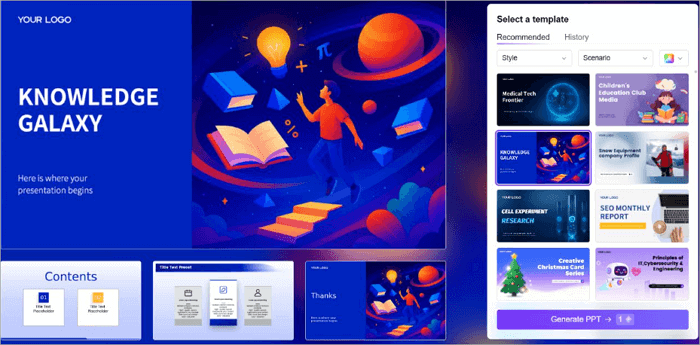
Step 4: Choose a preferred template and click Generate PPT.
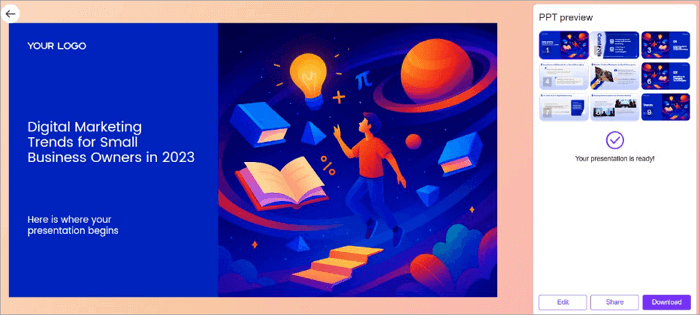
Step 5: Edit, share, or download your PPT.
Conclusion
ChatGPT is a valuable tool when it comes to creating presentation slides quickly and with less manual work. However, you can not make a PPT using ChatGPT, at least not full presentations.
It’ll help with content generation like outlines, bullet points, speaker notes, and even suggest visuals that you can use in the PPT. But you’ll still need design tools to complete the process.
This is where AiPPT.com comes in. Our AI-powered presentation maker will help you generate a content outline and still create designs for your PPT.
Learn More about ChatGPT PPT Maker
Check out answers to common questions about how to use ChatGPT PPT maker to create full PowerPoint presentations.
1. How to make a PPT using ChatGPT on mobile?
You can’t generate a full PPT with ChatGPT, whether you’re using the mobile or desktop version. It’ll only come in handy when you need to create layouts for the presentation.
However, AiPPT.com allows you to generatea full PPT and use its templates on mobile. Sign in to AiPPT.com, enter your topic, and you’ll have your PPT in minutes.
2. Which AI can create PowerPoint slides?
As you should be aware of already, ChatGPT cannot create full PowerPoint slides. It can only help you generate content that serves as the backbone of your presentation.
AiPPT.com, our AI-powered PPT maker, is the perfect tool for creating PowerPoint slides from scratch. You can generate a complete PPT from topics and adopt any of its free templates for your presentation.
3. Can ChatGPT turn a Word Document into a PowerPoint?
No. ChatGPT cannot turn a Word document into a PowerPoint presentation. However, AiPPT.com can do this and even more. With AiPPT.com, you can generate PowerPoint presentations from various input options like topic, document, text, and URL.