Images come in handy when building PowerPoint presentations by making your ideas clearer and more engaging to the audience. However, you must give the necessary credits when using images that are not yours in a presentation.
This is where many users struggle. If it’s your first time, you may also not know how to cite pictures in PowerPoint. Giving proper image credits helps you avoid copyright issues, meet academic requirements, and maintain a professional look.
So if you’ve been adding images without proper credit, you’re not alone. But it’s something you should fix before your next presentation.
What and Where to Cite Pictures in PowerPoint
Some important details must be included when you want to cite photos in PowerPoint:
- Creator or author name
- Title of the image
- Source (website or platform)
- Date of publication
- URL (if applicable)
Note that different citation styles, such as APA, MLA, and Chicago, arrange these details in different orders. Therefore, the elements you include in your citation will depend on the style required by your course, employer, or institution.
Now that you know what details to include, where in your slides should you place them?
There are three practical placement options, including:
- Directly under the image: This is the most visible and commonly used option. It helps your audience identify the source immediately.
- In the speaker notes: Placing citations in speaker notes keeps your slides clean. The citation is stored for your reference while presenting.
- On a final reference slide: This format works best for formal presentations. It collects all citations in a dedicated slide at the end of the deck.
Method 1: Add Image Citations Directly on Slides
If you’ve come across citations from other PowerPoint users, you will realize that this is the most commonly used approach because it is straightforward.
You place a short citation directly beneath an image so the audience immediately knows the source. This method is useful in academic and professional presentations where instructors expect to see sources on each slide.
Step 1: Go to the slide where your image is placed or add a new image via Insert > Pictures.
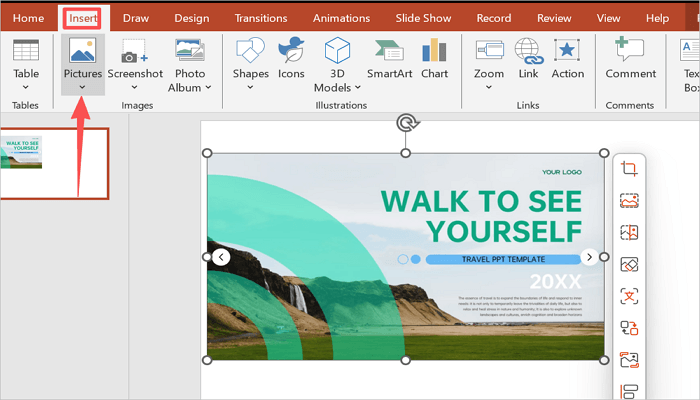
Step 2: Go to Insert > Text Box and draw a small text box directly below the image.
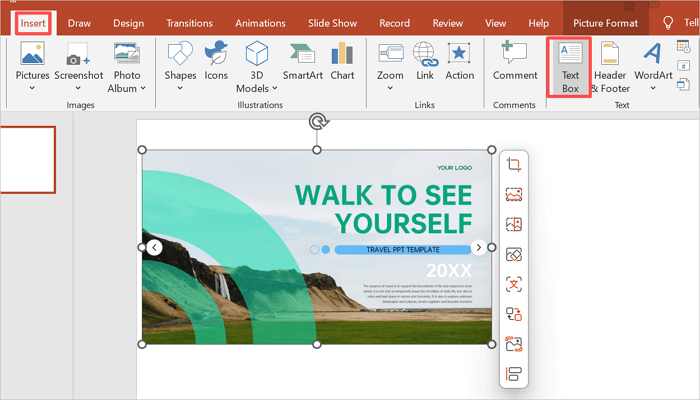
Step 3: Type a short citation in the text box.

Step 4: Reduce the citation’s font size, so it doesn’t overpower the content of the slide.

Method 2: Add Citations in the Notes Section
Another reliable method to cite an image on a PowerPoint is to add citations in the speaker notes. This approach helps keep your slides clean while storing full citation details.
It is particularly useful when you’re delivering a spoken presentation where the audience is focused on your visuals.
However, the audience won’t see the citations during the presentation unless they are able to access notes later in the file. Also, keep in mind that some instructors or institutions may not accept citations placed in speaker notes.
Step 1: Click on the slide containing the image you want to cite.

Step 2: Go to Click to add notes at the bottom of the PowerPoint screen to open the Notes panel.

Step 3: Type the full citation details for each image in the Notes area.

Step 4: If your slide has multiple images, number each citation and match it to the image position on the slide (e.g., top-left, bottom-right).
Method 3: Add a Reference Slide for All Images
Imagine you have several images in your presentation and you need to credit every one of them. This is where a centralized list becomes necessary.
Instead of scattering citations throughout the deck, you list them all on a final slide, similar to a bibliography page in an essay. This method works best in academic submissions or formal presentations.
Step 1: Go to the end of your presentation and add a new slide.
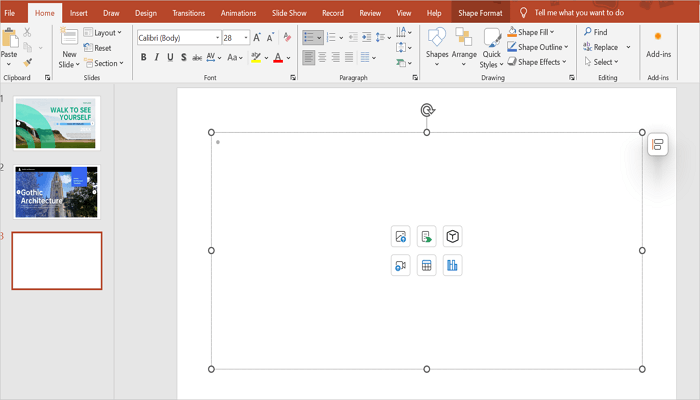
Step 2: Add a title at the top via Insert > Text Box. For example, Image References or Sources.
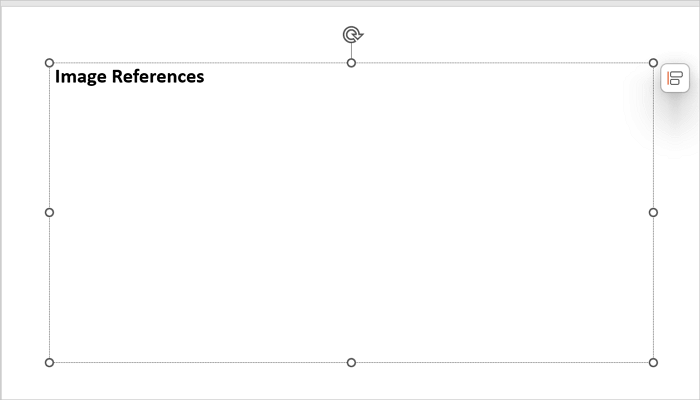
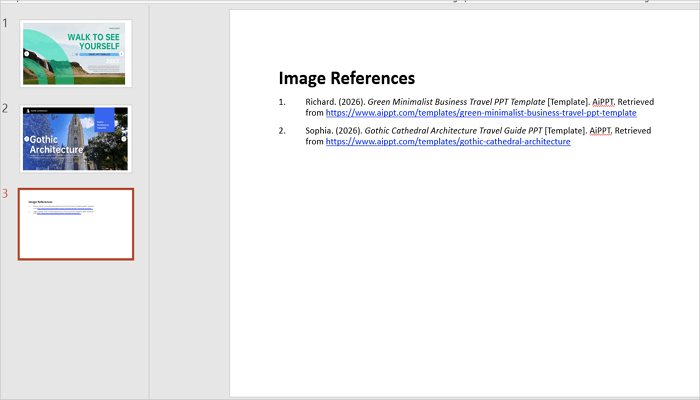
Step 3: List each image citation in your required format and number each entry or label it by slide number for easy cross-referencing.
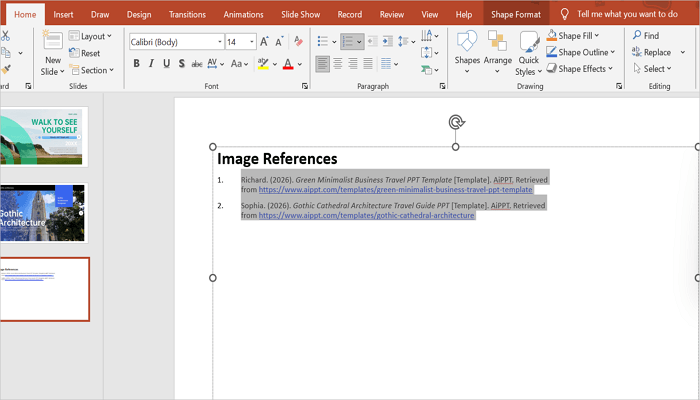
Step 4: Go to Shape Format > Font to reduce the font size to something small, but readable.
Common Citation Styles for Images in PowerPoint
To help you better understand how these image citation styles work, let’s explore an example image from a website.
Photo title: Cityscape at night with glowing signs reflecting in water
Author: Tobias Reich
Publish date: 2026
1. APA Style (7th Edition)
Reich, T. (2026). Cityscape at Night [Photograph]. Unsplash.
https://unsplash.com/t/street-photography
2. MLA Style (9th Edition)
Reich, Tobias. “Cityscape at Night.” Unsplash, 2026, https://unsplash.com/t/street-photography
3. Chicago Style (17th Edition)
Reich, Tobias. “Cityscape at Night.” Photograph. Unsplash, 2026.
https://unsplash.com/t/street-photography
So what changes between these styles?
APA uses brackets to identify media type and places the year early. MLA, on the other hand, italicizes the platform name and uses a comma-heavy format.
Chicago follows a similar structure to MLA but includes “Photograph” as a label without brackets and uses a period after the URL.
However, the core information—creator, title, platform, year, and URL- stays the same across all three styles. What differs is the order, punctuation, and capitalization.
Before you start building your slides, always confirm which style your institution or organization requires.
Common Mistakes When You Reference Pictures in PowerPoint
You can be the most experienced PowerPoint user in the room and still make mistakes when citing images in your presentation.
The most common ones include:
- Missing creator or source information: Your citation is incomplete without this. Always record the full source details when downloading or saving an image.
- Overcrowding slides with long citations: Long citations can overpower the visual content. Always use shortened citations and reserve full details for the reference slide.
- Ignoring citation requirements entirely: Check licensing terms, especially for commercial presentations, to determine if online images are free for use or not.
- Mixing multiple citation styles in one presentation: Using APA and MLA together creates confusion. Choose one and stay consistent.
Conclusion
Proper image citation is more than just a box to check when building a presentation. It directly affects how credible your presentation appears, especially in academic and professional settings.
You may know how to cite pictures in PowerPoint, and still encounter issues sometimes. Most of these issues don’t happen because people don’t know the rules; they happen because people only think about citations after finishing their presentations.
When creating your next presentation, choose your citation style before you begin to add images. This way, you can save more time and avoid reformatting later.
FAQs on Referencing Photos in PowerPoint
Have questions about referencing photos in presentations, especially using different styles? Here are some answers to help you.
1. How do you cite a picture in PowerPoint in Harvard style?
In Harvard style, cite an image by following the format: Author Last Name, Initial. (Year) Image title [Photograph]. Available at: URL.
For example: Reich, T. (2026). Cityscape at Night [Photograph]. Available at https://unsplash.com/t/street-photography
This citation is best placed in your reference slide or speaker notes since it contains more details than should be present directly on the slide.
2. How to reference images from a website?
When referencing pictures sourced from an external website, include details such as the photographer or organization’s name, the image title, the website name, the year of publication or last update, and the full URL.
In some cases where the image author isn’t listed, use the website or organization name. However, web content can be changed or removed, so always note the date you accessed it.
3. How to credit stock images in your PowerPoint presentations?
Stock image platforms have specific requirements for attribution, depending on the license. For example, free platforms like Unsplash or Pexels only require crediting the photographer by name.
For paid platforms like Getty Images or Shutterstock, your license covers usage, but you should still follow any attribution guidelines stated in your subscription terms.