Google Slides doesn’t have a direct “download image” option, which can be very frustrating when you need to reuse, edit, or share images from your presentation. So, what do you do in this case, especially if you can’t find the source of the image
Thankfully, there are five practical methods to download an image from Google Slides, ranging from simple in-built tricks to Google Workspace features. You can explore each method to choose the most appropriate for you.
1. Export Image from Google Slides by Downloading the Slide
This is the most straightforward approach, even though it can be time-consuming. Google Slides lets you export the current slide as an image file—everything on the slide will be downloaded, including the texts and visuals. Afterward, you will manually isolate the texts from the image by using a cropping tool on your PC (whether Preview, Photos, or online editors).
Follow these steps to download an image from Google Slides via this method:
Step 1. Open your Google Slides presentation and go to the particular slide that contains the image.
Step 2. Click File in the top menu, then hover over Download. Select JPEG image (.jpg, current slide) or PNG image (.png, current slide).
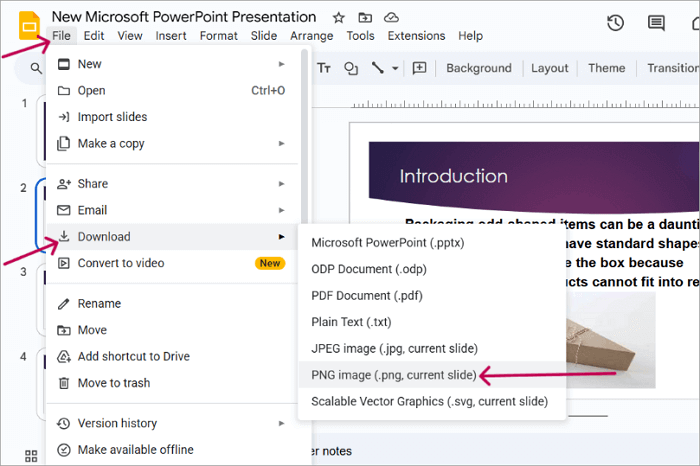
Step 3. The image file saves automatically to the Downloads folder.
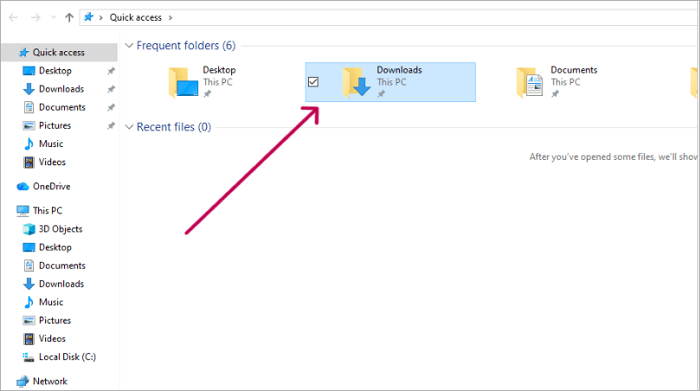
Step 4. Open the downloaded file with any photo editor or viewer, and crop it out.
Step 5. Save the new cropped image.
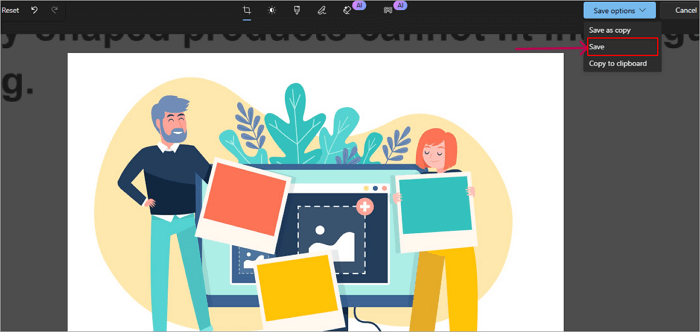
NOTE: The quality may be reduced because of cropping, especially if the image is very small. If you will be reusing it on another Google Slides presentation, learn how to make a circle image in Google Slides to give it high quality and make the presentation look modern.
2. Save Image from Google Slides Using Google Keep
Google Keep is the official note-taking app for Google. Not a lot of people know it can be used to save images from Google Slides. It’s basically a bridge that helps you save images without affecting the whole slide. No cropping required, and the quality is naturally high.
And this method is most reliable when the image is selectable (not part of a complex group or background).
Follow these steps:
Step 1. Open your Google Slides presentation and go to the particular slide that has the image.
Step 2. Right-click the image and select Save to Keep.
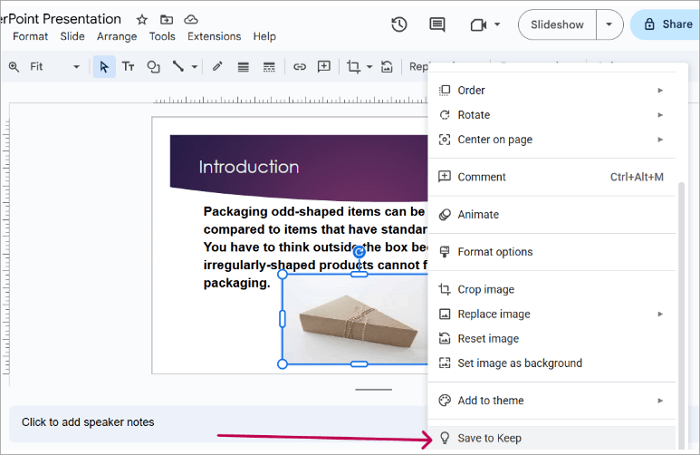
Step 3. The Google Keep tab opens on the right side with the image. Right-click the image and select Save image as…
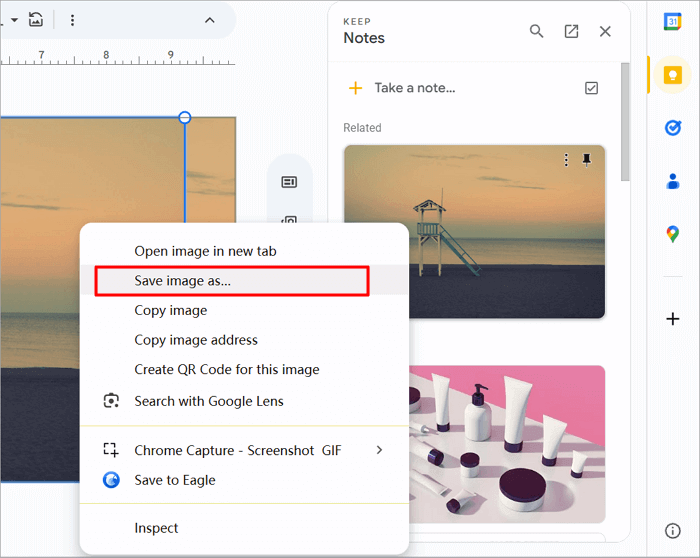
Step 4. Choose the location you want to save the image.
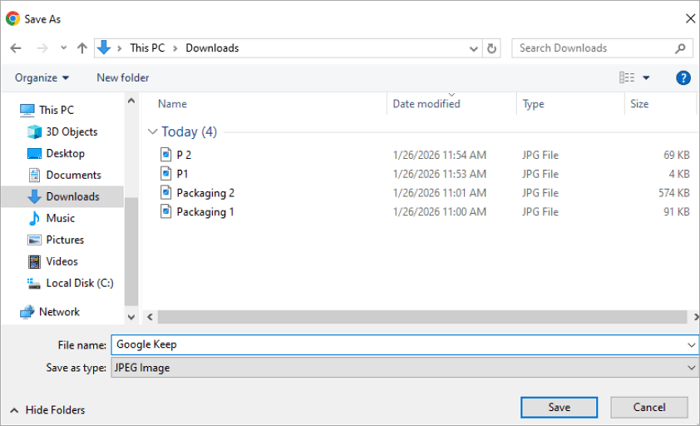
3. Download Images from Google Slides by Saving as PowerPoint
If you want high-resolution images or need to extract multiple files at once, saving your presentation as a Microsoft PowerPoint (.pptx) file is a practical solution. This approach is also one of the quickest ways to download images from Google Slides, especially when the presentation contains many visuals.
Follow these steps:
Step 1. Open the Google Slides presentation, go to File, and then click Download. Choose Microsoft PowerPoint (.pptx) from the options.
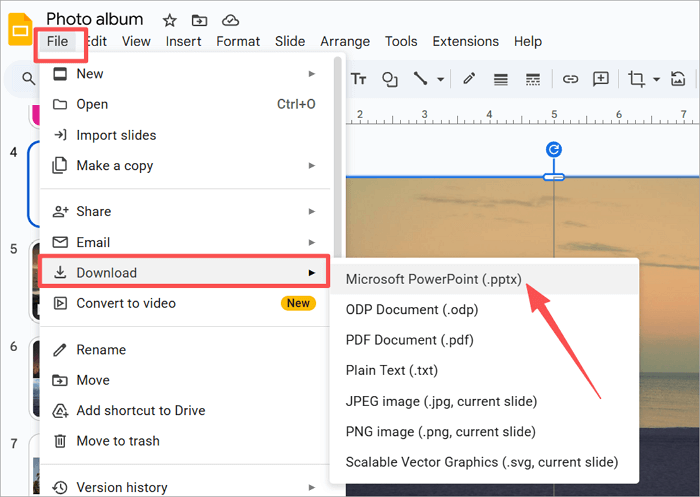
Step 2. It will automatically be downloaded to your device (check the Downloads folder).
Step 3. Open the .pptx file in Microsoft PowerPoint. Right-click the image you want to download and click Save as Picture.
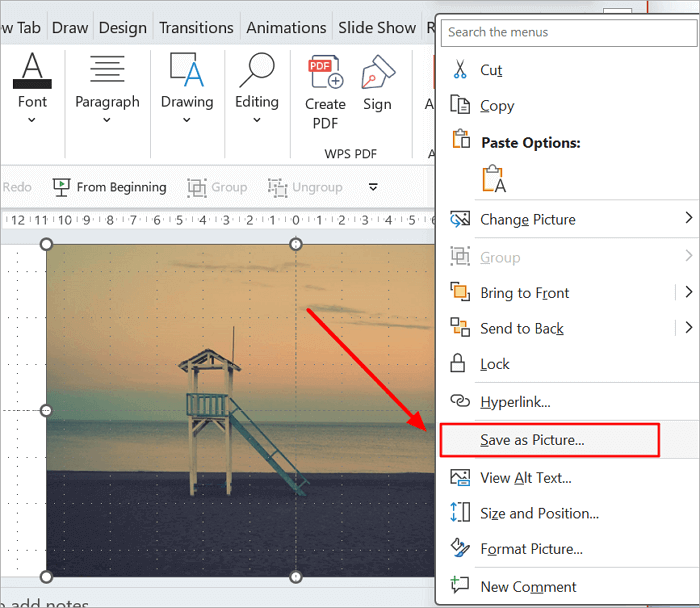
Step 4. Repeat for other images. You can save all of them to a folder for easier access.
If you later want to change the PPTX file to Google Slides, you can easily do that by following our guide on how to transfer PowerPoint to Google Slides.
4. Extract the Original Image Using Google Docs
Google Docs offers an easy way to get original-quality images from Slides. By copying images from Slides into Docs, you can extract uncompressed versions and use them like the original files.
Here are the steps involved to download an image from Google Slides using Google Docs:
Step 1. Go to the presentation and select the image you want to download. Right-click it and choose Copy or simply press Ctrl + C.
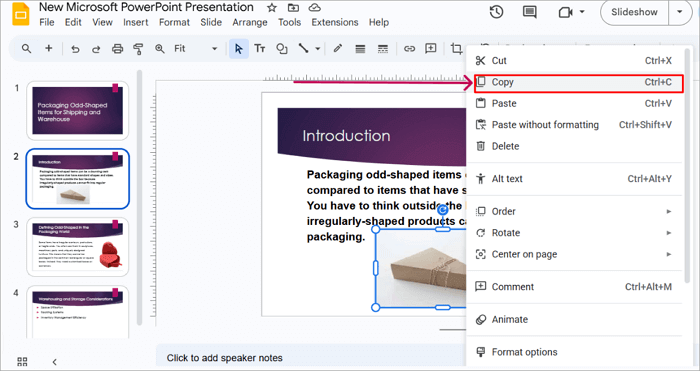
Step 2. Open a new or existing Google Docs document. Right-click where you want to save the image and select Paste, or simply press Ctrl + V.
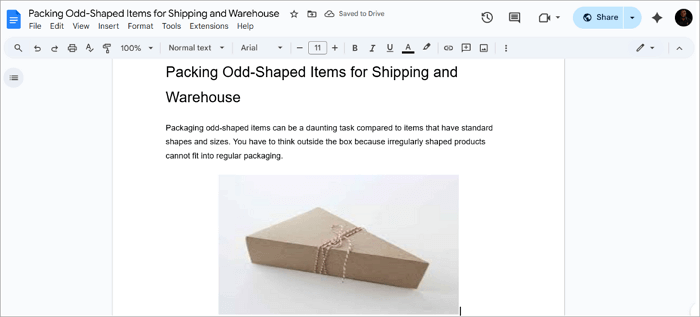
Step 3. Do the same for other images.
Step 4. Go to the File menu, hover around Download, and choose Web page (.html, zipped). This creates a ZIP file containing all the images as separate files.
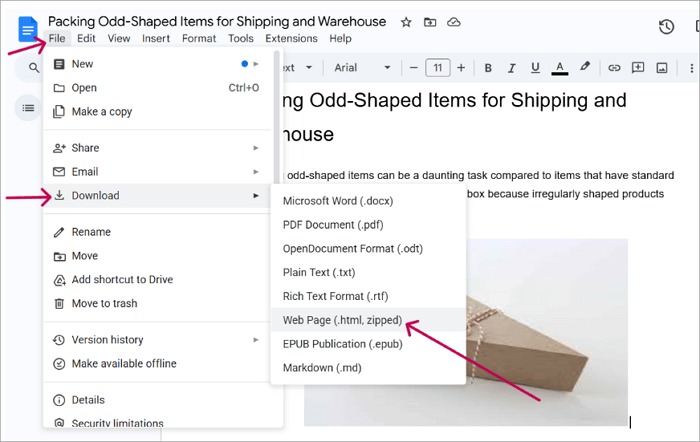
Step 5. Locate the ZIP file on your computer (most likely in the Downloads folder) and extract the images.
5. Take a Screenshot to Save an Image from Google Slides
When other methods aren’t working, the last resort is to take a screenshot of the image. The only problem is that the images are not always of perfect quality, particularly if you still have to edit them. But if you zoom in first, the pictures often look good enough for sharing online or using in a document.
Follow this tutorial on saving images from Google Slides by taking a screenshot:
Step 1. Open the presentation and navigate to the particular slide containing the image you want to save.
Step 2. Press the PrtScr key on your keyboard to launch the Snipping tool. Mark the specific area you want to save.
Step 3. The screenshot saves automatically, usually in the Pictures or Screenshots folder.
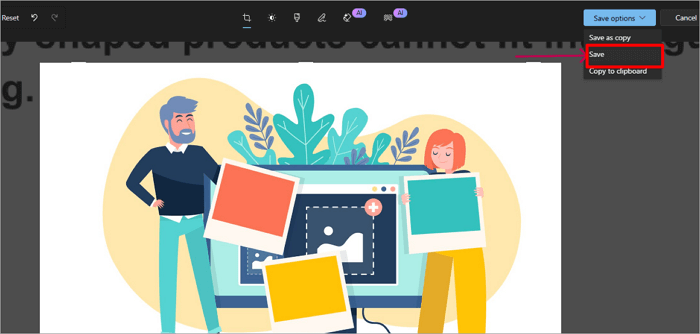
Step 4. Open the screenshot, crop away anything you don’t want from the image, and save it.
Conclusion
All five methods give you solid ways to download an image from Google Slides, each with its own strengths. Downloading the slide provides a quick, built-in option but requires cropping to isolate the image. For speed and simplicity in single images, try Google Keep or screenshots. Saving as PowerPoint works best for saving multiple images. Google Docs gives you the highest quality, but it can be time-consuming.
FAQs on Saving Images from Google Slides
Here are answers to some frequently asked questions about saving images from Google Slides. Each answer includes clear, beginner-friendly steps.
1. How to download an image from Google Slides on Mac?
On a Mac, the most reliable way to download an image from Google Slides is to use the “Save to Keep” feature.
Here are the steps to save the Google Slides images on Mac:
- Open your presentation in Google Slides and go to the slide with the image.
- Right-click the image and select Save to Keep. This adds it to Google Keep in a sidebar.
- In the Keep sidebar, right-click the image again and choose Save image as… and select where you want to store it.
2. How to download an image from Google Slides on a Chromebook?
Chromebooks use the Chrome operating system, so there are built-in features that support downloading an image from Google Slides.
Follow the steps to save pictures from Google Slides on a Chromebook:
- Open Google Slides in Chrome and navigate to the slide that contains the image.
- Hold Shift and right-click the image. Select Save image as…
- Choose the location to store the image. The default location is the Downloads folder but you can change it.
3. Can you save an image from Google Slides while keeping high resolution?
Yes, you can. And the best image formats to use in a Google Slides presentation are PNG and JPEG. They are most recommended for better quality and transparency.
Follow the guidance to download high-quality pictures step by step:
- Open Google Slides and go to the particular slide where the image is.
- Click on File and select Page setup.
- Change the Custom inches to larger values (e.g., 3840×2160 for 4K). Then, click Apply.
- Right-click the image and select Save to Keep.
- In the Keep sidebar, right-click the image again and tap Save image as… and select where to store it.