For business, school & reports

Table of Contents Slide Templates for a Clearer Presentation

Create a polished table of contents slide in minutes. Start with an organized presentation structure, then customize section names, sequence numbers, hierarchy, colors, and visual markers for your audience.Create a clear contents slide in minutes. Customize section names, numbers, hierarchy, and colors with AI.
Browse Templates
PowerPoint contentsGoogle Slides layoutsDeck navigation
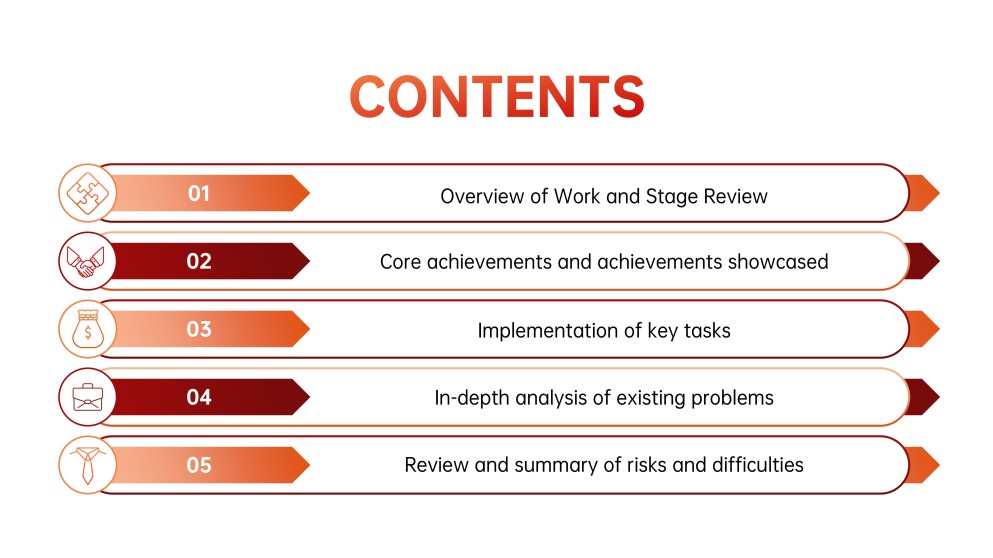
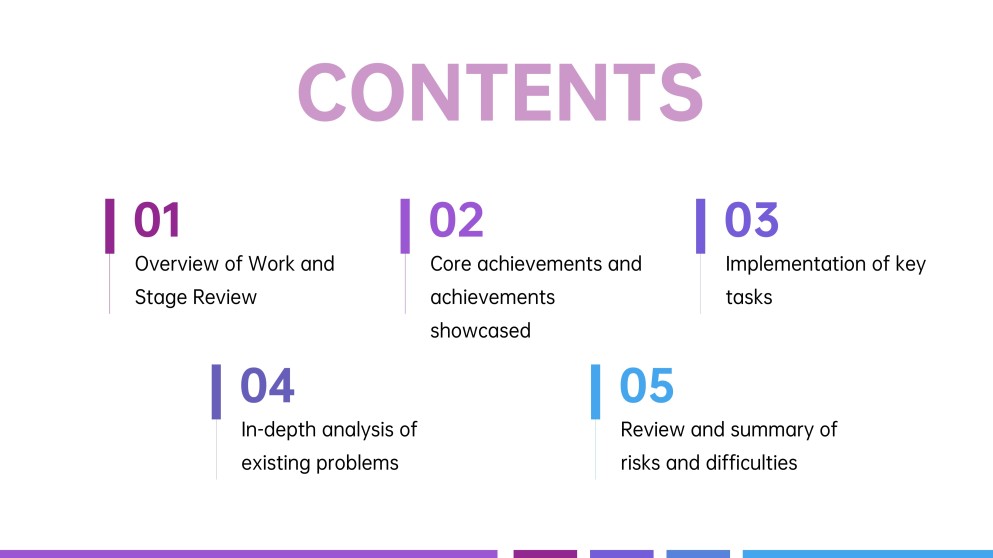
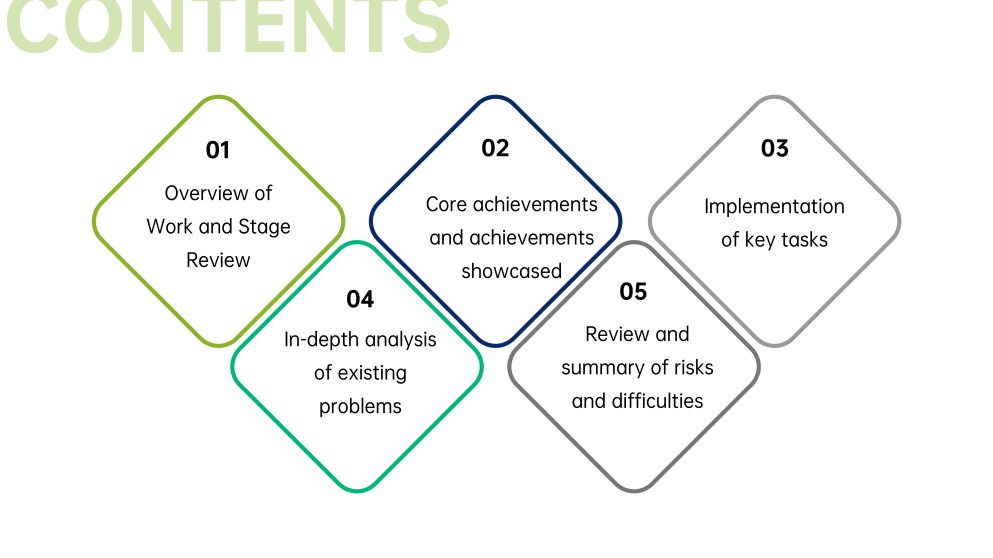
5-Item Table of Contents
Clear section flow
AI-assisted section copy
Editable contents templates
Export to PowerPoint

Related table of contents slide resources

How to create a table of contents slide

  1. List the major sections your audience needs to follow.
  2. Shorten each section title to a clear, parallel phrase.
  3. Generate a matching deck structure or select a contents template.
  4. Add numbers, hierarchy, icons, and colors that match your theme.
  5. Verify the order against your slides, then review and export.

Example sections in your table of contents slide

  • Introduction and presentation objective
  • Background or current situation
  • Main analysis or key findings
  • Recommendations and action plan
  • Summary and next steps

Choose your table of contents slide format

Five-Section Business Review Table of Contents

Applicable to:

Quarterly reviewsStrategy meetingsProject updates

Generate a balanced five-part contents slide for reviews covering progress, findings, risks, and next steps.

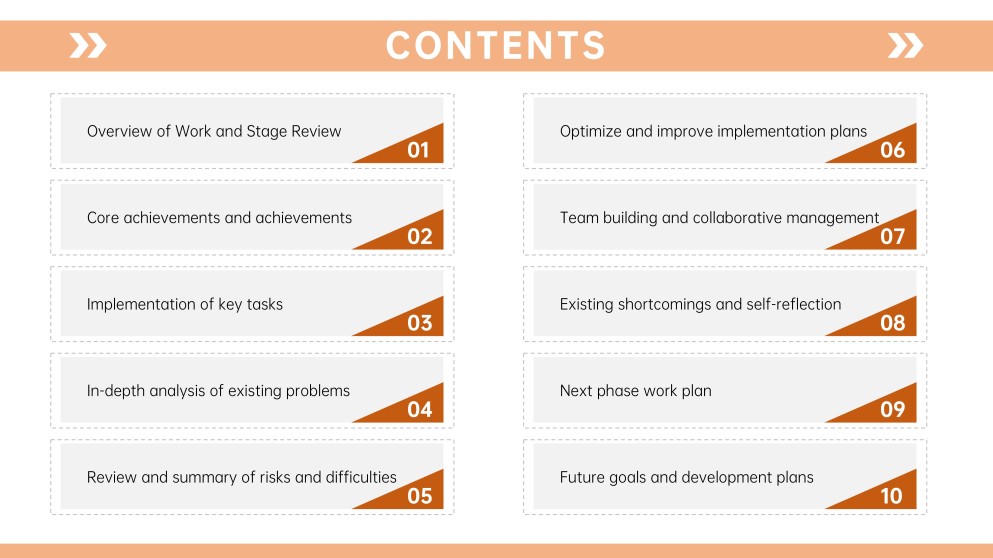
Ten-Chapter Report Table of Contents

Applicable to:

Research reportsAnnual plansTraining decks

Create a compact two-column index for longer presentations that need up to ten clearly labeled chapters.

Four-Part Student Presentation Contents Slide

Applicable to:

Class projectsBook reportsScience talks

Build a simple visual contents page that helps student audiences understand the presentation flow immediately.

Clickable Google Slides Section Menu

Applicable to:

Interactive lessonsSelf-paced decksResource hubs

Plan a concise section menu with distinct labels that can be linked during Google Slides editing.

Example table of contents slide

What makes a table of contents slide effective

  • Section labels mirror the wording and order used throughout the deck.
  • The hierarchy distinguishes chapters from supporting topics at a glance.
  • Numbers, icons, and colors reinforce navigation without competing with labels.
  • The amount of content fits the layout and remains readable when presented.

Common mistakes

  • Using long sentences that make the contents slide difficult to scan.
  • Listing every slide instead of grouping material into meaningful sections.
  • Changing the deck order without updating the contents page.
  • Adding vague headings such as “More” or “Other” that provide no direction.

Frequently Asked Questions

A table of contents slide previews the main sections of a presentation in their intended order. It helps audiences understand the scope and follow the speaker's progression.
Include short section titles, a logical sequence, and optional chapter numbers or icons. Keep the wording consistent with the section divider slides that appear later in the deck.
Four to seven sections work well for many presentations, but longer reports may need eight to ten. If the list becomes dense, group related slides into broader chapters or use two columns.
Place it after the title slide and any brief opening context. This gives viewers an early map of the presentation before the main sections begin.
Create a new slide, add the section names in presentation order, and format them with a consistent hierarchy. PowerPoint contents are commonly maintained manually, so verify the labels and order after reorganizing the deck.
Yes. Use the same clear section structure, then add links to destination slides in Google Slides if you want interactive navigation.
AI Presentation Maker

Generate your table of contents slide now

Turn your topic into a structured presentation with a clear, editable contents slide using AI.