For pitches, classes & meetings

Closing Slide Examples & Templates for a Memorable Finish

Create a polished closing slide in minutes. Start from a proven presentation ending layout, then customize your key takeaway, call to action, contact details, Q&A prompt, and thank-you message.Create a strong presentation ending in minutes. Customize your takeaway, next step, contact details, and Q&A prompt.

Browse Templates
Business presentationsQ&A endingsThank-you slides
Thank You Slide Design for PowerPoint
Purposeful closing flow
AI-assisted closing copy
Editable ending templates
Export to PowerPoint

Related closing slide resources

How to create a closing slide

  1. Define the final thought or action your audience should remember.
  2. Choose a takeaway, Q&A, contact, decision, or thank-you layout.
  3. Generate the presentation ending with AI or select a template.
  4. Replace placeholders with one message, next step, and essential details.
  5. Rehearse the transition, check readability, and export the completed deck.

Example sections in your closing slide

  • One-sentence key takeaway
  • Clear audience call to action
  • Specific next step or decision
  • Q&A prompt and contact details
  • Brief thank-you or closing line

Choose your closing slide format

Business Decision Closing Slide

Applicable to:

Board meetingsBudget reviewsStrategy proposals

End with the recommended decision, supporting rationale, owner, and immediate next step.

Sales Presentation Call-to-Action Ending

Applicable to:

Client pitchesProduct demosPartnership proposals

Close a sales deck with the promised value, a clear ask, and follow-up details.

Academic Presentation Q&A Closing Slide

Applicable to:

Thesis defensesResearch seminarsClassroom talks

Invite questions while keeping the central finding, presenter name, and contact information visible.

Thank You Closing Slide with Contact Details

Applicable to:

Conference talksTeam updatesCommunity events

Pair a concise thank-you message with a useful contact path and memorable final thought.

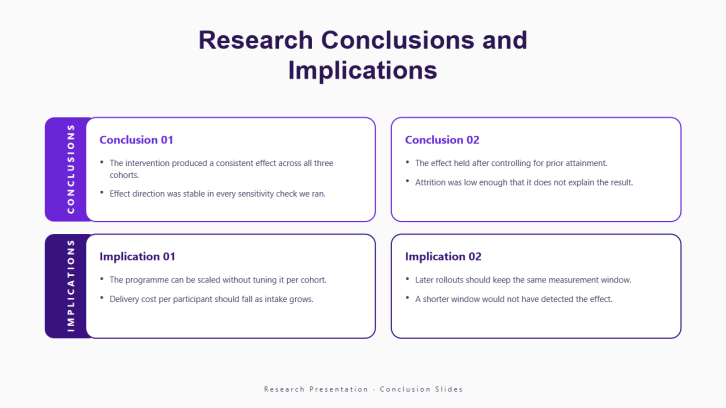
Example closing slide presentation

What makes a closing slide effective

  • Reinforces one takeaway the audience can repeat afterward.
  • Matches the ending format to the desired audience response.
  • Makes the decision, next step, or discussion prompt unmistakable.
  • Uses large type and minimal content while it remains onscreen.

Common mistakes

  • Ending with a generic thank-you and no useful takeaway.
  • Introducing a new argument after the conclusion is established.
  • Listing several competing calls to action or contact methods.
  • Leaving dense summary text visible throughout the Q&A.

Frequently Asked Questions

A closing slide is the final visual shown at the end of a presentation. It reinforces the main message and can direct the audience toward a decision, next step, Q&A, or contact path.
Include one memorable takeaway and the single response you want from the audience. Depending on the presentation, add a decision request, next step, Q&A prompt, presenter name, or essential contact details.
A brief thank-you can be appropriate, but it works better when paired with useful information. Add the main takeaway, a clear action, a discussion prompt, or contact details so the last slide continues supporting your goal.
The best format depends on what should happen next. Use a decision slide for approvals, a call-to-action slide for pitches, a takeaway slide for informative talks, or a Q&A slide when discussion is central.
Restate the core message in one sentence, connect it to a concrete next step, and deliver a rehearsed final line. Keep the closing PowerPoint slide visually simple so it supports rather than competes with your words.
Yes. With AiPPT, you can generate a presentation from a prompt or content, choose a relevant template, and tailor the ending to your audience, takeaway, and intended action.
AI Presentation Maker

Generate your closing slide now

Turn your final takeaway, next step, and audience prompt into a polished presentation ending with AI.